
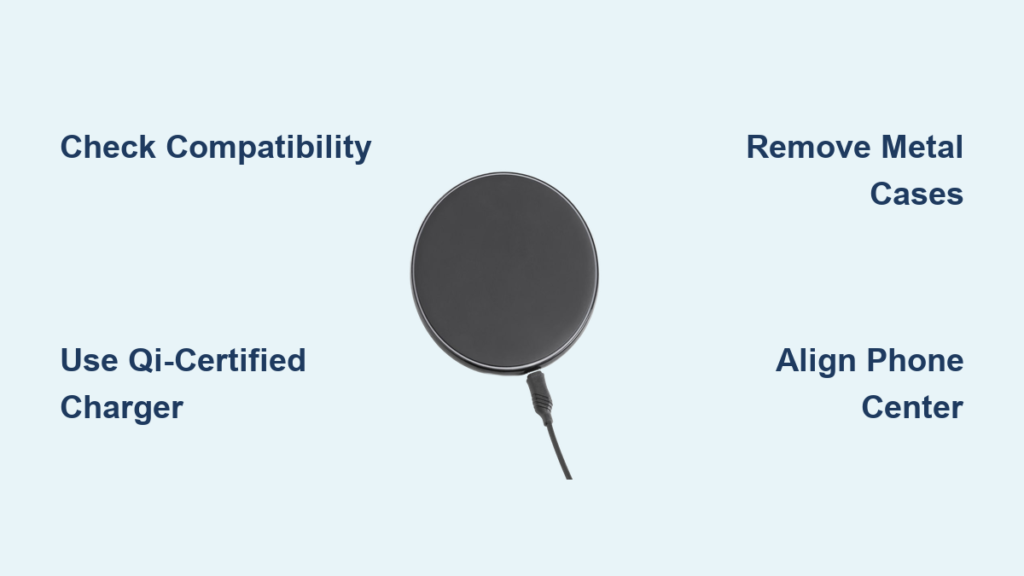
Wireless charging has transformed the way we power our smartphones and wearables, offering a sleek, cable-free alternative to traditional plug-in methods. If you’ve ever wondered how to use a wireless charger effectively, you’re not alone. The process is simple: place your phone on a charging pad, and it starts charging automatically. This guide walks you through everything you need to know about using a wireless charger, from checking compatibility to troubleshooting issues and maximizing performance.
Check Device Compatibility First
Before using any wireless charger, confirm your device supports the technology. Not all phones and accessories can charge wirelessly, so this first step is crucial.
Does Your Phone Support Wireless Charging?
Most flagship smartphones from 2017 onward include built-in wireless charging. Here is a quick reference:
• iPhone: iPhone 8 and newer (including all iPhone SE models from Gen 2 onward)
• Samsung Galaxy: S6 and later, Note 5 and newer, Z Fold/Flip series
• Google Pixel: Pixel 3 and newer (Pixel 6+ supports up to 23W)
• OnePlus: 6T and newer
• Motorola: Edge series and select Moto G models
Look for the Qi logo on your phone’s packaging or settings menu. You can also check under Settings > Battery on Android or consult Apple’s support site for iPhone models.
What If Your Phone Does Not Support It?
If your phone lacks native wireless charging, you still have options:
• Use a wireless charging case (available for older iPhones and some Android models)
• Install a thin wireless charging adapter inside compatible cases
Warning: Aftermarket adapters may reduce efficiency and generate more heat. Only use reputable brands.
Choose the Right Wireless Charger

Not all wireless chargers are created equal. Picking the right one ensures faster charging, better safety, and long-term reliability.
Types of Wireless Chargers
| Type | Best For | Notes |
|---|---|---|
| Flat Pads | Nightstands, desks | Compact, low-profile |
| Stands | Bedside, video calls | Allows viewing while charging |
| 3-in-1 Stations | Multiple devices | Ideal for overnight charging |
| Portable Chargers | Travel, on-the-go | Battery-powered, lightweight |
| Car Mounts | Driving | Magnetic vent/dash mounts with charging |
Key Features to Look For
• Qi Certification: Ensures safety and compatibility
• Fast Charging Support: 10W, 15W, or higher (such as MagSafe)
• Overheat Protection: Prevents damage during extended use
• Multi-Coil Design: Tolerates slight misalignment
• Brand Trust: Anker, Belkin, Apple, Samsung, OtterBox
Pro Tip: For iPhone 12 and newer, choose a MagSafe-compatible charger to unlock 15W charging and magnetic alignment.
Set Up Your Wireless Charger Correctly
A proper setup prevents charging failures and extends device lifespan. Follow these steps to get started.
Step-by-Step Setup
-
Use a High-Quality Power Source: Plug the USB cable into a wall adapter (18W or higher), not a computer USB port. For fast charging, use a USB-C PD adapter (20W or higher).
-
Place on a Clean, Level Surface: Avoid metal surfaces, thick rugs, or uneven tables. Keep away from water, direct sunlight, or heat sources.
-
Connect the Charger: Use the included or certified USB-C to USB-C cable. Ensure the connection is secure at both ends.
-
Wait for Indicator Light: Most pads show a solid blue or green light when powered. Blinking red indicates error (foreign object or misalignment).
Note: Some chargers require firmware updates via manufacturer apps. Check the included instructions.
Start Charging Your Device
Now that your charger is ready, it is time to power up. The process takes just a few seconds once set up correctly.
How to Begin Charging
-
Remove Thick or Metal Cases: Cases over 3mm thick or with metal plates block charging. Remove credit cards, RFID tags, or magnetic mounts from the back of your phone.
-
Center Your Phone on the Pad: Align the center of your phone with the charger coil (often marked). For foldable phones (such as Galaxy Z Fold), close the device first.
-
Wait for Confirmation: iPhone shows a charging icon in the status bar. Android displays a battery animation or notification. The charger LED turns solid.
Time to Know: A flat iPhone charges to 50% in about 1.5 hours on MagSafe. Standard Qi takes longer, around 2.5 hours.
Enable Fast Wireless Charging

Want to charge faster? Standard 5W wireless charging is slow. Upgrade to fast charging if your device supports it.
Requirements for Fast Charging
• Fast-capable device (iPhone 12+, Galaxy S21+, Pixel 6+)
• Fast wireless charger (15W or higher, Qi2 or MagSafe-certified)
• High-output wall adapter (18W+ USB Power Delivery)
How to Activate Fast Charging
For iPhone (MagSafe): Use an MFi-certified 15W MagSafe charger. Plug into 20W+ USB-C PD adapter. The phone displays “Charging Quickly” in notification.
For Samsung Galaxy: Enable Fast Wireless Charging in Settings > Battery > Wireless Charging. Use a Samsung-approved 15W pad. Charging speed drops if the phone overheats.
For Google Pixel: Pixel 6 and later support up to 23W wireless charging. Requires original or certified high-speed charger.
Caution: Fast charging generates more heat. Avoid using your phone intensively while charging.
Use MagSafe Charging (iPhone Users)
Apple’s MagSafe system enhances wireless charging with magnets for perfect alignment and faster speeds.
Why MagSafe Is Better
• Stronger magnets snap your phone into place
• Supports 15W charging (double standard Qi)
• Enables secure attachment of wallets, stands, and car mounts
How to Use MagSafe
- Place your iPhone 12 or newer on the MagSafe charger.
- It snaps into alignment automatically.
- Charging begins instantly. Look for the charging icon.
Tip: Use only MFi-certified MagSafe accessories to avoid overheating or slow charging.
Can Android Phones Use MagSafe?
Yes, but with limits:
• Charges via Qi standard (no magnetic snap unless the phone has built-in magnets)
• Max speed: 7.5W to 10W (not 15W)
• Some Samsung models with magnetic cases work better than others
Share Power with Wireless PowerShare (Samsung)

High-end Samsung phones can charge other devices like earbuds or watches by placing them on the back of the phone.
Supported Phones
• Galaxy S24, S25, S26 series (all variants)
• Galaxy S25 FE
How to Use Wireless PowerShare
- Open Quick Settings (swipe down from top-right).
- Tap the Wireless PowerShare icon (enable it if missing).
- Place the receiving device (Galaxy Buds, Watch) back-to-back with the phone.
- Charging starts automatically.
Limitations: Requires at least 30% battery on the sharing phone. Turns off after 60 seconds if no device is detected. Not available on Galaxy A series or tablets.
Troubleshoot Common Issues
Even the best setups fail sometimes. Here is how to fix common problems quickly.
Phone Will Not Charge
Possible causes and fixes:
• Thick or metal case: Remove it
• Misaligned phone: Reposition in center
• Dirty surface: Clean both phone and pad
• Incompatible charger: Use Qi-certified model
Charging Stops Randomly
• Vibration alert shifts the phone. Turn on Do Not Disturb.
• Overheating triggers auto-shutdown. Let the phone cool down.
• Loose cable connection. Check USB port and wall plug.
Slow Charging Speed
• Using a 5W charger? Upgrade to 15W+ fast charger.
• Plugged into computer USB port? Switch to wall adapter.
• Using low-quality cable? Replace with USB-C PD certified cable.
MagSafe Not Snapping (iPhone)
• Using a non-MagSafe case? Switch to a compatible one.
• Third-party charger? Try an MFi-certified model.
• Weak magnet? Clean metal debris from the back of the phone.
Maintain Battery Health Safely
Wireless charging is safe, but smart habits protect your battery long-term.
Is Overnight Charging Safe?
Yes. Modern devices stop charging at 100% and use trickle charging to maintain battery level.
Still, consider:
• Optimized Battery Charging (iOS): Learns your routine and delays full charge until needed
• Adaptive Charging (Samsung): Slows charging overnight to reduce wear
Prevent Overheating
• Do not cover the phone or charger with blankets
• Avoid gaming or video calls while fast-charging
• Use chargers with overvoltage and short-circuit protection
Use Certified Equipment
Always choose:
• Qi-certified chargers
• MFi-certified for MagSafe
• Reputable brands (Anker, Belkin, Apple, Samsung)
Avoid cheap no-name chargers. They can damage your phone or pose fire risks.
Final Tips for Best Results
Using a wireless charger is easy, but mastering it makes all the difference.
Quick Checklist for Success
• Confirm your device supports wireless charging
• Use a Qi-certified or MagSafe-compatible charger
• Remove thick or metal cases
• Center the phone on the pad
• Use a high-output wall adapter (18W+) for fast charging
• Keep surfaces clean and cool
• Enable optimized charging for battery health
Bottom Line: If your phone supports wireless charging, investing in a quality pad simplifies your daily routine. With the right setup, you will enjoy fast, safe, and cable-free power night after night.
Frequently Asked Questions About Wireless Chargers
Does wireless charging work through phone cases?
Most thin plastic cases (under 3mm) allow wireless charging to work. However, thick cases, metal-backed cases, or cases with magnetic components can block charging. Remove credit cards and RFID tags from cases before charging.
Is wireless charging bad for battery health?
No, wireless charging is safe for battery health when using certified chargers. Modern devices have built-in protections against overcharging and overheating. Using Qi-certified or MFi-certified equipment ensures safe charging.
Why is my wireless charger not fast charging?
Fast wireless charging requires three things: a fast-capable device, a fast wireless charger (15W or higher), and a high-output wall adapter (18W+). Check that all three components meet these requirements. Using a computer USB port instead of a wall adapter also limits speed.
Can I use wireless charging while driving?
Yes, you can use wireless car mounts while driving. Choose a magnetic vent or dash mount with wireless charging capability. Use a 20W USB-C PD car adapter for full charging speed. Ensure the mount is securely attached for safe driving.
What does the blinking light mean on my wireless charger?
A blinking red light typically indicates misalignment or a foreign object detected between the phone and charger. A solid red light means charging has stopped. Check your phone positioning, remove any objects, and ensure the case is compatible.
Can I charge multiple devices at once on one wireless charger?
Yes, 3-in-1 charging stations can charge a phone, earbuds, and smartwatch simultaneously. Some dual-coil pads can charge two phones at once. Check the charger specifications to confirm multi-device capability.
Key Takeaways for Using Wireless Chargers
Wireless charging offers a convenient, cable-free way to power your devices. To get the best experience, start by confirming your device supports Qi wireless charging. Choose a certified charger that matches your device capabilities, whether MagSafe for iPhone or 15W fast charging for Samsung and Android devices.
Proper setup matters. Use a high-output wall adapter, keep charging surfaces clean, and remove thick or metal cases that block the electromagnetic field. For fastest results, enable fast wireless charging in your device settings and use MagSafe accessories on compatible iPhones.
Maintain battery health by avoiding overheating, using certified equipment, and enabling optimized charging features. With the right knowledge and quality equipment, wireless charging simplifies your daily routine while keeping your devices powered safely.



