
You’re rushing out the door, your phone battery is hanging at 15%, and you need every possible percent before you leave. We’ve all been there. The frustrating truth is that your phone could charge much faster right now without you needing to buy anything new. The secret lies not in some magical technique, but in understanding how charging actually works and optimizing every factor that affects speed.
The phrase how to make phone charger faster often leads people to blame the charger alone, but speed actually depends on three core elements: your charging setup, your phone’s power state, and environmental conditions. A weak link in any one area slows everything down. This guide walks you through exactly what to do to cut charging time in half or more using proven, safe methods backed by technical data.
Use Wall Charger Instead of Computer or Car USB Ports
Plugging into a computer or car USB port might be convenient, but it’s not fast. Most standard USB ports deliver only 5W, which is far less than what fast charging requires. Wall outlets, on the other hand, support higher-wattage chargers that can push 18W, 30W, or even 65W, dramatically reducing charge time.
Why Wall Outlets Deliver More Power
Wall adapters can supply up to 100W with USB Power Delivery, giving you far more power than any computer or car port. Unlike laptop USB ports, wall chargers provide consistent current without voltage drops, which is essential for activating fast-charging protocols like USB PD or Quick Charge. Even if your laptop supports USB-C charging, its port may limit output when the laptop is asleep or off.
• Higher power output than any USB port
• Stable current without voltage drops
• Reliably activates fast charging protocols
Enable Airplane Mode to Speed Up Charging
One of the fastest ways to boost charging speed is turning off what drains power in the background. Airplane Mode disables cellular service, Wi-Fi, Bluetooth, and GPS, cutting power consumption by up to 50%. That means more of the incoming charge goes straight to your battery instead of running background processes.
How Much Time You’ll Save
CNET testing shows charging with Airplane Mode saves 4 to 11 minutes. Other tests show up to 25% faster charging, especially on older devices. Combine this with keeping your screen off for near-full charging efficiency. If you need to stay reachable, turn off Wi-Fi and Bluetooth manually instead of fully enabling Airplane Mode.
Power Off Your Phone for Maximum Speed
Want the absolute fastest charge? Turn your phone off completely. When powered down, zero energy is used for apps, the screen, or connectivity. All incoming power goes directly to the battery with no competition.
What Happens When Your Phone Is Off
When your phone is off, there are no background processes eating up power. The screen consumes zero energy. There’s no signal searching or data syncing happening. This makes charging 30% to 50% faster than when your phone is on. Some iPhones may auto-power on when plugged in, so check your Accessibility settings to disable that feature if needed.
Avoid Using Your Phone While Charging
Using your phone while it’s charging, especially for games, video streaming, or navigation, can slow or even reverse the charging process. High screen brightness and CPU usage consume power faster than many chargers can replenish it.
Real-World Impact
Playing a graphics-heavy game while charging may result in no net gain in battery percentage. Streaming video at full brightness can reduce charging speed by 15 to 20 minutes in just 30 minutes. If you must use your phone while charging, keep it brief, lower brightness, and close heavy apps.
Use Fast-Charging Certified Accessories
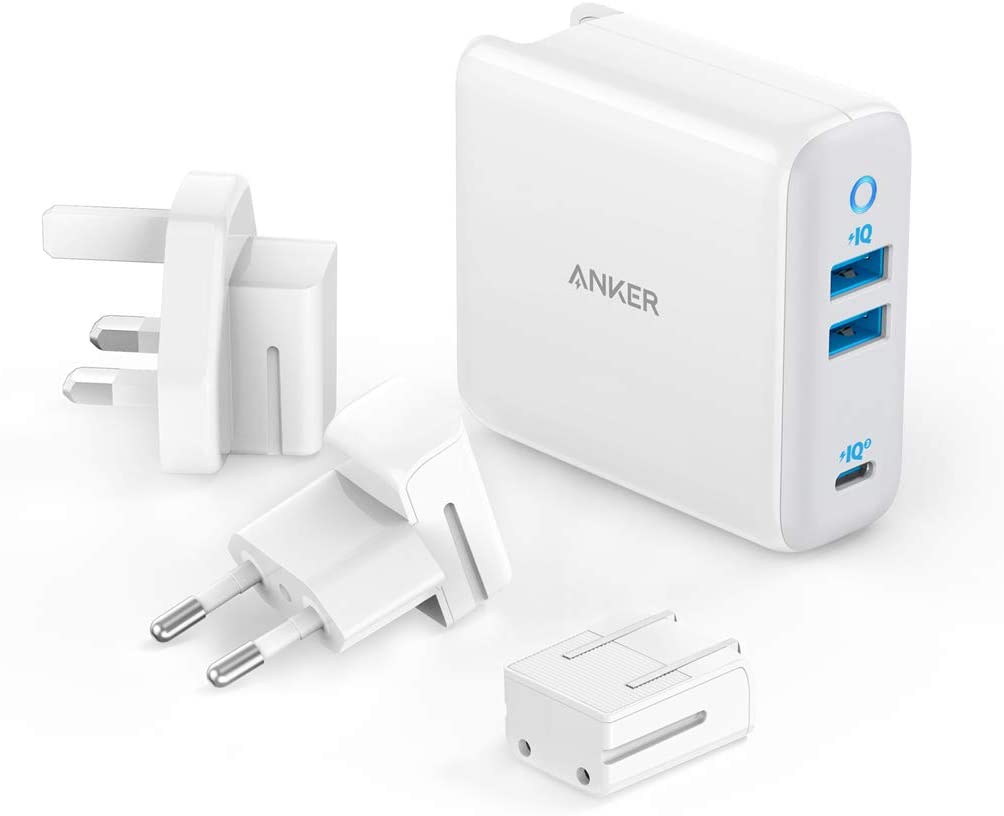
Fast charging isn’t just about your phone. It requires three compatible parts: the device, the charger, and the cable. If any one component fails to match, you’ll be stuck with slow 5W charging regardless of how good your other equipment is.
Choose the Right Charger
Look for chargers with at least 18W output and certification logos like USB PD, Quick Charge, or PPS. Anker, Belkin, Samsung, and Apple make reliable fast chargers that meet these standards. Check your phone’s specifications to confirm which fast-charging standard it supports.
• Minimum 18W output
• Look for USB PD, Quick Charge, or PPS logos
• Match charger to your phone’s supported standard
Don’t Skimp on the Charging Cable
A poor-quality cable can kill fast charging even with a great charger. Most cheap cables use thin 28-gauge wires that can’t carry enough current. You need 24-gauge or thicker wires for Android devices, and 5A-rated USB-C cables for full USB PD speeds. iPhone users should use MFI-certified Lightning cables to ensure compatibility and safety.
Match Charging Standards to Your Device

Fast charging only works when all components speak the same language. Using a Quick Charge charger on an iPhone won’t harm it, but it won’t fast charge unless it’s USB PD-compatible. Here’s how to match your setup:
| Device Type | Recommended Standard | Minimum Charger |
|---|---|---|
| iPhone 8 and later | USB Power Delivery | 20W+ USB-C PD |
| Samsung Galaxy S23+ | Adaptive Fast Charging | 25W USB-C |
| Google Pixel 6+ | USB PD with PPS | 21W USB-C PD |
| Older Android | Quick Charge 3.0/4.0 | QC 18W+ |
Charge Between 0% and 50% for Peak Speed
Lithium-ion batteries charge fastest in the 0% to 50% range. This is called constant current mode, where power flows in at full speed. After 50%, the phone intentionally slows charging to protect battery health.
What This Means for You
The fastest 30 minutes of charging happen when your battery is low. You can achieve 0% to 50% in about 30 minutes with USB PD or QC 4.0. Above 80%, charging slows dramatically, so unplug if you’re in a rush. The best strategy for a quick boost is to charge to 50% then unplug and go.
Keep Your Phone Cool While Charging
Heat is the enemy of fast charging. When your phone or battery overheats, the system automatically slows down charging to prevent damage. This is called thermal throttling, and it can significantly reduce your charging speed.
What Causes Overheating
Direct sunlight, charging under a pillow or blanket, using GPS or gaming while charging, and thick silicone or leather cases all trap heat. To stay cool, remove the case during fast charging, charge in a shaded well-ventilated area, and avoid using the phone while charging. Never put your phone in the fridge or freezer, as extreme cold can damage the battery and cause condensation.
Clean the Charging Port Regularly
Dust, lint, and pocket debris clog the charging port, blocking electrical contact. This leads to slow, intermittent, or failed charging, even with the best cable. Clean your port every 1 to 2 months, or immediately if charging suddenly slows.
How to Clean Safely
Use a soft-bristled toothbrush or plastic dental pick to gently brush out debris. Compressed air works well for deep cleaning. Avoid metal objects like needles or paper clips, as they can bend the pins inside the port or cause short circuits.
Enable Fast Charging in Settings
Some phones disable fast charging by default to extend battery life. You may need to turn it on manually in your settings.
Samsung Devices
Go to Settings, then Device Care, then Battery. Tap Advanced Settings and toggle on Fast Cable Charging. Note that fast charging only works when the screen is off on most Samsung devices.
Other Android Phones and iPhone
Search Battery in your settings and look for Fast Charging, Rapid Charging, or similar options. Enable the feature if available. iPhones with iOS 13 and later support fast charging automatically when using a 20W or higher USB-C PD charger, so no setting adjustment is needed.
Disable Battery Optimization Temporarily
Features like Optimized Charging on iOS or Smart Charging on Android learn your habits and delay full charging to reduce battery wear. While great for longevity, these features slow down charging when you need speed urgently.
What to Do in a Rush
On iPhone, go to Settings, then Battery, then Battery Health and Charging, and turn off Optimized Battery Charging. On Android, check Battery Settings and disable Adaptive Charging or similar features. Just remember to re-enable them later to protect long-term battery health.
Close Background Apps and Reduce Load
Apps running in the background, especially social media, email, or navigation apps, use CPU and data even when you’re not actively using them. This draws power during charging and slows everything down.
How to Minimize Drain
Check your battery usage settings to identify power-hungry apps. On iPhone, go to Settings, then Battery to see Battery Usage by App. On Android, check Settings, then Battery and Device Care. Swipe away unused apps before charging and turn off Background App Refresh to prevent apps from updating in the background.
Update OS and Apps Regularly
Outdated software can contain bugs that interfere with charging efficiency. Manufacturers often release updates that improve power delivery, fix fast-charging compatibility, and patch battery-draining issues.
Why Updates Matter
Updates enable support for new charging standards, fix thermal throttling bugs, and improve battery health algorithms. Check for updates monthly or enable automatic updates to ensure you’re always running the most efficient software version.
Test If Fast Charging Is Active
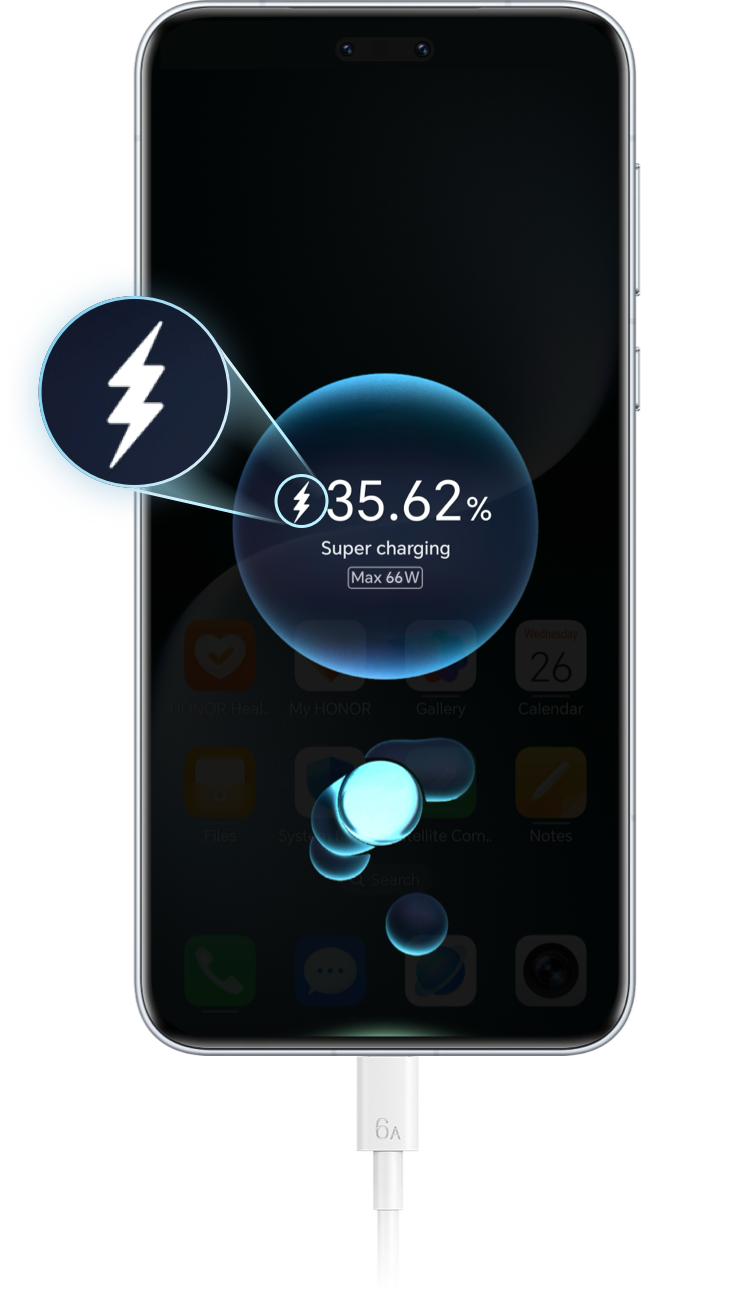
Just because you’re using a fast charger doesn’t mean it’s working. Here’s how to confirm your setup is delivering the speed you expect.
Visual Indicators
Samsung devices show a lightning bolt icon on screen when fast charging is active. Pixel and LG phones display “Fast charging” or “Charging rapidly” on the lock screen. iPhones don’t show a fast charging icon, but fast charging occurs automatically with a 20W+ USB-C PD charger.
Use Diagnostic Apps
Ampere for Android shows real-time current in milliamps. Look for values above 1500mA to confirm fast charging is working. Below 1000mA indicates something is wrong with your cable or charger. Battery Life for iOS displays charging status and health metrics.
Fix Common Slow-Charging Issues
Even with the right setup, problems can occur. Here’s how to troubleshoot the most common issues.
Slow Charging Despite Fast Charger
This usually means an incompatible or low-quality cable is limiting speed. Replace with a certified 5A USB-C or MFI Lightning cable.
Phone Not Fast Charging
Fast charging may be disabled in your settings. Enable it in Battery, then Advanced Settings on Samsung or similar on other Android devices.
Charging Stops and Starts
A dirty or damaged charging port is likely the culprit. Clean the port thoroughly or get it repaired if you see visible damage.
Phone Gets Hot While Charging
Using the phone while charging with poor ventilation causes overheating. Stop usage, remove the case, and charge in a cool area.
Sudden Slow Charging
Outdated OS, degraded battery, or a faulty cable can cause this. Update your software, test different accessories, and check battery health in your settings.
Use a Power Bank for On-the-Go Speed
When outlets aren’t available, a high-capacity power bank with USB-C PD can deliver fast charging anywhere. Look for 18W or higher USB-C PD output and at least 10,000mAh capacity. Fast input charging also helps you recharge the power bank quickly.
Try Wireless Fast Charging If Supported
Some phones support 15W Qi wireless charging, which is slower than wired but convenient. Use a certified wireless charger, remove thick cases, and place your phone on a cool flat surface to avoid overheating, which triggers throttling.
Invest in Quality Accessories
Fast charging is only as good as your gear. Cheap, uncertified chargers and cables may limit speed, overheat, damage your phone, or pose fire risks. Trusted brands include Anker, Belkin, Samsung, Apple, and Baseus. Look for USB-IF certification, MFI certification, or PPS support.
Final Thoughts on How to Make Phone Charger Faster
With the right combination of hardware, settings, and behavior, most modern smartphones can achieve 50% charge in under 30 minutes. The secret isn’t a miracle gadget. It’s using what you already have the right way. Start by using an 18W or higher wall charger with a certified cable, enable Airplane Mode or power off your phone, and keep it cool during charging.
Check your settings to ensure fast charging is enabled, close background apps, and clean your charging port regularly. Verify that fast charging is actually working using diagnostic apps or on-screen indicators. By following these steps consistently, you’ll maximize charging speed safely and reliably every time you plug in.
Frequently Asked Questions About How to Make Phone Charger Faster
Does turning off my phone charge it faster?
Yes, turning your phone completely off results in the fastest possible charging since 100% of incoming power goes directly to the battery with no background processes consuming energy. This can be 30% to 50% faster than charging while the phone is on.
What charger wattage is needed for fast charging?
A minimum of 18W is required for fast charging, though 20W to 45W is recommended for optimal speed on most modern devices. Make sure your charger supports your phone’s fast-charging standard, such as USB PD for iPhones or Quick Charge/Adaptive Fast Charging for Android devices.
Why is my phone charging slowly despite using a fast charger?
A low-quality or incompatible cable is likely the culprit. Even with a fast charger, a cheap 28-gauge cable can’t carry enough current. Replace it with a certified 24-gauge or 5A-rated cable. Also check that fast charging is enabled in your phone’s settings.
Does using my phone while charging slow it down?
Yes, using your phone while charging, especially for demanding tasks like gaming or video streaming, can slow or even reverse the charging process. High screen brightness and CPU usage consume power faster than many chargers can deliver.
How often should I clean my charging port?
Clean your charging port every 1 to 2 months, or immediately if you notice charging has suddenly slowed or become intermittent. Use a soft-bristled toothbrush or compressed air, and avoid metal objects that could damage the pins.





