Losing or forgetting your HP laptop charger doesn’t mean you’re powerless. Whether you’re stuck in a coffee shop, traveling, or facing a sudden charger failure, knowing how to charge an HP laptop without a charger can save your workday. This guide covers every tested method, from USB-C Power Delivery to power banks and car chargers.
But not all methods work for every HP model. Your ability to charge without the original adapter depends on your laptop’s USB-C support, port configuration, and power requirements. You’ll learn exactly what tools you need, which HP models support each method, and how to avoid damaging your device.
Check USB-C Power Delivery Support on Your HP Laptop
Before trying any alternative charging method, confirm whether your HP laptop supports USB-C charging via Power Delivery. This is the most common and reliable method, but not all HP models have it.
Look for These Signs
• Battery icon or PD symbol next to the USB-C port
• USB-C port labeled “charge” in the user manual
• Your model belongs to Spectre, Envy, Pavilion x360, EliteBook, or ZBook series
Pro Tip: Use HP Support Assistant or visit support.hp.com and enter your serial number to confirm charging specs.
HP Model Compatibility Table
| HP Model | USB-C Charging? | Required Wattage |
|---|---|---|
| HP Spectre x360 | Yes | 65W |
| HP Envy 13/14 | Yes | 65W |
| HP Pavilion x360 14-ek1025TU | Yes | 45W–65W |
| HP EliteBook 735 G5 | Yes | 45W+ |
| HP ProBook 4530s | No | N/A (barrel plug only) |
If your model doesn’t show these indicators, the USB-C port may only support data transfer or display output, not charging.
Use USB-C Power Delivery Charger
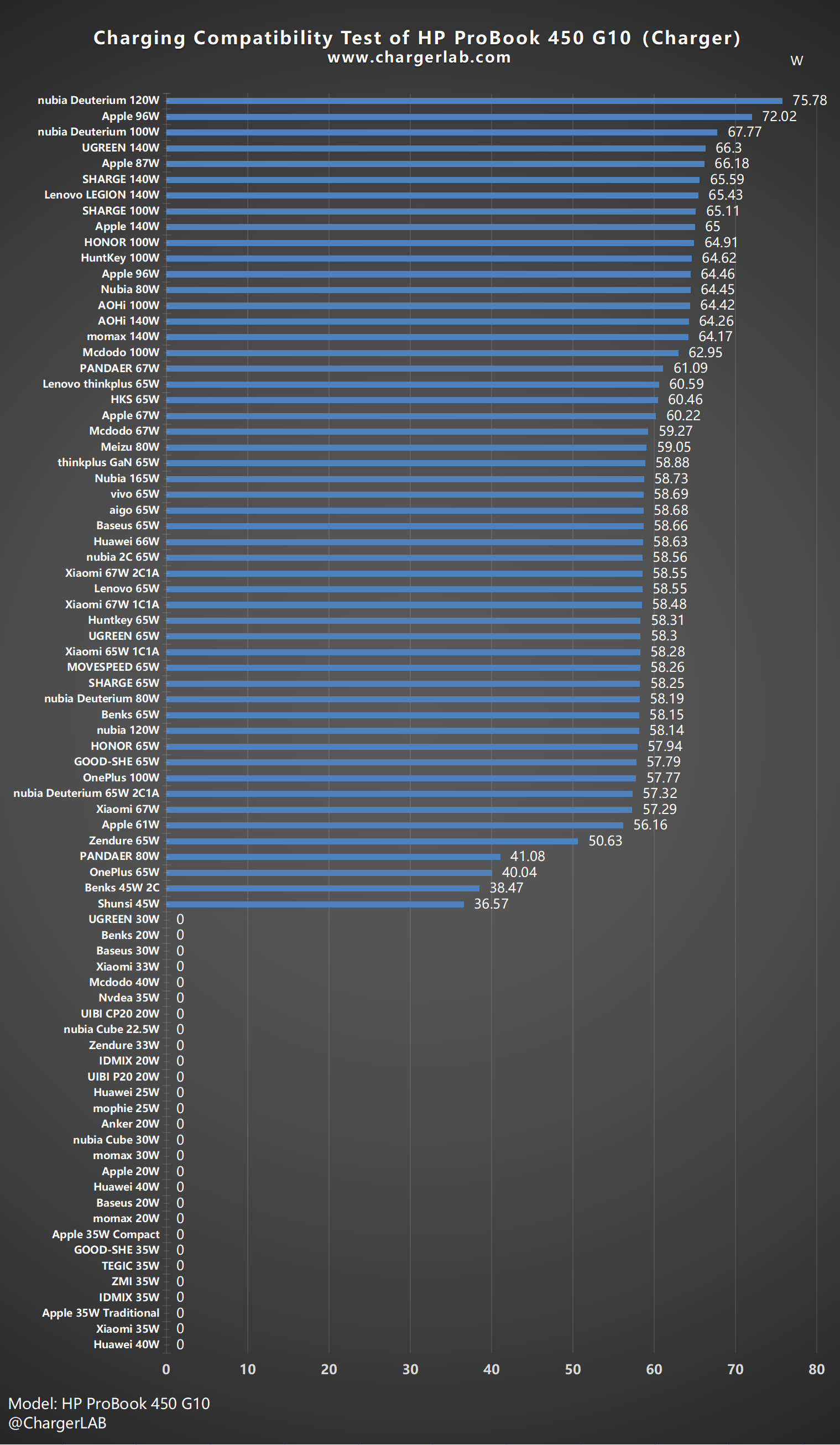
If your HP laptop supports USB-C PD, this is the fastest and safest way to charge without the original adapter.
What You Need
• USB-C to USB-C cable (PD-certified)
• USB-C wall charger (45W minimum, 65W recommended)
Steps to Charge
- Plug the USB-C PD charger into a wall outlet
- Connect the cable to your laptop’s USB-C PD port
- Wait 10–20 seconds—charging may not start instantly
- Check the battery icon in the system tray
Warning: Low-wattage chargers (e.g., 18W phone chargers) may charge slowly or not at all under load.
Why It Might Fail
• Using a data-only USB-C cable (not PD-rated)
• Plugging into a non-PD USB-C port
• Running heavy apps while charging (drains faster than it charges)
Charge With Power Bank (On-the-Go)
When outlets aren’t available, a high-wattage power bank can provide emergency power.
Requirements
• Power bank with USB-C PD output (45W+)
• Capacity of 20,000 mAh or higher
• USB-C to USB-C cable
Best Power Banks for HP Laptops

| Model | Output | Capacity |
|---|---|---|
| Anker PowerCore+ 26800 PD | 60W | 26,800 mAh |
| RAVPower PD Pioneer | 60W | 26,800 mAh |
| Jackery Explorer 300 Plus | 60W USB-C | 288Wh |
How to Use
- Fully charge the power bank
- Connect to your HP laptop using a USB-C PD cable
- Press the power bank’s power button (if required)
- Monitor charging status on your laptop
Reality Check: Most power banks deliver 1–2 partial charges, not full ones. A 65W laptop battery will drain a 26,800 mAh power bank significantly.
Use Universal Laptop Charger (For Barrel Plug Models)
If your HP laptop uses a round barrel charger (like older ProBook or Pavilion models), a universal adapter can replace the original.
What to Match
• Voltage: Usually 19V for HP laptops
• Amperage: At least 3.42A (for 65W models)
• Tip size: Common size is 4.5mm x 3.0mm
• Polarity: Center-positive (standard for HP)
Steps
- Set the universal charger to 19V
- Select the correct tip (4.5mm x 3.0mm)
- Plug into wall and connect to laptop
- Watch for overheating or shutdowns
Safety First: Cheap universal chargers can fry your motherboard. Stick to UL-certified brands like Targus or Dell.
Charge Using Car Charger (While Traveling)
Keep your HP laptop powered on road trips with a car-based solution.
Option 1: USB-C Car Charger (Fast & Direct)
• Use a 60W USB-C PD car charger
• Plug into 12V socket (cigarette lighter)
• Connect via USB-C to USB-C cable
Best For: HP laptops with USB-C PD support. Charges at ~70–80% of wall speed.
Option 2: Power Inverter + Charger (Universal)
- Plug a 150W+ power inverter into the car socket
- Plug your original or universal HP charger into the inverter
- Connect to laptop
Warning: Don’t run this with the engine off—it drains the car battery in under 30 minutes.
Use Portable Power Station (Off-Grid)
For camping, outages, or remote work, a portable power station acts like a high-capacity backup battery.
Top Models
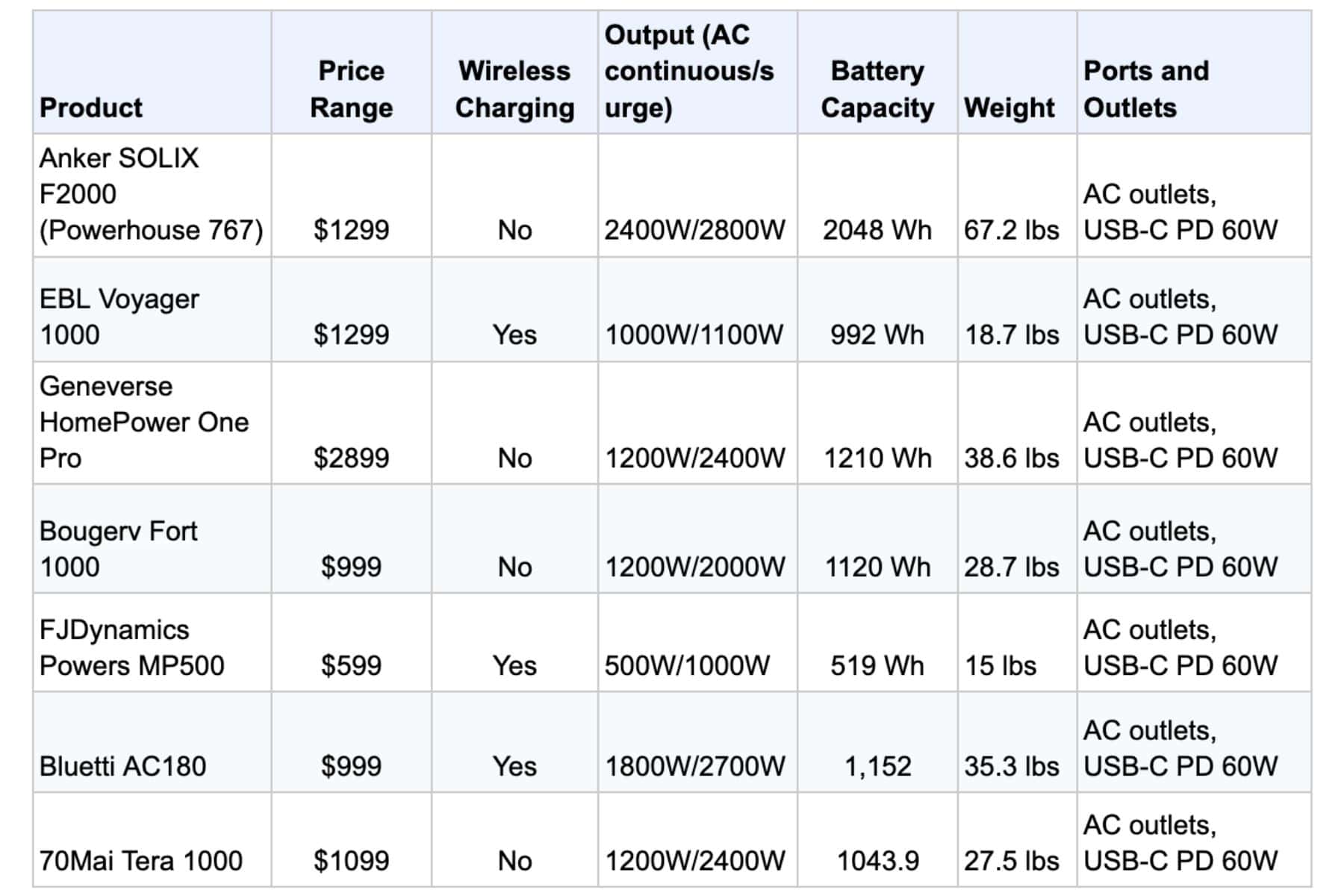
| Model | Capacity | USB-C PD Output | Runtime for HP Laptop |
|---|---|---|---|
| Jackery Explorer 1000 Plus | 1264Wh | 100W USB-C | Up to 21 hours |
| Jackery Explorer 500 | 518Wh | 60W USB-C | ~8–9 hours |
| Explorer 300 Plus | 288Wh | 60W USB-C | ~4–5 hours |
How to Charge
- Recharge the station via wall, car, or solar
- Plug in your HP laptop via USB-C or AC outlet
- Use as a mobile desk power source
Emergency Options When No Other Method Works
Reverse Charge From Phone
If your phone supports reverse charging, it can power your HP laptop in a pinch.
• Compatible phones: Samsung Galaxy S23/S22, Huawei Mate 40 Pro
• Enable reverse charging in phone settings
• Connect via USB-C to USB-C cable
Drawbacks: Drains phone in 30–60 minutes, adds 1–2% battery per 10 minutes, risk of overheating. Not recommended for long-term use.
Swap Battery With External Charger (Older Models)
Only works if your HP laptop has a removable battery.
• Compatible models: HP ProBook 4530s, HP Pavilion g6/g7, some older Envy models
• Power off and flip laptop to remove battery
• Insert into external battery charger
• Reinstall after 2–3 hours
Note: Most modern HP laptops (Spectre, Envy, Pavilion x360) have sealed batteries—this method won’t work.
Use Solar Charger (Outdoor Use)
Ideal for hikers, campers, or emergency preparedness.
• Requirements: Solar panel with USB-C PD output (30W+), full sunlight
• Place panel in direct sun
• Connect to power bank first (for stable storage)
• Power bank charges laptop via USB-C PD
Limitations: Cloudy days mean slow or no charging. Not practical for daily use.
Avoid These Methods That Don’t Work
HDMI Charging: Myth Busted
HDMI carries video and audio, not power. It provides only 5V/50mA—not enough for laptops. No HP model supports HDMI charging.
Do not attempt—you’ll waste time and risk port damage.
Wireless Charging: Not Available
No mainstream HP laptop supports wireless charging. Some concept models exist, but not in consumer release.
Not a viable option—save your money.
Troubleshoot Charging Problems

Even with the right tools, charging may fail. Diagnose the issue step-by-step.
Is It the Software?
- Disable Battery Saver Mode in Settings > System > Power & Battery
- Update drivers: Open Device Manager, update ACPI Battery and Chipset
- Update BIOS: Reboot, press F10, check for updates via HP Support Assistant
Is It the Hardware?
- Run Battery Report: Open Command Prompt (Admin), type powercfg /batteryreport, open the file at C:\Windows\system32\battery-report.html
- Inspect the port: Look for debris, bent pins, or corrosion
- Test the cable and adapter: Try different USB-C PD cables, use a multimeter to check output voltage
Safety Guidelines for Alternative Charging
Protect your HP laptop with these essential rules.
Match the Specs Exactly
| Parameter | Must Match? | Risk if Wrong |
|---|---|---|
| Voltage (19V) | Yes | Motherboard damage |
| Amperage (3.42A) | Equal or higher | Slow/no charging |
| Polarity | Yes (center-positive) | Permanent damage |
| Wattage (65W) | Minimum 45W | Overheating, shutdown |
Use Certified Equipment
• Look for UL, CE, FCC marks
• Prefer USB-IF certified cables
• Avoid $10 no-name chargers from online marketplaces
Monitor Heat
• Stop if laptop, charger, or cable gets hot
• Don’t cover devices while charging
• Unplug if you smell burning or see swelling
Frequently Asked Questions About Charging HP Laptop Without Charger
Can I charge HP laptop with phone charger?
Only if your laptop supports USB-C PD and the phone charger outputs 18W or higher. Use a USB-C to USB-C cable. Charging will be very slow or may not start under load.
Can I charge via USB-A port?
No. USB-A ports deliver only 12W max—not enough for any HP laptop.
What if I use the wrong charger?
Risks include no charging, battery degradation, overheating, and permanent motherboard damage. Always match voltage and polarity.
How do I find the right charger?
Check the label on the bottom of your laptop, specs on the original charger, HP Support Assistant, or support.hp.com (enter your model number).
Are third-party chargers safe?
Yes, if voltage, amperage, and polarity match, and the charger is from a reputable brand with overcurrent and short-circuit protection.
Prevent Future Charging Crises
Stay prepared with these long-term strategies.
• Keep a backup 65W USB-C PD charger at work or in your bag
• Buy a high-wattage power bank (Anker, Jackery, or RAVPower with 45W+ USB-C PD)
• Enable Battery Health Mode in HP Command Center to limit charge to 80%
• Clean ports monthly using compressed air to prevent connection issues
Key Takeaways for Charging HP Laptop Without Charger
You can charge an HP laptop without its original charger, but only if you use the right method for your model. USB-C Power Delivery is the most reliable option for compatible laptops, while power banks and universal adapters work well for emergencies. Always verify compatibility, match power specs, and avoid cheap knockoffs to prevent damage. With the right tools and knowledge, you’ll never be powerless again.