You plug in your MacBook, expecting the charging icon to appear, but nothing happens. The battery percentage drops, the screen dims, and panic sets in. A MacBook that won’t charge can feel like a crisis, especially if you’re on a deadline or traveling. But before you rush to Apple Support or buy a new charger, take a breath. Most charging issues aren’t permanent, and the fix is often simpler than you think.
The good news? You don’t need to be a technician to solve this. This guide walks you through every possible cause, from misleading battery icons and software glitches to damaged cables and connection problems. We’ll help you diagnose, fix, and prevent charging problems using only what you have at home.
Rule Out False Charging Failures
Before diving into repairs, confirm the issue isn’t just a misunderstanding of your Mac’s behavior. Some charging problems are actually normal system behavior, not hardware failures.
Check if Mac Is Actually On
A MacBook can appear dead while still running. If the screen is black, don’t assume it’s not charging.
Press Caps Lock. If the key lights up, your Mac is on. Listen for fan noise or hard drive activity. Try pressing a key or clicking the trackpad to wake it. A black screen doesn’t mean no power. It could be a display issue, not a charging one.
Disable Optimized Battery Charging
macOS uses Optimized Battery Charging to extend battery life by pausing charge at 80% when it predicts prolonged charging.
What it looks like includes charger plugged in but battery staying at 80%, no charging animation, and status saying Not Charging even with full connection.
To fix it now, click the battery icon in the menu bar and select “Charge to Full Now.” Your Mac will resume charging to 100%.
To disable permanently, open System Settings, go to Battery, tap the “i” next to Battery Health, and turn off Optimized Battery Charging. This feature is on by default for M1, M2, M3, and T2-equipped Macs.
Verify Power Source and Connections
Most charging problems stem from loose connections or faulty outlets, not broken hardware. Always check the simple stuff first.
Test the Wall Outlet
Plug in a lamp or phone charger to confirm the outlet works. Avoid power strips or extension cords. Plug directly into the wall. In hotels or offices, outlets may be switch-controlled, so flip nearby wall switches.
Reconnect Charger Components
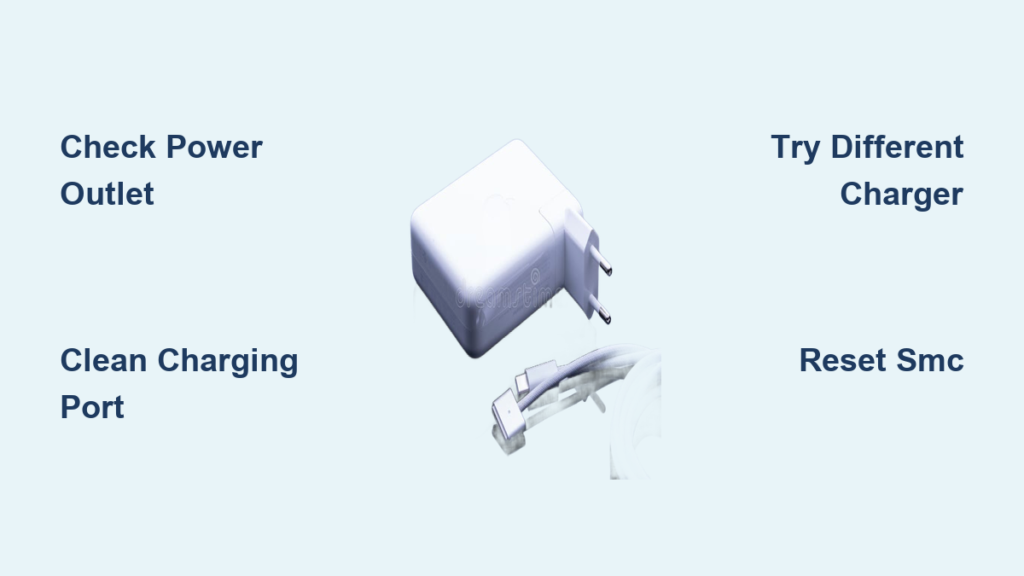
Apple chargers have two parts: the power adapter brick and the AC plug.
Unplug both ends. Reconnect the AC plug to the brick. Press until it clicks. Plug into a different wall socket. Reconnect to your MacBook. A loose AC plug can mimic a dead charger.
Inspect for Overheating
A hot power adapter may stop charging to protect itself.
Feel the brick. If it’s too hot to touch, unplug and let it cool. Don’t place it under pillows, books, or rugs. Use on a hard, flat surface with good airflow. Wait 10 to 15 minutes, then retry.
Remove Connected Devices
External devices can overload your Mac’s power system and block charging.
Unplug All Peripherals
Disconnect USB hubs, external hard drives, monitors, phones charging via Mac, and docks or adapters. Then try charging again.
Some devices draw more power than your Mac can supply while charging, especially with lower-wattage adapters.
Restart and Reset Power Management
A quick reset can clear software glitches that prevent charging.
Perform a Soft Restart
Shut down your MacBook. Wait 10 seconds. Press the power button to restart. This clears temporary power management errors.
Reset SMC on Intel Macs
The System Management Controller handles power, charging, and battery functions on Intel-based Macs.
For Macs with non-removable batteries, shut down the Mac. Press and hold Shift plus Control plus Option on the left side plus the Power button. Hold for 10 seconds. Release all keys. Press the power button to turn on.
On Touch ID models, the power button is the Touch ID sensor.
For older Macs with removable batteries, shut down. Remove the battery. Press and hold the power button for 5 seconds. Reinstall battery and reconnect charger.
Restart Apple Silicon Macs
Macs with Apple chips don’t have an SMC, but a full shutdown resets power systems.
Shut down the Mac. Wait 30 seconds. Press the power button to restart. This mimics an SMC reset and often fixes charging issues.
Check Battery Health Status
A degraded battery may not charge, even with a perfect charger.
Access Battery Health Settings
On macOS Ventura and later, click the battery icon and select Battery Settings. Go to the Battery Health tab.
On older macOS versions, hold the Option key and click the battery icon. Look for the Condition field.
Interpret Battery Status
Normal means the battery is healthy. Replace Soon means reduced capacity, so replace when convenient. Replace Now means the charge holds poorly, so replace soon. Service Battery means charging may fail, so get service immediately.
If your status is Service Battery, the battery itself is likely the issue, not the charger.
Clean the Charging Port
Dirt, lint, or dust in the port can block electrical contact.
Safely Remove Debris
Use a soft-bristled toothbrush that is dry, a plastic toothpick, or compressed air in short bursts.
Do NOT use metal tools because they risk shorting pins. Don’t use water or liquids. Don’t use excessive force.
Gently brush or blow out particles. Look inside the port for visible gunk.
Inspect for Damage
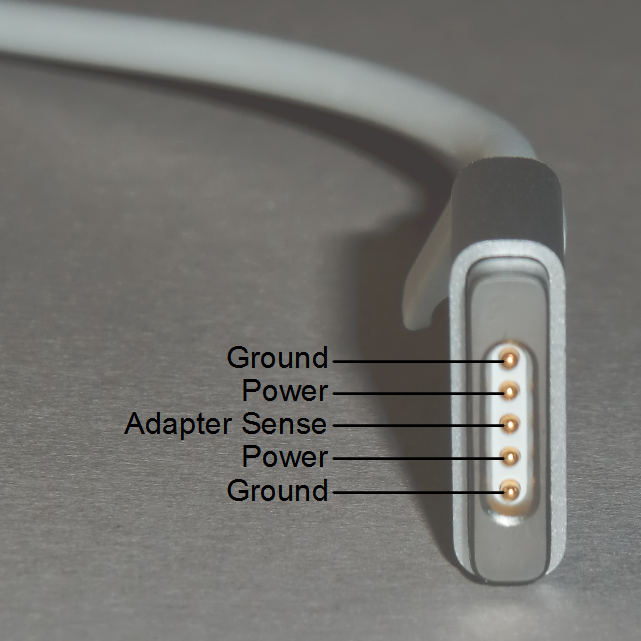
Check for bent or misaligned pins on MagSafe connectors. Look for corrosion or discoloration. Check for loose connections.
If pins are bent, do not straighten yourself. Take it to a technician.
Test and Replace the Charger

A faulty charger is one of the most common causes of charging failure.
Inspect for Physical Damage
Look for frayed or exposed wires near the connector. Check for discoloration or burn marks on the brick. Look for a loose plug that wobbles. Check for cracked housing.
If any damage is present, replace the charger.
Try a Known-Good Charger
Borrow a friend’s Apple charger or use a spare. Use the same or higher wattage. Plug in and wait 10 seconds.
If your Mac charges, the original charger is bad.
Fix MagSafe Orange Light Issue
On older MagSafe chargers, a missing orange LED often means a loose internal pin.
Unplug the charger. Gently tap the MagSafe connector on your palm. Reconnect firmly to the MacBook.
This realigns internal pins and restores charging in many cases.
Use the Correct Charger Wattage
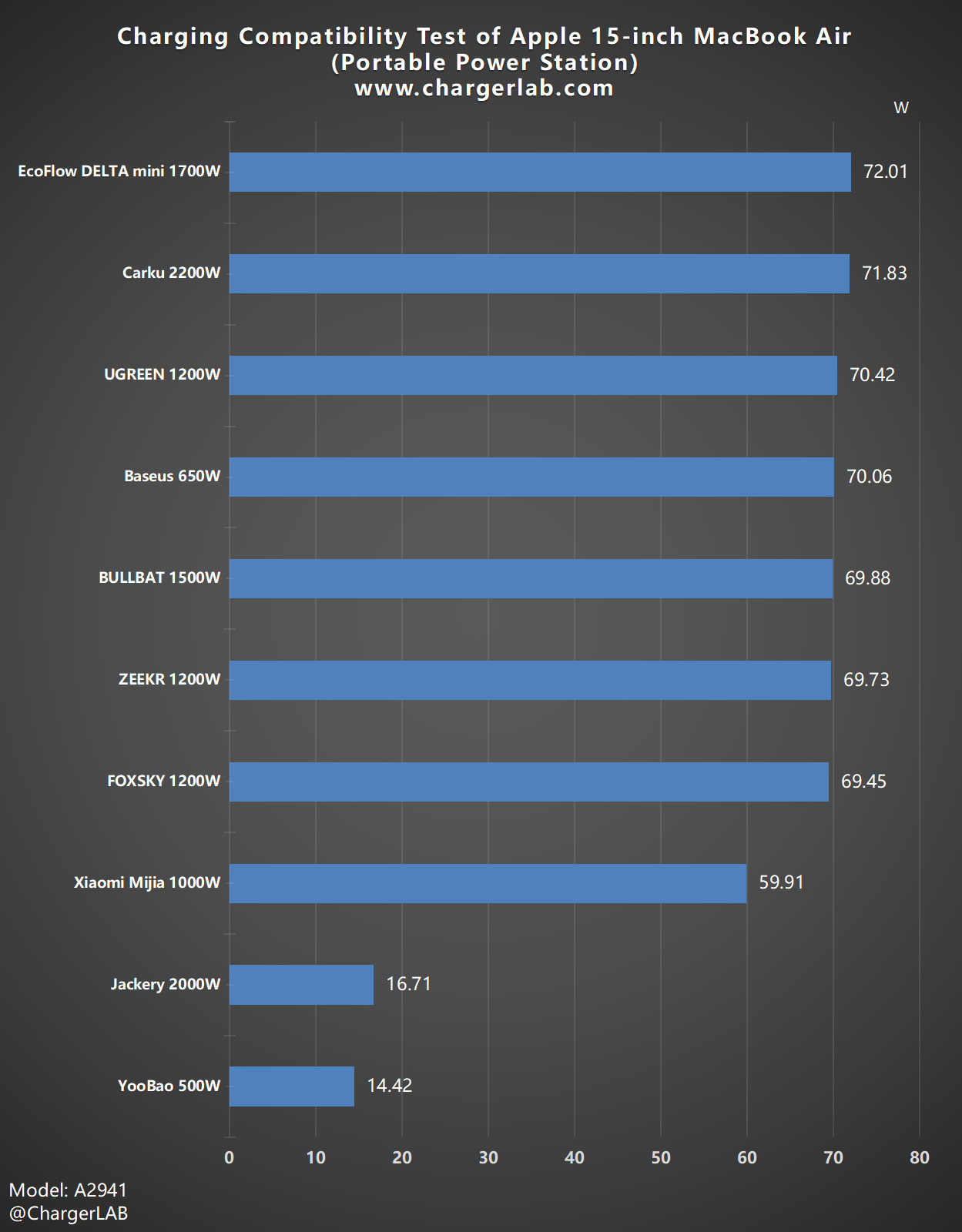
Using the wrong wattage can cause slow or no charging.
Match Charger to Your Model
MacBook Air M1, M2, or M3 needs 30W or 35W. 13-inch MacBook Pro needs 61W. 14-inch MacBook Pro needs 67W or 96W. 16-inch MacBook Pro needs 87W, 96W, or 140W.
Avoid Underpowered Charging
Using a 30W Air charger on a 16-inch Pro may result in a Not Charging message when Mac is in use. Charging may only work when asleep or off. Charge rates may be very slow.
Use a 67W or higher charger for Pro models.
Choose Reliable Third-Party Chargers
Not all third-party chargers are equal.
Best option is Anker 717 140W Charger. It supports USB PD 3.1. It fully charges 16-inch MacBook Pro in under 1.5 hours. It features ActiveShield 2.0 for thermal safety. It monitors temperature 3 million times per day.
Avoid cheap, no-name brands. They can overheat or damage ports.
Use Compatible USB-C Cables
Not every USB-C cable can charge your MacBook.
Check Cable Specifications
Use USB-C to USB-C cables rated for power delivery. Apple’s official cable supports up to 100W. Third-party cables should list USB PD and wattage support.
A data-only cable will not charge your Mac, even if it connects.
Update macOS and Firmware
Software bugs can interfere with charging.
Install Latest macOS Updates
Example: macOS Monterey 12.2 had a Bluetooth bug causing rapid battery drain in sleep mode. This was fixed in 12.2.1.
To update, go to System Settings, then General, then Software Update. Install any available updates.
Always keep macOS current to avoid known charging bugs.
Diagnose Advanced Hardware Issues
If nothing works, the problem may be deeper, like a failing logic board.
Signs of Logic Board Failure
No charging on any port, even with a known-good charger. One or more USB-C ports dead. Charges only when Mac is powered off. MagSafe LED green but macOS shows Not Charging. Battery percentage doesn’t increase despite connection.
Community Insights
Bad port assembly may require replacing the USB-C board. Driver chip failure can result from a power surge. Use a surge suppressor. Check outlet grounding with an outlet tester.
Without microsoldering tools, logic board repairs are not DIY-safe.
Check for Recalls and Warranty
You might get a free fix if your Mac or charger is under warranty or recalled.
Active Recalls
15-inch MacBook Pro Battery from 2015 to 2017 has an overheating risk and the program is still active. Some Apple Wall Plugs are recalled. Check Apple’s site for details.
Verify Coverage
Visit checkcoverage.apple.com. Enter your serial number from Apple Menu, About This Mac. Check status for Under warranty, AppleCare+ coverage, or Consumer Law May Apply.
If covered, Apple will repair or replace at no cost.
Prevent Future Charging Issues
Avoid repeat problems with smart habits.
Wrap Cable Correctly
The cable near the connector is most prone to breakage.
Use a figure-eight wrap. Secure the plug end first. Loop the cable in a figure-eight. Avoid tight coils.
This reduces stress and prevents internal wire damage.
Use Surge Protection
Plug into a surge suppressor, not directly into the wall. Test outlets with a $10 outlet tester to check grounding. Avoid charging during thunderstorms.
Clean Port Regularly
Clean every 3 to 6 months. Avoid using Mac in dusty environments.
Maximize Battery Lifespan
Don’t keep battery at 100% for days. Use Optimized Battery Charging. Store Mac at 50% charge if unused for weeks.
Frequently Asked Questions About MacBook Charging Issues
Why is my MacBook plugged in but not charging?
Your MacBook may not charge due to a loose connection, dirty port, wrong charger wattage, or software issue. Check the power source first, then try a different charger. If the issue persists, check battery health or reset power management.
How do I reset the SMC on my MacBook?
For Intel Macs with non-removable batteries, shut down the Mac. Hold Shift plus Control plus Option plus the Power button for 10 seconds. Release and turn on. For Apple Silicon Macs, just restart after a 30-second shutdown.
Can a third-party charger damage my MacBook?
Reputable third-party chargers with USB PD support are generally safe. Cheap, no-name brands may overheat or damage ports. Stick to trusted brands like Anker with proper certifications.
Why does my MacBook stop charging at 80%?
This is Optimized Battery Charging, a macOS feature designed to extend battery lifespan. Click the battery icon and select “Charge to Full Now” to override it temporarily. Disable it in System Settings if unwanted.
When should I take my MacBook to Apple Support?
Seek professional help if battery status shows Service Battery, multiple ports are dead, you smell burning or see discoloration, or all troubleshooting steps have failed. Logic board issues require expert repair.
Key Takeaways for Fixing Your MacBook Charger
A MacBook that won’t charge is stressful, but rarely hopeless. Most issues stem from simple causes: a loose plug, wrong charger, software glitch, or dirty port. By following this guide, you’ve ruled out the common culprits and tested real fixes.
If your Mac is now charging, great. Keep it healthy with proper cables, regular updates, and good care habits. If not, and you’ve tried everything, it’s time for professional help. Don’t risk further damage. Take it to Apple or a trusted repair shop.
Your data is safe. A charging issue doesn’t mean data loss. As long as the Mac can power on, your files are intact. Now go charge up and get back to work.