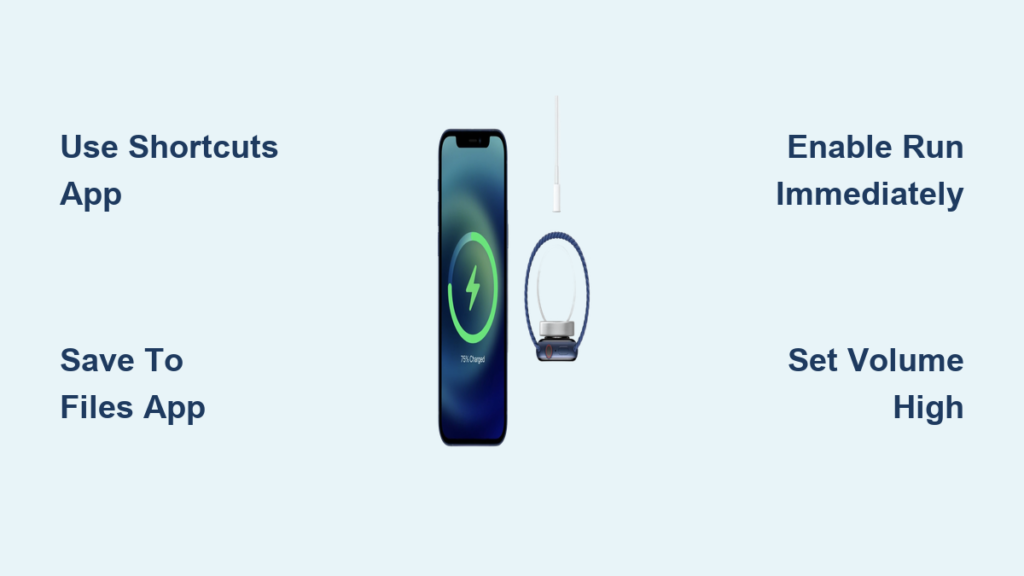
You plug in your iPhone and hear nothing, no satisfying chime, just silence. What if you could change that? With a custom sound playing every time you connect your charger, your phone can respond with a Zelda fanfare, a meme clip, or even a personal voice message. While iOS does not let you change system-level charging sounds natively, there is one reliable method that works on all modern iPhones: the Shortcuts app automation.
This guide walks you through every step, from saving the audio file correctly to setting up silent, automatic playback, so your phone plays exactly what you want when it starts charging. You will learn how to avoid common pitfalls, ensure instant triggering, and even boost volume automatically.
Create Charging Automation in Shortcuts App
The core of changing your iPhone charging sound lies in creating a personal automation using the Shortcuts app. This automation detects when your iPhone connects to power and triggers your chosen audio. Since iOS blocks direct system sound changes, this method simulates the effect seamlessly and is 100% supported by Apple.
Set Up the Charger Connection Trigger
Start by setting the automation to activate the moment you plug in your charger.
- Open the Shortcuts app on your iPhone
- Tap the Automation tab at the bottom
- Tap the plus icon and select Create Personal Automation
- Search for charger and select When Connected to Charger
- Ensure the condition says Is Connected, not Is Disconnected
- Tap Next to proceed
This trigger works with both Lightning and USB-C cables, and it even detects wireless charging on compatible models.
Enable Silent Auto-Run Without Prompts
If iOS asks for confirmation every time, the automation defeats its purpose. You must disable prompts for hands-free operation.
Toggle Run Immediately When Triggered to ON. If this is off, you will get a pop-up every time you charge, which defeats the automatic experience.
Toggle Notify When Run to OFF. This prevents banners from appearing on your screen during charging.
Tap Next after configuring these settings.
Prepare Your Custom Audio File
You cannot just pick any sound from your phone. The file must be stored where the Shortcuts app can access it reliably, not in Photos or Messages.
Choose Compatible Audio Format
iOS supports several formats, but some work better than others.
MP3 offers the smallest size and easiest transfer. M4A provides high quality with Apple-native compatibility. AAC and CAF are for advanced users and less common. MP4 and MOV video clips work too, with audio extracted automatically.
Use MP3 under 7 seconds for fast, reliable playback. Avoid unsupported formats like WAV and files over 10 seconds, which risk being cut off.
Save File to Files App
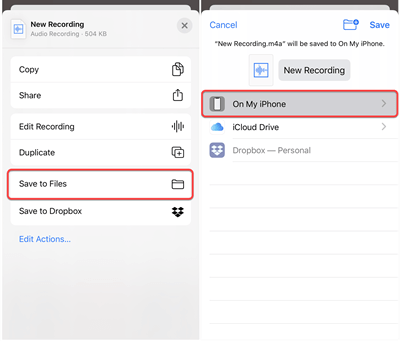
The Photos app will not work for automation. Even if you record a voice memo or save a TikTok, you must move it to the Files app.
Open Photos and find your video or audio clip. Tap Share and select Save to Files. Choose a folder like On My iPhone or iCloud Drive. Confirm the file appears in Files.
The file must be in Files. Photos will not work. Avoid clipboard methods because it clears when you copy something else, and your sound stops working.
Build the Sound Playback Sequence

Now link the trigger to actual audio playback. Two actions are required, and order matters.
Add Get File Action
This retrieves your saved audio.
Tap Add Action and search for Get File. Select the file from your saved location. Turn off Show Files in App to prevent Files app from opening during playback.
Get File must come before Play Sound so the audio is passed correctly.
Add Play Sound Action
Now tell iOS to play the retrieved file.
Tap Add Action again and search for Play Sound. Tap the blank space in the Sound field. Choose the file from the previous Get File action. Verify the filename shows up in the action.
Tap Done to finalize the action sequence.
Test the Charging Sound
Before relying on it, ensure everything runs smoothly.
Open Control Center and max out media volume. Ensure silent mode is off and Do Not Disturb is disabled. Plug in your charger and wait 1 to 3 seconds. Your custom sound should play automatically.
Success signs include sound playing automatically with no notification appearing and full audio heard. If it fails, check media volume, file location, or ensure Run Immediately is enabled.
Fix Common Playback Issues
Even with correct setup, problems arise. Here is how to solve them fast.
Sound Does Not Play at All
Most often this is due to misconfigured automation or file issues.
Run Immediately being disabled causes iOS to ask for confirmation. Fix this by editing the automation and turning it ON.
The file not being in the Files app or being cloud-only also causes failure. Fix by re-saving to On My iPhone and ensuring the file is downloaded.
Media volume at zero prevents sound from playing. Fix by adding a Set Volume action before Play Sound.
File Greyed Out or Missing
iOS cannot access temporary or cloud-only files.
Rename the file to remove spaces and special characters. Move from iCloud Drive to On My iPhone for faster access. Re-record or re-download if the file is corrupted.
Restart your iPhone if the file remains inaccessible.
Automation Runs When Unplugging
You are triggering the wrong event.
Accidentally selecting Is Disconnected causes this. Fix by editing the automation, deleting the trigger, and re-adding When Connected to Charger.
Enhance Your Charging Experience
Go beyond sound and turn charging into a personalized routine.
Auto-Set Media Volume
Ensure your sound always plays loud by adding a Set Volume action. Set it to 100% or your preferred level and place it before Play Sound. This eliminates silent failures due to low volume.
Add Haptic Feedback
Get a vibration with your sound by adding a Haptic Feedback action after Play Sound. Choose Standard, Heavy, or create a custom pulse. This is great for tactile confirmation in noisy environments.
Include Voice Announcement
Let Siri announce charging status by adding a Speak Text action. Enter phrases like Charging started or Battery healing in progress and adjust the voice and rate under Options.
Supported Devices and iOS Versions
This method works across all modern iPhones.
iOS 13 or later is required. iPhone 6s and newer are supported, including the iPhone 15 series. Lightning, USB-C, and wireless charging all work. File storage works with On My iPhone, iCloud Drive, and Apple Music. Volume control affects media volume only, not the ringer.
Edit or Change the Sound Later
You do not need to rebuild everything to switch sounds.
Open Shortcuts and go to the Automation tab. Tap your charging automation and tap Edit. In Get File, tap the current file and select a new one. Tap Done. No need to delete or recreate the automation.
Why Other Methods Do Not Work
Avoid scams and unreliable apps promising system-level sound changes.
Third-party apps claim to change iPhone charging sounds, but this is impossible due to iOS sandboxing. Apps either do nothing or use the same Shortcuts method less reliably.
Jailbreaking allows true system sound replacement but voids your warranty, exposes you to security risks, and breaks on iOS updates. It is not viable for modern iPhones.
Clipboard or Voice Memo tricks are unreliable because clipboard gets overwritten and files can be moved or deleted.
Frequently Asked Questions About Changing iPhone Charging Sound
Can I change the default iPhone charging sound without jailbreaking?
No, iOS does not natively support changing system-level charging sounds. However, you can simulate a custom sound using the Shortcuts app automation method described in this guide. This is the only reliable, non-jailbreak solution available.
Why does my custom charging sound not play when I plug in?
The most common reasons are Run Immediately being disabled in automation settings, the file not being saved in the Files app, or media volume being set to zero. Check all three settings to resolve this issue.
Does this work on iPhone 15 and newer models?
Yes, this method works on all iPhones from the 6s onward running iOS 13 or later, including the iPhone 15, 15 Pro, and 15 Pro Max models.
How long can my custom charging sound be?
For best results, keep the sound between 5 and 7 seconds. Files over 10 seconds may lag or get cut off during playback.
Can I use video files for my charging sound?
Yes, iOS automatically extracts audio from video files like MP4 and MOV when used in Shortcuts automation.
Key Takeaways for Custom iPhone Charging Sounds
You cannot change the iPhone charging sound natively, but with the Shortcuts app, you can simulate a fully customized audio response every time you plug in. By creating a personal automation that triggers on charger connection, retrieves a file from the Files app, and plays it silently via Play Sound, your iPhone will respond with any audio you choose.
This method works on all iPhones from the 6s onward running iOS 13 or later. It requires no jailbreak, no third-party apps, and no compromises on security. Just follow the steps: save your sound correctly to the Files app, build the automation with Get File and Play Sound actions, enable Run Immediately, and test with maximum media volume.
Now you are ready. Plug in, play your favorite chime, and charge in style.