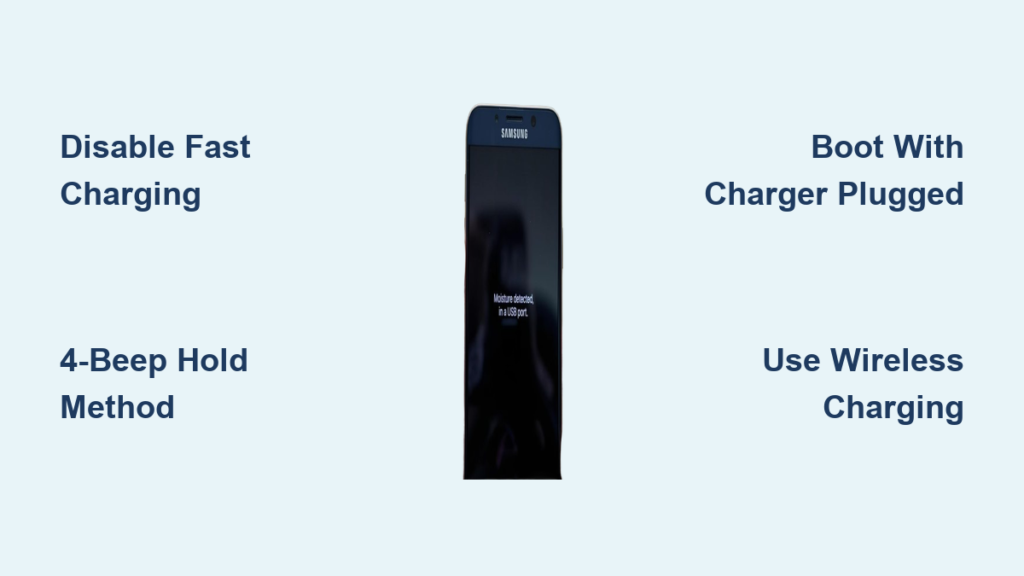
You plug in your Samsung phone, but instead of charging, a frustrating pop-up appears: “Moisture detected in USB port. Unplug charger and wait for port to dry.” The port is clean. It is dry. You are not near water. Yet Samsung blocks charging anyway. This moisture detection alert, designed as a safety feature, has become a notorious source of false positives across Galaxy S, A, and XCover devices.
While Samsung does not offer an official toggle to disable the USB moisture check, you can bypass it using proven software tricks, behavioral workarounds, and advanced methods. This guide reveals every verified way to stop the false moisture detected warning and get your phone charging again.
Disable Fast Charging (Top Fix)
This is the most reliable method to bypass the moisture detection alert without root or hardware changes.
Turn Off Fast Charging in Settings
The moisture detection system often triggers when attempting fast charging. Disabling it forces the phone to use standard 5V charging, which typically bypasses the sensor check.
- Open Settings.
- Tap the search bar (magnifying glass).
- Type fast charging.
- Go to Battery > Charge settings.
- Toggle off Fast charging.
This method works immediately on many devices including S21, A34, and XCover Pro. You can re-enable fast charging later if the system recognizes the port as dry. The reason this works is that the firmware only runs the strict moisture check during high-power charging negotiation.
Clear USB Settings Cache
Samsung officially recommends this fix to reset corrupted USB logic.
Reset USB System App
The USBSettings app manages port behavior. Clearing its cache can resolve false moisture detection.
- Go to Settings > Apps.
- Tap the three-dot menu (⋮) > Show system apps.
- Search for USB settings.
- Tap Storage > Clear Cache.
- Reboot your phone.
This method has medium effectiveness and works best after software updates or sudden onset of the issue. Repeat the process after every major One UI update to maintain results.
Boot with Charger Plugged In

This method exploits a timing loophole in the charging check sequence.
Bypass Check During Boot
The moisture detection runs after the OS fully boots. Plug in during startup to skip the check.
- Power off your device completely.
- Press and hold Power to boot.
- Immediately plug in the charger during the Samsung logo animation.
- If successful, charging starts without warning.
This works on XCover Pro, A34, and S22 devices. The limitation is that you must repeat this every time you unplug the charger.
Use 4-Beep Hold Method
This behavioral trick forces the system to dismiss the moisture alert through prolonged input.
Dismiss Alert with Button Hold
- Plug in the charger. The moisture warning appears.
- Press and hold the OK button on the pop-up.
- Keep holding until you hear four beeps (the last two are rapid).
- The alert disappears and the green charging circle appears.
This method is confirmed working on Samsung A34 and works best with the original Samsung charger. Repeat if the warning reappears after disconnecting.
Try Low-Power Charging Sources
Use low-current inputs that may not trigger the detection threshold.
Charge via PC or 5W Adapter
The sensor may ignore charging attempts below a certain power draw.
• Plug into a computer USB port (500 to 900mA)
• Use a 5W charger (5V/1A) instead of 15W+ fast chargers
• Wait 15 to 30 minutes for the system to eventually allow charging
Some users report success: “Charged via laptop USB. Warning vanished after 20 minutes.” The theory is that low current avoids triggering the conductivity check.
Use Wireless or Magnetic Charging
This method completely bypasses the USB-C port logic.
Switch to Wireless Charging
If your device supports Qi charging (S-series, Note, A5x/A7x), use a wireless pad. Place phone on Qi charger and charging proceeds normally even if the USB moisture warning persists. Remove thick cases to improve efficiency.
Try Magnetic Charging
Magnetic pogo-pin docks do not trigger the moisture alert. User confirmation shows: “Magnetic charging works perfectly.” This works because detection is limited to the USB-C port, not the entire charging system.
Clean the USB-C Port
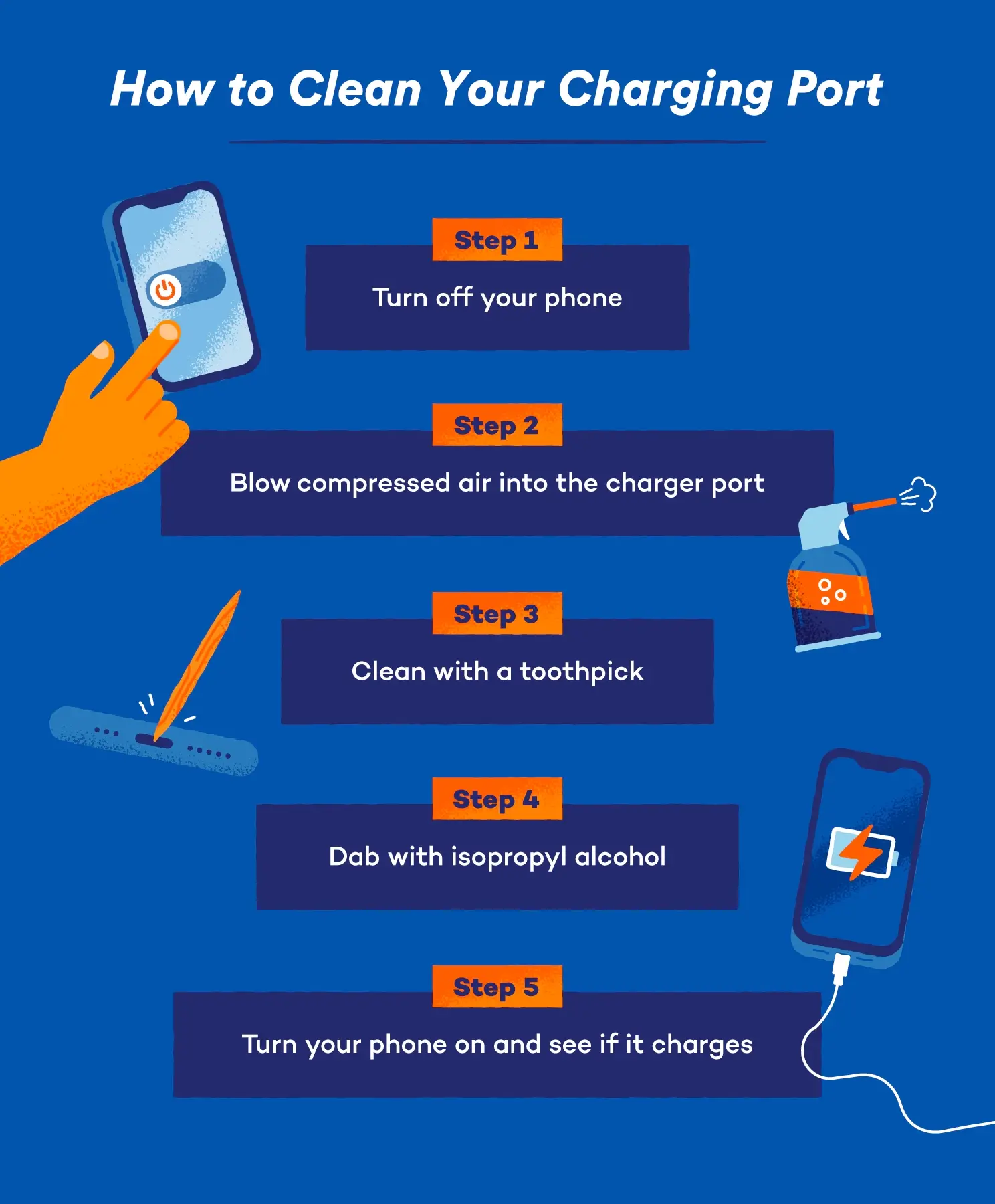
Remove debris or residue that mimics moisture conductivity.
Safe Cleaning Tools and Steps
Never use metal or compressed air. Use only non-conductive tools.
What You Need
• Dry microfiber cloth
• Plastic floss pick or wooden toothpick
• 99% isopropyl alcohol (anhydrous)
• Cotton swab
Cleaning Steps
- Power off the device.
- Gently scrape out lint with a plastic tool.
- Wipe with dry cloth.
- Apply one drop of 99% IPA to a cotton swab and lightly clean inside the port.
- Shake gently with port facing down.
- Wait 10 to 15 minutes to dry.
User success story: “Used a floss pick to remove black gunk under the chrome plate, fixed it.” Never use metal tools, water, or canned air as propellants can conduct electricity.
Charge in a Dry Environment
High humidity can trigger false positives.
Avoid Moisture-Prone Areas
• Do not charge in bathrooms, laundry rooms, or saunas
• Avoid charging right after showering or exercising
• Move to air-conditioned, low-humidity rooms
Let your phone acclimate if moving from cold to warm environments as condensation can form.
Restart or Reboot the Phone
This fixes temporary software glitches affecting USB logic.
Quick Restart Methods
• Swipe down from the home screen > Power icon > Restart
• Hold Power button > Restart
This method has medium effectiveness and often resolves transient issues.
Test with Different Cable and Charger
Faulty cables can trigger false moisture alerts.
Try a Known-Good Setup
• Use the original Samsung USB-C cable
• Test with a different adapter (preferably OEM)
• Avoid third-party cables with poor shielding
User report: “Switched cables, problem gone, even though both looked dry.”
Clear Cache Partition
This resets system-wide cache without data loss.
Wipe System Cache
- Power off the device.
- Press and hold Volume Up + Bixby + Power until logo appears.
- Use Volume keys to select Wipe cache partition.
- Press Power to confirm.
- After completion, select Reboot system now.
This method is best for deep software conflicts affecting the USB subsystem.
Disable USB Debugging
Developer mode can interfere with normal port behavior.
Turn Off Debugging
- Go to Settings > Developer options. If hidden: About phone > Software info > Build number (tap 7 times).
- Toggle off USB debugging.
This prevents communication conflicts between the OS and charging hardware.
Boot into Safe Mode
Check if a third-party app is causing the issue.
Enter Safe Mode
- Press and hold Power button.
- Touch and hold Power off until Safe Mode appears.
- Tap Safe Mode.
If charging works in Safe Mode, a third-party app is interfering. Uninstall recent apps one by one to find the culprit. This has high diagnostic value and rules out software conflicts.
Update Software
Samsung occasionally patches moisture detection bugs.
Check for Updates
- Go to Settings > Software update.
- Tap Download and install.
- Install any available updates.
Stay on the latest One UI version for the best results.
Factory Reset (Last Resort)
This resolves deep system corruption.
Full Reset Procedure
- Back up all data.
- Go to Settings > General Management > Reset > Factory data reset.
- Confirm and wait for completion.
- Restore data selectively.
This deletes all apps, accounts, and settings. Use only if all other methods fail.
Advanced Fixes (Rooted Devices)
For users with root access or unlocked bootloaders, deeper interventions are possible.
Check Moisture Detection File
Run in terminal or ADB:
bash

ls /sys/class/power_supply/usb
On healthy systems, this shows moisture_detection_enabled. On affected devices, only these files appear: device, online, power, subsystem, type, uevent. This confirms a driver or kernel failure to expose sensor status.
Install AOSP-Based Custom ROM
Since moisture detection is not part of AOSP, custom ROMs like LineageOS or crDroid may not include the feature. Ditch OneUI and install any AOSP ROM for a permanent bypass. This eliminates Samsung-specific moisture detection code but may void warranty and requires unlocking the bootloader.
Frequently Asked Questions About Samsung Moisture Detection
Why does my Samsung phone say moisture detected when the port is dry?
The moisture detection system uses electrical conductivity sensing that can trigger from microscopic moisture, condensation, or debris invisible to the eye. False positives also occur due to firmware bugs where the driver defaults to “moisture detected” when it cannot read the sensor properly.
Can I disable moisture detection permanently on Samsung?
Samsung does not provide an official toggle to disable moisture detection. However, you can bypass it temporarily by disabling fast charging, using wireless charging, or using behavioral methods like the 4-beep hold. Rooted users can install AOSP custom ROMs that exclude this feature entirely.
Does replacing the USB-C port fix the moisture detection error?
In most cases, no. Many users report that replacing the charging port hardware does not resolve the issue. This indicates the problem is firmware or driver-based rather than physical. The missing moisture_detection_enabled file in the system confirms a software-level cause.
Why does fast charging trigger moisture detection more often?
The moisture sensor runs a strict conductivity check during high-power charging negotiation (fast charging). Standard 5V charging uses lower power and often bypasses this check. Disabling fast charging is the most reliable workaround because it avoids triggering the sensor threshold.
Is wireless charging a permanent solution to the moisture detection problem?
Yes, wireless charging completely bypasses the USB-C port logic, so the moisture warning never appears. This is a permanent solution for devices that support Qi wireless charging. It does not fix the USB port but provides reliable alternative charging without any warnings.
Key Takeaways for Disabling Samsung USB Moisture Detection
Samsung does not allow users to fully disable the moisture detection system in the USB-C charging port. However, multiple effective workarounds exist to suppress or bypass the moisture detected alert. Disabling fast charging is the most consistent fix and works immediately on most devices. Behavioral methods like the 4-beep hold and boot-time charging are repeatable and effective alternatives. Wireless and magnetic charging offer complete bypass of the USB-C port logic entirely.
The high prevalence of false positives, persistence after hardware replacement, and missing sysfs files strongly suggest a firmware or driver-level bug rather than a hardware defect. Until Samsung introduces a user-accessible toggle or fixes the default-fail logic, users must rely on these workarounds to maintain normal charging functionality.
Start with disabling fast charging as your first solution. If that does not work, try the 4-beep hold method or boot with charger plugged in. For long-term relief, consider wireless charging as a permanent workaround.