
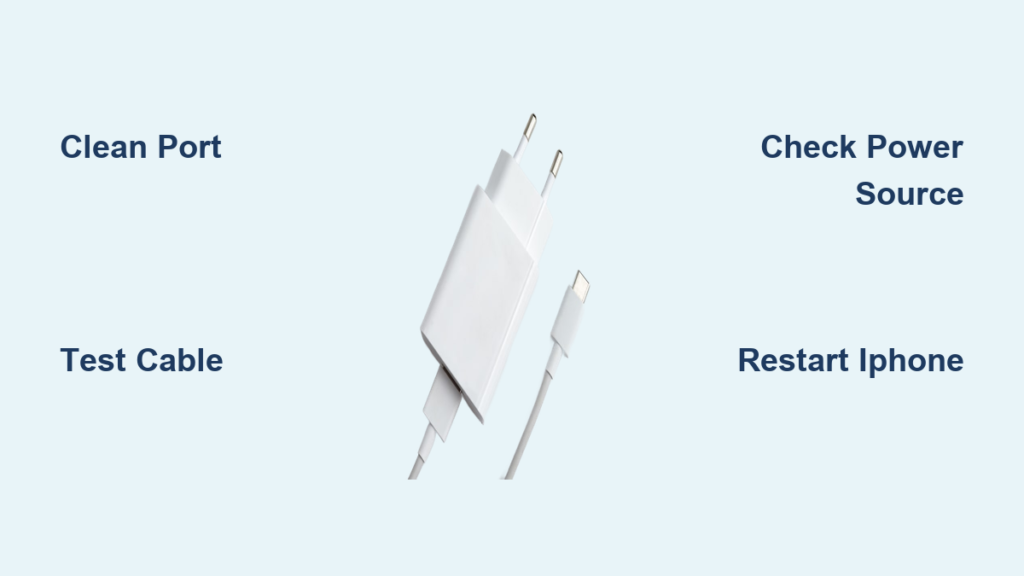
Is your iPhone refusing to charge? This frustrating problem affects millions of users worldwide. The good news is that most charging issues stem from simple causes like dirty ports, worn cables, or software glitches, all of which you can fix at home. This guide walks you through every proven solution, from basic troubleshooting to advanced repairs, helping you get your phone powered up without spending money on unnecessary replacements.
You’ll learn how to diagnose the exact cause of your charging problem, clean your port safely, test your cables and adapters, and know exactly when it’s time to seek professional help. Each section includes step-by-step instructions with time estimates and difficulty ratings so you know what to expect.
Clean the Charging Port
Dirt, lint, and pocket debris accumulate in the Lightning or USB-C port over time, blocking the connection between your charger and phone. This is the single most common cause of charging failures, and cleaning it takes just five minutes.
Remove Lint and Dust Safely
Power off your iPhone completely before cleaning. Use a wooden toothpick to gently scrape along the inner edges of the port, dislodging compacted lint. Avoid metal objects like paper clips, which can bend or short the internal pins. After scraping, use short bursts of compressed air while tilting the phone downward to blow out loosened particles.
For sticky residue, lightly dampen a cotton swab with 90% isopropyl alcohol and wipe around the port edges. Let the phone air dry for 10-15 minutes before attempting to charge.
Recommended Cleaning Tools
Wooden toothpick works perfectly for scraping without conducting electricity. Anti-static brush reaches deep into the port without scratching. Compressed air clears fine dust without introducing moisture. Lint-free cloth wipes the exterior without leaving fibers behind.
Never force any object into the port. If you feel resistance, stop immediately to avoid damaging the internal pins.
Test the Cable and Adapter

Damaged or counterfeit accessories cause roughly 70% of all charging problems. Before replacing your phone, verify whether your cable or adapter is the culprit.
Check for Cable Damage
Inspect both ends of your Lightning or USB-C cable carefully. Look for fraying near the connectors, exposed wires, bent pins, or discoloration. If the cable only works at certain angles, the internal wires are broken and the cable needs replacement.
Feel along the entire length of the cord for stiff sections or kinks. These weak points will eventually fail completely.
Try a Known-Good Charger
Borrow an Apple-certified cable from a friend or use one from your iPad or Mac. Plug it into your iPhone and observe whether charging begins. If it works, your original cable or adapter is faulty.
Test your original cable with a different power source, like a computer USB port or car charger, to isolate whether the problem is the cable, the adapter, or the wall outlet.
Verify the Power Source
Even a perfect cable and adapter won’t work if your power source is faulty. Rule out outlet issues before assuming your charger is broken.
Test Different Outlets
Plug your charger directly into a wall outlet, bypassing power strips or surge protectors. Try a different room in your home. If your phone charges from a laptop USB port but not the wall, the adapter or outlet is the problem.
Use Alternative Power Sources
Computer USB ports confirm whether the cable can conduct power. Car chargers test your setup in a different power environment. Power banks rule out all outlet-related issues entirely.
If your adapter feels warm to the touch or makes a buzzing sound, stop using it immediately. These are signs of failing hardware that could damage your phone.
Fix Moisture Detection Alerts
Modern iPhones contain sensors that detect moisture in the charging port. When triggered, the phone stops charging to prevent damage, even if the port appears dry.
Clear Moisture Detection Messages
Let your phone air dry for 12-24 hours in a cool, dry location. Do not use a hair dryer, as heat damages internal components. With the phone powered off, gently wipe the port edge with a dry microfiber cloth.
The alert clears automatically when the system confirms the port is dry. Avoid charging in humid bathrooms and dry your hands before handling the charger.
Restart the iPhone
Software glitches sometimes prevent the phone from recognizing connected chargers. A simple restart often fixes this issue.
Perform a Standard Restart
For iPhone 8 and later, press and release Volume Up, then Volume Down, then hold the Side button until the Apple logo appears. For iPhone 7, hold Volume Down and the Side button together. For iPhone 6s and earlier, hold Home and the Side button.
Wait 30 seconds after the phone restarts before plugging in the charger.
Force Restart for Frozen Devices
If your screen is unresponsive, a force restart resets the charging circuit. This frequently fixes “charging but not gaining power” issues caused by software bugs. The process is the same as a standard restart, just held longer until the logo appears.
Update or Reset iOS
Outdated software sometimes interferes with charging functionality. Apple regularly patches charging bugs in new iOS releases.
Install the Latest iOS Update
Open Settings, tap General, then Software Update. Install any available updates. After updating, test your charging again.
Disable Optimized Battery Charging
This feature delays charging past 80% to extend battery lifespan, which can make you think your charger isn’t working properly. Go to Settings, tap Battery, then Battery Health & Charging. Turn off Optimized Battery Charging.
For iPhone 15 and newer, also check the Charge Limit setting under the same menu. Set it to 100% for full charging capacity.
Try Wireless Charging
Testing wireless charging helps determine whether the issue is specific to the Lightning or USB-C port.
Use Qi or MagSafe Charger
Place your iPhone on a Qi-certified or MagSafe charging pad. If it charges wirelessly, the problem lies with the physical port or cable connection. This test isolates whether you need port repair or just a new cable.
Remove thick phone cases, metal mounts, or credit card holders before charging. These items block the charging coil and prevent power transfer.
Remove a Stuck Charger Plug
A broken connector lodged in the port blocks all charging attempts. Removing it requires steady hands and the right technique.
Safe DIY Removal Methods
Turn off your iPhone before attempting removal. Use fine-tipped plastic tweezers to grip the exposed edge of the broken piece and pull straight out. Avoid wiggling, which damages port clips.
For the hot glue method, warm a glue stick and apply a small amount to a toothpick. Press it onto the stuck fragment and hold for 30 seconds until solid. Gently lift straight up. Standard hot glue is non-conductive and removes easily.
Alternatively, slide a cotton thread under the piece and pull upward. If the center is plastic, screw a tiny self-tapping screw into it and pull.
Stop immediately if you feel resistance. Forcing the piece can destroy the port entirely.
Seek Professional Removal
Apple Stores often remove stuck connectors for free, even without warranty coverage. Authorized repair shops use specialized tools and complete the job in minutes. Avoid third-party shops that may exaggerate damage to upsell unnecessary repairs.
When to Replace the Charger

Using a damaged charger risks your phone’s safety. Know when replacement is necessary.
Signs You Need New Accessories
Replace your cable if it frays easily, charges intermittently, or works only at specific angles. Replace your adapter if it overheats, smells burnt, or charges slowly. Discard chargers purchased from gas stations or discount stores, as these are often counterfeit.
Use MFi-Certified Accessories
Only use Apple MFi-certified cables and adapters. These meet Apple’s safety and performance standards. Counterfeit accessories can damage your charging port, overheat the battery, and trigger “Unsupported Accessory” alerts. Apple replaces faulty chargers free within one year of purchase.
Factory Reset as Last Resort
If all software troubleshooting fails, a factory reset can eliminate deep conflicts, but this step erases all your data.
Erase and Test
Back up your iPhone to iCloud or iTunes first. Go to Settings, tap General, then Transfer or Reset iPhone. Tap Erase All Content and Settings. Set up as a new device and test charging.
If the phone charges after reset, a software bug was the cause. This step should only be used after exhausting all other options.
Seek Professional Repair
Some issues require expert intervention. Know when to hand off the problem.
Signs You Need Help
Visit a professional if the port wobbles when you plug in, pins inside are bent or discolored, the phone heats up during charging, or known-good accessories fail to work.
Apple and Authorized Repair Options
Apple Stores offer free diagnostics. They use genuine parts and Apple-certified tools with same-day service for port replacements. Independent authorized shops like uBreakiFix offer lower prices with free estimates.
Repair costs range from $50-$120 for charging port replacement, depending on your model. Battery and port combinations typically cost $100-$180.
Prevent Future Charging Issues
Protect your charging system with these simple habits.
Best Practices for Long-Term Use
Always use MFi-certified cables. Pull the plug when disconnecting, never the cord. Avoid sharp bends near the connector. Store cables loosely coiled.
Clean your port monthly with compressed air or a soft brush. Consider switching to MagSafe or Qi wireless charging to reduce wear on the physical port, especially if you charge multiple times daily.
Temporary Fixes That Work
Sometimes you need a quick workaround while waiting for a replacement.
Stabilize Frayed Cables
Wrap electrical tape around the sheath near the connector to hold frayed sections together. This buys you a few more charges, but replace the cable soon. Never tape over the metal connector itself, as this causes short circuits.
Fix Unsupported Accessory Alerts
Clean both the port and cable tip thoroughly. Restart your iPhone. Update to the latest iOS version. Try a different MFi-certified cable. Plug directly into the wall without adapters or hubs.
Frequently Asked Questions About iPhone Charger Fixes
Why does my iPhone say “Accessory Not Supported” when I plug in my charger?
This message typically appears when using a non-certified or damaged cable, or when debris is blocking the connection. Clean your charging port thoroughly and try a different Apple MFi-certified cable. If the problem persists, your port may be damaged and needs professional inspection.
How do I know if my iPhone battery or charger is the problem?
Test your charger with a different device. If that device charges normally, your iPhone’s port or battery is the issue. Alternatively, try wireless charging. If your iPhone charges wirelessly but not with a cable, the problem is the physical port, not the battery.
Can a dirty charging port prevent my iPhone from charging?
Yes, lint and debris are the leading causes of charging failures. Dust compacts around the internal pins, blocking electrical contact. Regular cleaning with compressed air or a wooden toothpick resolves this issue in most cases.
Should I use a hair dryer to dry a wet charging port?
No, never use a hair dryer. The heat damages internal components. Instead, let your iPhone air dry in a cool location for 12-24 hours. Gently wipe the port edge with a dry microfiber cloth while the device is powered off.
How much does it cost to replace an iPhone charging port?
Apple and authorized repair shops typically charge $50-$120 for charging port replacement, depending on your iPhone model. Some shops offer lower prices or price-match guarantees. Apple Stores often provide free diagnostics.
Key Takeaways for Fixing Your iPhone Charger

Most charging problems are fixable at home through simple troubleshooting. Start by cleaning the charging port and testing with different cables and adapters. Restart your device and update your software before assuming hardware failure. Use only MFi-certified accessories to prevent damage. If wireless charging works but cable charging doesn’t, your port needs attention. Consider switching to wireless charging long-term to reduce port wear. When in doubt, visit Apple or an authorized repair provider for free diagnostics and reliable service.



