
Wireless charging has transformed the way we power our smartphones—no more fumbling with cables or wearing out charging ports. If you’ve ever wondered how to use wireless charger properly, you’re not alone. Millions of users own compatible devices but don’t maximize their charging speed, efficiency, or safety due to simple mistakes like misalignment or using incompatible cases. This guide breaks down everything you need to know about using a wireless charger correctly, from setup and device compatibility to troubleshooting and advanced features like Wireless PowerShare.
Set Up Your Wireless Charger Correctly
Before placing your phone down, you need to prepare the charging pad properly.
Plug Into a Power Source
Connect the wireless charging pad to a wall outlet using its USB cable and a compatible power adapter. Avoid low-power sources like laptop USB ports unless specified by the manufacturer, as they may not provide enough wattage for reliable charging. Most experts recommend using a 5V/2A or higher power adapter for optimal performance.
Place on a Stable Surface
Set the charger on a clean, flat, and stable surface like a nightstand or desk. Avoid uneven or vibrating areas where your phone might slide off or lose alignment during charging. A stable surface ensures consistent contact between the charging coils.
Check the Indicator Light
Most chargers have an LED that flashes briefly when powered. A solid or pulsing light usually means the charger is active and ready to receive your device. Refer to your model manual if the light behaves unexpectedly.
Confirm Your Device Supports Wireless Charging
Not all phones can charge wirelessly—only those with built-in Qi receivers.
Check for Qi Support
Look up your phone model on the manufacturer website or check the user manual. Common models that support Qi wireless charging include iPhone 8 and later, Samsung Galaxy S6 and newer, Google Pixel 3 and later, and most flagship Android phones. If your phone lacks built-in support, third-party accessories like wireless charging cases exist, but these are rare today due to widespread Qi adoption.
Understand MagSafe vs Standard Qi
Apple’s MagSafe (iPhone 12 and newer) uses magnetic alignment for faster, more efficient charging. While standard Qi chargers work with iPhones, MagSafe pads offer better speed and connection. Android phones without magnetic rings can still charge on MagSafe, but won’t snap into place unless Qi2-enabled.
Prepare Your Phone and Case for Charging

Even minor obstructions can block wireless charging completely.
Remove Problematic Cases
Thick cases over 3mm, metal plates, magnetic mounts, or wallet-style cases with card slots interfere with the electromagnetic field. Remove them before charging. Use thin, non-metallic cases made of silicone, TPU, or plastic for uninterrupted charging.
Clean All Surfaces
Wipe the back of your phone and the charger surface with a dry microfiber cloth. Dust, dirt, or moisture can reduce efficiency or stop charging entirely. Regular cleaning ensures optimal energy transfer between coils.
Position Your Phone for Maximum Efficiency

Alignment is critical—your phone won’t charge efficiently if coils aren’t matched.
Center the Phone Face-Up
Place your phone face up in the center of the pad. Most chargers have a marked zone or slight indentation to guide placement. For foldable phones, close the device before setting it down.
Align Coils Properly
The internal charging coil is typically near the center of the phone. If your phone isn’t charging, try rotating it slightly. Some models require precise positioning. Qi2 and MagSafe chargers use magnets to auto-align, reducing guesswork.
Monitor Charging and Know When It Works
Once placed, charging should begin automatically.
Look for Charging Confirmation
Check for a battery icon with a lightning bolt on your screen and an LED light on the charger (color varies by brand). No app or setting needs to be turned on. Wireless charging works out of the box once proper alignment is achieved.
Avoid Heavy Usage During Charging
Heavy usage like gaming or video calls generates heat, which slows charging or triggers thermal protection. For fastest results, let your phone charge undisturbed.
Use Wireless Charging in Your Vehicle
Many modern vehicles come with built-in wireless charging pads.
Activate Vehicle Power Mode
Turn the ignition to On, Accessory, or RAP (Retained Accessory Power) mode. Charging won’t work with the engine off in most cars.
Align With the Coil Symbol
Place your phone face up on the pad, aligning its center with the coil symbol or groove. Some systems beep or display a message when charging starts.
Watch for Heat Build-Up
Cars get hot, and combined with charging, this may cause your phone to overheat. If charging stops unexpectedly, it’s likely due to thermal protection. Move to shade or turn on AC.
Optimize Your Charging Speed

Not all wireless chargers deliver the same speed.
Know Your Charging Levels
Standard Qi charging provides 5W to 7.5W with a basic charger. Fast wireless charging reaches up to 10W to 15W, but both phone and charger must support fast charging. Qi2 offers up to 15W with magnetic alignment and improved efficiency.
Use Certified Fast Chargers
Choose Qi-certified chargers from trusted brands like Anker, Samsung, or Belkin. Non-certified units may underperform or pose fire risks. To achieve 15W fast charging, both your phone and charger must support the same fast-charging standard.
Prevent Overheating Issues
Heat is the biggest enemy of wireless charging performance.
Common Causes of Excessive Heat
Using the phone while charging, direct sunlight or hot environments, thick or insulated cases, and simultaneous fast charging with data transfer all increase temperature. Phones automatically pause charging if internal temperature gets too high to protect battery health.
Solutions to Cool Down
Remove the case, charge in a cool shaded area, close background apps, and turn on airplane mode temporarily. If the phone shuts off charging, wait 5 to 10 minutes before retrying.
Use Wireless PowerShare on Samsung Galaxy Devices
Some Galaxy phones can charge other devices like earbuds or watches by acting as a wireless charger.
Check Device Compatibility
Phones that can share power include Galaxy S24/S25/S26 series (all variants), Galaxy S24 FE, S25 FE, and Galaxy Z Fold and Flip models (select versions). Devices that can be charged include Galaxy Buds series, Galaxy Watches, and Galaxy Ring. Galaxy A, XCover, and Tab devices do not support PowerShare.
Enable and Use PowerShare
Swipe down to open Quick Settings. Tap the Wireless PowerShare icon (add it if missing). Place the receiving device back-to-back with your phone. Wait for vibration or sound confirming charge start. Ensure your phone has at least 30% battery before using PowerShare.
Troubleshoot Common Wireless Charging Problems
Even with proper setup, issues can occur.
Phone Won’t Charge
Possible causes include phone doesn’t support wireless charging, thick or metal case, misaligned placement, dirty charging pad, or faulty charger. Fix by confirming Qi compatibility, removing case and re-centering phone, cleaning both surfaces, and trying a different charger.
Charging Is Slow
Why it happens includes using a 5W charger instead of 15W, case interference, or phone only supports standard charging. Solutions include upgrading to a Qi2 or MagSafe-compatible charger, using a thinner case, and verifying your phone supports fast wireless charging.
Flashing Red Light
This signals a problem. Clean the pad and phone back, remove any metal objects, reposition the phone, and unplug and restart the charger.
Choose the Right Wireless Charger
Not all chargers deliver the same performance.
Top Picks for Reliable Charging
Anker Zolo Magnetic Wireless Charger offers up to 15W fast charging with magnetic snap for perfect alignment and ActiveShield 2.0 for daily temperature checks. Anker 335 3-in-1 Station charges phone, earbuds, and Apple Watch simultaneously with foldable design. Anker 315 Wireless Pad provides sleek design with built-in surge and overheat protection. Always look for Qi certification and avoid cheap, uncertified chargers.
Frequently Asked Questions About Wireless Chargers
How do I know if my phone supports wireless charging?
Check your phone specifications on the manufacturer website or look for the Qi logo on the device, packaging, or manual. Common supported models include iPhone 8 and later, Samsung Galaxy S and Note series, and Google Pixel 3 and later.
Can I use any wireless charger with my Android phone?
Most Android phones support Qi, so they work with any Qi-certified charger. For best results, use reputable certified chargers and ensure compatibility with your phone fast-charging standard.
Does wireless charging stop when the battery is full?
Yes. Modern wireless chargers and phones stop charging automatically at 100% to protect battery health.
Can I use wireless charging with a phone case?
Yes, but only with thin non-metallic cases 3mm or thinner. Avoid cases with magnets, metal plates, or cardholders.
Why is my phone not charging wirelessly?
Common reasons include phone doesn’t support wireless charging, misaligned placement, thick or metal case, dirt or debris on charger or phone, or faulty non-certified charger.
Is wireless charging safe?
Yes, when using certified chargers. Built-in protections prevent overcharging, overheating, and electrical surges.
Key Takeaways for Using Wireless Chargers
Learning how to use wireless charger effectively goes beyond just placing your phone on a pad. Proper alignment, compatible hardware, and awareness of heat and speed limitations make the difference between a frustrating experience and seamless daily charging. With Qi becoming standard across smartphones and new standards like Qi2 improving speed and reliability, wireless charging is now faster and safer than ever.
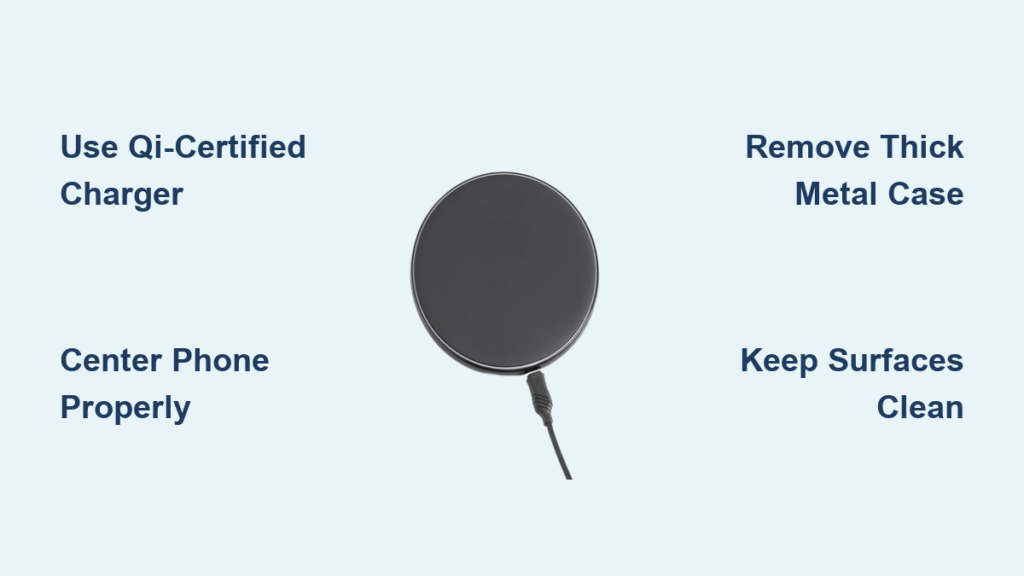
Follow these essential tips for reliable wireless charging. Always use Qi-certified chargers from trusted brands. Center your phone precisely on the charging pad. Remove metal or thick cases before charging. Keep surfaces clean and dry. Charge in cool environments to prevent overheating. For Samsung Galaxy users, take advantage of Wireless PowerShare when you need to charge earbuds or watches on the go.
Invest in certified equipment, keep your setup clean, and take advantage of smart features. Your devices will stay powered with minimal effort, extending battery life and ensuring reliable performance every day.





