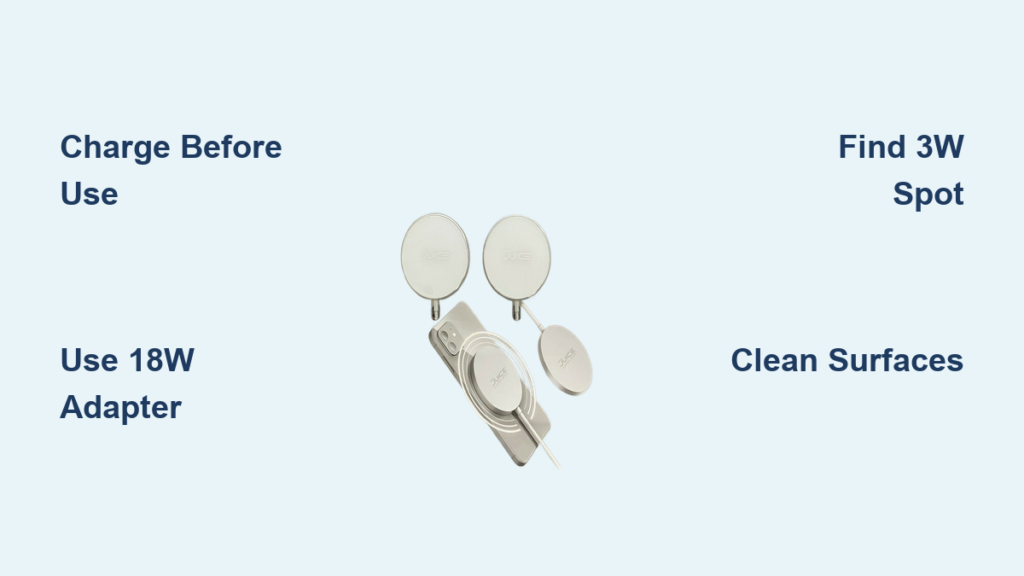
If you’ve just unboxed your Nano Juice wireless charger, you might be feeling a bit uncertain about how to get started. Whether you have the portable Tech2 model with its unique suction design or the 3-device charging pad, using these chargers correctly makes all the difference in performance. This guide covers everything from initial setup and device compatibility to troubleshooting common issues, so you can charge your devices smarter, faster, and safely.
By the end of this article, you’ll know exactly how to position devices for optimal charging, why the center zone on the pad can be tricky, and how to use features like the built-in flashlight. Let’s get started.
Set Up Your Nano Juice Portable Charger
Before using your Tech2 Nano Juice portable battery, you need to prepare it properly. Taking a few minutes to set up the charger ensures you get the best performance and avoid frustration later.
Charge the Battery Before First Use
Start by fully recharging your Nano Juice portable charger. Use either the Lightning port or the USB-C port to plug it into any standard power source. The recharge time takes 4 to 6 hours, so plan accordingly. Once fully charged, all four LED lights on the status bar will illuminate, indicating the battery is ready.
Check the Battery Level
Press the power button once to view the LED charge indicator. One light means 0 to 25 percent, two lights indicate 25 to 50 percent, three lights show 50 to 75 percent, and four lights mean 75 to 100 percent. This gives you a quick estimate of remaining power so you know when it’s time to recharge.
Attach to Your Phone Correctly
Make sure your phone’s back is clean, dry, and smooth before attaching the Nano Juice. Press the suction side firmly onto your phone or case. The charger works best with thin, flat cases, as thick rubber or textured covers prevent proper adhesion. When attached correctly, the indicator light turns on automatically, confirming the connection and that charging has begun.
Avoid Common Attachment Mistakes
Never force the unit onto dirty or uneven surfaces. If suction fails, clean both your phone back and the charger’s surface with a dry microfiber cloth. Also, avoid placing the charger near edges where it could accidentally detach during movement.
Use the Nano Juice 3-Device Charging Pad
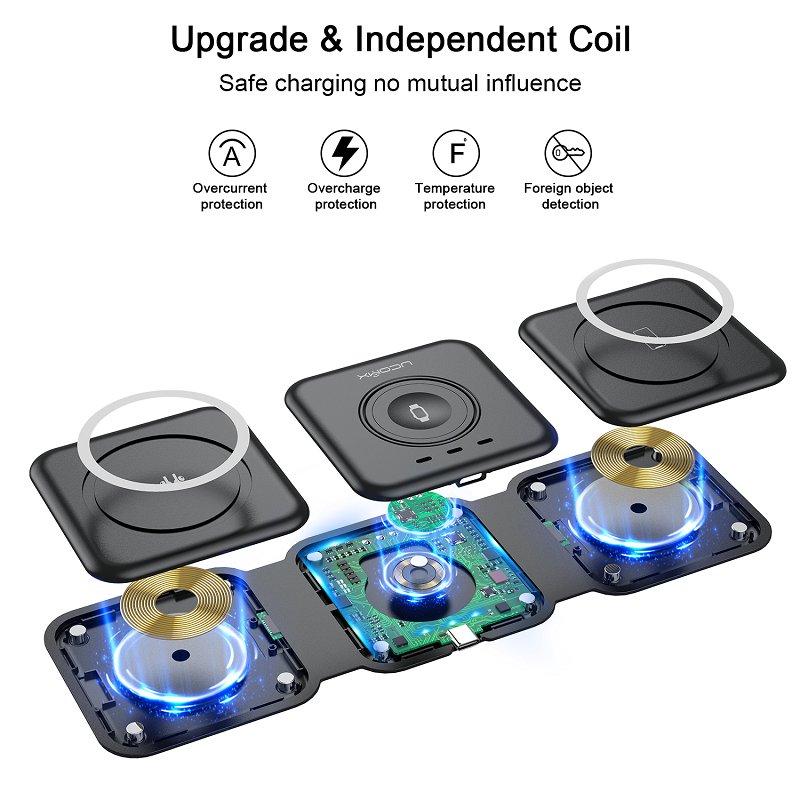
The stationary charging pad offers a different charging experience. Understanding its unique requirements helps you get the most from this multi-device charger.
Connect to a Powerful Enough Adapter
The Nano Juice 3-device charging pad has a permanently attached USB-C cable. Plug it into a USB-C PD wall adapter with at least 18W output. Using a lower-wattage adapter may cause slow or inconsistent charging. The pad powers on automatically when connected, but it has no indicator light, so you’ll need to rely on your devices to confirm it’s working.
Place Devices on the Correct Zones
The pad features three distinct charging zones. The left and right zones deliver up to 10W each, making them ideal for smartphones like iPhone and Galaxy S series. The center zone provides only 3W, designed for low-power accessories like AirPods or fitness trackers. Placing your phone in the center of either side zone ensures the fastest charging speed.
Find the Hidden 3W Charging Spot
The center 3W zone does not work universally across its entire surface. Testing shows it only functions in one narrow area. To find this spot, place your earbuds case in the center and move it in 1 to 2 cm increments. Watch for the charging confirmation LED on your case. Once you find the spot, mark it lightly with a removable sticker to save time later.
Maximize Charging Speed and Efficiency
Getting the best charging performance requires using compatible devices and proper positioning. Here’s how to ensure your devices charge at full speed.
Use Only Qi-Compatible Devices
Only Qi-enabled devices charge wirelessly on the Nano Juice. Confirmed compatible models include iPhone 8 through 15 series, Samsung Galaxy S21 through S23, Galaxy Fold 3, and AirPods with wireless charging case. These charge efficiently at up to 10W on the pad or 5W on the portable unit.
Avoid Incompatible Devices
Some devices simply won’t charge on the Nano Juice system. Apple Watch uses a magnetic charger and does not work with any Nano Juice product. Samsung Galaxy Watch requires a proprietary puck and won’t charge reliably. Non-Qi earbuds or wearables also won’t charge despite marketing that suggests otherwise.
Optimize Case Compatibility
Thick, textured, or metal cases interfere with both suction and wireless charging. For the portable model, use bare phones or thin silicone and plastic cases. Remove leather, carbon fiber, or rugged cases before charging to ensure strong adhesion and efficient power transfer.
Enable Simultaneous Charging Modes
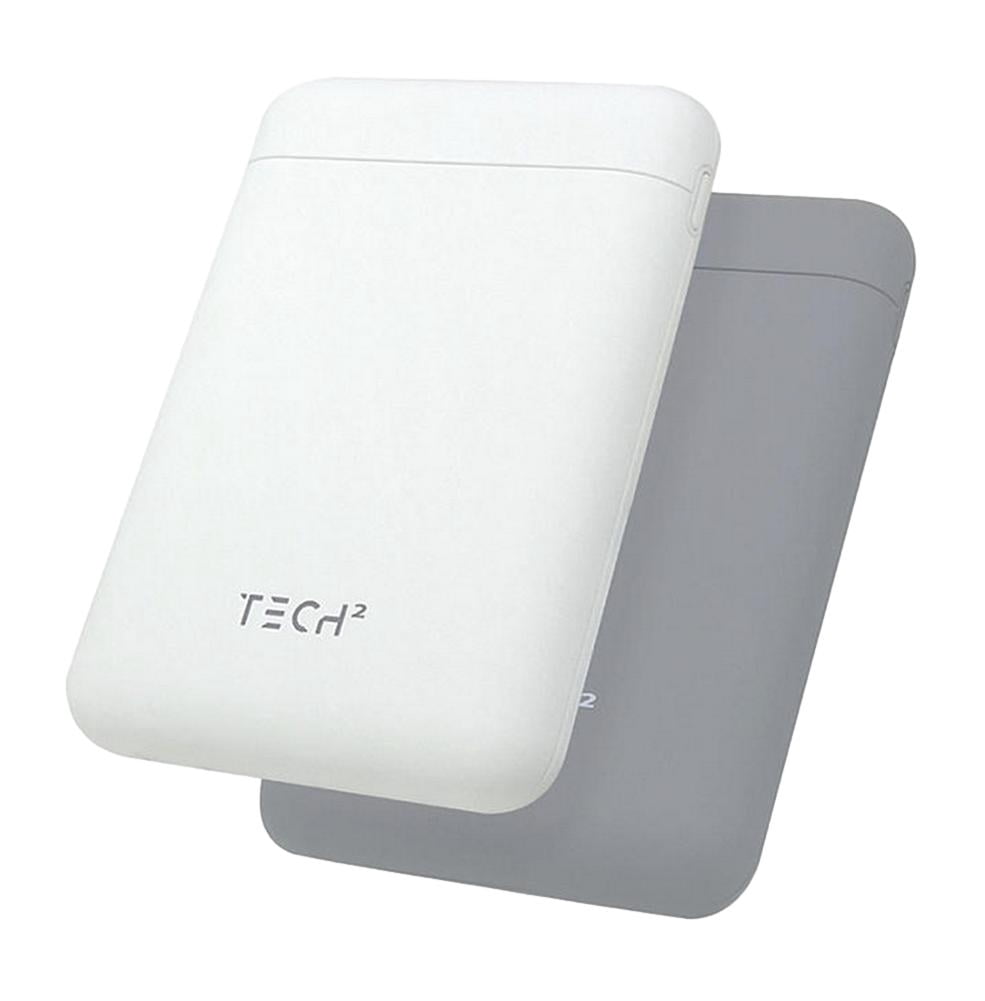
The Tech2 Nano Juice offers flexible charging options that let you power multiple devices at once. Understanding these capabilities helps you get the most from your charger.
Charge Wirelessly and Via USB Simultaneously
The Tech2 Nano Juice features two USB-A ports, each delivering 2.1A. This means you can charge one phone wirelessly while powering two other devices via cable, such as a tablet or earbuds. This makes the portable charger perfect for travel when multiple devices need power.
Recharge the Portable Unit with Any Cable
Unlike most power banks, the Tech2 model supports dual-input charging. Use a Lightning cable if you’re an Apple user or grab any USB-C cable if you use Android devices. This flexibility means you don’t need to carry extra cables just for the power bank.
Activate the Built-In Flashlight Feature
The Tech2 Nano Juice includes a handy flashlight that adds real-world utility beyond just charging. This feature proves useful in emergencies or low-light situations.
Turn On the Emergency Flashlight
Double-click the power button to activate the built-in flashlight. It’s bright enough to help during power outages, nighttime navigation, or emergency situations. Double-click again to turn it off. Since the flashlight runs on the 10,000mAh battery, you preserve your phone’s charge during extended use.
Handle and Remove the Charger Safely
Proper removal technique protects both your phone and the charger from damage. Taking a moment to remove it correctly extends the life of both devices.
Slide Off, Don’t Pull
Never yank the portable charger straight off your phone. This can damage the screen, strain internal connectors, and reduce the suction cup’s longevity over time. Instead, slide it horizontally to break the seal gently. This preserves both your device and the charger.
Clean the Suction Surface Regularly
Dust and oils reduce grip over time. Wipe the suction pad and phone back with a dry microfiber cloth weekly. For deeper cleaning, use a bit of water, but never use alcohol or solvents, as these can damage the silicone surface.
Store Flat When Not in Use
Keep the suction side facing down on a clean surface to maintain proper adhesion. Avoid exposing the charger to extreme heat or direct sunlight, which can degrade the silicone material over time.
Monitor Charging Without Indicator Lights
The charging pad lacks LED indicators, which can make it difficult to confirm charging is working. Knowing what to look for solves this problem.
Rely on Device Feedback
To confirm charging on the pad, look for the iPhone battery icon or animation. Check the AirPods case LED, as green indicates charging. For Galaxy phones, watch for the charging symbol in the status bar. If you’re unsure, pick up the device after 5 minutes. The back should feel slightly warm if charging is active.
Test Power Delivery If Nothing Happens
If your device shows no charging feedback, try repositioning it slightly. Then test a different outlet. Many charging issues stem from using an underpowered adapter. Always use an 18W or higher USB-C PD adapter for reliable performance.
Troubleshoot Common Issues
Even with proper use, problems can occasionally arise. Knowing the solutions helps you get back to charging quickly.
Device Not Charging? Reposition It
Misalignment is the number one cause of charging failures. Qi charging requires close contact between the coils. Adjust your device in 1 to 2 cm steps or rotate the phone slightly. Even a small shift can make the difference between charging and not charging.
Intermittent Charging? Check Your Power Supply
Weak adapters cause unstable charging. Always use an 18W or higher USB-C PD adapter. Avoid using old chargers or USB ports on laptops that may not deliver enough power consistently.
Only One Device Charges at a Time?
This usually means your adapter cannot handle the 23W total load. Upgrade to a 30W dual-port adapter if you need to charge multiple high-power devices simultaneously.
Suction Fails? Evaluate Your Case Type
If the portable unit won’t stick to your phone, remove thick, rubberized, or textured cases. Try with a smooth, flat case or your bare phone. Clean both surfaces thoroughly, as even small debris can prevent proper suction.
Charger Gets Warm? That’s Normal
All wireless chargers generate heat during operation. The Nano Juice includes overheat protection that reduces power if needed. Keep the charger on a well-ventilated surface and avoid covering it with fabric or pillows.
Know What to Expect from Performance
Understanding realistic charging speeds helps you plan your device usage. Here’s what you can expect from your Nano Juice charger.
Charging Speed Reference
The portable model delivers 5W wireless output, which takes about 2.5 hours to charge an iPhone 13 from 20 to 80 percent. The charging pad’s 10W output charges a Galaxy S21 in roughly 1.75 hours for the same range. AirPods Pro charge in about 1 hour on the pad, while fitness trackers take 1.5 to 2 hours in the 3W center zone.
Real-World User Insights
Users consistently praise the suction design for holding phones securely while driving. The dual-input charging eliminates the need for extra cables. The flashlight feature receives high marks for emergency use. However, some users report frustration with the center 3W zone, noting that Galaxy Buds won’t charge there and that finding the exact spot requires trial and error.
Maintain and Extend Longevity
Proper care keeps your Nano Juice charger working well for years. A few simple habits make a big difference.
Avoid Overcharging
Both models include overcharge protection, so leaving devices overnight is safe. The charger automatically stops power delivery when your device reaches 100 percent.
Store at 50 Percent for Long Periods
If you won’t use the portable unit for weeks, charge it to 50 percent before storage. This preserves battery health better than storing it fully charged or completely depleted.
Buy Smart: Pricing and Value
Understanding the pricing and warranty helps you make an informed purchase decision.
Get the Best Value
The Tech2 Nano Juice 2-pack costs $40, which works out to about $20 per unit. You can find them at Sam’s Club and Amazon. The 3-device charging pad costs $49.99 and includes the cable and manual but no power adapter.
Understand the Warranty Coverage
Both models come with a one-year limited warranty covering manufacturing defects. Keep your receipt and register your product online if possible to ensure you can access support if needed.
Frequently Asked Questions About Nano Juice Wireless Charger
Can I charge my Apple Watch on the Nano Juice 3-device pad?
No, the Apple Watch uses Apple’s magnetic charging system and is not Qi-compatible. It will not charge on any Nano Juice product, despite the marketing that suggests three-device charging capability.
Why does my phone feel warm after wireless charging?
This is completely normal. All wireless chargers generate heat during operation. The Nano Juice includes overheat protection that automatically reduces power if temperatures become too high. Your phone should not become uncomfortably hot.
How do I know if the charging pad is actually working?
The pad has no LED indicators, so you must rely on your device’s feedback. Look for the charging icon on your phone, the battery animation on iPhone, or the LED status on your earbuds case. If unsure, check if the back of your phone feels warm after a few minutes.
Can I use a thick phone case with the portable Nano Juice charger?
No, thick, textured, or rubberized cases prevent the suction from working properly. Use your phone bare or with a thin silicone or plastic case for the best adhesion and charging performance.
What’s the fastest way to find the 3W charging zone on the pad?
Place your earbuds case in the center and move it in small increments, about 1 to 2 cm at a time. Watch for the charging LED on your case to illuminate. Once you find the spot, mark it with a removable sticker for future reference.
Does the portable Nano Juice charger work while I’m using my phone?
Yes, the suction design allows for hands-free use while driving or watching videos. The charger attaches to the back of your phone and charges wirelessly while you use the device normally.
Key Takeaways for Using Your Nano Juice Wireless Charger
The Nano Juice wireless charger offers unique features like suction mounting for the portable model and multi-device charging for the pad, but using them correctly is essential for best performance. Always use an 18W or higher adapter with the charging pad, keep your phone surface clean before attaching the portable charger, and remember that the center 3W zone only works in one specific spot for low-power accessories. Compatible devices include iPhone 8 through 15, Samsung Galaxy S21 through S23, and AirPods with wireless charging cases. Avoid using thick cases, and store the portable charger at 50 percent if leaving it unused for extended periods. With these tips in mind, you’re ready to charge with confidence and get the most from your Nano Juice wireless charger.