
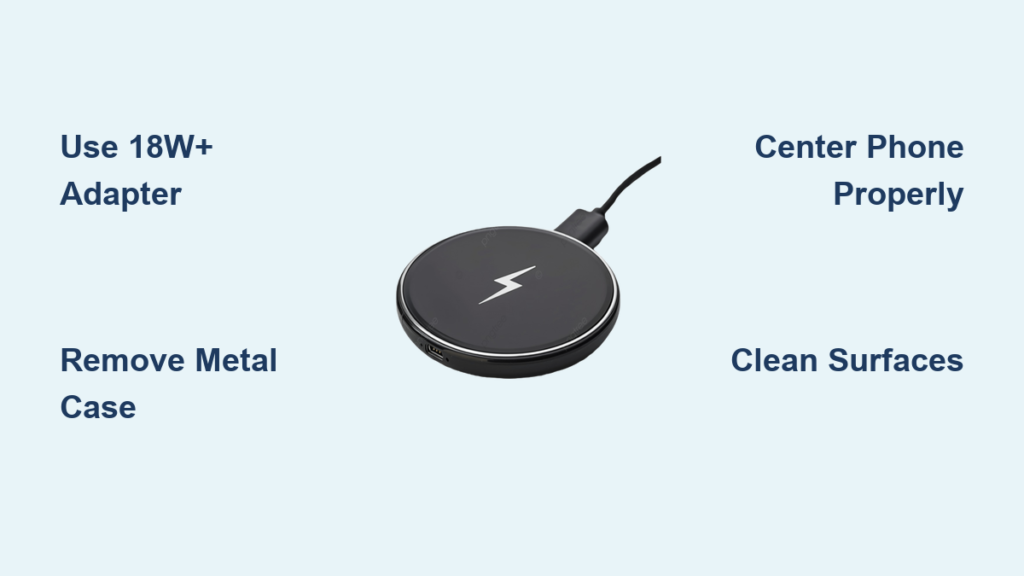
Placing your phone on a charging pad only to see nothing happen is frustrating. Millions of users experience this because of small mistakes like misalignment, thick cases, or using the wrong power adapter. Wireless charging is simple when you know the correct steps. This guide covers exactly how to charge phone with wireless charger, including setup, alignment, troubleshooting, and battery health tips that work for iPhone, Samsung Galaxy, Google Pixel, and any Qi-compatible device.
By following these steps, you will charge your phone correctly the first time, every time, while protecting your battery and maximizing charging speed.
Set Up Your Wireless Charger Correctly
Before placing your phone on the pad, ensure your charging station is properly configured. A poorly powered or incorrectly placed charger will not deliver any functionality.
Connect to a High-Wattage Power Source
Most wireless chargers include a USB cable but not a wall adapter. You must plug the cable into a compatible power source for optimal performance.
Use an 18W or higher USB Power Delivery adapter or Quick Charge 3.0/4.0 wall adapter. Avoid low-output sources like computer USB ports unless your charger explicitly supports them. For MagSafe or fast wireless charging at 15W, use a 20W or higher USB-C adapter.
Pro Tip: If your phone charges slowly or intermittently, the adapter is often the culprit. Upgrade to a fast-charging wall adapter to unlock full performance.
Place on a Clean, Stable Surface
Position the charger on a dry, flat, non-metallic surface such as a nightstand, desk, or bedside table. Avoid moisture, condensation, and metal surfaces that disrupt the magnetic field. Keep the charger away from direct sunlight or heat sources to prevent overheating during charging.
Prepare Your Phone for Wireless Charging
Even the best charger will not work if your phone cannot receive power. A few simple preparation steps ensure maximum charging efficiency.
Remove Thick or Metal Cases
Cases thicker than 3mm or those with metal plates, magnets, or built-in wallets block the electromagnetic field. This causes slow charging, intermittent connection, or complete charging failure.
Warning: Magnetic car mounts and wallet cases often contain metal. Remove them before charging.
Safe case types include thin silicone, TPU, or plastic cases under 3mm thickness.
Clean Phone and Charger Surfaces
Dirt, oil, or dust on the back of your phone or the charging pad creates a barrier. Use a soft, lint-free cloth to wipe both surfaces before charging.
Visual Cue: If the phone feels warm or charging starts and stops, debris may be the culprit.
Position Your Phone for Proper Alignment

Proper alignment is the number one reason wireless charging fails. The internal coils in your phone and charger must line up within 3 to 5mm for effective power transfer.
Center the Phone on the Pad
Place your phone screen-up in the center of the charging pad. Most chargers have alignment rings, LED indicators, or rubberized zones to prevent slipping. If the phone is off-center, charging may not start or will be inefficient.
Use Magnetic Chargers for Perfect Alignment
Qi2 and MagSafe chargers use built-in magnets to snap your phone into place. This ensures instant, precise coil alignment, secure attachment ideal for car mounts, and faster 15W charging when supported.
Note: Only iPhone 12 and newer support MagSafe. Some Android phones support magnetic charging but do not snap as strongly.
Position Stands for Upright Charging
If using a charging stand, place the phone upright in the cradle with the back facing the charging coil. This setup is ideal for viewing notifications, taking video calls, and charging while working at a desk.
Confirm Wireless Charging Is Working
After placement, verify that charging is active. Do not assume silence means success.
Look for LED Indicators
Most chargers have an LED light that turns solid green, blue, or white when charging. The light blinks if misaligned, overheating, or detecting a foreign object.
Example: A blinking light on a MagSafe charger often means the phone is not centered or a metal object is underneath.
Check Phone Screen for Charging Icon
On your phone, look for a lightning bolt or battery animation, a chime or notification sound, or a lock screen charging animation for MagSafe. Charging typically begins within 3 to 10 seconds of proper placement.
Monitor Charging for Safety and Efficiency
Once charging starts, monitor for heat, interruptions, and performance rather than simply walking away.
Avoid Heavy Phone Use During Charging
Using your phone for gaming, video calls, or GPS navigation generates heat and consumes power faster than it is replenished. This results in slow net charging or even battery drain.
Pro Tip: Enable Airplane Mode or Do Not Disturb to reduce background activity and speed up charging.
Watch for Overheating
Wireless charging generates more heat than wired charging due to energy loss, typically 20 to 30%. If the phone or charger becomes too hot to touch, remove the phone immediately and let it cool down. Check for obstructions or case interference.
Critical: Prolonged overheating degrades battery health over time.
Let Charging Run Uninterrupted
Avoid picking up the phone frequently. Each removal breaks the connection and resets the charging cycle.
Optimize Wireless Charging Speed

Standard 5W to 7.5W charging takes hours. Fast wireless charging up to 15W cuts that time significantly, but only if conditions are met.
Use a Fast Wall Adapter
To enable 15W fast charging, use a 20W or higher USB-C PD adapter for iPhone, a Quick Charge 2.0/3.0 or Adaptive Fast Charging adapter for Samsung Galaxy, and a USB PD 18W or higher adapter for Google Pixel.
Fact: Using a 5W adapter limits even high-end phones to slow charging regardless of charger capability.
Choose Qi2 or MagSafe for Best Performance
The Qi2 standard brings magnetic alignment and 15W efficiency to all brands. Benefits include universal magnetic snap, better heat management, and enhanced Foreign Object Detection. Qi2 chargers work with older Qi phones but without magnetic alignment.
Troubleshoot Common Wireless Charging Issues
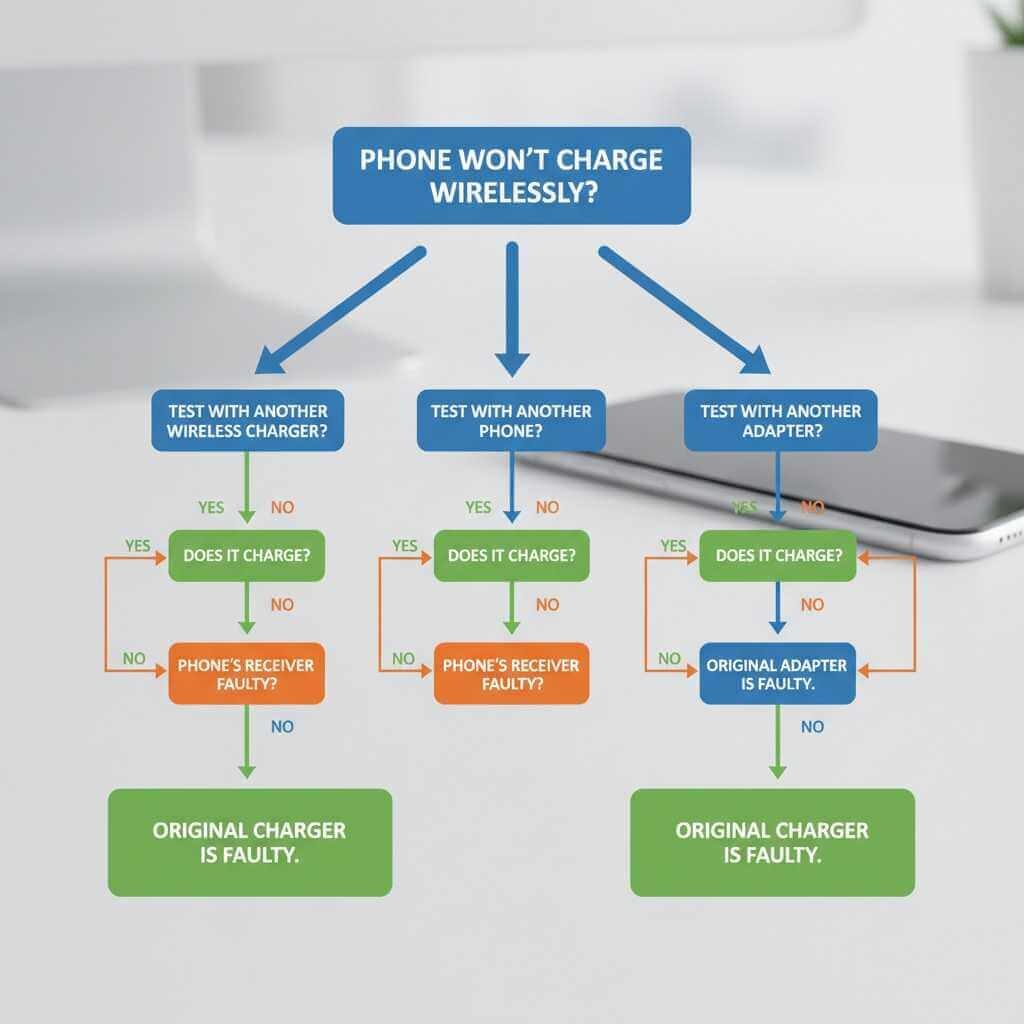
Even with proper setup, problems can occur. Here is how to fix them fast.
Phone Not Charging
Possible causes include misalignment, dirty surfaces, thick or metal case, incompatible device, or faulty power source.
Solutions involve repositioning the phone in the center, removing the case and cleaning surfaces, testing with a different outlet or adapter, and confirming the phone supports Qi.
Quick Test: Try charging another Qi-compatible phone. If it works, the issue is with your device or case.
Charging Stops Intermittently
Likely causes include overheating, background apps consuming power, or loose cable connection. Fix by closing heavy apps, restarting the phone, replacing a frayed cable, and ensuring proper ventilation.
Slow Charging Speed
Check the adapter wattage, phone case thickness, charger fast charging support, and whether the phone model supports fast charging. Replace old 5W chargers with Qi2-certified models for 15W speed.
Protect Battery Health During Wireless Charging
Wireless charging is safe, but poor habits can shorten battery life.
Does Wireless Charging Stop at 100%
Yes. All modern phones and Qi-certified chargers include automatic charge termination. Charging pauses or switches to trickle mode at 100% and resumes when the battery drops to approximately 95%. This is safe for overnight use, but avoid daily full cycles.
Use Optimized Charging Features
Enable built-in battery care features such as Optimized Battery Charging on iPhone, Protect Battery on Samsung, and Adaptive Charging on Google Pixel. These features delay full charging until you need it, reducing long-term wear.
Avoid Constant 100% Charging
For daily use, keep the battery between 20% and 80%. This reduces stress and extends lifespan.
Best Practice: Remove the phone once charged to 80 to 90% for routine top-ups.
Choose the Right Wireless Charger Type
Different setups suit different lifestyles.
Flat charging pads work best for nightstands and desks, offering compact and low-profile design but requiring precise alignment. Charging stands suit those who view notifications or take video calls, providing upright position and screen visibility but taking more space. Magnetic chargers like MagSafe and Qi2 offer auto-alignment, secure snap, and 15W speed but come at higher cost. Multi-device chargers handle phone, Apple Watch, and AirPods simultaneously. Car wireless chargers suit commuters but require ventilation to prevent overheating.
Follow Best Practices for Long-Term Use
Maximize convenience and longevity with these habits.
Use Certified Chargers Only
Stick to Qi- or Qi2-certified models from trusted brands including Anker, Belkin, Samsung, Apple, and Spigen. Avoid cheap, uncertified chargers that lack overheating protection, Foreign Object Detection, and voltage regulation.
Maintain Multiple Charging Stations
Most users own 3 to 4 wireless chargers for the bedroom, office, living room, and car. This ensures your phone is always within charging reach.
Clean and Maintain Regularly
Wipe the charger and phone back weekly with a dry microfiber cloth. Replace frayed or damaged cables to maintain proper power delivery.
Compare Wireless vs. Wired Charging
| Feature | Wireless | Wired |
|---|---|---|
| Speed | Slower | Faster |
| Convenience | High | Lower |
| Heat | Higher | Lower |
| Port Wear | None | Gradual |
| Mobility While Charging | Limited | Full |
Use wireless for convenience and wired for speed.
Final Checklist: How to Charge Phone with Wireless Charger
Confirm your phone supports Qi or Qi2. Use a Qi- or Qi2-certified charger. Plug into an 18W or higher wall adapter, 20W for MagSafe. Place the charger on a dry, stable, non-metal surface. Remove thick, metal, or magnetic cases. Clean the back of the phone and charger pad. Center the phone screen-up on the pad. Wait for the LED light or charging icon. Avoid heavy use during charging. Remove the phone if overheating occurs. Take off at 80 to 100% for battery health.
Frequently Asked Questions About Wireless Charging
Can I use any wireless charger with my phone?
Yes, as long as both the phone and charger support the same standard, either Qi or Qi2. Cross-brand compatibility is standard, meaning an iPhone can charge on a Samsung wireless pad.
Do I need to remove my phone case?
Not always. Most thin plastic, silicone, or TPU cases under 3mm do not interfere. However, thick cases, leather wallets, or metal plates can block charging completely.
Why is my phone not charging wirelessly?
Common causes include misalignment, thick or metallic case, dirty surfaces, incompatible device or charger, and faulty power source or cable. Try repositioning, removing the case, and testing with a different outlet.
Does wireless charging damage the battery?
Not inherently, but excessive heat from prolonged or fast wireless charging can accelerate battery degradation. Using high-quality chargers and avoiding continuous 100% charging helps preserve battery health.
Can I charge multiple phones at once?
Only if the charger has multiple charging pads. Most single-pad chargers support one device at a time.
Can I use wireless charging with power banks?
Yes. Many portable power banks now include wireless charging pads, allowing cable-free charging on the go.
Key Takeaways for Charging Your Phone Wirelessly
Wireless charging is a convenient, safe, and increasingly efficient way to power your phone. The key to success lies in using Qi- or Qi2-certified equipment, ensuring proper alignment, removing obstructive cases, and pairing with a fast wall adapter. Monitor for heat during charging, avoid keeping your phone at 100% constantly, and clean surfaces regularly for optimal performance.
Now that you know exactly how to charge phone with wireless charger, you can enjoy a truly cable-free experience without the guesswork. Set up your charger correctly, follow the alignment steps, and maintain good battery habits for long-term reliability.





