You are working remotely, your Lenovo battery is dying, and the charger is missing. This is a common frustration, but modern laptops offer multiple charging alternatives. If your Lenovo supports USB-C Power Delivery (PD), you can use third-party chargers, power banks, or even your vehicle to power up. This guide covers every safe, tested method for ThinkPad, IdeaPad, Yoga, and Legion models so you stay productive when the original charger is unavailable.
Confirm USB-C Charging Support on Your Lenovo
Before trying any alternative method, verify your Lenovo model can accept power via USB-C. Not all USB-C ports support charging, some are data-only.
Check for Power Delivery Capability
Look for a lightning bolt symbol or battery icon next to the USB-C port. Check your user manual or search your model on Lenovo’s official website. Modern ThinkPad, Yoga, and IdeaPad models (2018 and newer) typically support USB-C PD charging.
Models That Support USB-C Charging
ThinkPad X1 Carbon, T14, E14, L14, and P14s all support USB-C PD. Yoga 6, 7i, 9i, Slim 7, and Flex 5/7 work with USB-C charging. IdeaPad 3, 5, V15, and S3 also support this feature. Legion gaming laptops have limited USB-C charging capability.
Models Without USB-C Charging
Older ThinkPad models like T400 and X201 use barrel DC ports only. Some budget IdeaPads lack PD support. Legacy G-series and B-series laptops require proprietary chargers.
Match Power Requirements by Model
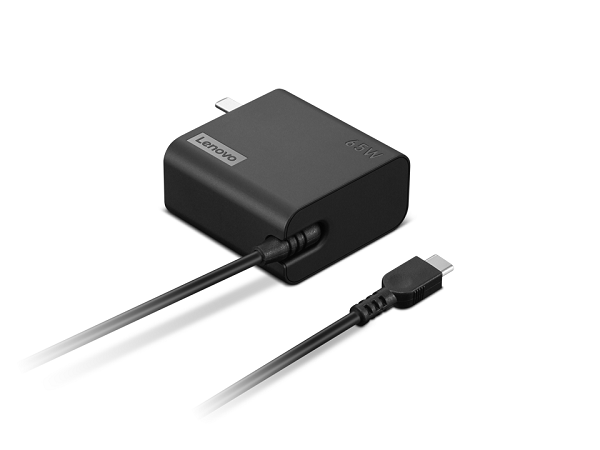
Using an underpowered adapter leads to slow charging or charging pause warnings. Always match or exceed your laptop wattage needs.
Wattage Requirements by Lenovo Model
ThinkPad X1 Carbon Gen 10 requires 65W minimum and charges fully at that level. ThinkPad T14 and E14 need 65W and may pause below that threshold. Yoga 7i and Slim 7 fully support 65W PD. IdeaPad 3 charges at 18W for trickle charging but needs 65W for full speed. Legion 5 Pro only gets 100W via USB-C while the OEM charger provides 170W.
High-performance gaming laptops like Legion require OEM chargers for full power. USB-C PD provides partial charging only.
Use a USB-C to USB-C Cable
The right cable determines whether charging works at all. A standard USB-C cable may transfer data but fail to charge your laptop.
Choose a PD-Certified Cable
Select a cable supporting Power Delivery up to 100W. Look for USB-IF certification, an E-Marker chip, and labels indicating 60W, 100W, or PD 3.0. Avoid cheap, unbranded cables that can overheat or fail.
Pro Tip: Use the same cable that came with your phone if it is rated for fast charging, such as Samsung 45W or Google Pixel 65W.
Charge With USB-C Wall Adapter
This is the fastest and most reliable alternative to the original charger.
Pick a Compatible PD Charger
Any USB-C PD wall adapter with sufficient wattage works, even from other brands. Apple 67W or 96W USB-C chargers work well. Samsung 45W or 65W PD chargers are compatible. Anker and Baseus 65W or 100W GaN chargers are excellent choices.
Steps to Charge
Plug the USB-C PD wall adapter into an outlet. Connect a USB-C to USB-C PD cable to the adapter. Plug into your Lenovo USB-C charging port. Wait for the battery icon or LED to confirm charging.
Performance: A 65W PD charger fills a ThinkPad X1 Carbon from 20% to 80% in 2 hours 15 minutes. A 30W phone charger takes over 4 hours and may not charge during active use.
Power Bank Charging for Travel

Power banks are ideal for flights, commutes, or off-grid work situations.
Requirements for Power Bank Charging
Use a power bank with USB-C PD output at 65W or higher. Capacity should be at least 20,000 mAh. You need a USB-C to USB-C PD cable.
Recommended Power Banks
Anker PowerCore 26800 PD provides 60W output with 26,800 mAh capacity. RAVPower PD Pioneer 27000 offers 60W and 27,000 mAh. INIU 30000mAh 100W provides fast charging with 100W output. Zendure SuperTank Pro delivers 100W with pass-through charging.
How to Use a Power Bank
Fully charge the power bank first. Connect it to your laptop via USB-C PD cable. Enable Laptop Charging Mode if available. Monitor the battery percentage.
Limitations: Low-wattage power banks (18W to 30W) only work when the laptop is off. Efficiency loss runs about 80-90% of rated capacity. Most phone-sized power banks with USB-A only cannot charge laptops.
Car Charging: On-the-Go Power
Useful during road trips or mobile work, car charging provides power when away from wall outlets.
USB-C Car Charger Method
Use a USB-C PD car charger at 45W or higher (65W ideal). Plug it into the cigarette lighter socket. Start the engine to prevent draining the car battery. Connect your laptop via USB-C cable and confirm charging.
Power Inverter Method
A pure sine wave inverter (at least 150W) converts 12V DC to 110V AC. Connect your USB-C charger to the inverter, then plug into the laptop. Start the engine and monitor inverter temperature.
Safety: Avoid modified sine wave inverters as they can damage electronics. Use pure sine wave models from trusted brands.
Use Another Laptop’s Charger
Cross-brand charging works when specifications match.
Safe Conditions for Cross-Brand Charging
Voltage must match within 0.5V tolerance. Wattage must be equal or higher. The charger must support USB-C PD for USB-C models. The connector type must match.
Proven Compatible Chargers
Dell 65W USB-C charger works with ThinkPad T14. MacBook 96W USB-C charger charges Lenovo laptops faster than OEM in many cases. HP 65W Smart AC Adapter is compatible with ThinkPad X1 Carbon.
Universal Laptop Charger (Multi-Tip)
Great for users with multiple devices or older Lenovo models with barrel ports.
Features and Requirements
Universal chargers include interchangeable tips for Lenovo barrel plugs. They offer adjustable voltage from 12V to 20V. They include overvoltage, overcurrent, and short-circuit protection. You must match the correct tip size and polarity and set voltage to match your laptop.
Best for: Older Lenovo G-series, B-series, or non-USB-C models. Not suitable for USB-C-only models unless the universal charger includes a USB-C PD port.
Emergency: Charge With Smartphone
Use this only in dire situations as it drains your phone battery quickly.
Compatible Phones and Requirements
Samsung Galaxy S23 or S24 Ultra supports reverse charging. Google Pixel 6 through 8 Pro works for this purpose. OnePlus 11 or 12 and Xiaomi 13 Pro are also compatible. You need a phone with reverse USB-C PD (OTG charging) and a USB-C to USB-C cable.
Steps for Phone Charging
Enable USB tethering or reverse charging in your phone settings. Connect the phone to the laptop via USB-C cable. Wait for the laptop to detect charging.
Reality Check: You gain only 5-10 minutes of laptop use per 30 minutes of phone discharge. This drains your phone completely and risks overheating. Use only in emergencies.
External Battery Charger (Older Models Only)
This method only works if your laptop has a removable battery.
Requirements
You need a Lenovo model with a removable battery (such as ThinkPad T400 or X200). An external charger from Lenmar or Wasabi is required. The voltage and connector must match.
Steps
Power off and remove the battery. Insert it into the external charger. Charge for 2-4 hours. Reinstall and power on.
Note: Most modern Lenovos (IdeaPad 3, Yoga, X1) have sealed batteries, making this method obsolete.
Methods to Avoid
Some proposed solutions do not work or are unsafe.
Wireless Charging
No Lenovo laptop supports full wireless charging as of 2025. Experimental prototypes exist but are not commercially available. Efficiency runs only 60-70% with high heat generation.
HDMI-Based Charging
HDMI Power Delivery is not implemented in any Lenovo model. HDMI ports are output-only and cannot power laptops. Some powered docks charge via USB-C, not HDMI.
Device-Specific Charging Tips
Charging Lenovo IdeaPad 3 Without Charger
Newer IdeaPad 3 models support USB-C PD. Use a 65W USB-C wall charger for full speed. An 18W phone charger works for trickle charge when the laptop is off. Avoid universal chargers without USB-C PD.
Charging ThinkPad Series (T14, X1, E14)
All ThinkPads support 65W USB-C PD. They may show Charging Paused with adapters below 65W. Dell, Apple, and HP USB-C chargers all work.
Charging Yoga and Slim Series
Yoga 6, 7, 9i and Slim 7 support 65W USB-C PD. They use the same methods as ThinkPad models. Their slim design makes them easy to carry.
Charging Lenovo Legion Gaming Laptops
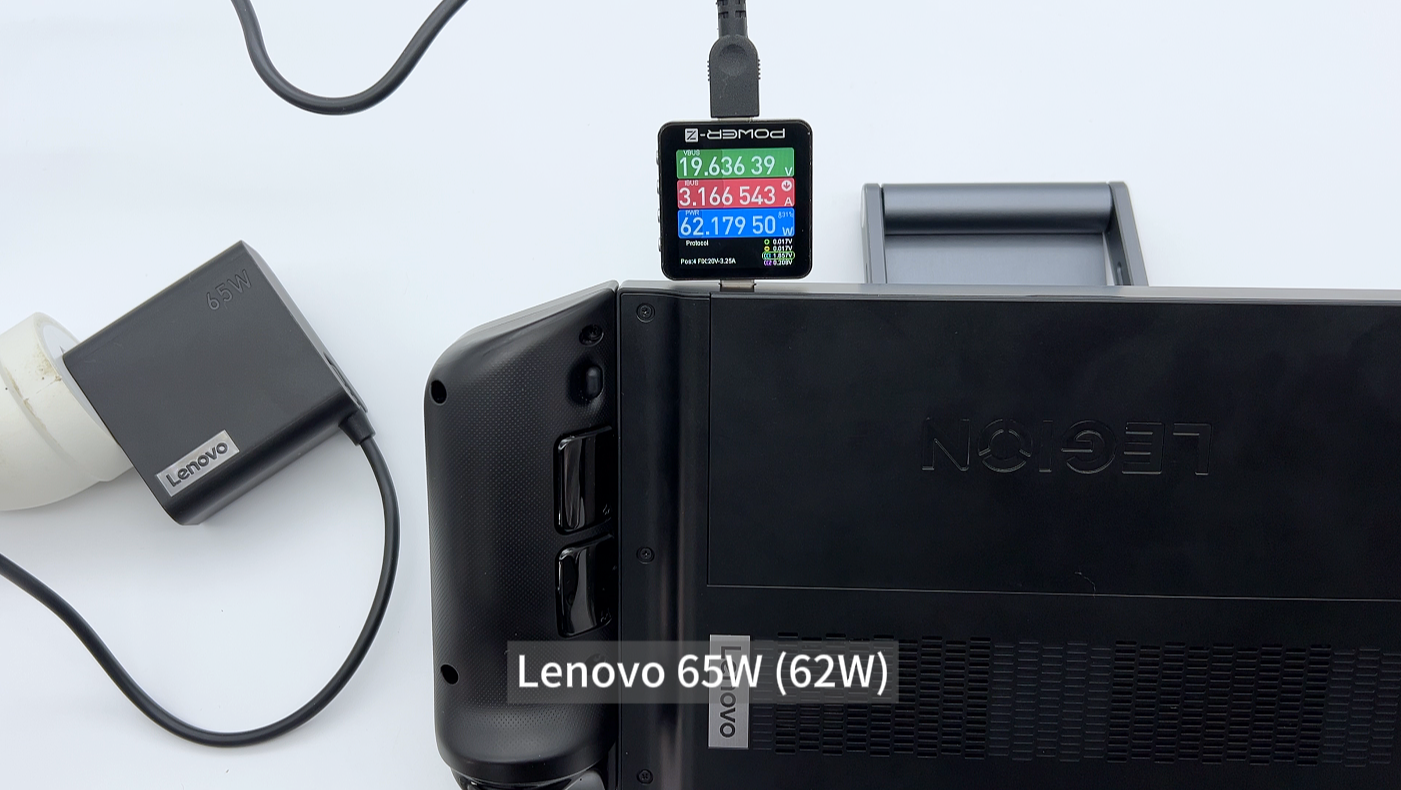
USB-C PD maxes at 100W while OEM chargers need 170W. You can charge slowly but not during gaming. Use only for light tasks or battery top-ups.
Safety and Warranty Tips
Follow These Safety Rules
Always match voltage and wattage exactly. Use certified accessories with USB-IF, CE, or FCC marks. Avoid overheating by not covering the charger or laptop. Prevent short circuits by using undamaged cables. Plug into surge protectors in unstable power areas.
Does Non-OEM Charger Void Warranty?
No, if you use certified USB-C PD or universal chargers. Yes, if you modify hardware or use unsafe setups.
Maximize Battery Life
Use Lenovo Vantage app to enable Battery Conservation Mode (caps at 80%). Calibrate monthly by draining to 5% then charging to 100%. Store in a cool, dry place and charge every three weeks if unused.
Troubleshoot Charging Issues
Common Problems and Solutions
If there is no response when plugged in, try a different cable or port. For “Plugged in, not charging” messages, update battery drivers in Device Manager. Slow or intermittent charging means the source is underpowered. Use 65W or higher adapters.
Generate Battery Health Report
Open Command Prompt as Administrator. Run powercfg /batteryreport. Open the battery-report.html file in your system32 folder. Check Design Capacity versus Full Charge Capacity. Replace the battery if capacity drops below 50%.
Frequently Asked Questions About Charging Lenovo Laptops Without Chargers
Can I charge my Lenovo with a phone charger?
Yes, if your laptop has USB-C PD and the charger is at least 30W USB-C PD. Use a USB-C to USB-C cable. Low-wattage chargers (5W-18W) will not charge under load.
Do all Lenovo laptops use the same charger?
No. ThinkPads (2018 and newer) use universal USB-C PD. Older models require proprietary barrel connectors. Always check voltage, wattage, and connector type.
How long does a Lenovo battery last?
Runtime reaches up to 10 hours depending on the model. Lifespan runs 2-4 years or 500-1000 charge cycles. Degradation accelerates with heat and deep discharges.
Can I use a power bank to charge my Lenovo?
Yes, if the power bank has USB-C PD output at 65W or higher. The cable must be PD-certified. Low-wattage power banks cannot charge laptops.
Why won’t my laptop charge via USB-C?
Possible reasons include the cable not supporting PD, adapter wattage being too low, the port being data-only, or a BIOS or driver issue. Test with a known 65W PD charger.
Is car charging safe?
Yes, if using a USB-C PD car charger at 45W or higher. Using a pure sine wave inverter is also safe. Always keep the engine running to avoid draining the car battery.
Key Takeaways for Charging Your Lenovo Without Its Charger
The original Lenovo charger remains ideal, but most modern models can charge safely without it using USB-C Power Delivery. Success depends on confirming PD support, matching wattage requirements, and using certified accessories. Always prioritize safety, monitor battery health, and treat alternative methods as temporary solutions. For long-term use, replace lost or damaged OEM chargers promptly to ensure peak performance and battery longevity.
Travel Kit Must-Haves: Carry a 100W GaN charger (Anker or Baseus), a 65W+ PD power bank, and a USB data blocker for public charging stations.