You plug in your laptop, but the battery percentage stays stubbornly the same, or worse, it drops even while connected to power. A laptop that is not charging is one of the most common tech frustrations, especially when you are in the middle of work or an important task. The good news is that most charging issues can be fixed without replacing the entire device.
This guide walks you through every possible cause and solution, from simple checks you can do in minutes to advanced diagnostics that reveal whether your battery or charging hardware needs professional attention.
Check Power Source and Outlet
Before assuming hardware failure, confirm that your laptop is actually receiving power from the wall.
Test the Wall Outlet
Plug another device, such as a phone charger or lamp, into the same outlet. If that device does not work, the problem lies with the outlet, not your laptop. This simple test takes seconds and rules out the most obvious culprit.
Try a Different Outlet
Electrical wiring issues can disrupt power delivery even when an outlet appears functional. Use a different room or a different circuit to test whether power inconsistency is causing the charging failure.
Inspect Charger and Cable
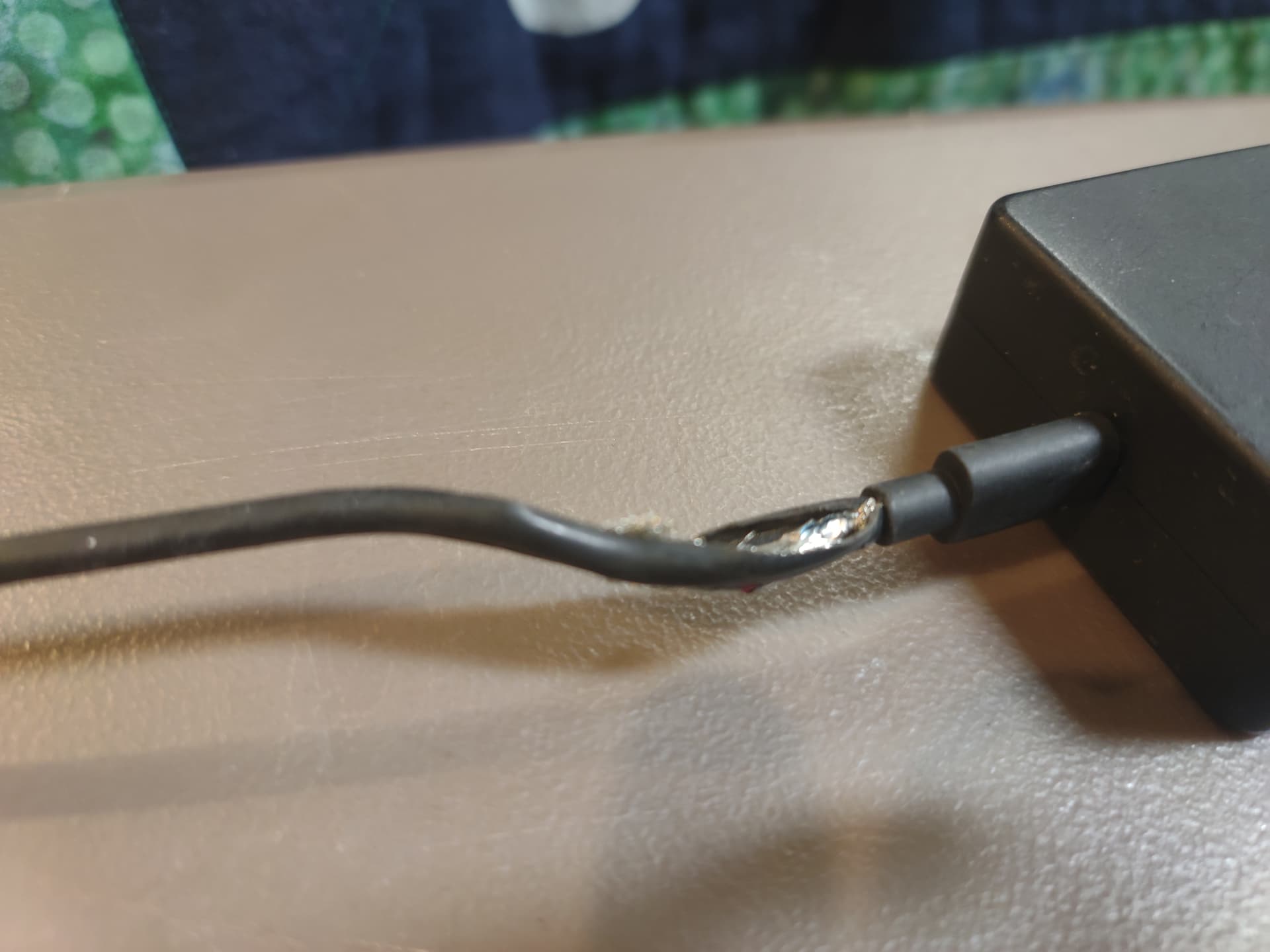
A damaged or underpowered charger ranks among the top reasons a laptop stops charging. Thorough inspection often reveals the problem.
Look for Physical Damage
Check the entire length of the charging cable for frayed wires, kinks, or exposed copper near the plug or adapter. Inspect the charging tip for bent pins or corrosion. Feel the adapter brick for overheating signs, including discoloration, swelling, or a buzzing sound.
Test Charger Output With a Multimeter
Set a multimeter to DC voltage and touch the probes to the charger tip, with the positive probe on the center pin and the negative probe on the outer ring. Compare the reading to the voltage labeled on the charger. If the voltage reads more than one volt below the specification, or if it fluctuates significantly, the charger is faulty.
Use the Correct Wattage
Underpowered chargers cannot charge a laptop under load. Gaming laptops typically require 100 watts or more, while ultrabooks need 45 to 65 watts. Always use a charger that meets or exceeds your laptop is power requirement.
Examine the Charging Port

Dirt, debris, or physical damage in the charging port can block the electrical connection entirely.
Clean the Port Safely
Power off the laptop and shine a flashlight into the port to inspect for dust, lint, or debris. Use compressed air to blow out particles. For sticky residue, lightly dab a cotton swab with isopropyl alcohol and allow it to dry completely before powering on.
Test for Loose Connections
Gently wiggle the charger plug while it is inserted. If charging starts and stops with movement, the port or the plug is damaged. A wobbly port often indicates broken solder joints inside, which requires professional motherboard repair.
Perform a Power Reset
A power reset clears residual power from capacitors and resets the charging integrated circuit, fixing many software-related charging issues.
For All Laptops
Shut down the laptop completely and unplug the charger. Hold the power button for 30 to 60 seconds, then release it. Plug in the charger and power the laptop back on. This drain-and-reset process helps the system recognize the charger properly.
For Laptops With Reset Holes
Some Dell, HP, or Lenovo laptops have a small pinhole near the battery icon symbol. Use a SIM eject tool to press the internal reset button for 15 to 30 seconds.
Rule Out Overheating
High temperatures trigger safety shutdowns that disable charging to protect the battery and internal components.
Recognize Overheating Signs
The laptop feels hot on the bottom or near the fan. The fan runs constantly or loudly. The charger or charging port is unusually warm to the touch.
Cool Down the Laptop
Shut down the laptop and let it rest on a hard, flat surface for 10 to 20 minutes. Clean the cooling vents with compressed air to improve airflow. Avoid using the laptop on soft surfaces like beds or couches, which trap heat.
Disable Fast Startup in Windows
Fast Startup can interfere with complete power cycles, causing the system to fail to recognize when the charger is plugged in.
Turn Off Fast Startup
Press Windows plus X and select Power Options. Click Choose what the power buttons do, then select Change settings that are currently unavailable. Uncheck Turn on fast startup and click Save changes. Restart the laptop to apply the setting.
Reinstall Battery Drivers
Corrupted or outdated battery drivers can cause the system to display plugged in but not charging, even when everything else works correctly.
Reset Drivers Through Device Manager
Press Windows plus X and select Device Manager. Expand the Batteries section. Right-click each entry, including Microsoft ACPI-Compliant Control Method Battery and ACPI Battery, and select Uninstall device. Restart the laptop, and Windows will reinstall the drivers automatically.
Run Windows Power Troubleshooter
The built-in power troubleshooter detects and fixes common power-related bugs automatically without manual intervention.
Access the Troubleshooter
Go to Settings, then System, then Troubleshoot, and select Other troubleshooters. Find Power and click Run. Follow the on-screen prompts to apply automatic fixes.
Update BIOS/UEFI Firmware
Outdated BIOS can cause miscommunication between the charging circuit and the operating system, resulting in charging failures.
Update Safely
Visit your laptop manufacturer is support website, such as Dell SupportAssist or HP Support Assistant. Enter your model number and download the latest BIOS update. Follow the instructions carefully and do not shut down the laptop during the update process.
Check Battery Health

Batteries degrade over time and eventually lose the ability to hold a charge. Checking battery health reveals whether replacement is necessary.
Generate a Battery Report
Open Command Prompt as Administrator and type powercfg /batteryreport. Press Enter. Open the HTML report file, typically saved at C:\Windows\system32\battery-report.html. Compare the Full Charge Capacity to the Design Capacity. If Full Charge Capacity is below 70 percent of Design Capacity, the battery needs replacement.
Test With a Different Charger
Isolating the problem by trying a different charger confirms whether the original charger or the laptop itself is faulty.
Use a Compatible Charger
Borrow a charger with the same voltage, amperage, and connector type as your original. For USB-C laptops, use a charger with Power Delivery and verify that the port shows a battery icon indicating charging capability.
Reduce System Load
High power consumption can prevent the battery from gaining charge, especially when using a lower-wattage charger.
Lower Power Draw
Close unnecessary programs and background applications. Disconnect external devices such as USB drives and monitors. Lower the screen brightness and avoid running resource-heavy tasks like gaming or video editing while charging.
Final Thoughts on Fixing a Laptop That Is Not Charging
Most laptop charging issues stem from simple causes like loose connections, faulty chargers, or outdated drivers, all of which you can fix at home. Start with the basics by testing different outlets and inspecting your charger and charging port for visible damage. Progress through software fixes such as reinstalling drivers, disabling Fast Startup, and updating BIOS before considering battery replacement. If your battery report shows severe degradation, if the charging port is physically damaged, or if voltage tests show no output from the charger or port, it is time to seek professional repair. Regular maintenance, including keeping ports clean, using the correct charger wattage, and updating system drivers, prevents most charging problems from recurring.
Frequently Asked Questions About Laptop Charging Issues
Why does my laptop say plugged in but not charging?
This usually indicates a software issue, such as corrupted battery drivers, or a hardware problem like a faulty charger or charging port. Try reinstalling battery drivers, testing a different charger, and checking the charging port for damage.
Can a laptop battery be permanently damaged?
Yes, batteries degrade over time and lose capacity. If the Full Charge Capacity in your battery report falls below 70 percent of the Design Capacity, the battery likely needs replacement. Physical damage from overheating or swelling also permanently affects battery performance.
Should I let my laptop battery drain completely before charging?
No, modern lithium-ion batteries last longer when kept between 20 and 80 percent charge. Avoid full discharges and do not leave the laptop plugged in at 100 percent for extended periods unless necessary.
Is it safe to use a third-party charger?
Third-party chargers may lack proper voltage regulation and can damage your laptop or battery. Use only genuine or manufacturer-approved chargers that match your laptop is wattage and voltage requirements.
How do I know if my charger is providing enough power?
Check the wattage rating on your charger and compare it to your laptop is requirement. Gaming laptops typically need 100 watts or more, while ultrabooks need 45 to 65 watts. If the charger provides less power than required, the battery may drain even while plugged in.
What should I do if my laptop gets hot while charging?
Stop using the laptop immediately and let it cool down on a hard, flat surface. Clean the cooling vents with compressed air to improve airflow. Overheating can trigger safety mechanisms that disable charging, so address heat issues before continuing to use the laptop.