
You are working remotely, your laptop battery is at 5%, and your charger is nowhere to be found. It is a modern-day emergency, but you are not out of options. If your laptop supports USB-C Power Delivery or you have access to alternative power sources, you can charge your laptop without its original charger. Millions of users have successfully done it using power banks, car adapters, universal chargers, and even portable solar panels.
This guide reveals ten proven ways to charge a laptop without a charger, ranked by safety, efficiency, and real-world usability. Whether you are traveling, stuck in a power outage, or your charger failed unexpectedly, you will learn exactly what tools you need, how to use them correctly, and how to extend battery life when no charging is possible.
Charge Your Laptop Using USB-C Power Delivery
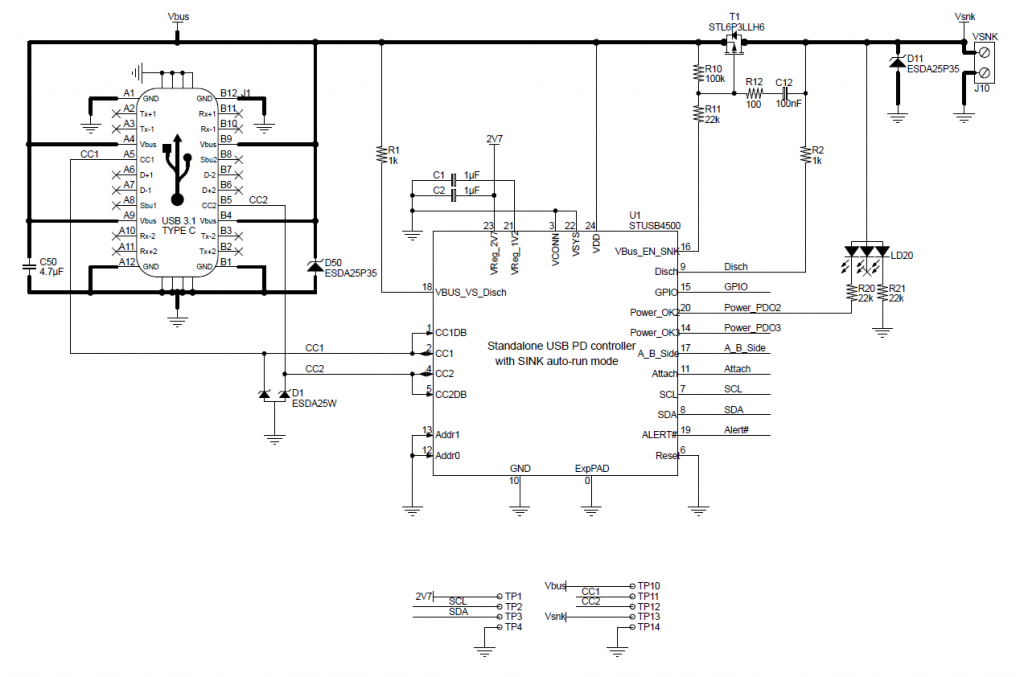
The fastest, safest, and most widely supported way to charge a laptop without its original charger is via USB-C Power Delivery, but only if your laptop supports it.
Check USB-C PD Compatibility
Not all USB-C ports can charge your laptop. Look for a battery icon next to the USB-C port, “USB-C charging” in your laptop specs, or support for USB Power Delivery 3.0 or higher. Supported models include MacBook Air and Pro, Dell XPS 13 and 15, HP Spectre x360, Lenovo ThinkPad X1, Microsoft Surface Laptop, and ASUS ZenBook.
Choose the Right USB-C Charger
Use a GaN wall charger with at least 45W output. Sixty-five watts is ideal for most ultrabooks, while 100W or higher is required for gaming and workstation laptops. Top brands include Anker, VTOMAN, Greencell, and Belkin. Avoid cheap knockoffs because they lack safety protocols and can damage your device.
Connect and Charge
Use a USB-C to USB-C cable rated for Power Delivery. Plug the charger into a wall outlet and connect to your laptop USB-C port. Check the battery icon to confirm charging is active.
Use a High-Capacity Power Bank

When outlets are not available, a USB-C PD power bank is your best bet for on-the-go charging.
Select a Suitable Power Bank
Choose a power bank with a minimum 20,000mAh capacity and 45W to 65W USB-C PD output. Ensure it is 100Wh or less for airline carry-on compliance. Recommended models include Anker PowerCore 26800 PD, PowerPlay Ultrapower 27,000mAh, and VTOMAN FlashSpeed 150.
Expected Charge Levels
A 20,000mAh power bank at 65W delivers approximately 60 to 70% charge on a 50Wh laptop. A 27,000mAh power bank at 100Wh can fully charge most ultrabooks once.
Best Practices for Power Bank Use
Charge the power bank fully before use. Store it at 50% charge when not in use. Avoid extreme temperatures and use only certified cables to prevent power loss. Using the laptop while charging reduces efficiency significantly.
Use a Universal Laptop Charger
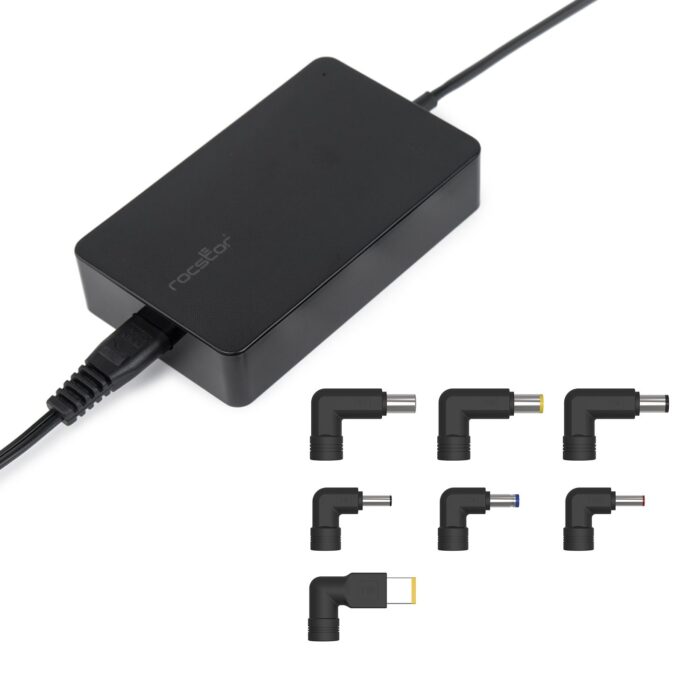
If your laptop lacks USB-C charging, a universal adapter may be your only safe alternative.
Match Voltage and Connector Exactly
Universal chargers come with interchangeable tips and adjustable voltage from 12V to 24V. For safe charging, voltage must match exactly, such as 19V for most laptops. Polarity must be correct, and tip size must fit snugly. The ASUS VivoBook X512JA uses a 19V barrel connector and does not support USB-C charging, making a universal charger one of the few viable options.
Safety Checklist
Use only UL or CE-certified adapters. Monitor for overheating during use. Never force a mismatched tip. Avoid using with incorrect polarity. Label your tips by device to avoid confusion.
Charge Your Laptop in the Car
Travelers and road warriors can charge laptops using their vehicle power system.
Option 1: USB-C Car Charger
Use a USB-C PD car charger at 65W recommended. Plug it into the 12V cigarette lighter socket and connect to your laptop using a USB-C to USB-C cable. Start the engine to maintain car battery charge.
Option 2: Power Inverter
Use a DC-to-AC inverter if your laptop requires its original charger. Plug the inverter into the 12V socket, plug the original charger into the inverter, and start the engine to avoid draining the car battery. Running the inverter with the engine off can kill your car battery in under an hour.
Use a Portable Power Station
For off-grid, emergency, or outdoor use, a portable power station is the most powerful alternative.
Key Features
Portable power stations offer 300W to 1000W output and 300Wh to 1000Wh capacity. They support AC, USB-C PD, and solar input. The VTOMAN FlashSpeed 1000 offers 828Wh capacity and 1000W continuous output.
Ideal Use Cases
Portable power stations are ideal for camping trips, remote work locations, power outages, and emergency preparedness kits. They can power monitors, lights, and phones simultaneously.
Solar Recharging Option
Pair with a 100W solar panel to recharge during the day. A full recharge takes 4 to 8 hours in sunlight, enabling off-grid sustainability.
Replace or Remove the Battery
This method only works for laptops with removable batteries, as most modern devices have sealed units.
How to Charge Externally
Power off the laptop and remove the battery carefully. Insert it into an external battery charger and plug in while monitoring indicator lights. This method is not compatible with MacBook, most ultrabooks, or slim laptops.
When to Use This Method
Use this approach when the charging port is damaged, the laptop powers on but will not charge, or you have spare batteries. Frequent removal can wear out connectors.
Try Solar Charging for Outdoor Use
Solar panels can charge laptops, but not directly.
Requirements
You need a 60W or higher solar panel with USB-C PD output and direct sunlight. Clouds reduce efficiency by 50 to 80%.
Recommended Strategy
Use the solar panel to charge a power bank during the day, then use the power bank to charge your laptop at night. In ideal sun, a full laptop charge takes 6 to 10 hours.
Use Smartphone Reverse Charging
Some phones can reverse charge a laptop in a pinch, but it is a last-resort option.
Requirements
Your phone must support reverse charging, such as Samsung Galaxy S23 or Huawei Mate 50. The laptop must support USB-C PD input, and you need a USB-C to USB-C cable.
Limitations
This method provides only 10 to 20% charge to the laptop and drains the phone battery in 30 to 60 minutes. Both devices can overheat. Use only when no other method is available.
Why HDMI Charging Does Not Work
Despite myths, HDMI cables cannot charge laptops.
The Reality
HDMI transmits video and audio, not power. Standard HDMI delivers less than 1W, which is not enough to charge any laptop. Some docking stations with HDMI ports also provide USB-C PD power, but the power comes from USB-C, not HDMI.
Use Power Tool Batteries
In industrial settings, DeWalt, Ryobi, or Makita batteries can power laptops.
Requirements
You need an 18V to 20V tool battery and an adapter cable that converts to USB-C or DC output. Voltage must match laptop input, such as 19V. Incorrect voltage can fry your laptop motherboard.
Best Applications
This method works for construction sites, field technicians, and emergency repairs. Use only with verified, regulated adapters.
Fix Common Charging Issues
Even with the right tools, your laptop might not charge. Diagnose and fix these problems.
Check Power Settings
Disable Battery Saver Mode. Turn off Charge Limit if set to 80%. Go to Settings, System, Power and Battery to adjust these settings.
Update Drivers and BIOS
Open Device Manager and update Battery and Power Management drivers. Restart the computer. Enter BIOS using F2, F10, or Del and reset to defaults.
Test Battery Health
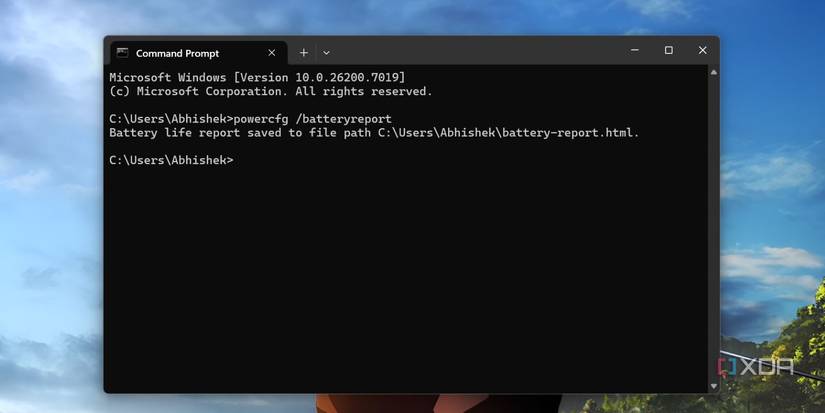
Run powercfg /batteryreport in Command Prompt as administrator. Check design capacity versus full charge capacity and wear level. Replace the battery if capacity falls below 50% of original.
Prevent Damage and Maximize Safety
Charging without the original charger carries risks. Follow these rules.
Critical Safety Rules
Match voltage exactly. Amperage can be equal or higher but never lower. Use certified cables and adapters with USB-IF, UL, or CE marks. Never use unbranded, no-name chargers. Avoid charging in extreme heat or cold. Do not leave charging unattended overnight.
Maintenance Tips
Clean ports with a dry, soft brush. Replace frayed cables immediately. Avoid 0% or 100% battery cycles. Use battery health mode if available.
Extend Battery Life Without Charging
When no power source is available, stretch your existing battery.
Immediate Actions
Lower brightness to 50% or less. Close unused apps and browser tabs. Turn off Wi-Fi, Bluetooth, and location. Enable Airplane Mode. Disable keyboard backlight. Use Battery Saver Mode. These steps can extend battery life by 30 to 50%.
Long-Term Backup Strategies
Avoid future emergencies with smart preparation.
Build a Travel Charging Kit
Include a 65W USB-C GaN charger, 20,000mAh power bank, universal adapter with tips, and spare USB-C cable. Store one at home, one at work, and one in your bag.
Future-Proof Your Next Laptop
When upgrading, choose models with USB-C PD charging, fast charging support, and removable battery if repairability matters.
Final Recommendations
If your laptop supports USB-C PD, use a 65W USB-C wall charger and carry a high-capacity power bank. Try a portable power station for emergencies. If your laptop uses a barrel plug like the ASUS VivoBook X512JA, buy a universal adapter with correct voltage or purchase an OEM replacement charger. Avoid USB-C hacks because they will not work.
Frequently Asked Questions About Charging a Laptop Without a Charger
Can I charge my laptop with a phone charger?
Yes, but only if your laptop supports USB-C PD and the phone charger supports USB-PD with sufficient wattage, such as 30W or higher. Most standard phone chargers at 5W to 18W are too weak.
Can HDMI charge a laptop?
No, not directly. HDMI is designed for video and audio transmission. Some docking stations with HDMI ports may supply power via USB-C, but this requires compatible hardware.
Can I charge my laptop using another laptop?
Yes, if both laptops have USB-C PD and support power sharing. Use a USB-C to USB-C cable. This method is slow and inefficient and drains the donor laptop battery.
What happens if I use a lower-wattage charger?
Charging may be very slow or nonexistent. The charger may overheat due to strain, and the laptop may not charge under load.
How do I know if my laptop supports USB-C charging?
Check your user manual or manufacturer website. Look for a battery icon near the USB-C port. Test with a known USB-C PD charger or search your model number plus “USB-C charging support.”
Can I charge my laptop wirelessly?
This is not currently feasible for most laptops. No mainstream laptops support wireless charging, though some experimental models exist.
Key Takeaways for Charging Your Laptop Without a Charger
You can charge a laptop without its charger, but only if you have the right tools and compatibility. For most modern laptops, USB-C PD is the gold standard. For older models with barrel connectors, a universal charger or OEM replacement is the only reliable fix. Always match voltage exactly, use certified equipment, and avoid cheap knockoffs to prevent damage. Build a travel charging kit with a 65W USB-C charger, power bank, and universal adapter so you are never left stranded. Stay powered and stay prepared.





