
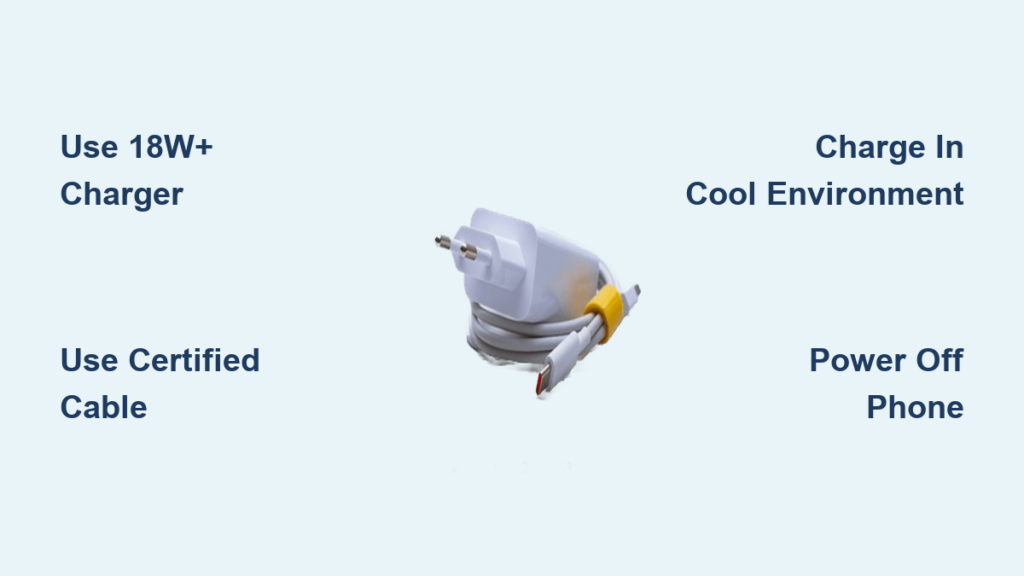
You’re running low on battery and need power fast. Plugging in shouldn’t mean waiting forever, but most people unknowingly cut their charging speed in half by using the wrong charger, dirty ports, or charging in hot conditions. The good news? You can significantly speed up charging with the right techniques. The key to how to make a charger charge faster lies not just in the charger itself, but in the full ecosystem: your device, cable, environment, and usage habits.
This guide reveals how to identify true fast charging, eliminate hidden drains, choose the best hardware, and avoid the number one mistake that slows charging: heat. Whether you’re using an iPhone, Samsung, Pixel, or another smartphone, these actionable strategies work across platforms and deliver real results.
Use a Fast Charger Rated 18W or Higher

Charging speed starts with wattage. A standard 5W charger is painfully slow by today’s standards. To charge faster, use a charger rated at 18W or higher, which most modern smartphones support.
Check Charger Output Rating
Look for chargers labeled with these fast charging standards:
- USB Power Delivery (USB-PD) for iPhones, Pixels, and newer Android phones
- Quick Charge (QC 3.0/4+/5) common in older Android devices
- Adaptive Fast Charging or Super Fast Charging for Samsung devices
An 18W USB-PD charger can charge an iPhone 15 from 0% to 50% in about 30 minutes, which is twice as fast as a 5W adapter.
Use Certified Fast Chargers Only
Avoid cheap, no-name chargers. They may claim fast charging but lack the internal circuitry to deliver stable power. Always choose chargers from trusted brands like Apple, Samsung, Anker, Belkin, or UGREEN. These include safety features like overcurrent and overvoltage protection.
Pro Tip: A 65W laptop charger is safe to use on a phone. It only draws what the phone can handle.
Use a High-Quality Fast Charging Cable
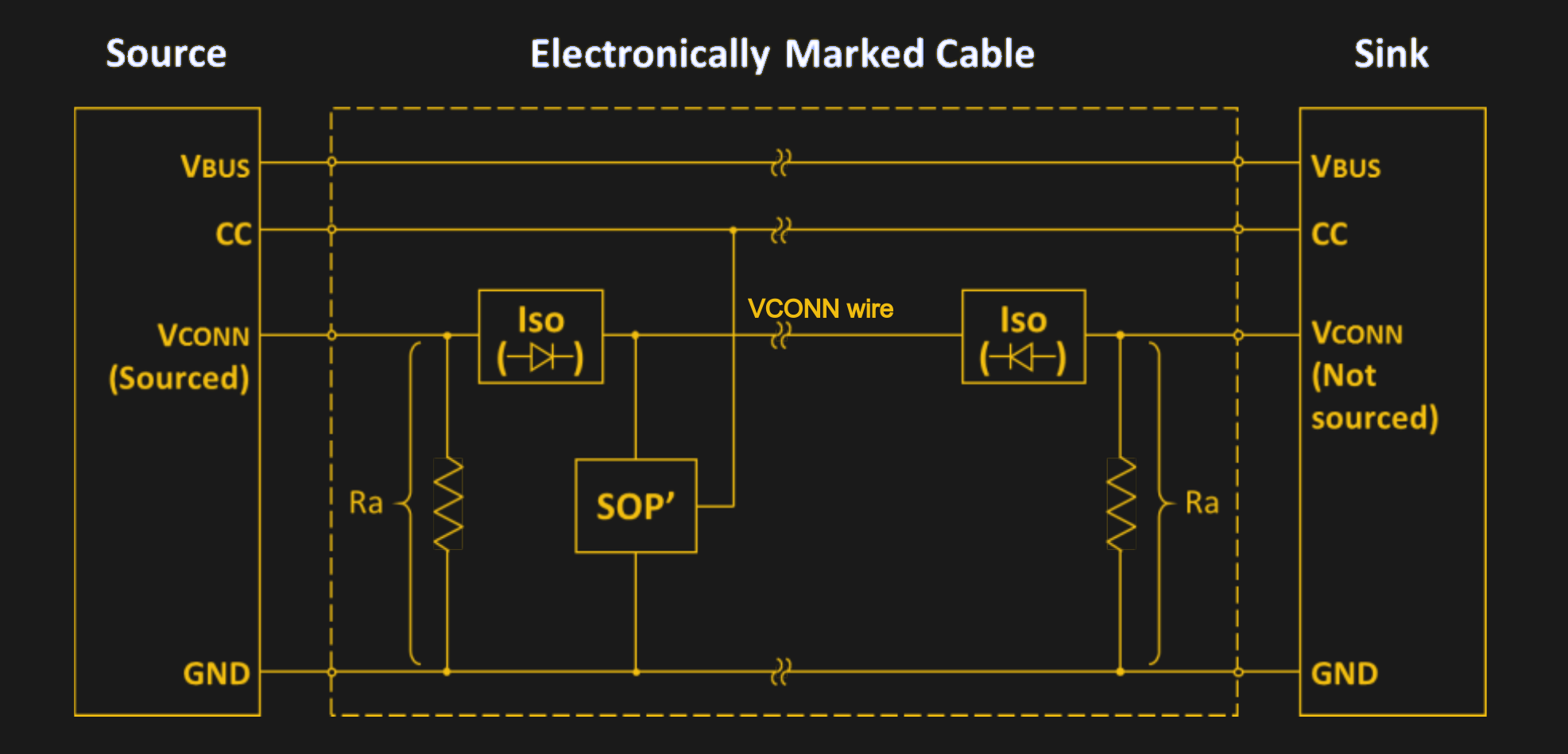
A poor cable can bottleneck even the best charger. The cable is just as important as the charger itself for achieving maximum speed.
Choose the Right Cable Type
For fast charging, use these cable types:
- USB-C to USB-C cables for modern devices like iPhone 15, Galaxy S24, or Pixel 8
- USB-C to Lightning (MFi-certified) for older iPhones
Avoid Micro-USB unless absolutely necessary. It’s outdated and severely limits speed.
Ensure Cable Supports High Current
Fast charging requires high amperage. Look for cables rated 5A for 100W charging, 3A for 60W, or at least 2.4A for basic fast charging. Cables with an E-Marker chip identify power-handling capability to the device. Without it, charging defaults to slow 5W.
Warning: Off-brand cables often lack E-Marker chips or proper shielding. They may work but won’t enable fast charging.
Plug Into a Wall Socket
Where you plug in matters significantly. Most charging sources are not created equal.
Avoid Computer and Car USB Ports
Computer USB ports deliver only 2.5W (USB 2.0) or 4.5W (USB 3.0), which is far below fast-charging levels. Even many car chargers are limited to 5W unless labeled fast charging.
Instead, use these options:
- Wall outlet with an AC adapter
- Wall chargers with USB-PD or QC support
Wall sockets can deliver 18W to 45W or more, cutting charging time by 50% to 70% compared to a laptop port.
Power Off or Enable Airplane Mode
The fastest way to charge is by eliminating all power drain. This is the most effective technique for achieving maximum speed.
Charge With Phone Powered Off
When powered down, 100% of incoming power goes to the battery with no screen, apps, or network activity consuming energy. Charging while off can be 30% to 40% faster than charging while in use.
Enable Airplane Mode
If you cannot power off, Airplane Mode is the next best option. It disables cellular signal, Wi-Fi, Bluetooth, and GPS, which constantly search for signals and drain power even when idle. Charging in Airplane Mode can be up to 25% faster than in normal mode.
Note: Low Power Mode (iOS) or Battery Saver (Android) helps battery life but does not increase charging speed.
Keep the Phone Cool
Heat is the enemy of fast charging. Most heat buildup comes from the charging process itself and from the phone case trapping that heat.
Remove Case During Charging
Thick silicone or leather cases trap heat, triggering thermal throttling where the phone slows charging to protect the battery. A hot phone will slow down charging automatically. Remove the case while charging and charge in a cool, shaded area.
Avoid Charging in Bed or Under Pillows
Soft surfaces block airflow and insulate heat. Never charge under a pillow, blanket, or couch cushion. This creates a safety risk and significantly slows charging speed.
Clean the Charging Port
Over time, lint and pocket debris clog the charging port, blocking electrical contact and causing intermittent or slow charging.
Clear Dust and Lint Safely
Clean your port using these methods:
- Use a wooden toothpick gently
- Use a soft-bristled brush like a clean toothbrush
- Use compressed air
Never use metal objects. They can short-circuit the port and cause permanent damage. Clean the port every few months to maintain peak performance.
Avoid Using the Phone While Charging
Using your phone while charging creates a power tug-of-war where the screen, apps, and processor draw power, sometimes faster than the charger can replenish it.
Stop Screen Use and Gaming
These activities are the worst offenders:
- Video streaming
- Gaming
- GPS navigation
- Camera use
If you must use the phone while charging, keep screen brightness low. Otherwise, put the phone down and let it charge undisturbed for the fastest results.
Enable Fast Charging in Settings
Some Android phones disable fast charging by default. You must manually enable it in the settings.
Turn On Fast Charging (Android)
For Samsung devices, go to Settings, tap Device Care, select Battery, tap Advanced Settings, and enable Fast Cable Charging. Note that on Samsung devices, fast charging only starts when the screen is off.
Other brands like OnePlus or Xiaomi may have similar toggles under Battery or Additional Settings.
iPhone Users: No setting needed. Fast charging activates automatically with compatible hardware.
Match Charger and Device Standards
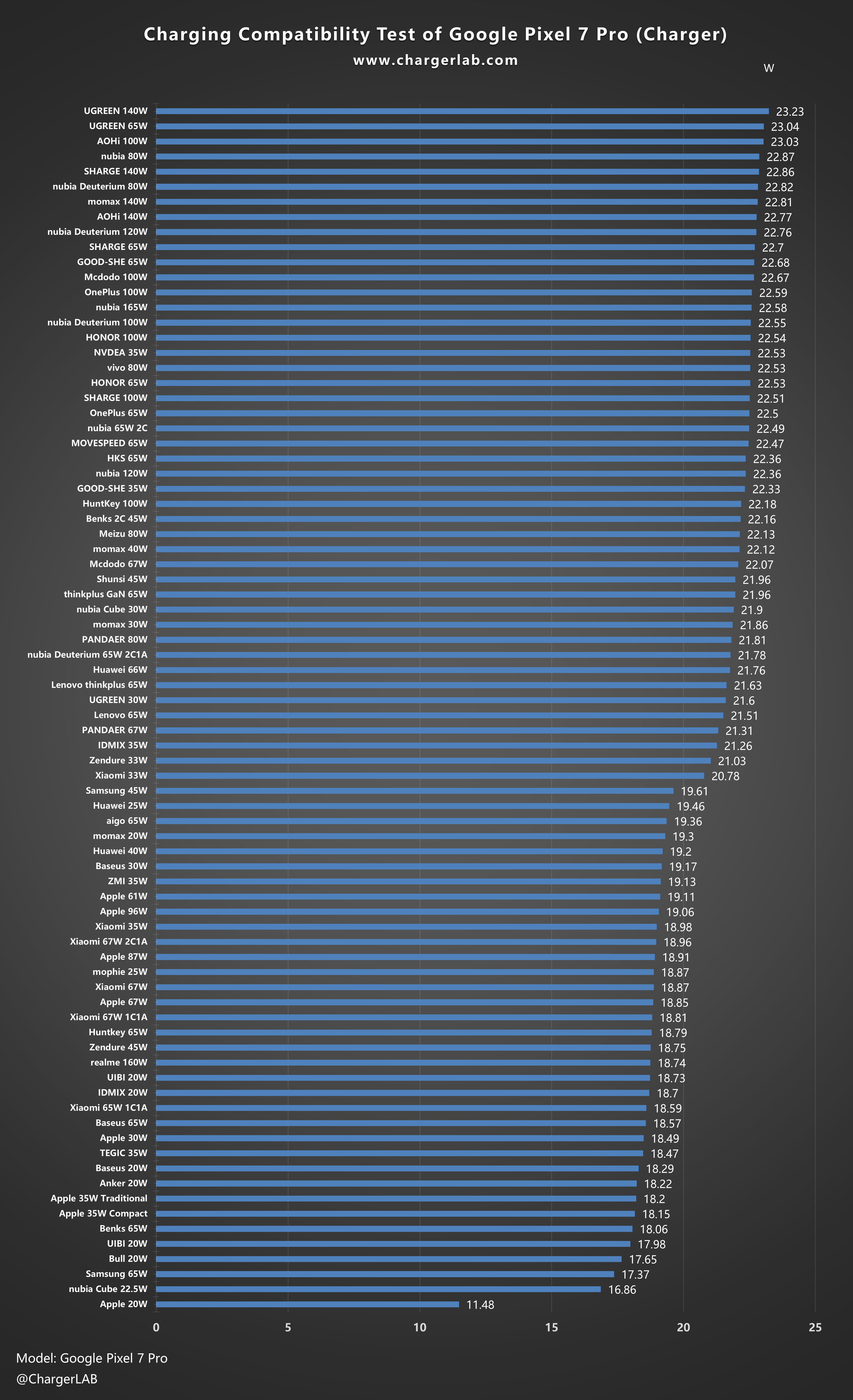
Not all fast chargers work with all phones. Compatibility requires matching three parts: the device, the charger, and the cable.
Know Your Device’s Fast Charging Protocol
Use this reference for maximum fast charging speeds:
- iPhone 15 supports USB-PD up to 27W
- Samsung Galaxy S24 Ultra supports USB-PD plus PPS up to 45W
- Google Pixel 8 Pro supports USB-PD up to 27W
- OnePlus 12 supports USB-PD plus VOOC up to 80W with branded charger
Use PPS for Samsung 45W Charging
To get 45W Super Fast Charging 2.0 on Samsung flagships, you need a 45W-plus charger with PPS (Programmable Power Supply) and a USB-C to USB-C 5A cable. Generic USB-PD chargers may only deliver 25W to Samsung phones.
Update Software and Optimize Performance
Manufacturers often release updates that fix charging bugs, improve battery efficiency, and enable new fast-charging modes.
Install OS and App Updates
Keep your phone and apps updated to ensure optimal performance. A Pixel update once unlocked 18W charging on devices previously limited to 10W.
Clear Cache and Background Apps
Background processes like Google Maps, email sync, and social media consume power, reducing net charging speed. Clear app cache regularly, close unused apps, and disable auto-sync for non-essential accounts.
Diagnose Slow Charging Issues
If your charger isn’t performing as expected, use diagnostic tools to identify the problem.
Test Charging Speed With Apps
Use Ampere on Android to see real-time charging current in mA. Fast charge shows 1500 to 3000-plus mA, while slow charge shows less than 1000 mA. On iOS, use Battery Life or coconutBattery (via Mac) to estimate charge speed.
Common Causes of Slow Charging
These issues have simple fixes:
- Using a 5W charger: Upgrade to 18W-plus
- Dirty charging port: Clean with toothpick or brush
- Faulty cable: Replace with certified cable
- Overheating: Remove case, cool environment
- Background apps: Enable Airplane Mode
Optimize for Long-Term Battery Health
While fast charging is safe, you can protect your battery’s long-term health with these practices.
Avoid Frequent Full Charges
Fast charging generates heat, especially during the last 20%. For daily use, charge from 20% to 80% and use standard charging overnight. Reserve fast charging for emergencies.
Use Optimized Charging Features
Enable built-in battery care features like Optimized Battery Charging on iPhone, Adaptive Charging on Samsung, or Adaptive Charging on Pixel. These features reduce wear by slowing the final charge phase and learning your routine.
Frequently Asked Questions About Fast Charging
Is Fast Charging Safe for My Phone?
Yes, fast charging is safe when using certified, high-quality accessories. Modern devices include controller chips that regulate power flow, voltage levels, and temperature thresholds to prevent dangerous spikes or overheating.
How Long Does Fast Charging Take to Reach 100%?
Fast charging is most effective from 0% to 80%. After reaching 80%, phones switch to trickle charging to protect the battery. The final 20% may take as long as the first 80%, which is normal behavior, not a malfunction.
Does Using My Phone While Charging Slow It Down?
Yes, significantly. Using your phone creates a power tug-of-war where apps, the screen, and the processor draw power, sometimes faster than the charger can supply. In extreme cases, the battery level may even drop while plugged in.
Does Fast Charging Damage the Battery Over Time?
Fast charging generates more heat, which can slightly accelerate battery degradation. However, modern devices manage this through smart charging algorithms and thermal management. Using fast charging when needed is safe, especially if you follow best practices like avoiding charging in hot environments.
Why Is My Samsung Phone Charging Slowly?
On Samsung devices, fast charging may not initiate unless the screen is turned off. Check that Fast Cable Charging is enabled in settings and that you’re using a PPS-compatible charger and cable for 45W charging.
Can I Use a Laptop Charger to Charge My Phone?
Yes, using a higher-wattage charger like a 65W laptop charger is safe for phones. The phone only draws the maximum power it can handle through power negotiation between the device and charger.
Key Takeaways for Faster Charging
Speed isn’t just about the charger. It’s about the entire system: device, cable, port, settings, and environment. By optimizing all these factors, you can unlock the fastest possible charge your phone supports.
The most impactful changes are using an 18W-plus fast charger, plugging into a wall socket instead of a computer, and powering off the phone during charging. These three steps alone can cut charging time in half.
For the ultimate fast charge, combine all best practices: power off the phone, use a high-wattage wall charger with a certified cable, clean the charging port, remove the case, and charge in a cool place. Many modern phones will reach 50% in 15 to 20 minutes with this setup.
Follow this guide, and you’ll never waste time waiting for power again.





