Is your TrickleStar power strip’s green switched outlets not turning on or off with your TV or PC? You’re not alone. A common but fixable issue, non-responsive switched outlets typically stem from simple setup errors, incorrect threshold settings, or hardware faults. This guide walks you through every possible cause and solution, so you can restore automatic power control and eliminate phantom energy waste.
By the end, you’ll know how to diagnose LED indicators, adjust settings correctly, and determine if replacement is needed. Let’s get your TrickleStar working again.
Verify Correct Device Placement
Plugging devices into the wrong outlets is the number one reason switched outlets fail to respond. The TrickleStar has three outlet types, and each serves a specific purpose.
Plug TV or PC into Control Outlet
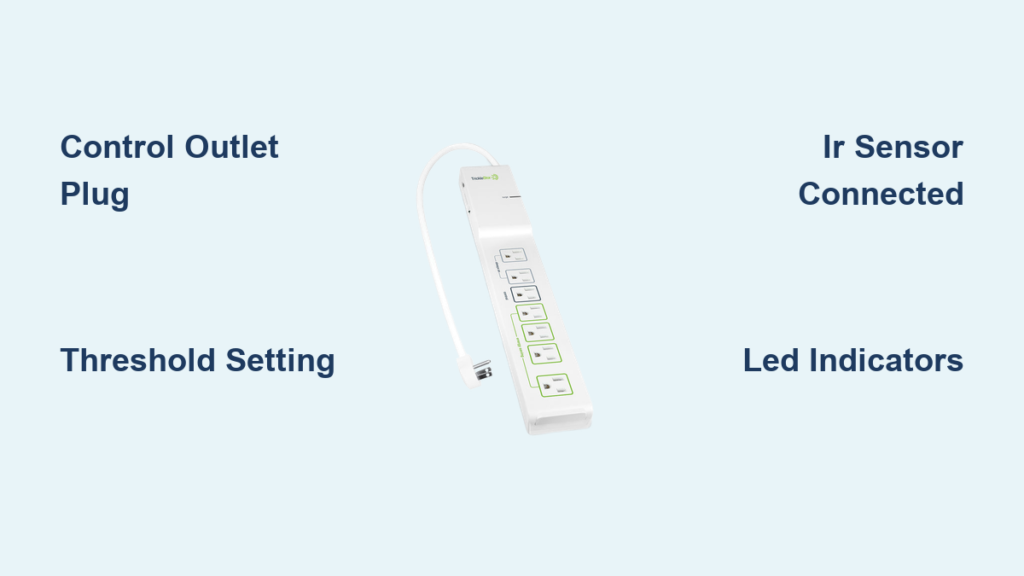
The main device (TV, desktop PC, or AV receiver) must be plugged into the green outlet labeled “Control.” This outlet powers the sensing circuit that activates the other switched green outlets.
Do plug your TV or PC here. Do not use this outlet for speakers, game consoles, or streaming boxes. Switched outlets rely on detecting power changes in this specific device, and if the control device is not here, the strip cannot sense on/off states.
Assign Peripherals to Green Switched Outlets
Connect all secondary devices like soundbars, monitors, printers, or gaming consoles to the green switched outlets. These turn on and off automatically based on the control device’s power draw.
Example: Turn on your TV, and green outlets power up your soundbar and Blu-ray player. Turn off the TV, and those devices lose power automatically.
Use Black Outlets for Always-On Devices
Devices that need constant power, like modems, routers, or DVRs, must go into black always-on outlets. These are not controlled by the sensing circuit and provide uninterrupted power.
Never plug a control device into a black outlet. This breaks the automation chain and prevents switched outlets from responding to your TV or PC.
Adjust the Trickle Threshold Setting

If devices stay on or won’t power up, the trickle threshold switch is likely misconfigured. This switch tells the TrickleStar how much power your control device can draw in standby before cutting power to peripherals.
Choose the Right Power Sensitivity
The TrickleStar uses a trickle control switch with three settings to detect when your control device enters standby. Each setting defines the maximum standby wattage allowed before cutting power.
| Setting | Max Standby Power | Best For |
|---|---|---|
| High | 42W | Older TVs, gaming consoles |
| Medium | 22W | Laptops, modern AV gear |
| Low | 10W or less | Energy-efficient devices |
Fix Switched Outlets That Stay On After Shutdown
If peripherals do not turn off when the TV shuts down, your TV’s standby draw may exceed the current threshold. Lower the setting from High to Medium, or from Medium to Low. Wait 60 seconds after turning off the TV. This delay is normal and allows the sensor to confirm the device is truly in standby.
Fix Switched Outlets That Will Not Turn On
If switched outlets do not power up when you turn on the TV, the TV’s active power draw might be too low to trigger the sensor. Increase the threshold from Low to Medium, or from Medium to High. Try High first for modern energy-saving TVs.
Pro Tip: Start at Medium, then adjust after testing. Many users fix issues in minutes with this single step.
Check IR Sensor Connection
Some TrickleStar models use an IR sensor to extend runtime and enable power-saving timers. Without proper connection, switched outlets may not activate at all.
Confirm IR Sensor Is Plugged In
On Tier 1 and Tier 2 Advanced PowerStrips, the IR sensor must be connected to the APS+ port on the strip. If unplugged, the system may disable switching or trigger automatic shutoffs.
Without the IR sensor connected, certain models will not activate switched outlets at all. This is a common overlooked issue.
Understand IR Blinking Patterns
The IR LED indicates timer status and helps you know when intervention is needed.
The LED blinks every five seconds when the power-saving timer is active. This means the TV will shut off in three minutes. Rapid blinking means a timer extension is required, and you should press any button on your remote.
To keep devices running, aim your remote at the sensor and press a button during blinking. This resets the 75-minute timer.
Ensure Clear Line of Sight
Keep the IR sensor visible and unobstructed. Avoid placing it behind glass or inside cabinets. Test with a phone camera by pointing your remote at the sensor and pressing a button. You should see a light flicker in the phone screen if the sensor is working.
Test LED Indicator Lights
The front-panel LEDs reveal critical system status. Checking them all helps you quickly identify what is wrong.
Surge LED: Is Protection Active
The Surge LED should always be lit during normal operation. This means surge protection is working. If this LED is off, the unit has absorbed a surge and must be replaced.
Do not continue using the power strip if the Surge LED is off. The strip no longer protects connected devices from electrical spikes.
Ground LED: Is Outlet Properly Grounded
The Ground LED should be lit when the outlet is properly grounded. This indicates a safe, grounded circuit. If the LED is off, there is no ground connection, and switching logic may fail.
Grounding is required for both surge protection and proper operation. If the light stays off, try a different wall outlet. Contact an electrician to check your wiring if the problem persists.
Switched LED: Are Switched Outlets Powered
The Switched LED is lit when switched outlets are active. If this LED is off, no power is being delivered to switched outlets, and you should check your control device and threshold settings.
If this LED never turns on, the sensing circuit is not triggering properly.
Test Control Device Power Draw
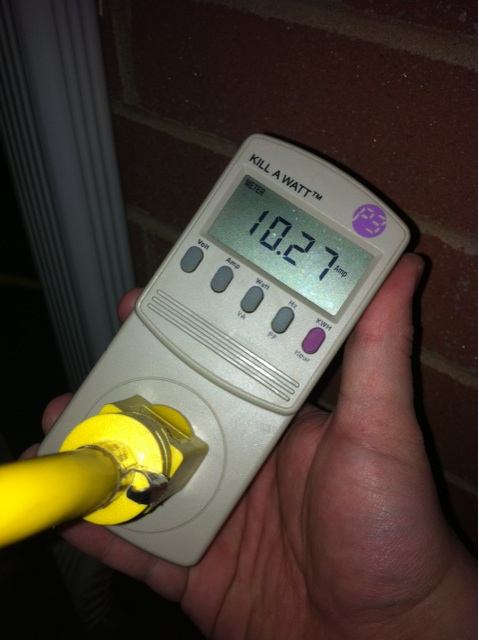
Modern devices often draw too little power for reliable detection. This is a frequent cause of switching failures.
Measure Standby Power
Use a plug-in watt meter like a Kill-A-Watt to check your control device. Measure the active draw when the TV or PC is on, which should be more than 15W. Then measure the standby draw after turning off the device and compare it to your threshold settings.
Many smart TVs draw only 3 to 5W in standby, which falls below even the Low (10W or less) setting. This means the TrickleStar may not detect when the TV is off.
Workarounds for Low-Power Devices
If your control device draws less than 5W in standby, try these solutions.
Add a load booster by plugging a small device like a phone charger or LED night light into the control outlet alongside the TV. This increases standby draw enough to keep the sensor active.
Switch control devices by using an AV receiver or soundbar (often 10 to 20W standby) as the control device instead of the TV.
Manually override by temporarily plugging everything into always-on outlets if automation is not feasible.
Reset the Power Strip
A simple reset can clear temporary glitches and restore normal operation.
Perform a Hard Reset
Unplug the entire TrickleStar strip from the wall. Wait 30 seconds to clear any residual charge. Reconnect and power up in a specific order.
First, plug in the control device (TV or PC). Wait one minute for full power-up. Then observe if switched outlets activate. This sequence ensures the sensing circuit initializes properly.
This often fixes unresponsive behavior caused by power fluctuations or sensor lag.
Rule Out Hardware Failure
If all else fails, the unit may be damaged and need replacement.
Check for Physical Damage
Inspect the power cord for fraying or kinks. Check outlet faces for burn marks or melting. Examine buttons or switches for stiffness or failure.
Any visible damage means replace the unit. Do not attempt repair on surge-protected electronics.
Confirm Total Load Is Within Limits
Maximum per switched outlet is 100W. Total strip capacity is 1800W (15A) at 120V. Overloading can trip internal safety circuits.
Use high-wattage devices like space heaters or microwaves on dedicated circuits, not on power strips.
Follow the Final Verification Checklist
Use this quick checklist to confirm everything is set up right before testing.
Ensure control device is in green control outlet. Ensure peripherals are in green switched outlets. Ensure modem and router are in black always-on outlets. Ensure IR sensor (if present) is plugged into APS+. Ensure trickle threshold is set to Medium (test others). Ensure Ground LED is illuminated. Ensure Surge LED is illuminated. Ensure no physical damage or overheating signs. Test with watt meter if available.
All boxes checked? Try a reset and retest. Still not working? The unit may be faulty.
Know When to Replace
TrickleStar strips are designed to fail safely after absorbing surges. Once this happens, they cannot be reset or repaired.
Replace If
Replace the unit if the Surge LED is off, as protection is gone. Replace if Ground LED will not light in multiple outlets, indicating a wiring issue or internal fault. Replace if switched outlets never respond after full troubleshooting. Replace if the unit is over one year old and out of warranty.
Warranty Note: TrickleStar offers a one-year international warranty. US customers contact customer.service@tricklestar.com. International buyers must return at their own cost, and only refunds (not replacements) are issued.
Optimize for Long-Term Use
Keep your TrickleStar working efficiently with proper setup and maintenance.
Maximize Energy Savings
Typical devices eliminated in standby include Xbox power supply at 27W, external HDD at 5W, and DVD player at 6W. Cumulative savings reach 50 to 100 kWh per year.
That is up to $15 per year saved per setup, plus reduced heat and fire risk from idle electronics.
Best Setup Example
Plug the TV into the control outlet. Plug soundbar, Blu-ray, and game console into green switched outlets. Plug router and DVR into black always-on outlets. Set trickle switch to Medium. Add IR sensor if using timer features.
The result: Turn on TV, everything powers up. Turn off TV, 80% of devices shut down automatically.
Maintenance Tips
Wipe clean with a dry cloth and no liquids. Keep vents and sensors dust-free. Avoid heat sources and humid areas. Do not daisy-chain power strips.
Frequently Asked Questions About TrickleStar Power Strips
Why Will My Peripherals Not Turn Off When the TV Is Off
Ensure the TV is in the control outlet, peripherals are in green switched outlets, trickle threshold is set appropriately (try Low setting), and the TV has been off for at least one minute. The delay is intentional.
Why Will My Peripherals Not Turn On When I Turn on the TV
Try increasing the threshold to High. Reset the strip by unplugging for 30 seconds. Check that the Switched LED illuminates when the TV is on.
What Does It Mean If the Ground LED Is Off
The outlet is not grounded. This disables surge protection. Contact an electrician to fix the wall outlet before using the power strip.
What If the Surge LED Is Off
The unit has absorbed a surge and must be replaced. Do not continue using the power strip, as it no longer protects your devices.
Can I Use the TrickleStar with a Laptop
Yes. Use Medium or Low setting. Plug the laptop into the control outlet and peripherals like monitors or speakers into switched outlets.
Does the TrickleStar Work with Smart TVs
Most do, but some ultra-efficient models draw less than 5W in standby. This may require the High setting or a load booster to trigger switching reliably.
Final Thoughts on Fixing Your TrickleStar Switched Outlets
The TrickleStar power strip switched not working issue is almost always fixable. Start with device placement and threshold settings, then verify LEDs and IR sensor connection. These two steps resolve the vast majority of problems.
If the Surge LED or Ground LED is off, replace the unit immediately. These indicate hardware failure that cannot be fixed through troubleshooting.
With proper setup, your TrickleStar will deliver years of automatic energy savings. No phantom load, no wasted power, just smart control that responds to your TV or PC. Take a few minutes to verify your settings today, and enjoy the convenience of automated power management.