
You’re on the go, your phone is at 10%, and you reach for your Mophie portable charger—only to find it won’t turn on or charge your device. Frustrating, right? Many users struggle with understanding how to work a Mophie portable charger, especially when dealing with silent power-offs, flashing lights, or charging failures after long storage. This guide provides a clear, step-by-step breakdown of how to use, charge, troubleshoot, and maintain any Mophie power bank. You’ll learn exactly how to activate it, avoid common pitfalls, revive a dead unit, and extend its lifespan.
Charge Connected Devices Properly

Most Mophie models require manual activation to start charging your devices. Understanding this critical step prevents the most common user frustration.
Activate Charging Manually on Most Models
The PowerStation XXL, Powerstation XL, and similar models do not start charging automatically when you plug in your phone. You must press the power button to activate output. Once pressed, the LED indicators light up, and your device should show a green charging icon. If nothing happens, ensure your cable is functional and fully inserted. A connected device does not equal active charging on most Mophie models.
Use the Right Cable for Your Device
Using the correct cable ensures proper power delivery and avoids compatibility issues. Match your cable to your device type with these options:
• iPhone/iPad: USB-A to Lightning cable
• Android/USB-C devices: USB-A to USB-C cable
• Older Android phones: USB-A to micro-USB cable
Use OEM or MFi-certified cables whenever possible. Third-party cables may lack proper power delivery or trigger compatibility warnings on iPhones, such as “This accessory may not be supported” alerts.
Dual Charging: Power Two Devices at Once
Models like the PowerStation XXL and Power Station Plus support simultaneous charging through multiple ports. Plug your phone into the USB-A port and your AirPods or Apple Watch into the USB-C or secondary USB-A port. Total output is shared, so charging will be slightly slower than when powering one device alone. Avoid using both high-draw devices like an iPad and smartphone simultaneously unless your Mophie model supports 18W+ total output.
Integrated Cable Models Charge Automatically
The Mophie Power Station Plus has a built-in 90° angled Lightning cable. Simply pull it out and connect to your iPhone or iPad—no power button press needed. Charging starts instantly. This design prevents cable loss and ensures MFi-certified performance. If charging doesn’t begin, check for debris in the Lightning port or try a hard reset by holding the power button for 15 seconds.
Recharge Your Mophie Unit Correctly
Properly recharging your Mophie power bank ensures optimal performance and extends battery lifespan.
Use USB-C PD for Fast Recharge
If you own a PowerStation XXL or PowerStation Pro, use a USB-C to USB-C cable and an 18W or higher USB-C Power Delivery wall charger. Plug the USB-C end into the input port, usually the smaller of two USB-C ports. Recharge time is 3 to 4 hours under optimal conditions. Avoid relying on laptops or car chargers for full recharges—they often deliver lower power and extend charging time significantly.
Micro-USB Models Need 5V Wall Adapter
Older models like the Powerstation XL and Power Station Plus use micro-USB for input. Use the included micro-USB to USB-A cable and plug it into a 5V/1A or 5V/2.1A wall adapter. Mophie does not include a wall plug, so you must supply your own. Charging via a computer USB port is possible but extremely slow—expect 5 to 6+ hours for a full charge.
Check LED Lights During Recharge
The four LED indicators display your Mophie’s charging status. All four lights solid means fully charged. Three lights solid indicates approximately 75%, two lights shows 50%, and one light means roughly 25%. The top LED blinking while others are solid indicates charging in progress. A single bottom light blinking means low battery being actively charged. If all four LEDs flash rapidly, your unit is in protection mode.
Fix Flashing Lights and Dead Units
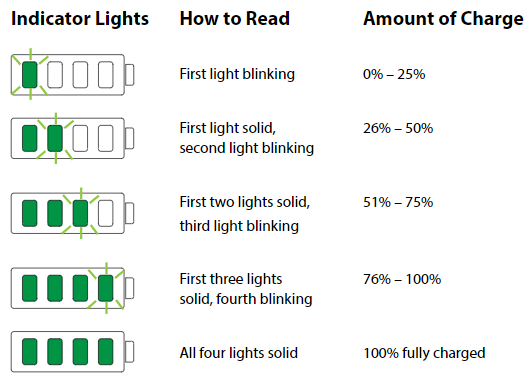
Rapid LED flashing indicates a deep discharge protection mode that requires specific handling.
Stop Rapid LED Flashing with a 5V Charger
If all four LEDs flash on and off repeatedly when plugged in, your Mophie is in deep discharge protection mode. This often happens with new units stored for months or after full battery drain. Fast chargers fail because the internal microcontroller needs minimum voltage to boot and cannot establish a handshake.
Fix it in 30 seconds using this method:
• Use a 5V/1A USB-A wall charger
• Connect with a USB-A to USB-C or USB-A to micro-USB cable
• Plug in and wait 10 to 30 seconds
The LEDs will stabilize, showing one solid light and the top one blinking. Protection mode disengages. Now switch back to your fast charger for full recharge.
Prevent Deep Discharge
Never let your Mophie drop to 0%. Recharge when LEDs show one or two bars, approximately 20-30%. Frequent deep discharges wear out lithium-ion cells and increase the risk of protection lock. If storing long-term, charge to 50% and top up every 3 to 6 months.
Use Priority Charging on Power Station Plus
The Power Station Plus features Priority Charging technology that benefits users in specific scenarios.
Device Charges Before the Battery
When you connect your iPhone via the built-in Lightning cable, it draws power before the Mophie recharges itself. This ensures your phone gets fast power even if the power bank is low. It’s ideal for emergency top-ups during commutes or travel when you need immediate device power.
Charge While Recharging (Pass-Through Charging)
You can plug the Mophie into the wall while it’s powering your phone. With Priority Charging enabled, your iPhone charges first, then the internal battery refills. This is perfect when you’re low on time and need both devices topped up. Use a 12W or higher wall adapter to ensure sufficient input.
Optimize Wireless Charging
Wireless stand models require proper placement and care for reliable operation.
Center Your Phone on the Pad
For Mophie Wireless Stand models, place your phone in the center of the charging pad. Misalignment prevents charging or causes intermittent blinking. Remove thick or metal cases—foreign object detection will halt charging if the system senses interference.
Avoid Slow or Stopped Wireless Charging
If wireless charging starts but stops after a few seconds, ensure the Mophie itself is fully charged. Try wired charging first to test battery health. Clean the charging pad with a dry cloth. Restart by unplugging the stand for 30 seconds, then reconnect. Wireless charging is slower than wired, delivering approximately 5W output.
Check Battery Health and Swelling
Regular inspection prevents safety hazards from damaged batteries.
Stop Using Puffy or Warped Units
If your Mophie feels bulged, wobbles on a flat surface, or emits a high-pitched noise during charging, stop using it immediately. A puffy appearance indicates lithium-ion cell swelling caused by age, heat, or over-discharge. Swollen batteries are fire hazards.
Do not puncture the case, compress the unit, or continue charging. Instead, power it down, place it in a fire-safe area, and recycle it at an e-waste facility. Contact Mophie or your retailer for warranty options. Most units last 2-3 years with daily use before capacity drops and instability increases.
Set Up a New Mophie Correctly
Proper first-time setup prevents activation issues.
Remove All Activation Tabs
Before first use, inspect your Mophie for pull-tabs, especially on the Power Station Plus. Some units include a protective tab over the Lightning port and a side activation tab that primes the battery. Remove all visible tabs. If the unit doesn’t respond after charging, recheck for hidden tabs that prevent accidental discharge during shipping.
Charge Fully Before First Use
Always recharge a new Mophie to 100% before powering your devices. Factory charge levels are often low, around 50%. Full initial charging helps calibrate the battery management system and ensures peak performance.
Maximize Battery Lifespan
Proper care extends your Mophie’s functional life significantly.
Avoid Extreme Temperatures
Never leave your Mophie in hot cars above 95°F or freezing environments below 32°F. Heat accelerates battery degradation. Cold causes temporary capacity loss and inaccurate LED readings. Use and store in room temperature conditions whenever possible.
Store at 50% for Long Periods
If you won’t use your Mophie for weeks or months, charge to approximately 50%, indicated by two solid LED lights. Turn it off and store in a cool, dry place. Recharge to 50% every 3 to 6 months to prevent deep discharge and cell damage. Fully charged or fully drained storage shortens battery life significantly.
Know What Devices It Supports
Mophie portable chargers work with a wide range of devices beyond smartphones.
Works with All Major Devices
Your Mophie can charge iPhones, iPads, Android phones, AirPods, Galaxy Buds, Apple Watch, Wear OS watches, e-readers, GPS devices, and handheld games. Use the correct cable for each device. The USB-A port is universally compatible. Newer models with USB-C output support faster charging for modern Android phones and iPads.
MFi Certification Ensures iPhone Safety
The Power Station Plus is Made for iPhone and Made for iPad certified. This certification provides no “This accessory may not be supported” warnings, safe voltage and current delivery, full charging speed compatibility, and data-safe connections. Non-certified chargers may charge slowly or disconnect unexpectedly.
Troubleshoot Charging Stops After 60 Seconds
This common issue has several potential solutions.
Replace Faulty Cables
If charging cuts off after 30-60 seconds, test with an original Apple or Samsung cable. Avoid cheap third-party cables with poor shielding. A damaged or low-quality cable causes unstable current draw, triggering the Mophie’s auto-shutdown protection.
Reset the Power Bank
Perform a hard reset by unplugging all cables and holding the power button for 15-30 seconds. Release and try charging again. This clears temporary firmware glitches in the power management system. Many users report restored functionality after this step.
Recharge the Mophie First
A low or unstable internal battery can cause premature shutdown. Fully recharge your Mophie using the 5V revival method if LEDs are flashing or unresponsive.
Frequently Asked Questions About Mophie Portable Chargers
Why won’t my Mophie turn on when I plug in my phone?
Most Mophie models require you to press the power button to activate charging. The PowerStation XXL and similar units don’t start automatically. Press the side button, wait for LED lights to illuminate, and charging should begin.
What does it mean when all four LEDs flash on my Mophie?
Rapid flashing of all four LEDs indicates deep discharge protection mode. This happens when the battery voltage drops too low. Use a 5V/1A USB-A wall charger with a USB-A to USB-C or micro-USB cable for 10-30 seconds to revive it, then switch to your fast charger.
Can I use my Mophie while it’s charging?
Yes, you can use pass-through charging on the Power Station Plus. Your connected device charges first, then the Mophie recharges its own battery. Use a 12W or higher wall adapter for best results.
How long does a Mophie portable charger last?
With daily use, most Mophie units last 2-3 years before capacity noticeably degrades. Proper storage at 50% charge and avoiding extreme temperatures can extend this lifespan.
Why does my phone stop charging after a minute?
This is usually caused by a faulty cable, firmware glitch, or low Mophie battery. Try a different OEM cable, perform a hard reset by holding the power button for 15-30 seconds, or fully recharge the Mophie first.
Does Mophie include a wall charger?
No, Mophie does not include a wall plug with standard retail units. You must supply your own 5V/1A or higher wall adapter for recharging.
Key Takeaways for Using Your Mophie Charger
Knowing how to work a Mophie portable charger goes beyond simply plugging in a cable. It means understanding when to press the power button, how to revive a dead unit using a 5V charger, and why your phone might stop charging mid-session. Always use the right cable for your device, recharge before the battery hits zero, and store at 50% for long periods. By using the correct charger, avoiding deep discharges, and applying the 5V revival trick when needed, you’ll keep your Mophie reliable for years. Whether you’re traveling, commuting, or prepping for emergencies, a well-maintained Mophie ensures your devices stay powered exactly when you need them.





