
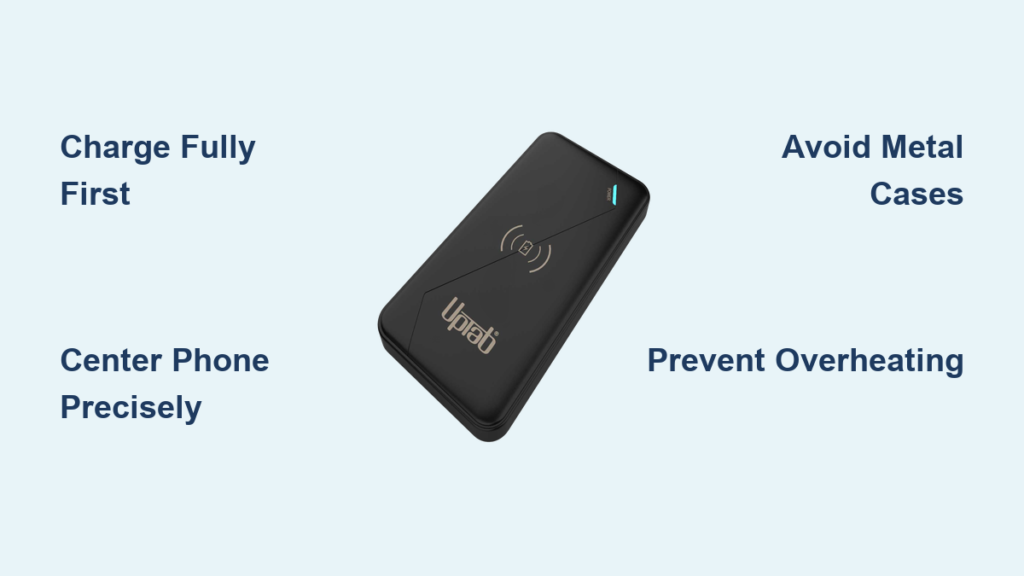
Your phone dies at the worst possible moment—mid-navigation, during an important call, or right before you leave the house. Instead of fumbling for cables, imagine simply dropping your device onto a sleek pad that powers it up wirelessly while you move freely. A wireless charging power bank solves this exact problem by combining portable battery backup with cable-free convenience. This versatile device works as both a stationary charging pad when plugged in and a portable battery when you’re on the move. If you’re wondering how to use wireless charger power bank effectively across different scenarios, you’re in the right place. In the next few minutes, you’ll master setup, troubleshooting, and pro techniques to maximize charging speed and device lifespan—no technical expertise required.
Unlike traditional power banks, these hybrid devices eliminate cable clutter while keeping your Qi-compatible smartphone powered anywhere. They’re essential for travelers, desk warriors, and anyone tired of tangled wires. By the end of this guide, you’ll confidently use your power bank as a nightstand charger, emergency backup during commutes, and long-term battery solution—all while avoiding common pitfalls that damage devices. Let’s transform how you stay powered up.
Charge Your Wireless Power Bank Fully Before First Use
Skipping this critical step risks poor performance and premature battery wear. Always plug your new wireless power bank into a wall outlet using the included USB-C or Micro-USB cable and a 5V/2A adapter—never rely solely on a computer’s USB port for initial charging. Computer ports deliver only 0.5A, making a full charge take 2-3 times longer and potentially leaving residual “charge memory” in the battery.
Watch the LED indicators: Solid lights or a color shift (usually green) confirm 100% capacity. This initial full charge calibrates the battery management system, ensuring accurate power level readings during future use. Pro tip: Leave it plugged in for an extra 30 minutes after indicators show “full” to top off the cells. Never skip this—even if your device shows partial charge out of the box—as lithium-ion batteries degrade fastest when stored at low capacity.
Set Up as Stationary Charger: Nightstand or Desk Setup
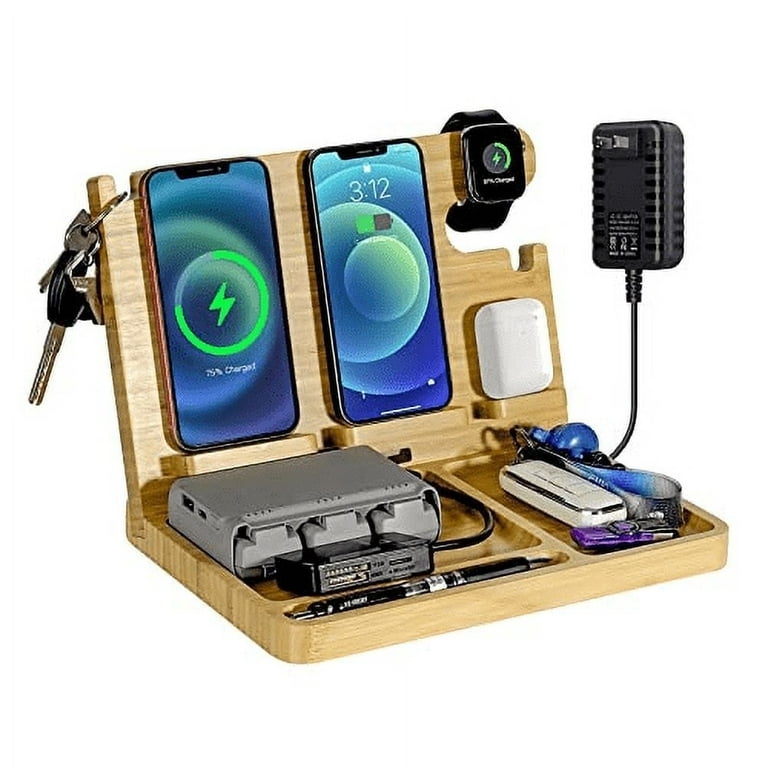
Transform your wireless power bank into a clutter-free charging station in under 30 seconds. Plug the input port into a wall adapter (not your laptop), then place your Qi-compatible phone—like an iPhone 12+ or Samsung Galaxy S21+—centered on the charging pad. You’ll see immediate visual feedback: an LED glow on the power bank and your phone’s charging icon. Perfect for bedside tables or work desks, this setup eliminates cable tangling while keeping devices within reach.
Critical alignment tip: Wireless charging relies on precise coil positioning. If charging stalls, nudge your phone 1-2mm left/right—most devices have off-center coils. Avoid placing the unit on beds, sofas, or rugs; these block ventilation vents and cause overheating. Instead, use hard surfaces like wood or glass. Warning: Never cover the power bank with books or papers during use—trapped heat permanently damages lithium-ion cells within hours.
Charge Wirelessly On the Go: Portable Mode Without Cables
When you’re untethered from outlets, your power bank becomes a true lifeline. Ensure it’s pre-charged to 100% before leaving home—partial charges reduce usable capacity due to voltage drop. To power your phone mid-commute, simply place it centered on the pad. No cables, no fumbling: Your iPhone or Android will start charging instantly if both devices support Qi (check compatibility lists in Section 6 of your manual).
Maximize efficiency during travel: Remove thick cases (over 5mm) or metal-backed accessories like PopSockets, which block magnetic induction. For faster top-ups, combine modes: Plug the power bank into a car charger while placing your phone on the pad—this “passthrough charging” draws power directly from the car rather than depleting the bank’s battery. Note: This only works on models explicitly advertising passthrough support (like certain Samsung units); otherwise, avoid it to prevent battery stress.
Recharge the Power Bank: USB-C vs. Micro-USB Input Guide
Refueling your wireless power bank properly extends its lifespan by 2-3 years. Always use a 5V/2A wall adapter—lower amperage (like 1A phone chargers) causes incomplete charging cycles that degrade battery health. USB-C inputs recharge 30% faster than Micro-USB, so prioritize that port if available. During charging, LED blinks indicate progress; solid lights mean full capacity.
Avoid these critical mistakes:
– ❌ Charging via laptop USB ports (too slow, causes “trickle degradation”)
– ❌ Using damaged or third-party cables (creates unstable voltage spikes)
– ❌ Leaving it plugged in for days after full charge (accelerates cell wear)
Pro move: Perform a “deep cycle” every 3 months—drain completely until auto-shutoff, then charge uninterrupted to 100%. This recalibrates capacity indicators and maintains peak efficiency.
Avoid Overheating: Critical Safety Steps for Wireless Power Banks

Over 60% of power bank failures stem from heat damage—a preventable crisis. Immediately stop use if the unit feels hot (above 40°C/104°F). Wireless charging generates more heat than wired, so always:
1. Place on hard, non-flammable surfaces (no beds/couches)
2. Remove phone cases thicker than 3mm or containing metal
3. Keep away from direct sunlight or car dashboards
Never ignore these red flags:
– 🔥 Swelling, hissing, or chemical odors (recycle immediately per local regulations)
– 🔥 Metal objects between phone and pad (keys/coins become fire hazards)
– 🔥 Charging in humid environments like bathrooms (moisture causes short circuits)
Pro tip: Run a hand test—after 15 minutes of charging, the unit should feel barely warm. If too hot to touch, unplug and check for misalignment or case interference.
Fix: Phone Not Charging Wirelessly? 4 Quick Solutions
When your device won’t power up, skip frustration with this diagnostic flow:
Is Your Phone Properly Aligned?
Misalignment causes 70% of “no charge” issues. Lift your phone and reposition it slowly while watching for the charging icon. Most Samsung and iPhone models require precise centering—their coils sit 1-2cm off-center. Pro trick: Place a tiny sticker on the power bank where charging initiates reliably for future reference.
Does Your Phone Case Block Charging?
Thick leather, metal plates, or magnetic mounts disrupt the electromagnetic field. Test without your case—if charging works, replace it with a slim (≤3mm) silicone or TPU model. Warning: Wallet cases with metal inserts can overheat and damage both phone and power bank.
Is the Power Bank Actually Charged?
Check LED indicators—some models show “phantom charge” when battery is critically low. Plug the power bank into a wall outlet; if LEDs don’t illuminate, recharge it fully before retrying. Critical: Power banks below 20% capacity often disable wireless output to preserve reserve power for USB ports.
Are Metal Objects Interfering?
Coins, keys, or magnetic mounts under your phone create dangerous heat points. Run your palm over the charging surface to detect hidden objects. Emergency fix: If metal overheats, unplug immediately and let both devices cool for 20 minutes before removing the object.
Fix: Slow Wireless Charging? Optimize Speed in 3 Steps
Wireless charging is inherently slower than wired (typically 5-10W vs 18-25W), but these tweaks reclaim 30% more speed:
Use Wall Power for Stationary Charging
When plugged into a wall outlet (not running on battery), your power bank delivers maximum wireless output. Never use it as a stationary charger while solely relying on its internal battery—that drains capacity twice as fast. Plug directly into AC power for consistent 7.5-10W speeds.
Ditch Thick Cases and Metal Accessories
Cases over 5mm or with metal components reduce efficiency by 40-60%. Test with your phone naked—if speed improves, switch to a certified Qi-friendly case. Pro note: iPhone MagSafe cases work seamlessly but add slight thickness; non-MagSafe magnetic cases often cause slowdowns.
Disable Fast Charging Features
Some phones (like Samsung Galaxy models) default to “adaptive fast charging” on wireless pads, which throttles speed after 50% to preserve battery health. Go to Settings > Battery > Advanced to disable this for emergency top-ups. Warning: Only do this occasionally—frequent full-speed charging degrades your phone’s battery.
Double Your Power Bank’s Lifespan: Storage and Maintenance Secrets
Most users kill their power bank within 18 months through improper storage. Follow these pro-tested habits:
Store at 50-60% Charge in Cool Conditions
Lithium-ion batteries degrade fastest at 0% or 100% charge. Before storing for over 30 days:
1. Charge to exactly 55% (use LED indicators as guide)
2. Power off the unit completely
3. Keep in a dry place at 15-25°C (59-77°F)—never in cars or garages
4. Recharge to 55% every 90 days
Critical: Avoid “trickle charging” by leaving it plugged in 24/7. This constant voltage stress reduces total lifespan by 50%. Use dedicated wireless pads for permanent desk setups.
Rotate Charging Methods
Exclusively using wireless mode wears down the coil faster. Alternate with USB-A output ports: Use wireless for overnight charging and USB cables for quick daytime top-ups. This distributes wear evenly across components. Pro tip: After 500 charge cycles (typical lifespan), expect 70-80% original capacity—recycle responsibly when below 50%.
Final Note: Mastering how to use wireless charger power bank transforms dead-phone anxiety into seamless power freedom. By prioritizing full initial charges, precise alignment, and heat management, you’ll maintain 90%+ efficiency for 2+ years. Remember: Always use wall adapters for refueling, ditch metal phone cases during charging, and store at 55% for longevity. Ready to dive deeper? Explore our guide on “Qi Charging Standards Explained” to future-proof your wireless setup. Your cable-free power journey starts now—drop your phone on that pad and reclaim your space.



