
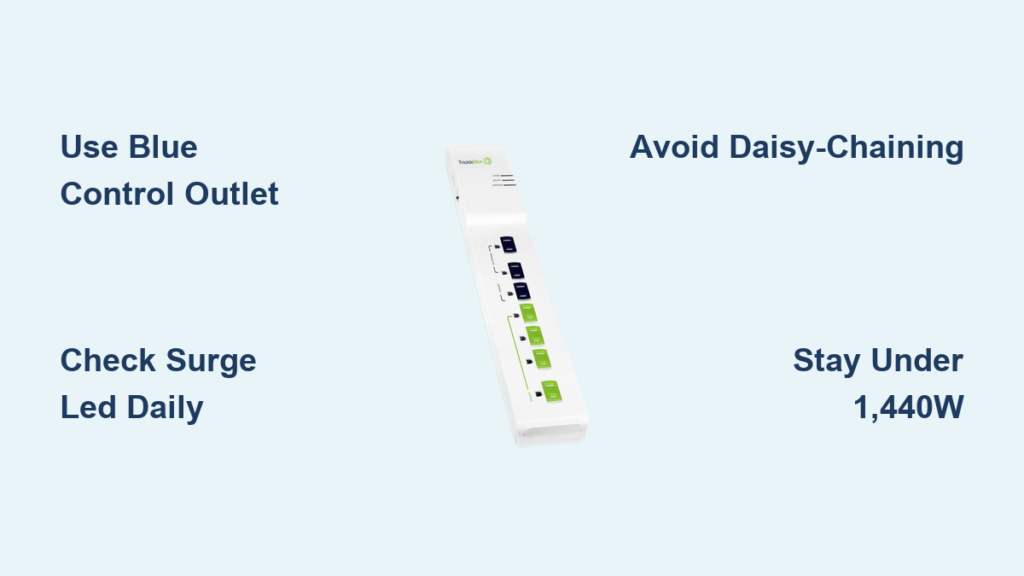
Is your home office or entertainment center wasting energy while devices sit idle? The TrickleStar TS1104 Advanced Power Strip is designed to stop phantom power drain, but only if used correctly. This smart power strip automatically cuts power to peripherals when your main device shuts down, helping reduce electricity bills and fire risks. However, improper setup can disable its energy-saving features or compromise safety. Whether you are using it for a TV, computer, or home theater, knowing how to use the Tricklestar power strip safely ensures optimal performance and long-term protection.
The TrickleStar TS1104 combines robust surge suppression, child-safe outlets, and intelligent power management in one compact unit. With 1,080 joules of fireproof surge protection, EMI/RFI noise filtering, and a 15-amp resettable breaker, it is built to protect sensitive electronics. Its unique automatic shutoff system monitors your primary device’s power draw and powers down connected accessories after a 1-minute delay. But to work properly, every outlet must be used as intended, and the threshold switch must be set correctly. In this guide, you will learn step-by-step setup, troubleshooting tips, and critical safety practices to get the most from your Tricklestar power strip.
Choose a Safe Installation Location
Avoid Heat, Moisture, and Obstructions
Place the TrickleStar power strip on a dry, flat surface away from water sources like sinks or humidifiers. Never install it in a bathroom, laundry room, or near plants that require frequent watering. Moisture increases the risk of short circuits and electrical shock.
Ensure at least 2 inches of clearance around the unit for proper ventilation. The internal circuitry generates heat during operation, especially under load. Blocking airflow with rugs, furniture, or curtains can lead to overheating and premature failure.
Do not mount the strip inside enclosed cabinets or behind tightly packed entertainment centers unless adequate airflow is confirmed. Overheating reduces surge protector lifespan and may trip the circuit breaker unnecessarily.
Prevent Physical Damage Risks
Keep the power strip off the floor in high-traffic areas to avoid tripping hazards or cord damage. If placement near the floor is unavoidable, use cord covers or adhesive clips to secure the 3-foot heavy-duty power cord and prevent accidental tugs.
Never place heavy objects on top of the unit. The FR-4 printed circuit board is durable but not crush-resistant. Physical deformation can damage internal components and void safety certifications.
Plug Into a Grounded Wall Outlet Only
Confirm Proper Grounding With LED Indicator
Always plug the TrickleStar directly into a grounded 3-prong wall receptacle. Never use an ungrounded adapter or extension cord. Without proper grounding, surge protection cannot function, leaving devices vulnerable to voltage spikes.
After plugging in, check the Ground LED on the front panel. If it does not illuminate, the outlet may be faulty or improperly wired. Use an outlet tester to verify correct wiring before continuing.
If the Ground LED remains off despite a confirmed good outlet, stop using the unit and contact the manufacturer. A failed ground connection compromises all safety systems.
Never Daisy-Chain Power Strips
Do not plug another surge protector, power strip, or multi-outlet adapter into the TrickleStar. This practice, known as daisy-chaining, overloads circuits, creates fire hazards, and voids UL safety certification.
The TS1104 is designed as a standalone solution with 7 strategically arranged outlets. If more ports are needed, replace the existing strip with a higher-capacity model instead of chaining.
Connect Devices to Correct Outlets

Use Blue Control Outlet for Primary Device
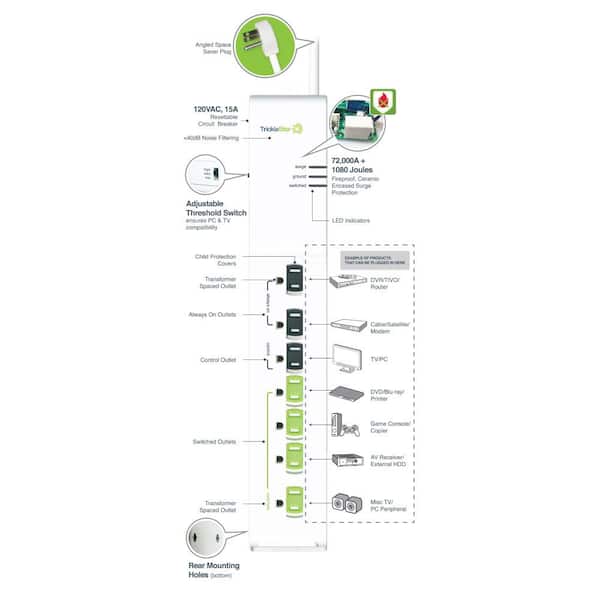
The blue-labeled control outlet must only host the main device, such as a TV, desktop computer, or audio receiver, that you want to use as the power trigger. This outlet senses energy draw to activate or deactivate the green switched outlets.
Plugging the control device into any other outlet disables the automatic shutoff feature. For example, if your TV is plugged into a green outlet instead of the blue one, speakers and lamps will not turn off when the TV powers down.
Only one device should be connected to the control outlet. Multiple devices can confuse the power-sensing circuit.
Assign White Always-On Outlets Wisely
The two white always-on outlets provide continuous power regardless of the control device’s status. Use them for equipment that must stay powered.
Ideal candidates include:
• Modem or Wi-Fi router
• DVR or network recorder
• Digital alarm clock
• VoIP phone base station
• Smart home hub
Avoid plugging high-wattage devices like space heaters or refrigerators into these outlets. They are part of the same 15-amp circuit and contribute to total load limits.
Plug Peripherals Into Green Switched Outlets
The four green switched outlets automatically turn on and off based on the control device’s power state. Ideal candidates include:
• Monitor or second display
• External speakers or soundbar
• Gaming console or streaming box
• Desk lamp or USB hub
• Printer or external hard drive
These outlets shut off 60 seconds after the control device enters standby or is turned off. When the main device powers back on, they reactivate within seconds.
These outlets are widely spaced to accommodate bulky wall warts without blocking adjacent sockets.
Set the Correct Power Threshold
Match Setting to Your Control Device
The adjustable threshold switch determines how much power the control device must draw to activate the switched outlets. Choose the right level based on your primary device:
• Low (10W): Best for laptops, streaming sticks, small monitors
• Medium (22W): Best for desktop PCs, mid-sized TVs, AV receivers
• High (42W): Best for large TVs (55″ plus), gaming rigs, home theaters
Start with Medium (22W) for most setups. If peripherals stay on when they should turn off, lower the setting. If they fail to turn on with the main device, increase it.
Test and Adjust for Optimal Performance
After selecting a threshold, test the system:
1. Turn on the control device and confirm switched outlets power up.
2. Turn off the device completely.
3. Wait 1 minute. Switched outlets should cut power.
4. Turn the device back on. Peripherals should restore within seconds.
If switching does not occur as expected, adjust the threshold and retest. Some modern devices draw inconsistent power during boot-up or standby, requiring fine-tuning.
Devices with instant-on features may remain above the threshold even when off. Try the Low (10W) setting in such cases.
Monitor LED Status Lights Regularly
Check Surge and Ground Indicators Daily
The three LED lights provide real-time feedback on system health. The Surge LED must be ON at all times. If it is OFF, the MOVs have absorbed a major surge and protection is lost. Replace the unit immediately.
The Ground LED confirms safe grounding. If it is off, check the wall outlet or wiring. The Switched LED shows whether green outlets are currently powered.
Make it a habit to glance at the LEDs each time you use the setup. A dark Surge LED means your devices are no longer protected, even if the strip still delivers power.
Respond Immediately to Surge LED Failure
If the Surge LED goes out, unplug all devices. Do not reset or continue using the unit. Replace the TrickleStar strip with a new one.
Even if electronics appear fine, the internal ceramic-encased MOVs may be degraded. Continuing to use a compromised unit risks fire and equipment damage during the next surge.
Reset After Overload or Surge Events
How to Reset the Circuit Breaker
If the power cuts out unexpectedly:
1. Unplug all connected devices.
2. Press the reset button located next to the circuit breaker.
3. Reconnect devices one at a time and restore power.
The resettable breaker trips during overloads (exceeding 15A/1,800W) or short circuits. Unlike fuses, it does not need replacement. Just a manual reset.
Diagnose Recurring Trips
If the breaker trips repeatedly, calculate total wattage. Add up the power draw of all plugged-in devices. Stay below 1,440W (80% of 1,800W) for safe continuous use.
Unplug devices one by one to identify faulty units, such as a damaged power supply. Check for damaged cords or signs of overheating on the strip or devices.
Frequent tripping may indicate an overloaded circuit or failing appliance. Ignoring it increases fire risk.
Troubleshoot Common Issues Fast
Peripherals Won’t Turn Off
Likely causes include the control device not being in the blue outlet, the threshold set too high, or the control device drawing more than threshold in standby.
Fix by moving the main device to the blue outlet, lowering the threshold to Low (10W), and waiting the full 60 seconds. Some devices take time to reach standby.
Peripherals Fail to Power On
Likely causes include the threshold set too low, the control device not drawing enough power at startup, or a faulty connection.
Fix by increasing the threshold to Medium or High, ensuring the device is fully powered on (not in sleep mode), and verifying the Switched LED activates.
Surge LED Is Out
Replace the unit now. Do not attempt repair. Internal components are sacrificial by design.
Even if power flows, the strip offers zero surge protection once the LED is off.
Maintain Long-Term Safety
Inspect Monthly for Damage
Check for:
• Frayed or kinked power cord
• Discoloration or scorch marks on housing
• Loose or wobbly outlets
• Difficulty inserting plugs
Any visible damage means the unit should be retired immediately. Internal faults may not be obvious but can still pose fire risks.
Clean Without Liquids
Wipe the exterior with a dry microfiber cloth. Never spray cleaners, water, or solvents directly on the unit. Moisture can seep into circuits and cause corrosion or shorts.
For dust buildup in outlets, use compressed air at low pressure. Do not insert metal objects or toothpicks.
Replace After Major Power Events
Even if the Surge LED is still on, consider replacing the strip after a nearby lightning strike, a known power surge or brownout, or prolonged exposure to unstable voltage.
Surge protectors degrade over time. The TrickleStar sacrifices itself to protect your gear. Replace it to maintain that shield.
Prevent Overloading and Fire Hazards
Know the 15-Amp Limit
The TS1104 supports up to 1,800 watts at 120 volts (15 amps). Exceeding this risks overheating, tripped breakers, or fire.
Typical device wattages to keep in mind:
• Desktop PC: 300 to 600W
• LED TV (55″): 80 to 120W
• Gaming Console: 100 to 200W
• Soundbar: 50 to 100W
• Router: 10 to 20W
• Monitor: 20 to 50W
Total all connected devices. Keep under 1,440W for safe continuous operation.
Avoid High-Wattage Appliances
Never plug in space heaters, air conditioners, coffee makers, microwaves, or refrigerators. These appliances draw hundreds or thousands of watts and can instantly overload the strip.
Why Utilities Recommend TrickleStar
Built for Energy Efficiency Programs
TrickleStar strips are commonly distributed through utility-sponsored rebate programs because they reduce phantom load, the hidden energy consumed by devices in standby mode.
Studies show standby power accounts for 5 to 10% of household electricity use. By cutting power to idle peripherals, the TS1104 helps lower demand and reduce grid strain during peak hours.
Its inclusion in demand-side management initiatives proves its reliability and measurable impact on energy conservation.
Trusted for Safety and Durability
Utilities choose TrickleStar because ceramic-encased MOVs prevent fire during surge events, the FR-4 PCB withstands heat and stress, child safety shutters meet household safety standards, and LED indicators enable easy user verification.
It is not just about saving energy. It is about doing so safely and sustainably.
Frequently Asked Questions About Tricklestar Power Strip Safety
Can I use the Tricklestar power strip in a bathroom?
No. The Tricklestar power strip should never be used in bathrooms or near any water sources. Moisture increases the risk of short circuits and electrical shock. Keep the unit in dry areas away from sinks, humidifiers, and damp environments.
What happens if I plug my control device into a green outlet instead of the blue one?
The automatic shutoff feature will be disabled. The blue control outlet is specifically designed to sense power draw from your primary device. If you plug it into a green switched outlet, the peripherals will not turn off when you power down your main device.
How do I know when the Tricklestar power strip needs to be replaced?
Replace the unit immediately if the Surge LED goes out. This indicates the internal MOVs have been compromised and surge protection is no longer functional. Also replace if you notice physical damage like scorch marks, frayed cords, or melted housing.
Can I daisy-chain another power strip into the Tricklestar?
No. Never plug another power strip, surge protector, or multi-outlet adapter into the Tricklestar. Daisy-chaining creates fire hazards, overloads circuits, and voids UL safety certification.
What is the maximum wattage I can safely connect to the TS1104?
The maximum load is 1,800 watts (15 amps at 120V). For safe continuous operation, keep total connected devices below 1,440W (80% capacity). Exceeding this risks overheating and fire.
Does the Tricklestar power strip work with gaming consoles and streaming devices?
Yes. Gaming consoles and streaming devices work well as control devices. Start with the Medium (22W) threshold setting. If peripherals do not turn on or off properly, adjust to Low (10W) for smaller devices or High (42W) for high-power gaming rigs.
Key Takeaways for Using Tricklestar Power Strips Safely
The Tricklestar TS1104 is more than a power strip. It is an energy-saving, safety-first solution for modern homes. By following these guidelines, you protect your devices, reduce waste, and minimize fire risks.
Always plug the control device into the blue outlet. This is the most critical setup step for activating the automatic shutoff feature. Monitor the Surge LED regularly. If it goes out, replace the unit immediately because surge protection has been compromised.
Avoid overloading the strip. Keep total wattage below 1,440W for continuous safe operation. Never daisy-chain with other power strips, and always use grounded wall outlets.
Replace the unit after any major surge event, even if everything appears to work fine. Internal components degrade with each protection event. With proper use, your Tricklestar power strip delivers years of safe, efficient performance while helping reduce phantom energy waste in your home.





