
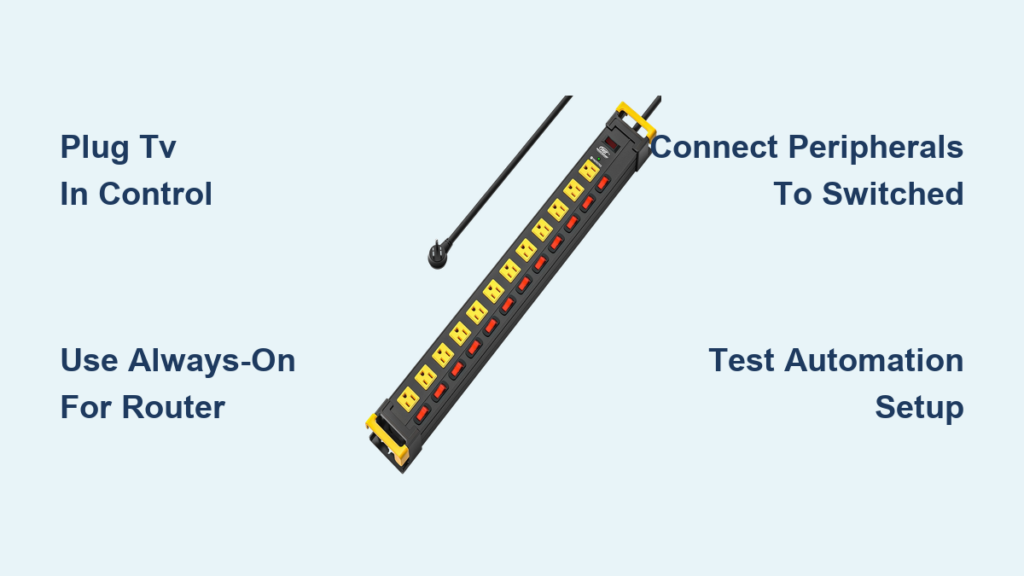
You turn off your TV, game console, and soundbar, but they keep drawing power. This invisible energy drain, called phantom load, can cost you $100 or more yearly on your electricity bill. The solution is a smart power strip with switched outlets that automatically cuts power to idle devices when your main device shuts down.
Using switched outlets correctly unlocks automatic energy savings, protects your electronics, and simplifies your daily routine. This guide shows you exactly how to use switched outlets on a power strip for maximum efficiency and convenience.
Identify Your Power Strip’s Outlet Zones

Advanced power strips divide outlets into three distinct zones: control, switched, and always-on. Knowing the function of each zone is critical to proper setup.
Control/Master Outlet: The Power Trigger
This single outlet acts as the brain of the system. Labeled “Control,” “Master,” or color-coded in black or green, it monitors the power draw of the device plugged into it. When that device turns on, it signals the strip to energize the switched outlets.
Plug in your TV, desktop PC, or gaming console here. Never leave this outlet empty because it disables automation. The control outlet does not turn off itself; it stays powered but uses the device’s status to manage other outlets.
Switched Outlets: Automatic Power Control
These outlets, typically 2 to 6 in number and often teal or white, turn on and off based on your master device. When you power down your TV or computer, these outlets cut power completely within seconds, stopping standby energy waste.
Ideal devices for switched outlets include game consoles, DVD and Blu-ray players, soundbars and receivers, printers, and external hard drives. Avoid plugging in devices that need constant updates or internet access, such as DVRs and smart hubs.
Always-On Outlets: Keep Essentials Running
Usually 1 to 2 black outlets labeled “Always On,” these stay energized regardless of the master device’s status. Use them for equipment that must remain active.
Plug in cable boxes, streaming devices that download updates, Wi-Fi routers or modems, network-attached storage, and smart home hubs. Plugging a router into a switched outlet will kill your internet when the TV turns off.
Plug In the Power Strip Safely
Before connecting devices, ensure safe installation by following these steps.
Test the Wall Outlet
Use a lamp or voltage tester to confirm the wall outlet is grounded and functional. Advanced strips require a stable, grounded connection to operate safely and protect against surges.
Connect and Power On
Plug the strip into the wall and flip the main power switch to ON. Check for LED indicators showing power and surge protection are active. Cord length is typically 5 to 6 feet, so position the strip so all devices reach comfortably.
Assign Devices to the Right Outlets
Proper device placement ensures automation works without disrupting essential functions.
Step-by-Step Device Setup
1. Connect the Master Device
Plug your primary device into the Control/Master outlet. For entertainment systems, use the TV. For computer setups, use the desktop PC or docking station. For gaming rigs, use the gaming PC or console. Turn it on and you should see switched outlets power up within seconds.
2. Plug Essentials into Always-On Outlets
Connect devices that must stay on, including cable boxes, DVRs, modems or routers, and smart speakers or hubs. Verify they remain powered when the master device turns off.
3. Connect Peripherals to Switched Outlets
Add accessories that only operate when the main device is in use, such as game consoles, printers, external drives, sound systems, and streaming boxes. If a device powers on automatically when the TV does, it is working correctly.
Test the Automation System
After setup, verify everything works as intended with these tests.
Turn On Test
Power on your TV or PC and watch for peripheral devices like game consoles and printers to turn on or show standby lights. Confirm always-on devices remain active. Success looks like switched outlets powering up within 5 to 10 seconds.
Turn Off Test
Shut down the master device completely, not just standby. Wait 5 to 30 seconds, as most strips delay shutoff to avoid cutting power during brief pauses. Check that switched outlets lose power with LEDs going dark and devices shutting down. Confirm always-on devices are still running.
Troubleshoot Common Issues
Even with correct setup, problems can occur. Here is how to fix them fast.
Switched Outlets Do Not Turn On
Possible causes include the master device being in standby mode, a low-power device failing to trigger the sensor, or the strip not receiving power. Try fully power cycling the master device. Test with a different device like an older TV or PC to check trigger sensitivity. Verify the wall outlet and strip switch are working.
Some strips struggle with ultra-efficient modern TVs. Consider a model with adjustable sensitivity or remote control.
Always-On Devices Lose Power
This happens when a device is plugged into a switched outlet by mistake. Reconnect to a labeled Always-On outlet and double-check color coding and labels.
Power Strip Will Not Turn On
Causes include a tripped internal breaker, faulty wall outlet, or damaged power cord. Press the reset button, typically on the back or side. Test the wall outlet with another device. Inspect the cord for fraying or burns. If the strip feels hot or smells burnt, unplug immediately and replace it.
Phantom Load Still Present
A peripheral may be plugged directly into the wall or into the wrong outlet. Audit all connected devices and move accessories like game consoles and printers to switched outlets. Ensure the master device is fully powered off, not in standby.
Maximize Energy Savings
Switched outlets can slash standby power use by up to 80% in entertainment and office setups.
Estimate Your Savings
Older game consoles can draw 120 watts in standby, costing over $130 annually. DVD and Blu-ray players use about 15 watts, adding $16 per year. Printers draw roughly 10 watts ($11 yearly), and soundbars use 8 watts ($9 annually). Total potential savings reach $50 to $150 per year per setup.
Once configured, your strip handles everything automatically with no need to unplug devices, no power strips with multiple switches to manage, and energy savings happening every night when you turn off your TV or PC.
Choose the Right Advanced Power Strip
Not all strips are created equal. Look for these features.
Key Specifications
Recommended features include a joule rating of 1000 or higher, clamping voltage of 400 volts or less, outlet configuration with 1 control outlet, 4 or more switched outlets, and 1 to 2 always-on outlets. Cord length should be 5 to 6 feet, and look for indicator lights showing power and surge status. Mounting options like wall-mount or adhesive pads are helpful.
Surge protection matters even with automation. Ensure the strip includes EMI and RFI noise filtering, automatic shutdown during surges, and an LED indicator for protection status. Replace the strip if the surge light goes out or after a major electrical event.
Get a Free Power Strip Through Energy Programs
You might not have to pay a dime for an advanced power strip.
Mass Save Program Availability
The Mass Save program in New England provides advanced power strips at no cost during free home energy assessments. Visit masssave.com to schedule a no-cost home visit. An energy specialist installs the strip and other efficiency devices, including LED bulbs, smart thermostats, and low-flow showerheads. Call 888-921-5990 to schedule. There are no income limits, and the program is fully funded by utility companies and state programs.
Maintain Your Power Strip
Keep your power strip working safely and efficiently for 5 to 10 years.
Monthly Maintenance Checks
Dust vents and outlets with compressed air. Inspect the cord for damage. Verify LED indicators are lit, showing power and surge status.
When to Replace
Replace the strip if the surge protection light is off, the strip feels hot during use, devices fail to power on or off automatically, or physical damage is visible. After a lightning strike or power surge, replace even if it seems fine because internal protection may be compromised.
Best Use Cases for Switched Outlets
Target setups where automation delivers real benefits.
Home Entertainment Center
Use the TV as the master, plug game consoles, Blu-ray players, and soundbars into switched outlets, and keep cable boxes and streaming devices in always-on outlets. This setup turns off the entire system with one remote.
Home Office
Use the desktop PC as the master, connect printers, monitors, speakers, and USB hubs to switched outlets, and keep routers and modems in always-on outlets. No more leaving the printer on all night.
Gaming Setup
Use the gaming PC or console as the master, connect monitors, lighting, and audio systems to switched outlets, and keep network gear in always-on outlets. Achieve full shutdown without touching multiple plugs.
Avoid These Common Mistakes
Even small errors reduce effectiveness.
Never plug the router into a switched outlet because internet cuts out when the TV turns off. Always use always-on outlets for network devices.
Avoid using a low-power device as the master because energy-efficient TVs may not draw enough power to trigger the sensor. Try a desktop PC or older-model TV as the master.
Do not overload the strip. Check total wattage of connected devices because most strips handle 1875 watts maximum. Do not plug in space heaters, microwaves, or refrigerators.
Final Tips for Success
Get the most from your switched outlets with these expert practices.
Label your outlets using tape or tags to mark master, always-on, and auto-off zones. This prevents mistakes during re-plugging.
Combine with other savings measures like smart thermostats, LED lighting, programmable timers, and insulation upgrades to boost efficiency further.
Audit annually by rechecking device placement, testing automation, and cleaning and inspecting the strip. Ensure your system still meets your needs as devices change.
Frequently Asked Questions About Switched Outlets
What is a switched outlet on a power strip?
A switched outlet is a power outlet that automatically turns on or off based on the status of the device plugged into the control or master outlet. When the master device powers on, switched outlets energize. When the master device turns off, switched outlets cut power completely.
Can I plug my router into a switched outlet?
No, you should never plug a router into a switched outlet. The router needs constant power to maintain your internet connection. If plugged into a switched outlet, your internet will disconnect whenever the master device turns off. Always use always-on outlets for routers and modems.
Why are my switched outlets not turning off?
This usually happens because the master device is in standby mode rather than fully powered off. Some devices do not draw enough power in standby to trigger the sensor. Try fully powering down the master device or use a different device as the master that draws more power.
How much energy can switched outlets save?
Switched outlets can reduce phantom load consumption by up to 80% in targeted setups. Average annual savings range from $50 to $150, depending on how many devices you have and their standby power consumption.
Do all power strips have switched outlets?
No, only advanced or smart power strips have switched outlets. Standard power strips provide surge protection but have no automation features. Look for strips labeled as “advanced,” “smart,” or “controlled” to find models with switched outlets.
Key Takeaways for Using Switched Outlets
Using switched outlets on a power strip is one of the easiest ways to save energy without changing your daily habits. The key is proper setup: plug your TV or PC into the control outlet, keep routers and cable boxes in always-on outlets, and connect peripherals like game consoles and printers to switched outlets.
Once configured correctly, your power strip automatically eliminates phantom loads, reduces your electric bill, and protects your electronics with zero daily effort. With proper setup, you will cut phantom loads, lower your energy costs, and extend the life of connected electronics.





