
You’re in the middle of an important work session at a coffee shop when your Lenovo laptop battery warning flashes 5%. Panic sets in—but your Lenovo power bank is in your bag. Before you frantically plug it in, know this: how you connect that power bank determines whether you get 4 hours or 8 hours of runtime—and whether you’re silently damaging your laptop’s battery. Most users make critical mistakes like using incompatible wattage or connecting at the wrong battery level, wasting precious power and accelerating battery degradation. This guide delivers the exact connection sequences, wattage requirements, and charging approaches proven to squeeze maximum uptime from your Lenovo power bank while protecting both batteries. You’ll learn why plugging in at 80% charge (not 20%) is often smarter, how to avoid performance throttling, and which cable prevents fire hazards.
Match Your Power Bank Wattage to Your Lenovo Laptop’s Exact Needs
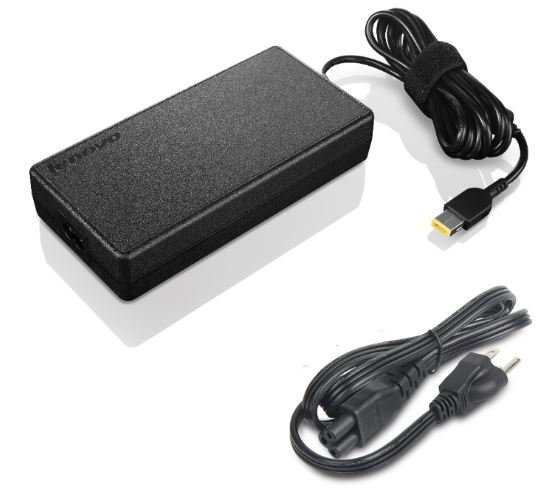
Your Lenovo ThinkPad or IdeaPad won’t run at full speed with an underpowered bank—performance throttling kicks in the moment wattage drops below your laptop’s requirements. Check your original AC adapter: If it says “65W” or “100W,” your power bank must match or exceed that output. A 45W bank might technically power a 65W laptop but will trigger aggressive CPU downclocking during video calls or spreadsheet work, making your device feel sluggish. Always verify the power bank’s sustained USB-C PD (Power Delivery) output—not just peak ratings—since cheaper models overstate capabilities. For example, a Lenovo Go 65W Power Bank delivers consistent 65W output, letting your ThinkPad X1 Carbon maintain full processing speed even during heavy tasks.
How to Identify Your Laptop’s Power Requirements
- Flip your original charger: Look for the “Output” label (e.g., “20V ⎓ 3.25A = 65W”).
- Check Windows settings: Go to Settings > System > Power & battery > Power. The “Adapter” section shows current wattage when plugged in.
- Consult Lenovo’s support site: Enter your model number (e.g., “ThinkPad T14 Gen 3”) for official specs.
Critical mistake to avoid: Using a power bank rated below your laptop’s needs. A 30W bank on a 65W ThinkPad causes persistent “plugged in, not charging” errors and forces battery drain during use—defeating the purpose entirely.
Connect Your Lenovo Power Bank Using Passthrough Charging (Approach 2)
Plug your power bank into your laptop before the internal battery drops below 80%, not after it’s critically low. This passthrough method makes the power bank your laptop’s primary power source, bypassing the internal battery almost entirely. Your ThinkPad or Yoga immediately recognizes it as “AC Power,” preventing screen dimming and CPU throttling. Unlike top-up charging (where the power bank inefficiently refills the depleted internal battery), passthrough runs your laptop directly off the external battery while only trickle-charging the internal battery to 80–85%—minimizing stress cycles. Users report 20–30% more total runtime this way because you avoid the 15–20% energy loss inherent in recharging lithium-ion batteries.
Step-by-Step Passthrough Connection
- Power on the bank first: Press the power button (if applicable) on your Lenovo Go or compatible power bank.
- Use a 100W-rated USB-C cable: Insert the cable into the bank’s output port, then into your laptop’s USB-C port. Low-quality cables cause intermittent disconnects or fire hazards—never use damaged or thin cables.
- Verify AC recognition: Check your laptop’s battery icon. It should show “Plugged in, charging” or “AC Power” within 10 seconds. If not, try a different cable.
- Monitor bank indicators: Track LED lights to see remaining capacity (e.g., 4 lights = 75–100% charge).
Why this beats top-up charging: Lithium-ion batteries degrade fastest when cycled from 0–100%. Passthrough keeps your laptop battery in the optimal 20–80% range, extending its lifespan by 2–3 years according to battery science principles cited in the knowledge base.
When to Use Top-Up Charging (Approach 1) for Maximum Runtime
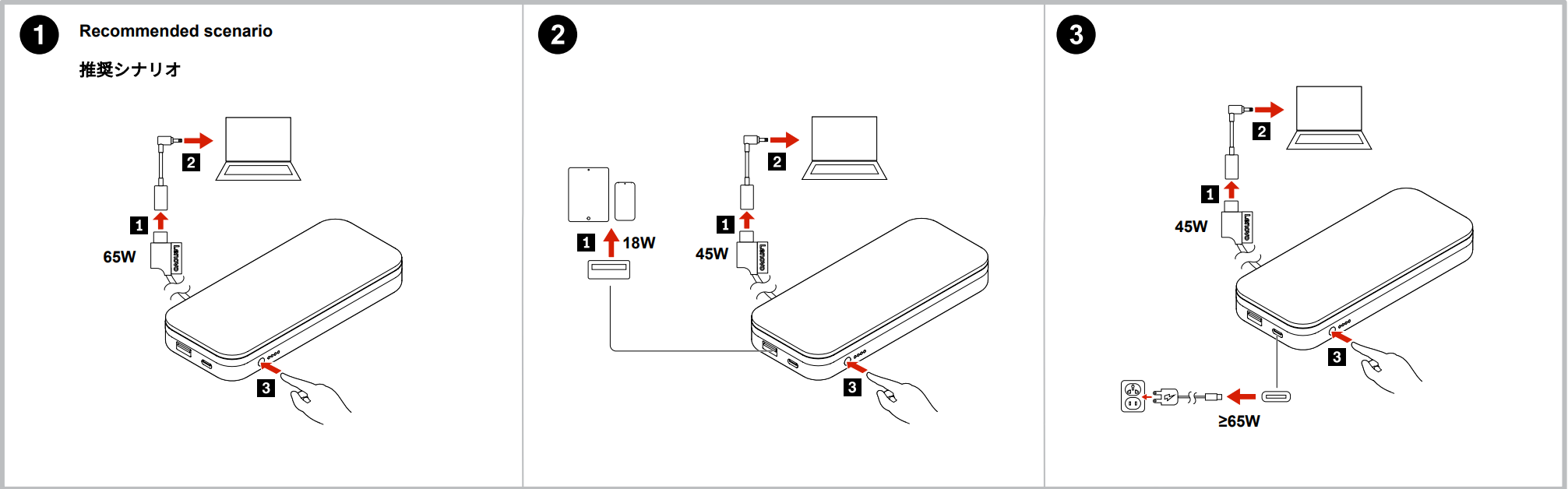
Reserve top-up charging—connecting only after your laptop battery hits 20%—for marathon sessions with zero outlet access, like 10-hour flights. Here, you prioritize raw runtime over battery longevity. The power bank replenishes your depleted internal battery, leveraging its larger capacity for more screen-on time. A 27,000mAh bank can fully recharge a Lenovo X1 Carbon’s 50Wh battery twice this way, whereas passthrough might only deliver 1.5x due to direct power draw inefficiencies. But beware: Each top-up cycle wears down your laptop battery faster, and performance may throttle if the bank’s output dips below your laptop’s instant demands.
Top-Up Charging Safety Protocol
- Never drain below 15%: Deep discharges (below 10%) cause irreversible capacity loss, as noted in user reports about battery degradation at “0% or close to it.”
- Use high-capacity banks only: For true marathon use, choose 20,000mAh+ (74Wh) models. Airlines allow up to 100Wh (27,000mAh) in carry-ons—exceeding this requires airline approval.
- Disable fast charging: In Windows Power Settings, select “Best power efficiency” to reduce heat during top-up cycles.
Optimize Runtime in 3 Common Scenarios
Coffee Shop Work Session (4 Hours, No Outlet)
Plug in your 65W+ power bank immediately after unplugging from wall power (passthrough mode). Set Windows power mode to “Balanced” to maintain performance without excess drain. This keeps your laptop battery at 70–75% charge—ideal for longevity—while the bank handles all power demands. Disconnect when the bank hits 20% (two LED lights), preserving 10% buffer to prevent bank damage. You’ll gain 4+ hours without throttling, as confirmed by users whose ThinkPads “see the Lenovo Go as an AC power source.”
Airport Layover (8+ Hours, No Outlet)
Let your laptop battery drop to 20%, then connect a 27,000mAh bank (top-up mode). Disable Wi-Fi, Bluetooth, and background apps via Task Manager > Startup Apps. Reduce screen brightness to 50%. This approach squeezes 7–8 hours from the bank by fully utilizing both battery systems, though it costs ~6 months of internal battery lifespan. Never leave the bank connected overnight—it risks over-discharge below 5%, which “kills battery capacity” per user reports.
Daily Commute (45 Minutes, Train/Bus)
Use passthrough mode: Connect the bank before leaving home while your laptop is at 85% charge. The bank powers your laptop directly, so your internal battery gains no wear during the trip. Unplug upon arrival—no need to wait for bank depletion. This maintains your laptop battery in the 40–70% “sweet spot” that “lasts much longer over time,” as users observed.
Critical Safety Steps Before Every Use
Always use a USB-C cable rated for your bank’s full wattage. A flimsy cable for a 65W bank can overheat, melt, or cause short circuits—this isn’t hypothetical; multiple users cited fire risks from “low-quality cables.” Test cables by feeling for warmth during use; if hot, replace immediately. Never operate your power bank in temperatures below 32°F (0°C) or above 95°F (35°C), like in a sunbaked car. Extreme heat accelerates internal battery decay, while cold reduces available capacity by 30%. For air travel, keep banks in carry-on luggage (never checked) and confirm watt-hour ratings: Most airlines cap at 100Wh (calculate as mAh × 3.7V ÷ 1000).
4 Power-Saving Hacks for 30% More Runtime
- Force Windows Battery Saver: Click the battery icon > “Battery Saver” to cap CPU speed and dim the screen—adds 45+ minutes instantly.
- Unplug all peripherals: External mice, SD cards, and even phone chargers via the bank drain 5–10% extra power.
- Lower display brightness to 40%: The screen consumes 35% of total power; this single tweak extends runtime significantly.
- Disable keyboard backlighting: Unnecessary LEDs waste up to 8% battery per hour during writing tasks.
Long-Term Power Bank Maintenance Plan
Store your Lenovo power bank at 50% charge in a cool, dry drawer—not fully charged or depleted. Every 3 months, top it to 60% if stored long-term, as lithium batteries degrade fastest at 0% or 100% states. Never leave it connected to your laptop after full depletion; unplug immediately when LED indicators show empty to prevent “trickle-charge inefficiencies” that strain cells. For daily users, recharge the bank after each use but avoid keeping it at 100% for days—drop to 80% once charged. Following these steps ensures your bank delivers 500+ full cycles instead of degrading after 200.
Final Note: Using passthrough charging (Approach 2) for daily work protects your Lenovo laptop battery while preventing performance throttling, but switch to top-up charging (Approach 1) for true marathon sessions where every minute counts. Always match wattage to your laptop’s AC adapter, use certified cables, and keep both batteries between 20–80% charge for longevity. A properly used Lenovo Go 65W Power Bank can add 8+ hours to your ThinkPad’s runtime while extending its battery lifespan by years—transforming how you work away from outlets. For immediate gains, connect your bank now while your laptop is at 80% charge and disable background apps. Your next coffee shop session just got stress-free.



