You’re out the door, running low on battery, and you grab your UGREEN power bank—only to find it won’t turn on, refuses to charge your earbuds, or shows a full charge that vanishes in minutes. Before you assume it’s broken, take a breath: most UGREEN power bank issues aren’t hardware failures. They’re usually simple user oversights, misunderstood features like low-current mode, or temporary firmware glitches that a quick reset can fix. Whether you own the high-powered 130W Nexode model or a compact wireless version, this guide walks you through exactly how to use, reset, and troubleshoot your device. You’ll learn how to activate trickle charging for earbuds, force a shutdown, reset without a pinhole button, and avoid common mistakes that shorten battery life.
Turn On and Charge Devices
Press Once to Power On
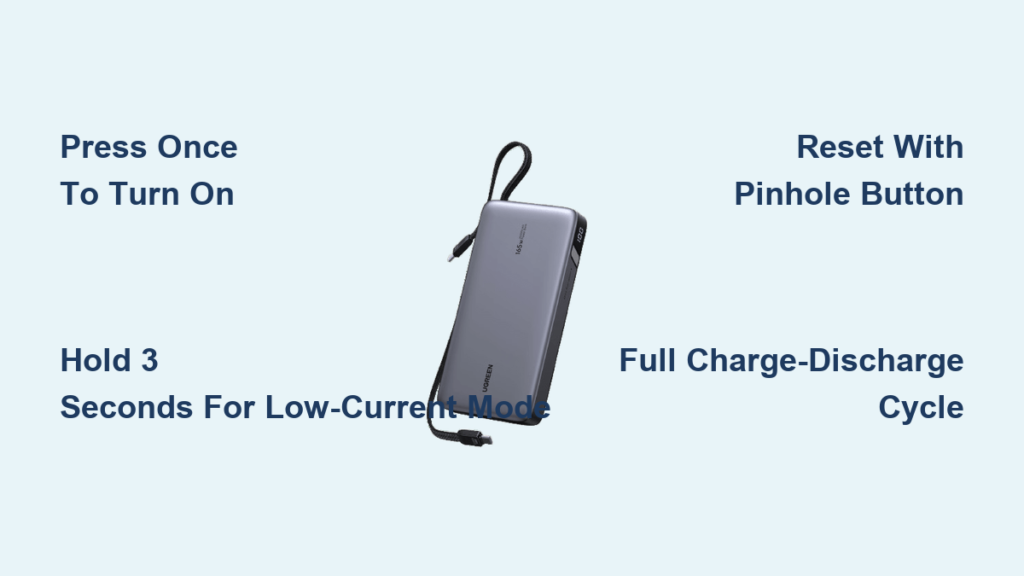
To activate your UGREEN power bank, press the power button once. The LED indicators or digital display will light up, showing the current battery level. Many models include a smart wake function, meaning the power bank turns on automatically when you plug in a device—no button press needed. If nothing happens, first confirm the unit has charge. A completely drained battery may appear dead but can often be revived by plugging it into a wall charger for a few minutes.
Connect Devices to the Right Port
Use a compatible cable—like USB-C to USB-C or USB-C to Lightning—and plug it into the correct output port:
– USB-C ports support fast charging, with some models delivering up to 130W (ideal for laptops and tablets).
– USB-A ports provide standard charging speeds and aren’t suited for fast-charging modern smartphones.
Once connected, power delivery starts automatically. Charging stops when your device is full or disconnected. For best performance, always use certified cables rated for at least 3A. Cheap or damaged cables often cause slow charging, intermittent connections, or complete failure.
Use Low-Current Mode for Small Devices

Why Earbuds and Watches Need Trickle Charging
Bluetooth earbuds, smartwatches, and fitness trackers draw very little power—often less than 90mA. Most power banks interpret this minimal draw as “no device connected” and shut off after a few seconds. Without low-current (trickle charge) mode, your AirPods might charge for 30 seconds… then stop.
How to Enable and Confirm Trickle Mode
Press and hold the power button for 3 seconds. Look for one of these signs:
– LEDs that light up in a running sequence
– A slow-pulsing light
– Alternating text on a digital display
– “LOW” or a droplet icon appearing on screen
Once activated, connect your earbuds or watch—they’ll start charging immediately. To turn off trickle mode, press the power button again or wait for auto-shutdown if your model supports it. Note: Indicator behavior varies by model. Always check your manual for exact confirmation signals.
Turn Off the Power Bank Properly
Force a Manual Shutdown
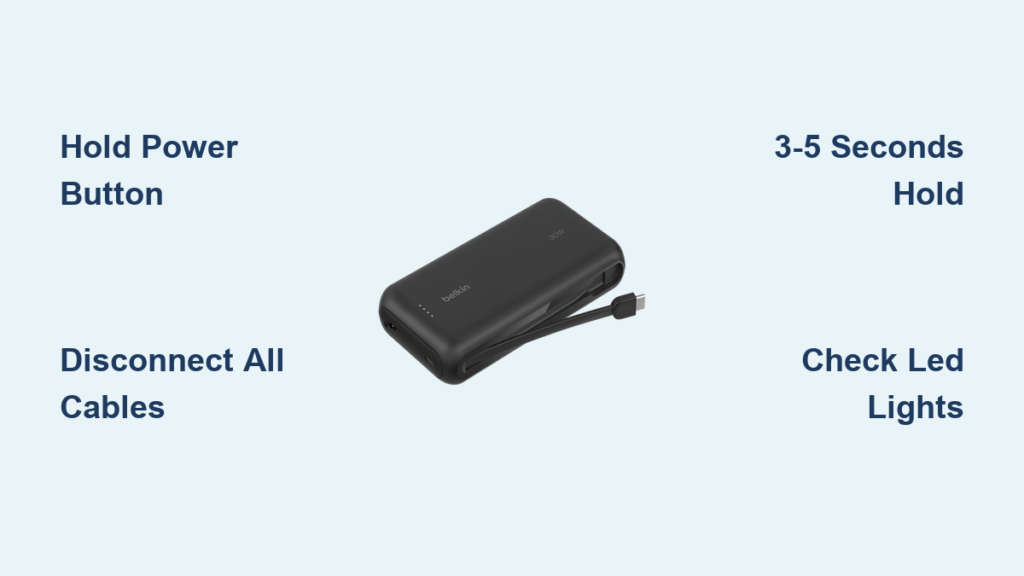
For most UGREEN models, hold the power button for 3–8 seconds until all lights turn off. On high-output USB-C PD models, hold for 5–10 seconds to ensure full shutdown. Wireless models may require a long-press or app-based disable if connected via Bluetooth.
How Auto-Off Works
If you unplug your device and the power bank stays on, wait 30–60 seconds. Most units enter auto-sleep mode after this window, cutting power to save battery. Some models need a quick button press after disconnection to trigger sleep. This prevents unnecessary drain during storage.
Fix a Power Bank That Won’t Turn Off
If your unit stays on:
1. Unplug all cables—some leak tiny currents that keep it awake.
2. Hold the power button for 10–15 seconds to force shutdown.
3. Fully discharge and recharge the bank to reset internal circuits.
4. If it still won’t turn off, contact UGREEN support—this could indicate a firmware issue.
Legacy models without a power button should shut down after 60 seconds of no load. If not, perform a full charge-discharge cycle to restore auto-sleep.
Reset Your UGREEN Power Bank
When a Reset Is Needed
Reset your power bank if you experience:
– Intermittent charging
– Overheating
– Battery level drops from 100% to 0% too fast
– No output despite full charge
– Flashing lights or stuck low-current mode
– Prolonged storage (months unused)
These issues are typically software or calibration glitches, not hardware damage.
Use the Pinhole Reset (If Available)
- Power off the unit (hold button 3–8 seconds).
- Unplug all cables.
- Locate the reset pinhole—usually on the side or bottom.
- Use a paperclip or toothpick to press and hold for 5–15 seconds, then release.
- Recharge to 100% before use.
⚠️ Not all models have a reset button. Check your manual.
Reset Without a Pinhole Button
If no pinhole exists:
1. Charge to 100% using a 65–70W PD wall charger.
2. Discharge completely by powering a device until it stops.
3. Repeat 2–3 times.
This full cycle recalibrates the battery gauge and resets internal systems—especially effective for fixing inaccurate battery readings.
Try a Soft Reset First
Some models respond to a 10–15 second long-press of the main power button. This forces a soft reset and may solve the issue without needing a pinhole.
Troubleshoot Common Charging Issues

Power Bank Won’t Charge
Check the Basics First
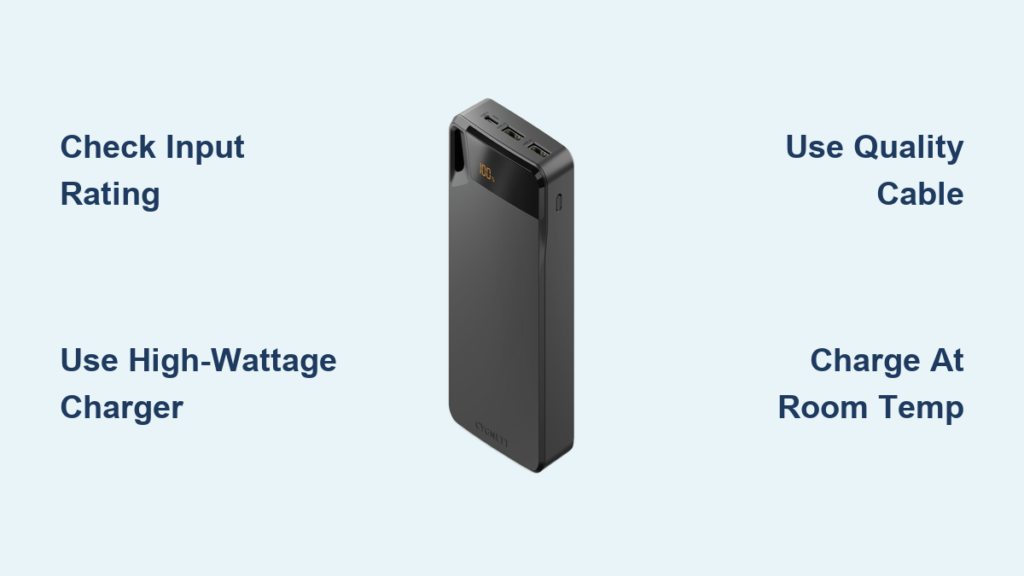
- Cable: Use a certified USB-C to USB-C cable rated for 3A.
- Charger: Use a 65–70W PD wall adapter—laptop ports or 5V/1A chargers often lack power.
- Port: Clean the input port with a dry brush or compressed air.
- Temperature: Don’t charge below 0°C (32°F) or above 40°C (104°F).
Rule Out Hardware Problems
- Some UGREEN models don’t support pass-through charging—unplug all devices before charging the bank.
- If the casing is swollen, cracked, or bulging, stop use immediately. This is a fire risk.
- If all else fails, perform a reset or full charge cycle. Still no charge? Contact support.
No Output: Power Bank Won’t Charge Devices
If it shows charge but won’t power devices:
– Press the power button to wake it.
– Try a different cable and device.
– For earbuds or watches, enable low-current mode.
– Reset the unit.
– If no output persists, the circuit may be damaged—contact UGREEN.
Fix Rapid Battery Drain and Errors

Battery Level Drops Too Fast
If it shows 100% but dies in minutes:
– Recalibrate with 2–3 full charge-discharge cycles.
– Test with a different device.
– Use high-quality cables and chargers.
– If the problem continues, battery degradation is likely—replace after 1.5–3 years.
Flashing Lights or Error Indicators
Flashing LEDs mean the power bank entered protection mode due to:
– Overheating
– Overcurrent
– Short circuit
– Voltage issues
– Foreign object detection (wireless models)
To fix:
1. Disconnect all devices.
2. Let the unit cool for 10–15 minutes.
3. Reset the power bank.
4. Recharge with a proper wall charger.
5. If flashing continues, contact UGREEN.
Wireless Charging Tips and Fixes
Charge Qi-Compatible Devices Correctly
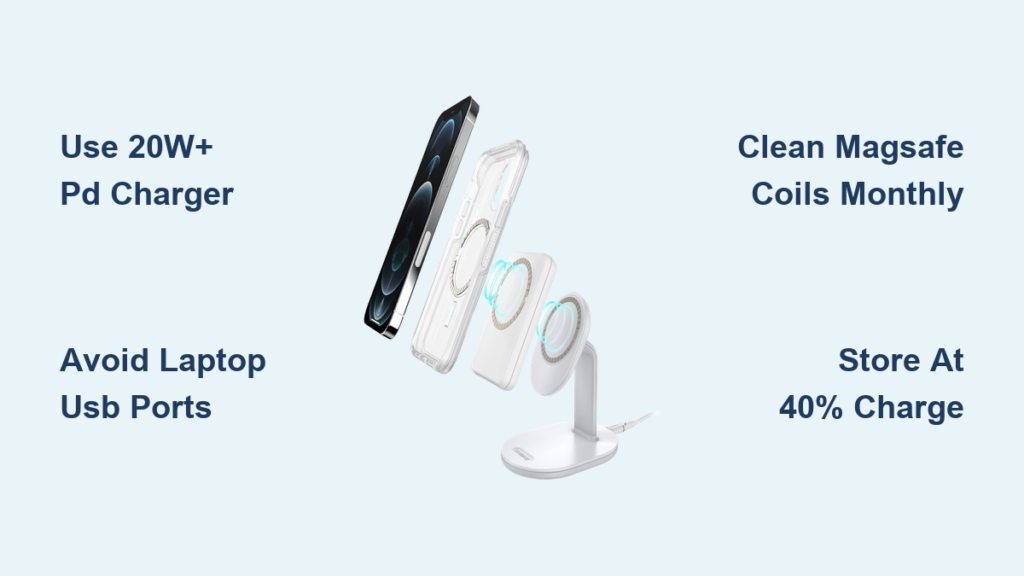
Place your iPhone or Android phone centered on the wireless pad. Avoid metal cases, magnetic mounts, or PopSockets with metal plates—they block charging. Ensure the phone is flat and aligned. Charging starts automatically; an LED or display will confirm.
Why Wireless Charging Stops at 80%
This is normal and due to:
– Heat management: Wireless charging generates heat. The system pauses to protect battery health.
– Phone-side optimization:
– iPhone: Settings > Battery > Battery Health & Charging > Optimized Battery Charging
– Samsung: Settings > Battery > Battery Protection
To bypass, disable optimized charging temporarily.
Prevent Overheating
Charge in a cool, dry place (~25°C). Avoid blankets, pillows, or direct sunlight. Remove your phone once charged to stop repeated top-up cycles.
Maximize Lifespan and Performance
Store the Power Bank Safely
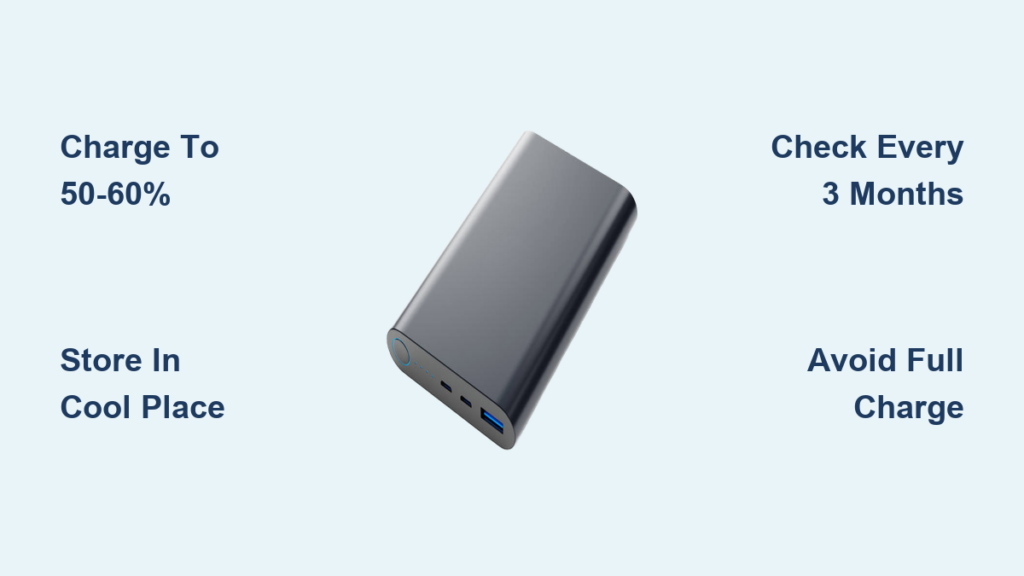
Store at 40–60% charge—never fully charged or drained. Keep in a cool, dry place. If storing long-term, recharge every 3–6 months to prevent deep discharge.
Daily Use Best Practices
- Keep charge between 20% and 80%.
- Unplug once fully charged.
- Use high-quality PD chargers and 3A cables.
- Clean ports monthly.
- Avoid drops, dents, and water exposure.
Expected Lifespan
With care, your UGREEN power bank lasts 1.5 to 3 years—or about 500 charge cycles. High-end models with automotive-grade lithium polymer batteries (like the Nexode 130W) offer better longevity.
Recommended UGREEN Model: Nexode 20000mAh 130W
Key Features and Specs
- Capacity: 20,000mAh (74Wh)
- Max Output: 130W via USB-C PD
- Ports: 2× USB-C, 1× USB-A, wireless charging pad
- Display: Digital screen shows exact percentage
- Fast Charging: Powers laptops, tablets, phones
- Safety: Overcharge, overheating, short-circuit protection
- Battery Type: Automotive-grade lithium polymer
- Airline Approved: FAA carry-on compliant
- Price: $70.20 (22% off)
Ideal for travelers, remote workers, and multi-device users.
Summary: Key Actions at a Glance
| Action | How to Do It |
|---|---|
| Turn On | Press power button once |
| Turn Off | Hold 3–8 seconds until lights off |
| Enable Low-Current Mode | Hold button 3 seconds; watch for running/pulsing light |
| Reset (With Pinhole) | Press reset for 5–15 seconds |
| Reset (No Pinhole) | Do 2–3 full charge-discharge cycles |
| Charge Properly | Use 65–70W PD wall charger, USB-C cable |
| Store Long-Term | Keep at 50%, recharge every 3–6 months |
Most UGREEN power bank problems aren’t permanent. Start with simple fixes: try a new cable, clean the port, reset the unit, or run full charge cycles. Understanding features like low-current mode and auto-sleep prevents future issues. With proper use and maintenance, your power bank delivers years of reliable service. When in doubt, consult your manual or contact UGREEN support.