Is your Mophie power bank completely unresponsive, blinking erratically, or refusing to charge your devices? You’re not alone. Models like the Powerstation Pro, Powerstation 10K, Supreme, and Encore are known to enter a frustrating “bricked” state after deep discharge—especially when fast chargers are involved. The good news: in most cases, your power bank isn’t dead. A targeted reset process can revive it by bypassing a protection loop caused by USB Power Delivery (PD) handshake failures.
This guide walks you through the exact steps to reset a Mophie power bank, even when it appears completely dead. You’ll learn how to safely wake up the unit using a 5W charger, force a hard reset, diagnose LED patterns, and avoid common recovery mistakes. Whether your device shows no lights or cycles through blinking LEDs, this method has helped thousands of users bring their power banks back to life—saving them from unnecessary replacements.
Perform a Hard Reset
A hard reset clears temporary glitches and forces the Mophie’s power management system to reboot. This is your first line of defense when the device won’t turn on or respond to charging.
Press and Hold for 5 Seconds
Press and hold the status/power button for 5 seconds, even if no LEDs light up. On models like the Powerstation Pro and 10K, this action resets the internal circuitry from sleep or error modes. If the power bank is connected to a charger, keep holding the button while plugged in—this increases the chance of waking the system.
Pro Tip: Don’t assume failure if nothing happens immediately. A deeply drained battery may need pre-charging before it can respond to button input.
Use a 5W Charger for Recovery

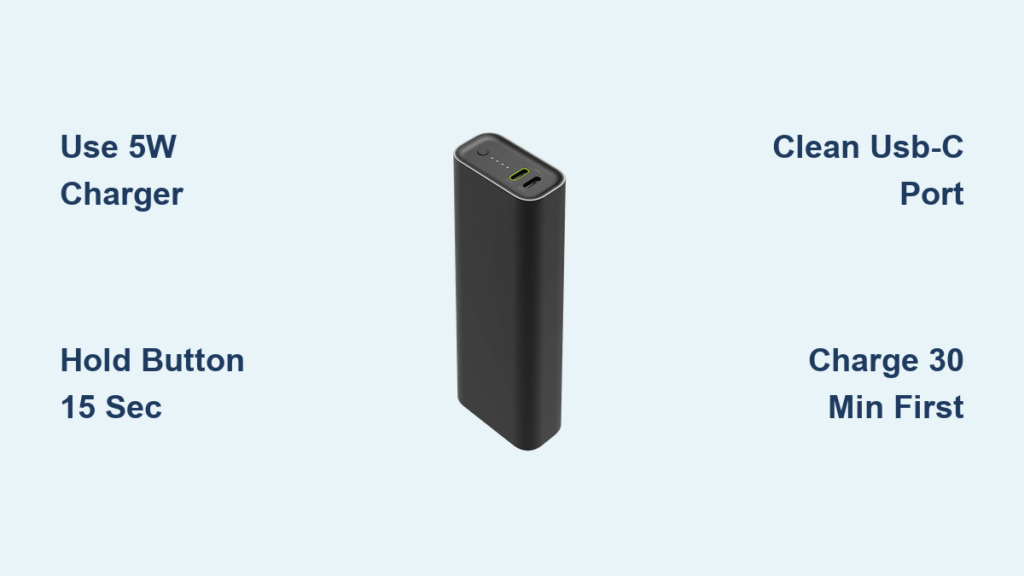
Plug your Mophie into a USB-A 5V/1A (5W) wall charger using a USB-A to USB-C cable. This is the most critical step in recovery.
Avoid USB-C to USB-C cables and fast chargers (18W, 20W, 45W). These initiate USB Power Delivery negotiations, which require the battery to be partially charged. A dead battery can’t sustain the handshake, causing the device to power up briefly, fail, and reset—repeating the cycle endlessly.
A 5W charger delivers a stable 5V input without triggering PD protocols. This low-power feed allows the internal circuits to slowly wake up.
✅ User Success:
“I used an old iPhone charger. Within 20 seconds, the four flashing lights changed to one slow blink. It started charging!”
Charge Before Attempting Reset
If your Mophie is fully drained, charge it for 15–30 minutes on the 5W charger before trying another reset. Some units need this “trickle charge” to build enough voltage to respond.
In stubborn cases, users report success after 2–4 hours of slow charging. Look for one LED blinking slowly—this confirms the unit is charging. Once stable, unplug and replug the cable to reset the system, then attempt a full charge.
Force Exit from Deep Discharge Protection Mode
When a Mophie power bank drops to 0%, its protection circuit cuts off power to prevent battery damage. But if the battery is too weak to run the PD controller, the device gets stuck in a boot loop.
Why Fast Chargers Fail
High-wattage chargers attempt to escalate voltage (e.g., from 5V to 9V or 20V). A dead Mophie may briefly power on, start the handshake, fail, and shut down—repeating this endlessly. This creates a blinking LED loop that mimics hardware failure.
❗ Critical Insight: This isn’t user error—it’s a known design limitation. The device should default to 5V when critically low, but many models don’t.
Force Reset with Extended Button Press
While connected to the 5W charger, press and hold the power button for 15–30 seconds. This extended press can override the protection loop and force the system to accept charge.
Some users only succeed after combining this with long pre-charging. If the LED stabilizes or begins slow blinking, the reset worked.
✅ User Confirmation:
“Held it for 30 seconds while plugged into a 5W charger—now it’s charging normally and powers my phone.”
Test and Replace Charging Cables
A faulty cable is one of the most common reasons a Mophie won’t respond—even if the unit is functional.
Use a Certified USB-A to USB-C Cable
For recovery, always use a USB-A to USB-C cable, not USB-C to USB-C. The latter can carry PD signals that disrupt revival. Use a certified power delivery cable in good condition.
Test with at least two different cables. If one works and another doesn’t, the issue was the cable.
❗ Warning: If all four LEDs flash briefly and then turn off, test cables first—this symptom often points to a poor connection.
Avoid Damaged or Off-Brand Cables
Frayed, bent, or low-quality cables may deliver inconsistent power. Replace any showing wear. Mophie-branded or MFi-certified cables offer the best reliability.
Clean the USB-C Charging Port
Lint, dust, and debris can block electrical contact in the USB-C port, preventing charging.
Remove Debris Safely
Use a dry, soft brush or short bursts of compressed air to clean the port. Shine a flashlight to check for grime. Never use metal objects like pins or paperclips—they can scratch contacts or cause shorts.
After cleaning, retry the 5W charging method. A clean port ensures full conductivity, which is essential for revival.
✅ Visual Cue: If the port looks dark or fuzzy, clean it before proceeding.
Activate Output to Charge Devices
Even a fully charged Mophie may not send power unless you manually activate output.
Press and Hold to Start Charging
Connect your phone or tablet to the power bank. Then, press and hold the status button for 3–5 seconds. This wakes the output circuit on models like the Powerstation 10K and Encore.
Without this step, your device may show “Not Charging” or disconnect after a few seconds.
📌 Official Note:
“Some mophie battery products require activation in this way in order to send a charge.”
Diagnose LED Behavior to Identify Issues

LED patterns provide vital clues about your power bank’s status. Learn what each means—and when to suspect hardware failure.
One LED Blinking Slowly
This indicates charging in progress. Good sign. Let the unit charge fully (4–6 hours on 5W). Once full, test output.
All Four LEDs Flash Briefly, Then Off
This pattern means the device is in protection mode and failing to sustain charge. Return to the 5W charger method and try an extended button press.
Four Solid Lights, But No Output
If the power bank shows full charge but won’t power devices—or stops after 1 minute—the issue is likely hardware failure.
- Output circuit may be damaged
- Battery Management System (BMS) could be faulty
- Internal battery may be degraded
❗ Reality Check: LEDs can light up with minimal power. They don’t guarantee the battery can deliver usable current.
Check for Battery Degradation and Swelling
All lithium-ion batteries wear out. After 2–3 years, performance declines.
Signs of a Failing Battery
- Takes longer to charge
- Loses charge quickly
- Devices disconnect during use
- Power bank feels warm during charging
- Swollen or puffy case (serious hazard)
A swollen battery means internal gas buildup from chemical breakdown. Stop using it immediately. A bloated power bank can overheat, leak, or catch fire.
✅ Safety Rule: If your Mophie wobbles on a flat surface or doesn’t lie flat, replace it.
Typical Lifespan and When to Replace
- 500 full charge cycles before capacity drops below 80%
- 2–3 years of regular use
- Many Powerstation 10K units fail around the 1.5–2 year mark
Even with perfect care, replacement is eventually needed.
Use Warranty or Replace
Mophie offers a 2-year limited manufacturer’s warranty covering defects in materials and workmanship. If your power bank fails within this period and shows no physical or liquid damage, you may qualify for repair or replacement.
Contact Mophie support with:
– Proof of purchase
– Model and serial number
– Description of issue and troubleshooting steps tried
📌 Note: Warranty doesn’t cover damage from drops, liquid, or swollen batteries.
Replace your Mophie if:
– It’s over 2–3 years old
– No response after 4+ hours on a 5W charger
– Case is swollen or damaged
– Output fails across multiple devices and cables
✅ User Experience:
“This is my third Powerstation 10K—I replace it every 2 years. That’s just how long they last.”
Prevent Future Issues
Avoid repeat failures with smart habits.
Avoid Full Discharges
Never let your Mophie drain to 0%. Recharge when it reaches 10–20%. Deep discharges stress the battery and increase lockup risk.
🛠️ Pro Tip: Top it off nightly, like your phone.
Use the Right Charger Daily
For regular charging:
– 5V/2A (10W) or 20W PD is fine
– Use USB-C to USB-C cables if supported
But if it ever dies completely, always use a 5W USB-A charger for revival.
Store at 50% Charge
For long-term storage (e.g., travel bag), charge to ~50%. Fully charged or empty storage accelerates aging. Keep it in a cool, dry place—avoid hot cars.
Update Firmware If Available
Some Mophie models may support firmware updates to fix charging bugs. While not publicly accessible, contact support if you suspect software issues. They may offer diagnostics or a firmware-enabled replacement.
Quick Troubleshooting Checklist
| Step | Action | Why It Matters |
|---|---|---|
| 1 | Hold power button 5 sec | Resets system, exits sleep mode |
| 2 | Use 5W USB-A charger | Avoids PD handshake failure |
| 3 | Charge 15–30+ min | Revives from deep discharge |
| 4 | Hold button 15–30 sec while charging | Breaks protection loop |
| 5 | Test multiple cables | Rules out cable failure |
| 6 | Clean USB-C port | Ensures solid connection |
| 7 | Press & hold to activate output | Enables device charging |
| 8 | Check for swelling | Identifies safety hazards |
| 9 | Contact Mophie support | Warranty or replacement options |
| 10 | Replace after 2–3 years | Normal end-of-life cycle |
The 5W charger method is the most reliable way to reset a dead Mophie power bank. It bypasses a known design flaw in how these devices handle fast charging when deeply discharged. Thousands of users have revived “bricked” units using this technique—saving them from unnecessary replacement. If all steps fail after several hours of slow charging, the unit likely has hardware failure. But in most cases, a simple reset with the right tools brings your Mophie back to life.