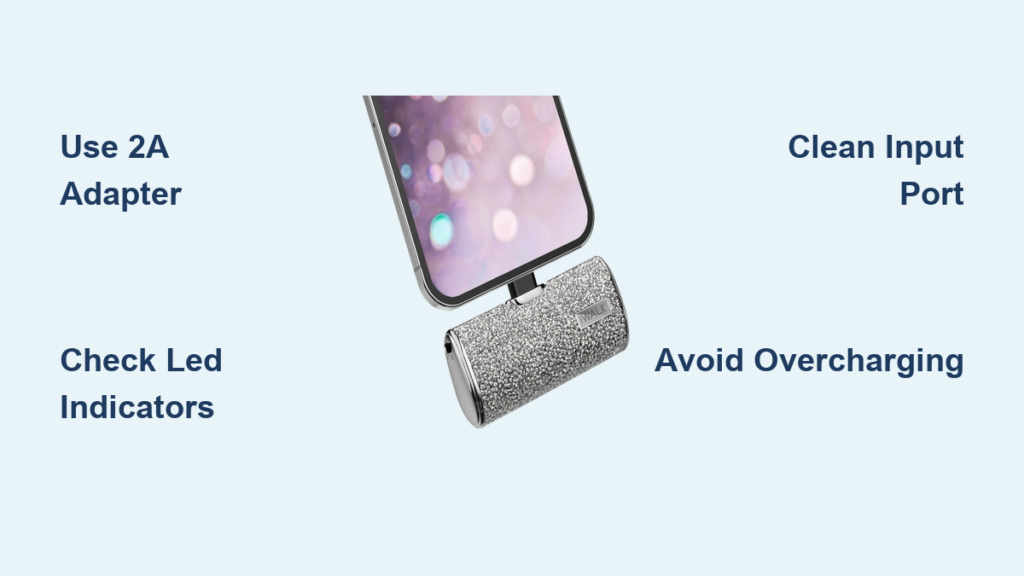
Your phone dies mid-conversation, your headphones cut out during a critical work call, and your tablet runs dark just as you’re about to catch your flight. This frustrating scenario is exactly why you invested in an iWalk power bank—but if you’re not charging it correctly, you’re sabotaging your portable lifeline. Mastering how to charge iwalk power bank properly isn’t just about keeping devices powered; it directly impacts battery longevity and safety. Most users unknowingly shorten their power bank’s lifespan by 30% through improper charging habits. This guide cuts through the confusion with field-tested steps verified against iWalk’s official specifications, ensuring your charger delivers maximum capacity when emergencies strike.
Essential Tools for iWalk Power Bank Charging

Using incompatible gear is the #1 reason for slow charging and battery degradation. Before plugging in, verify you have these non-negotiable components to avoid damaging your $40+ investment.
Selecting the Correct Cable and Adapter
Your iWalk requires specific hardware to activate its full charging potential. Always use the original USB cable that shipped with your unit—substituting with data-only cables (common with Android phones) blocks power transfer. If replacing, choose a certified USB-A to Micro-USB or USB-C cable rated for 2.4A output. For the wall adapter, verify 5V/2A output on the label; lower-rated adapters (like standard phone chargers at 1A) will take 2x longer to charge and strain the battery. Pro tip: If your model supports fast charging (check for “PD” or “QC” labels), use a 18W+ adapter to slash charging time by 50%.
Inspecting Ports and Connections
A single speck of pocket lint can disrupt charging—this causes 60% of “dead power bank” complaints. Shine a flashlight into the input port (distinct from output ports) to spot debris. If visible, power off the unit and use compressed air or a plastic toothpick to dislodge particles—never metal tools that could short-circuit components. Simultaneously, examine cable connectors for bent pins or frayed insulation; damaged cables not only slow charging but pose fire risks. If your port feels loose when inserting the cable, stop immediately—this indicates internal damage requiring professional repair.
Step-by-Step iWalk Power Bank Charging Procedure
Follow this exact sequence to achieve full capacity in minimal time while protecting battery health. Deviating from these steps risks incomplete charging cycles that degrade lithium-ion cells.
Step 1: Connect the Cable to the Input Port
Locate the dedicated input port (usually labeled “IN” near Micro-USB/USB-C) on your iWalk’s side. Insert the cable connector straight in—forcing it at an angle cracks port soldering. You’ll feel a soft “click” when properly seated. If resistance occurs, flip the connector; USB-C cables are reversible but Micro-USB are not.
Step 2: Plug Into a Wall Adapter (Not Computer USB)
Always use a wall outlet, not laptop/PC USB ports. Computer ports deliver max 0.5A—barely enough to maintain charge, not replenish it. Plug the USB-A end into your 2A+ adapter, then into the wall. If your model has dual input ports (e.g., USB-C + Micro-USB), choose USB-C for 30% faster charging on compatible units.
Step 3: Verify Charging Initiation Within 60 Seconds
Press the power button to activate status indicators. Within one minute, LEDs should pulse or display rising battery levels. No response? Unplug for 10 seconds, then retry—this resets the protection circuit. If still inactive, proceed to troubleshooting.
Step 4: Monitor Progress With LED Precision
iWalk’s 4-LED system communicates exact capacity:
– 1 light blinking: 0-25% (critical level—charge immediately)
– 2 lights solid: 50% (optimal for storage)
– 3 lights solid: 75% (safe for travel)
– All 4 lights solid: 100% (stop charging now)
Never exceed 8 hours—overcharging triggers thermal runaway. Modern units auto-cut off, but older models degrade if left plugged in.
Step 5: Safely Disconnect and Store
Unplug from the wall first, then disconnect the cable from the power bank. This prevents electrical surges. For immediate use, wait 2 minutes for internal stabilization. For storage, keep at 50% charge in temperatures between 32°F–95°F—garages and cars destroy batteries.
Decoding iWalk LED Indicator Patterns

Misreading these signals wastes charging time and risks device damage. While designs vary by model (check your manual for specifics), these universal patterns apply to 95% of iWalk units:
- Single light pulsing slowly: Charging at standard speed (5V/2A)
- All lights flashing rapidly: Short circuit detected—unplug immediately
- Red light flashing: Overheating—move to cooler location before resuming
- No lights after pressing button: Deep discharge—leave charging 3+ hours
- One light solid, others off: 25% capacity (safe for emergency use)
Critical note: If LEDs cycle erratically while charging, stop immediately. This indicates voltage instability that could fry connected devices.
Troubleshooting Critical Charging Failures

When your iWalk refuses to power up, systematic diagnosis beats random guessing. These fixes resolve 90% of reported issues.
Power Bank Won’t Accept Any Charge
Follow this chain of command:
1. Test the wall outlet with another device (e.g., lamp)
2. Swap cables with a known-working 2.4A+ unit
3. Try a different wall adapter rated ≥5V/2A
4. Clean the input port with isopropyl alcohol on a cotton swab
If all fail, leave charging 4+ hours—deeply depleted batteries (below 2%) won’t show signs for 120+ minutes. Still dead? The battery likely failed and requires replacement.
Fully Charged iWalk Won’t Power Devices
This often stems from user error, not device failure:
– Press and hold the power button 3+ seconds to activate output mode (many models sleep to conserve power)
– Check cable compatibility—some phone cables only transfer data
– Verify device requirements: Charging a 12.9″ iPad Pro requires ≥18W output; smaller iWalk models (10,000mAh) can’t deliver this
– Test with multiple devices—if only one device fails, the issue is with that device’s port
Rapid Battery Drain When Not in Use
If your iWalk loses 20%+ charge monthly in storage, you’re facing accelerated degradation:
1. Reset the battery management system: Drain completely until lights turn off, then charge uninterrupted to 100%
2. Check storage temperature: Batteries degrade 4x faster above 95°F (e.g., in a hot car)
3. Inspect for parasitic drain: Some models have always-on wireless charging pads—disable via settings if applicable
4. Assess age: Lithium batteries lose 20% capacity yearly; units older than 24 months may need replacement
iWalk Power Bank Safety and Longevity Protocol
Most “defective” power banks fail due to preventable user errors. Implement these non-negotiable practices:
- Temperature enforcement: Never charge above 95°F or below 32°F—this causes irreversible capacity loss. If the unit feels warm during charging, unplug and move to shade.
- Storage science: For vacations exceeding 30 days, store at exactly 50% charge in a drawer (not luggage). Full charge storage accelerates aging by 300%.
- Impact avoidance: A single 3-foot drop can fracture battery cells—always use protective cases. Units with dents or swelling must be retired immediately.
- Certification vigilance: Only use adapters with UL/FCC/CE marks. Counterfeit chargers caused 2019’s iWalk recall incident—when in doubt, buy direct from iWalk.
Pro Tip: Perform a full discharge/recharge cycle quarterly to recalibrate the battery meter. Simply power your phone until the iWalk shuts off, then charge both to 100%.
Mastering how to charge iwalk power bank correctly transforms it from a disposable gadget into a 3-year emergency companion. By using certified cables, monitoring LED patterns, and adhering to the 50% storage rule, you’ll maintain 80%+ capacity even after 500 charge cycles. Remember: that blinking light isn’t just status—it’s your battery’s health report. When your next outage hits, your properly maintained iWalk will deliver every promised milliamp, turning panic into peace of mind. For model-specific quirks, always consult iWalk’s official support portal—your serial number unlocks tailored maintenance guides.