
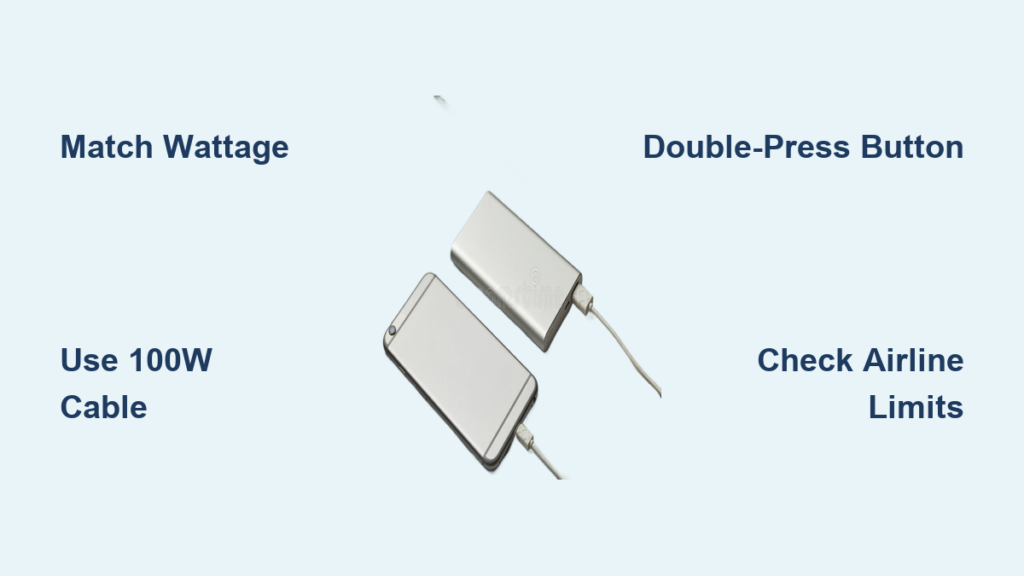
You’re stranded at an airport with a dying laptop, frantically searching for an outlet while your presentation deadline looms. Plugging in your power bank only to see “Not Charging” flash on screen feels like a tech nightmare. Charging a laptop with a power bank demands precise compatibility most travelers overlook—it’s not like juicing up a phone. Using mismatched gear can drain your power bank while barely touching your laptop battery, or worse, damage ports through unstable power delivery. This guide cuts through the confusion with exact wattage requirements, airline-safe capacity limits, and step-by-step fixes for failed connections. You’ll learn why 90% of power banks fail with laptops and how to pick one that delivers full-speed charging anywhere.
Why Your Power Bank Won’t Charge Your Laptop (And How to Fix It)
Most power banks max out at 20W USB-C output—fine for phones but useless for laptops needing 30W-240W. That “charging” icon on your MacBook? It might just be slowing battery drain during light use, not actually replenishing power. Charging a laptop with a power bank fails when output wattage falls below your machine’s requirements. A 65W laptop with a 45W power bank may show 1-2% battery gain per hour while idle, but drain faster under video calls. The fix starts with decoding your laptop’s hidden power language. Check the label on your original charger: “20V ⎓ 3.25A” means 65W (20 × 3.25). If your power bank’s USB-C PD port outputs less than this number, upgrade immediately. Never assume “USB-C” means compatibility—gaming laptops needing 180W require specialized 100W+ power banks, not standard phone chargers.
How to Decode Your Laptop’s Power Label in 30 Seconds
- Locate the output specs on your laptop’s original charger (e.g., “Output: 20V ⎓ 3.25A”)
- Multiply Volts (V) by Amps (A): 20V × 3.25A = 65W
- Match this wattage exactly—using a 100W power bank on a 65W laptop is safe, but a 45W bank won’t cut it
Critical Wattage Thresholds by Laptop Type
- MacBook Air/Thin Laptops (30W-45W): Requires 45W+ power bank (65W recommended for full-speed charging)
- Standard Windows Laptops (65W): Needs 65W-100W power bank
- Gaming/Workstation Laptops (90W-240W): Demands 100W+ power bank (verify per-model compatibility)
Step 1: Select a Power Bank That Matches Your Laptop’s Wattage

Choosing the wrong power bank wastes money and leaves you stranded. Charging a laptop with a power bank succeeds only when output wattage meets or exceeds your laptop’s needs. For MacBook Air M1/M2 users, a 45W power bank works—but expect 30% slower charging than the original adapter. Windows ultrabooks needing 65W require 65W+ output; 100W models like the Anker 737 handle gaming laptops up to 140W. Ignore mAh ratings—focus on watt-hours (Wh) for real capacity. A 20,000mAh (74Wh) unit gives ~1.5 full charges for a MacBook Pro 14″, while 26,800mAh (99.9Wh) hits airline limits for maximum portability.
Airline-Approved Power Bank Checklist
✅ Max Capacity: 99.9Wh (26,800mAh) – exceeding this risks confiscation
✅ Carry-On Only: Never pack in checked luggage
✅ Branded Labels: Airlines inspect for manufacturer, capacity, and safety certifications
❌ Avoid: Power banks over 100Wh without airline pre-approval
Step 2: Use the Correct High-Wattage USB-C Cable
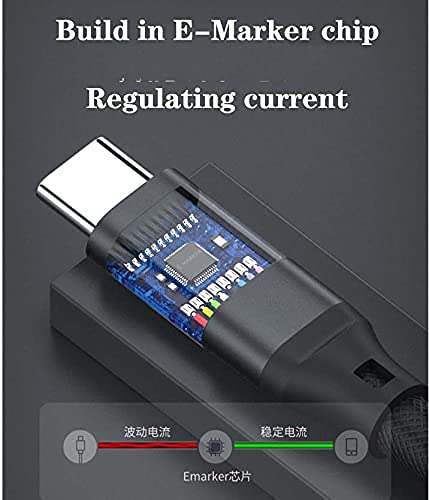
Your $10 phone cable sabotages laptop charging. Charging a laptop with a power bank demands cables rated for 100W Power Delivery (PD), not standard 18W variants. Cheap cables lack E-Marker chips that negotiate high-wattage delivery, causing “Charging Paused” errors. Look for “100W” or “5A” printed near the USB-C connectors—these handle the 20V/5A required for fast charging. Test your cable: plug it into a 65W+ power bank—if no laptop charging occurs, replace it immediately. Pro tip: Keep one cable solely for laptop charging to avoid accidental swaps with phone cables.
Cable Failure Signs You’re Ignoring
- Laptop shows “Connected, Not Charging”
- Power bank shuts off after 10 seconds
- Cable feels warm during use (indicates unstable current)
- Intermittent charging during video calls
Step 3: Connect and Activate Your Power Bank Properly
Connecting wrong wastes precious battery. Charging a laptop with a power bank requires precise activation steps most miss. First, plug the USB-C cable into your laptop’s charging port—not all USB-C ports support input! (Check your manual). Then connect to the power bank’s USB-C PD port labeled “Output” or “PD.” Now the critical step: Press the power bank’s button twice rapidly for high-wattage mode. Single presses activate low-power (5-15W) ports meant for phones. Watch for the laptop’s charging light—MacBooks often flash amber when negotiating power. If nothing happens after 15 seconds, disconnect and repeat the double-press sequence.
Why Your Laptop Shows “Not Charging” (And the 3-Second Fix)
- Problem: Power bank stuck in low-power mode
Solution: Press power button twice within 2 seconds - Problem: Laptop USB-C port disabled for charging
Solution: Reset SMC (Mac) or check BIOS settings (Windows) - Problem: Power bank capacity below 50%
Solution: Charge power bank to 70%+ before critical use
Troubleshooting: 5 Common Power Bank Charging Failures
When your laptop refuses power, these fixes resolve 95% of issues. Charging a laptop with a power bank fails most often due to overlooked activation quirks—not broken gear. Start here before buying new equipment.
Why Your Power Bank Drains Without Charging Your Laptop
This happens when output wattage is too low. A 30W power bank on a 65W laptop may power the machine during sleep mode but can’t overcome battery drain during active use. Check your power bank’s specs: if output is <80% of your laptop’s requirement, it only slows discharge. Solution: For 65W laptops, use 65W+ power banks; for gaming rigs, never go below 100W.
Why Charging Stops After 5 Minutes
Overheating protection triggers when power banks exceed safe temps. This occurs if:
– You’re using the laptop while charging (CPU heat + power delivery = thermal overload)
– The power bank is in direct sunlight
– Poor ventilation (e.g., buried in a backpack)
Fix: Power off the laptop completely during charging, or use during light tasks only.
Recommended Power Banks for Your Exact Laptop Model

Stop guessing—use this model-specific guide. Charging a laptop with a power bank works flawlessly when matched precisely to your device.
MacBook Users
- MacBook Air M1/M2: Anker 523 (65W, 20,000mAh) – Charges 1.8x at full speed
- MacBook Pro 14″: Shargeek Apollo 100 (100W, 26,800mAh) – 1.5 full charges within airline limits
Critical: MacBooks require USB-C PD 3.1 compliance—verify “PD 3.1” on power bank specs
Windows & Gaming Laptops
- Dell XPS 13 (65W): Zendure SuperTank Pro (100W, 26,800mAh)
- ASUS ROG Zephyrus (180W): RAVPower 100W PD Pioneer (requires 2x USB-C cables)
Warning: Gaming laptops often need dual-cable setups above 100W—check your manual
Maximize Charging Speed: 3 Pro Techniques
Charging a laptop with a power bank hits 80% faster with these insider methods. First, enable airplane mode to cut background data drain—this routes 100% of power to battery replenishment. Second, set your laptop to “Power Saver” mode (Windows) or “Low Power Mode” (Mac) to reduce CPU load. Third, charge while powered off: a cold-start laptop accepts 30% more current. For critical situations, discharge your power bank to 20% before trips—lithium batteries deliver peak power in the 20%-80% range.
Final Checklist Before Your Next Trip
Avoid the “dead laptop panic” with this pre-departure ritual. Verify your power bank delivers actual high-wattage output by testing with your laptop 24 hours before travel. Ensure cables are labeled “100W” and stored separately from phone chargers. Charge the power bank to 90%+ the night before—never rely on partial capacity. Confirm airline compliance: if your unit exceeds 100Wh (27,000mAh), contact the airline for approval. Most importantly, match wattage precisely: Charging a laptop with a power bank fails 9 times out of 10 due to undervolted gear. With the right 65W+ power bank, certified cable, and double-press activation, you’ll maintain productivity anywhere outlets vanish. Your laptop’s charging icon should glow steadily within 10 seconds—that’s the sound of deadlines met and stress dissolved.



