
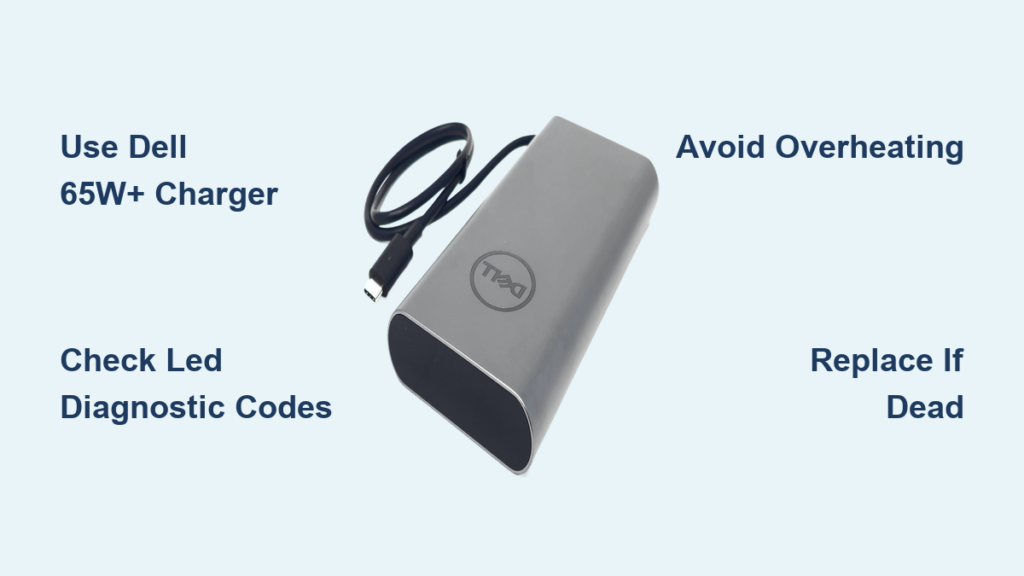
You plug in your Dell power bank, see the LEDs light up, and assume it’s charging—only to find it completely dead minutes after unplugging. This frustrating experience is common among owners of popular models like the PW7018LC, PW7015M, and PW7015L. Despite showing signs of life, many of these power banks fail to hold a charge, leaving users stranded without backup power. If your Dell power bank not charging issue persists, the root cause likely falls into one of four categories: wrong charger, battery degradation, overheating, or incompatible usage. This guide delivers step-by-step fixes, LED diagnostics, and long-term maintenance tips so you can restore functionality—or determine when replacement is the only option.
Use the Correct Dell 65W+ Charger
Before assuming hardware failure, verify your charging setup. Many “dead” power banks aren’t faulty—they’re just not receiving proper power due to incompatible adapters.
Why Non-Dell Chargers Often Fail
- Dell power banks use smart charging protocols that require communication between the adapter and the device.
- Non-Dell chargers—even those with USB-C and 65W ratings—may not trigger the charging circuit.
- Using a lower-wattage adapter (e.g., 45W) often results in no charging initiation, especially during passthrough use.
🔴 Critical Tip: Always use a Dell-branded 65W or higher AC adapter. For passthrough charging (powering your laptop while the power bank charges), use an 80W+ adapter.
Recognize Adapter Error via LED Feedback
- Solid amber LED (first light): Adapter not recognized.
- No LED response: Possible internal failure or deeply discharged battery.
- Alternating amber and white blink: Overheating detected—disconnect immediately.
✅ Fix: Swap in a Dell 65W+ USB-C power adapter and original or certified USB-C cable. If the LEDs activate and begin cycling, the problem was your charger.
Diagnose Battery Health with LED Patterns

Even if your Dell power bank shows full charge, it may have degraded lithium-ion cells that can’t retain energy—especially after years of deep discharges.
Test for False Charging Behavior
- Charge for at least 4 hours using a verified Dell 65W+ adapter.
- Unplug and immediately press the power button.
- Observe:
– Shuts down instantly? → Battery cells are dead or severely degraded.
– Shows 1 bar briefly? → Firmware detects minimal voltage but no usable capacity.
– Holds 4–5 bars? → Likely functional and holding charge.
📌 Real-world case: A PW7018LC showed 4/5 bars while plugged in but died the moment it was disconnected—confirmed as failed battery cells after prolonged full-discharge cycles.
Decode LED Diagnostic Signals
| LED Behavior | Meaning |
|---|---|
| Single orange blink on short press | Low battery (≤10%) |
| Two solid white LEDs after 10-second press | 40–60% charge detected (per user dis2015) |
| Stuck on last bar for hours | Charging but not stabilizing—sign of weak cells |
| No response to button or charger | Possible BMS or battery failure |
💡 Pro Tip: Hold the power button for 10 seconds to force a deeper system check. Two white LEDs mean some charge remains and the BMS is partially responsive.
Rule Out Overheating Protection Mode
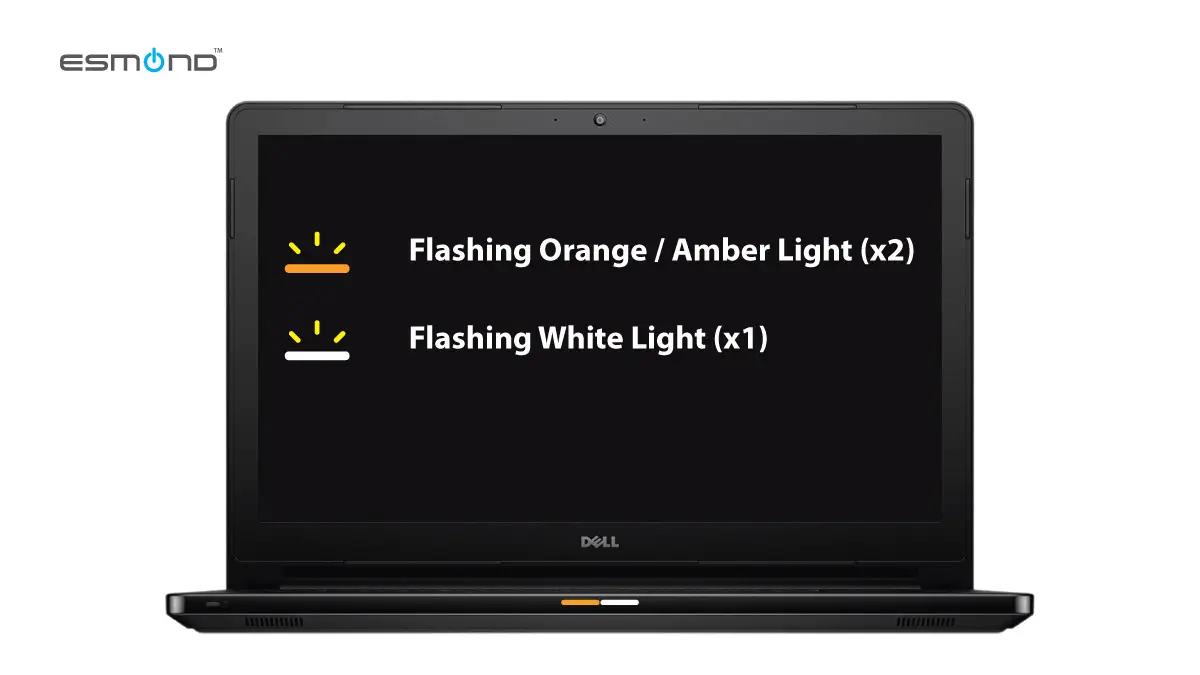
Dell power banks include thermal safeguards that halt charging if internal temperatures rise too high—common during extended passthrough use.
Identify Overheating Mode
- First and second LEDs blink alternately in amber and white → device is overheating.
- Common causes:
- Charging in direct sunlight or hot environments (e.g., inside a car).
- Using passthrough charging for long periods.
- Placing the unit on soft surfaces like beds or couches that block ventilation.
Cool Down and Retry
- Unplug all cables.
- Turn off the power bank.
- Let it rest in a cool, dry place for 30–60 minutes.
- Reconnect using a Dell 65W+ adapter.
✅ If successful, charging should resume normally.
🚫 If still unresponsive, thermal stress may have triggered permanent BMS shutdown, especially in older units over 2–3 years old.
Confirm Compatibility with Your Laptop Model
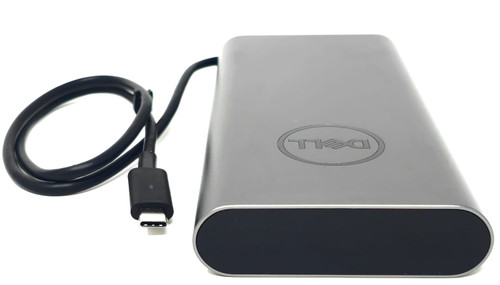
Not all Dell power banks work with all laptops. Using the wrong model or incorrect port leads to failed charging and misleading diagnostics.
Know Your Power Bank Model
| Model | Output Type | Compatible Devices |
|---|---|---|
| PW7018LC | USB-C only | XPS, Latitude with USB-C PD support |
| PW7015M/L | DC + USB-A/USB-C | Older Latitude, select XPS models |
Avoid USB-A for Laptop Charging
- USB-A ports deliver only 5V/2.4A (≤12W)—far below the 45–65W needed by most laptops.
- User BBF94109 tried charging an XPS 13 9380 via USB-A → failed completely.
✅ Correct method: Use the integrated USB-C cable on the power bank or a USB-C to USB-C connection.
Resolve ECU Handshake Issues on Older Laptops
Some Dell laptops, like the Latitude 5450, require an Embedded Controller Unit (ECU) handshake before accepting charge from external sources.
Failure Mode
- Power bank connected → laptop does not charge while powered on.
- No error message; just no charging activity.
Workaround: Cold Boot Method
- Power off the laptop completely.
- Connect the power bank.
- Power on the laptop—the system will now accept charge.
🗣️ User Bblueberrywaffles confirmed: “Charges fine if plugged in while off—workable fix.”
This workaround bypasses ECU negotiation issues and restores partial functionality.
Reset the Power Bank with a Deep Recalibration
While Dell doesn’t publish an official reset procedure, users report success with a forced deep charge cycle that resets BMS communication.
Perform a Full Recalibration
- Drain remaining power by connecting to a low-power device (e.g., phone).
- Let sit unplugged for 24 hours to stabilize cell voltage.
- Connect to Dell 65W+ adapter.
- Charge uninterrupted for 6+ hours, even after LEDs show 5/5 bars.
- Unplug and test under load.
💡 This process can revive communication between the Battery Management System (BMS) and degraded cells—especially after deep discharges.
⚠️ Limitation: Won’t fix physically dead cells. Only resets firmware-level reporting issues.
Prevent Future Charging Failures
Lithium-ion batteries degrade over time, but smart habits can extend your Dell power bank’s life to 5+ years.
Optimize Your Charging Routine
- Never drain below 30%—deep discharges accelerate cell wear.
- Avoid daily 100% charges—stop at 90% when possible.
- Fully recharge between uses—don’t rely on partial top-ups.
- Charge unattached to devices for optimal efficiency.
Limit Passthrough Charging
- Passthrough = charging your laptop while the power bank itself charges.
- High-stress mode that increases heat and reduces lifespan.
- Use only when mobile; avoid desk setups.
Store Properly During Inactivity
- If unused for over one month, store at ~50% charge.
- Keep in a cool, dry place—never in cars or humid areas.
📊 Cycle Life Insight:
– 200 full discharge cycles → noticeable degradation.
– 500+ partial (50%) cycles → significantly longer lifespan.
Example: A 65W battery may degrade to function like a 15W charger after repeated full drains.
When to Replace Your Dell Power Bank
If all troubleshooting fails, replacement is the only solution—especially if under warranty.
Signs of Irreparable Failure
- No LED response with known-good Dell charger.
- Dies immediately after unplugging.
- Overheating persists after cooling.
- Charging stuck at final bar for 8+ hours.
🗣️ Official Dell Support (DELL-Jesse L): “You will need to replace the power companion.”
Warranty and Replacement Process
- Call Dell Support: 1-800-624-9896.
- Provide:
– Service tag (if available).
– Proof of purchase.
– Summary of steps attempted. - Request replacement—no repair option for consumers.
🔧 Third-Party Repair?
– Rare and risky.
– Internal lithium-ion packs require certified handling.
– Potential fire hazard or voided safety certifications.
– Not recommended unless performed by a professional battery technician.
Model-Specific Fixes
PW7018LC: Power Bank Plus
- Issue: False full charge, immediate shutdown.
- Fix:
- Use only Dell 65W+ USB-C adapter.
- Avoid full discharges.
- Replace if recalibration fails.
PW7015M: Portable Power Companion
- Issue: No charging lights, only low battery blink.
- Fix:
- Try three different Dell adapters (per user dis2015).
- Ensure DC connector is fully seated.
- Replace if no response.
PW7015L: Older Power Companion
- Issue: Incompatible with newer laptops.
- Fix:
- Use integrated USB-C cable, not USB-A.
- Power off laptop before connecting.
- Consider upgrading to PW7018LC for modern devices.
Preventive Maintenance Checklist
| Task | Frequency |
|---|---|
| Use Dell 65W+ adapter | Always |
| Avoid full discharges | Every use |
| Full recharge cycle | Weekly |
| Check for overheating | During charging |
| Store at 50% charge | If unused >1 month |
Bottom Line: Is Your Dell Power Bank Dead?
The Dell power bank not charging issue is often preventable—but once battery cells degrade, replacement is the only real fix. Start by verifying your charger, interpreting LED codes, ruling out overheating, and checking compatibility. If none work, contact Dell Support.
✅ Quick Summary:
– Use Dell 65W+ adapter—non-negotiable.
– Solid amber LED = unrecognized charger.
– False charging = dead or degraded cells.
– Replace, don’t repair—no user-serviceable parts.
– Extend life with 30–90% charge discipline.
Your power bank isn’t magic—it’s a lithium-ion system with limits. Treat it right, and it can last 5+ years. Push it too hard, and it’s dead in 2. The choice is yours.



