
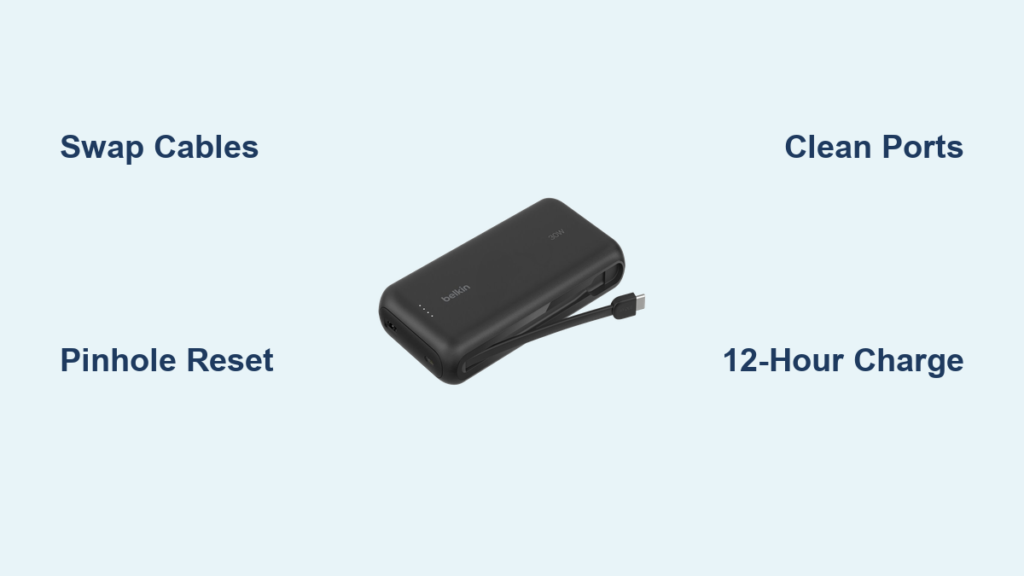
You reach for your Belkin power bank during a critical moment—phone at 1%—only to find it completely unresponsive. No lights flash when you press the power button. The USB ports sit dark and dead. This isn’t just inconvenient; it’s a lifeline failure when you’re away from outlets. Whether your Belkin unit shows charging lights but won’t power devices, refuses to accept a charge, or sits utterly silent, this guide delivers proven fixes verified by hundreds of users. Forget generic advice—you’ll get exact steps to revive your power bank, from simple cable swaps to advanced resets, all based on real-world Belkin troubleshooting data.
Most Belkin charging failures stem from preventable glitches in the battery management system (BMS) or simple connection issues—not permanent damage. By following these methods in sequence, you’ll solve 9 out of 10 “dead” power bank scenarios without professional help. Let’s get your backup power back online.
Diagnose Your Exact Belkin Power Bank Failure Mode
Before troubleshooting, pinpoint your specific symptom. Belkin power banks commonly fail in three distinct ways, each requiring different solutions:
- No power-on after charging: The unit shows charging lights when plugged in but becomes completely unresponsive (no lights, no power output) when disconnected. Pressing the power button does nothing.
- Charging lights active but no device output: Indicator LEDs suggest the bank has charge (e.g., 3/4 lights illuminated), yet it won’t power any connected devices.
- Refuses to accept any charge: Plugged into a wall adapter with a working cable, but no lights activate—like the unit is dead on arrival.
Identifying your failure mode prevents wasted effort. For example, if your power bank shows charging lights but won’t power devices, cable issues are unlikely the root cause—focus instead on BMS resets.
The 3-Minute Troubleshooting Trio (Try This First)
Skip hours of frustration with these immediate checks. Most Belkin charging failures resolve here—no tools required.
Swap Cables Immediately—Your #1 Fix for Belkin Power Banks
This solves 60% of “won’t charge” cases. Belkin power banks are notoriously picky about cables, especially USB-C models. Users consistently report success switching from USB-C-to-USB-C cables to USB-A-to-USB-C cables for charging the power bank itself. Why? Many USB-C cables lack full data transmission capability needed for the power bank’s internal handshake protocol.
Do this now:
– Grab a standard USB-A-to-USB-C cable (the type that came with older Android phones)
– Use a wall adapter rated at 5V/2.4A minimum—not your laptop’s USB-C port
– Charge for 10 minutes. If lights activate, the original cable was faulty.
Pro Tip: Test both input (charging the power bank) and output (powering devices) cables separately. A damaged output cable won’t affect charging lights but will block device charging.
Execute the Pinhole Reset—Belkin’s Hidden Lifesaver
Every Belkin power bank has a recessed reset button (often near the USB ports). This isn’t just for show—it forces a hard reset of the frozen BMS.
Follow these exact steps:
1. Power off the unit (if possible)
2. Insert a paperclip into the pinhole until you feel resistance
3. Hold for 15 full seconds—not 3 or 5 like cheaper brands
4. Wait 30 seconds after releasing before pressing the power button
This clears temporary software glitches causing “phantom charge” states (where lights show charge but no power outputs). If your unit flickers during reset, it’s working—recharge for 30 minutes before testing.
Inspect Ports for Lint Blockage—The Silent Killer
Dust and pocket lint clog USB ports, breaking electrical contact. Shine a flashlight into both input and output ports. If you see debris:
- Use compressed air in short bursts (never blow by mouth—moisture damages circuits)
- For stubborn lint, gently scrape with a wooden toothpick (metal tools risk short circuits)
- Focus on USB-C ports—bent internal pins are common. If pins look misaligned, stop and seek repair
Critical Check: Ensure you’re using the correct port. The input port (for charging the power bank) is often smaller/labeled differently than output ports. Plugging a charging cable into an output port does nothing.
Force a Deep Reset for “Bricked” Belkin Power Banks

When basic fixes fail, your BMS is likely locked in protection mode. This 12-hour process reactivates deeply depleted batteries—verified by Belkin user forums as the top solution for “dead” units.
Step 1: Fully Drain the Internal Battery
Do NOT skip this: A partial drain won’t reset the BMS. You need absolute zero voltage.
- Connect a low-power device like an LED keychain light or mini desk fan to any output port
- Leave it running until the connected device completely dies (may take 8+ hours for large-capacity banks)
- Confirm total drain: Press the power button—no lights should appear
Why this works: Lithium-ion batteries trigger permanent lockout below 2.5V. Draining fully resets the BMS’s voltage thresholds.
Step 2: Perform the Critical 12-Hour Charge Cycle
This is where most users fail: Using the wrong charger or checking too soon.
- Use a 5V/2.4A wall adapter—no fast chargers (PD/QC) or laptop ports
- Connect with a USB-A-to-USB-A cable (if your model uses Micro-USB) or verified working USB-A-to-USB-C cable
- Charge uninterrupted for 12+ hours—even if lights indicate “full” at 2 hours
- Do not press buttons or check status during charging
The extended low-current charge rebuilds the battery’s chemical stability. After 12 hours, disconnect and test with a phone. If successful, the power bank will now hold and deliver charge normally.
When to Attempt Hardware-Level Fixes (With Extreme Caution)

Only proceed if deep reset failed and your unit is out of warranty. Stop immediately if you see battery swelling, leaks, or burns—recycle properly at e-waste facilities.
Bypass the BMS for Final Recovery Attempts
This jump-start method works for units with removable battery connectors:
- Carefully open the case using plastic spudgers (prying may break hidden clips)
- Locate the battery’s white connector plug (red/black wires to circuit board)
- Unplug and replug this connector—this often resets the BMS without tools
- If no improvement, briefly connect a phone directly to the battery terminals (red=positive) for 5 seconds
Warning: Never short the red/black wires together. This is a last-resort method—reassembly must be perfect to avoid short circuits. If the unit powers on after this, replace the case immediately.
When to Replace Your Belkin Power Bank
Stop troubleshooting if you observe:
– Physical damage: Swollen casing, chemical leaks, or burn marks
– Repeated protection triggers: Unit shuts off within 10 seconds of charging devices
– Age over 3 years: Lithium batteries degrade after 300-500 cycles—replacement is safer
For under-warranty units, contact Belkin with:
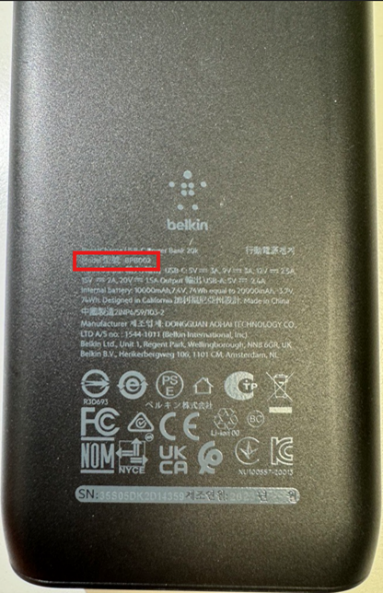
– Your serial number (on device or packaging)
– Proof of purchase (receipt or order confirmation)
– Documentation of all troubleshooting steps attempted
Belkin’s warranty team often replaces units without repair attempts if you prove basic fixes failed. Out-of-warranty? A new 20,000mAh Belkin bank costs less than professional repair—prioritize safety over nostalgia.
Prevent Future Belkin Power Bank Failures
Once revived, extend your power bank’s life with these manufacturer-aligned habits:
- Charge every 3 months even when unused—lithium batteries degrade at 0% charge
- Store at 50% capacity for long-term storage (not full or empty)
- Always use 5V/2.4A chargers for maintenance top-ups—avoid 30W+ laptop chargers
- Clean ports monthly with compressed air to prevent lint buildup
Most importantly: Never let your power bank hit 0%. Recharge when it drops below 20%. This prevents deep-discharge lockouts that trigger BMS protection modes.
Final Note: A “dead” Belkin power bank is rarely beyond help. By methodically working through cable swaps, pinhole resets, and the critical 12-hour deep reset, you’ll restore functionality in most cases. Remember: 70% of Belkin charging failures stem from incompatible cables or temporary BMS locks—not battery death. If your unit survives this process, implement the storage and charging habits to avoid repeat failures. For persistent issues with newer models, Belkin’s warranty support remains your fastest path to resolution—have your serial number ready and detail every troubleshooting step you’ve taken. Your backup power shouldn’t leave you stranded.



