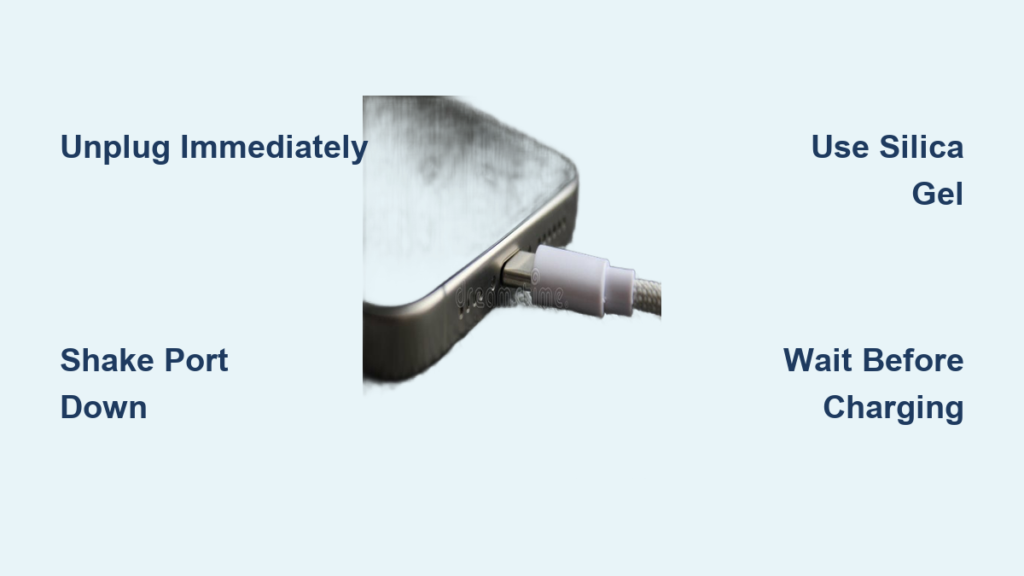
Your iPhone shows a “Liquid Detected” or “Charging Not Available” alert, and you cannot charge your device. This safety feature, built into iPhone 7 and later models, prevents charging when water is present to protect against short circuits, corrosion, and internal damage. While modern iPhones have water resistance ratings (IP67 or IP68), they are not waterproof, and even a small splash can trigger this warning.
The good news: you can safely remove moisture and restore charging without professional help in most cases. This guide provides proven, Apple-aligned steps to dry your iPhone’s port quickly, avoid common mistakes, and get back to charging.
Immediate Steps After Water Exposure
The first few minutes after water exposure are critical. Acting fast but staying calm significantly increases your chances of full recovery.
Unplug and Power Off Immediately
If your iPhone is connected to a charger when the alert appears, disconnect the cable right away. Do not keep plugging and unplugging to test it, as this increases electrical risk.
Then turn off the device by pressing and holding the side button plus volume down button. Slide to power off. Powering down reduces the chance of short circuits and protects sensitive circuitry while wet.
Remove Case and SIM Tray
Take off any protective case, especially silicone or rubber ones that trap moisture. Eject the SIM tray using the proper tool to improve airflow and help release trapped humidity near the port.
Wipe the exterior with a lint-free microfiber cloth to remove surface water. Avoid rubbing the port directly.
Drain Water from the Port Safely
Gentle motion is key to dislodging liquid without forcing it deeper into the device.
Shake with Port Facing Down
Hold your iPhone so the charging port points toward the floor. Gently shake it side to side, up and down, and back and forth. Do this for one to three minutes or until no more droplets escape.
Apple Advice: “Tap your iPhone gently against your hand with the connector facing down.”
Tap to Dislodge Trapped Droplets
With the port still downward, lightly tap the top edge of the phone against your palm. Repeat ten to fifteen times. This vibration helps free tiny droplets stuck near the pins or sensor.
Inspect the port under bright light. Look for glistening or dampness. If moisture remains, move to drying methods.
Clean the Port Without Causing Damage
Debris or residue can worsen moisture retention. Clean carefully and never insert anything sharp.
Use a Dry Toothbrush
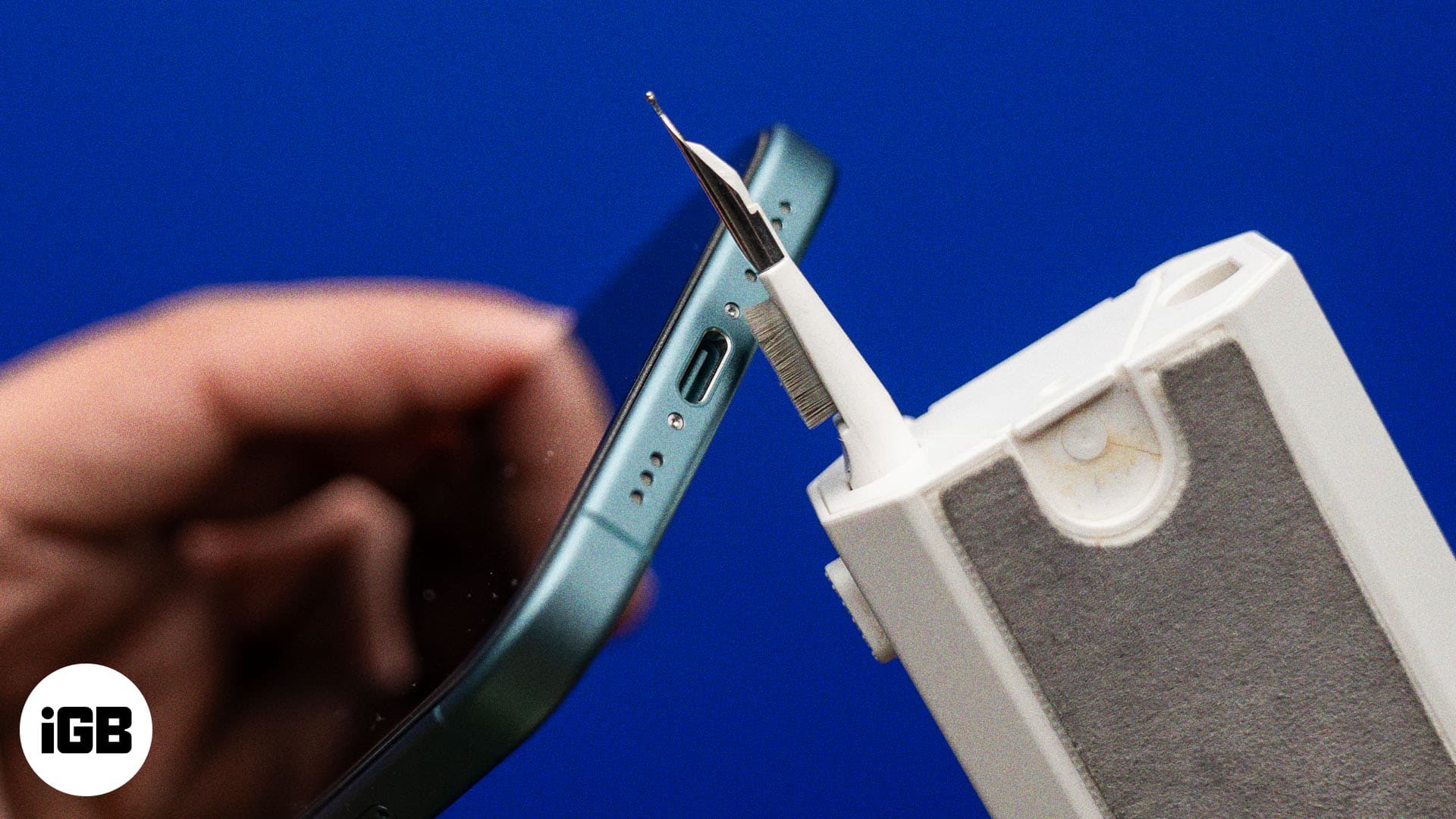
Grab a clean, soft-bristled toothbrush used only for electronics. With the port facing up, insert bristles gently into the opening and use small circular motions for twenty to thirty seconds. Flip the phone and repeat from the other side.
This removes lint, dust, and dried residue that may trap moisture. Wipe the brush on a dry cloth between passes.
Warning: Never use a wet brush, metal tool, or compressed air can upside down.
Dry the Charging Port Effectively
Airflow and desiccants are your best allies. Heat and rice are not recommended.
Use Cool Airflow
Place the iPhone in a dry area with good ventilation, port facing down. Then use one of these methods:
• Fan: Position a desk fan twelve to eighteen inches away. Let it blow across the phone, not directly into the port, for several hours.
• Hairdryer (Cool Setting Only): Hold at least six inches away. Use for five to ten minutes at a time, then pause.
• Compressed Air: Hold upright, use one-second bursts from six inches away.
Apple Warning: Do not use a hairdryer on heat, oven, microwave, or toaster. Extreme heat damages seals and components.
Use Silica Gel
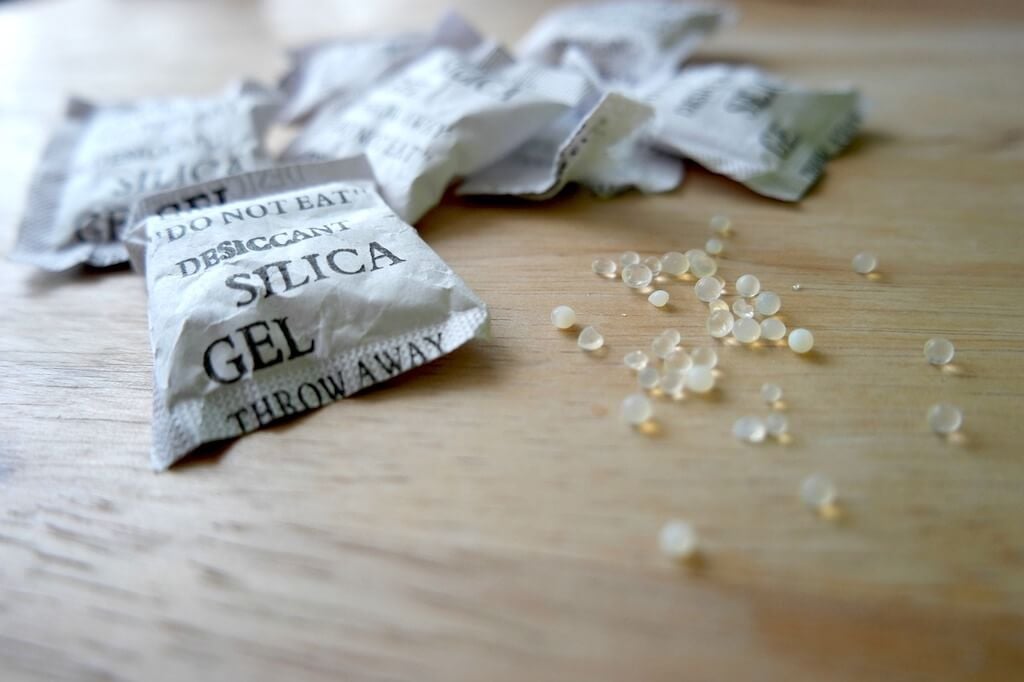
Place the iPhone in a sealed container with silica gel packets from shoeboxes or pill bottles. Silica gel absorbs moisture forty percent more effectively than rice.
Drying time is twenty-four to thirty-six hours. Use a ziplock bag or plastic box with some airflow. Avoid rice because it leaves starchy dust in the port, causing connectivity issues.
Handle Sticky Liquids Differently
Spilled soda, juice, or coffee can trigger false alerts and corrode pins.
Rinse with Distilled Water
If your iPhone is water-resistant (iPhone 12 and newer) and the port is contaminated, add a few drops of distilled water into the port to dissolve sticky residue. Shake gently with port down, then repeat brushing and drying steps.
Never do this if the phone was submerged or has cracks. Water could enter further.
Then dry thoroughly with silica gel for at least twenty-four to seventy-two hours.
Charge Wirelessly While Port Dries
You do not have to wait days without power.
Use Qi or MagSafe Charging
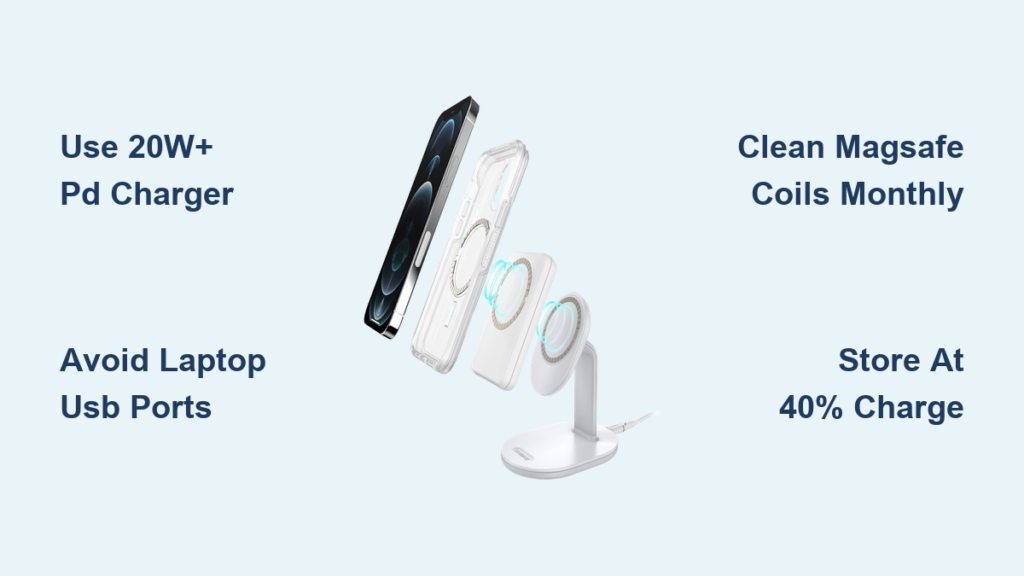
If your iPhone supports wireless charging (iPhone 8 and later), ensure the back of the phone is dry and place it on a Qi-certified or MagSafe charger. This bypasses the wet port entirely.
Pro Tip: Anker MagGo stations offer fifteen-watt fast charging and magnetic alignment, ideal for daily use.
Know How Long to Wait
Drying time depends on exposure level. Rushing leads to damage.
| Exposure Level | Minimum Dry Time | Best Method |
|---|---|---|
| Light splash or condensation | 30 min to 4 hrs | Fan plus port-down |
| Brief sink drop | 6 to 12 hrs | Fan plus silica gel |
| Full submersion | 24 to 48 hrs | Silica gel in sealed container |
| Sticky liquid | 24 to 72 hrs | Rinse if safe, then dry fully |
Apple Official: “It might take up to 24 hours to fully dry.”
Even if the alert disappears, wait at least two to four extra hours before plugging in.
Avoid These Dangerous Mistakes
Common myths can destroy your iPhone.
What NOT to Do
• Hairdryer on heat: melts internal seals and warps plastic
• Oven or microwave: causes permanent hardware failure
• Rice: ineffective and leaves residue
• Cotton swabs: lint clogs port and traps moisture
• Metal objects: bend pins and cause shorts
• Force charging: risks short circuit, corrosion, and fire hazard
Apple: “Do not put your iPhone in a bag of rice.” Small particles can damage internal components.
Troubleshoot Persistent Alerts
Sometimes the warning stays even after drying.
Test with a Different Cable
Try a known-dry, Apple-certified cable and adapter. If the alert only appears with one cable, the cable may be wet or damaged.
Restart the iPhone
After drying, power on the device. A simple restart can clear temporary software glitches causing the message.
Override Only in Emergencies
If you must charge immediately, tap “Charge Anyway” when the alert appears. Use this only until you can fully dry the port. This carries high risk, so only do it in true emergencies.
Check for Corrosion
Inspect the port under bright light. White or green crust indicates corrosion. Bent or blackened pins mean physical damage. If you see any of these, do not charge.
When to Get Professional Help
Some issues cannot be fixed at home.
Seek Repair If
• Alert persists after forty-eight hours of proper drying
• iPhone still will not charge with multiple cables
• Signs of internal water damage appear (foggy camera, flickering screen)
• Corrosion is visible in the port
• Device was exposed to saltwater or sugary drinks
Visit an Apple Store or authorized service provider. They can clean the port professionally or replace it.
Prevent Future Water Alerts
Smart habits beat emergency fixes.
Daily Precautions
Keep your phone away from sinks, showers, and pool edges. Do not charge near drinks. Avoid humid areas like bathrooms after showering.
Use Protective Gear
Use a water-resistant case from brands like OtterBox or LifeProof. Consider a MagSafe case for wireless charging. Port plugs can help but may trap moisture if not used carefully.
Final Check Before Charging
Before plugging in, confirm your iPhone is truly dry.
Pre-Charge Checklist
- Inspect port for moisture, lint, or residue
- Tilt and listen for no sloshing sound
- Check that port is not warm
- Test with a dry cable, plugging in slowly
If charging works, watch for intermittent connection or slow charging. These may signal residual moisture.
Frequently Asked Questions About Getting Water Out of iPhone Charger Port
How long does it take for the liquid detection alert to go away?
The alert typically disappears within thirty minutes to twenty-four hours, depending on the amount of moisture. Light condensation may clear in thirty minutes, while full submersion can take twenty-four to forty-eight hours. Wait at least two to four extra hours after the alert disappears before charging.
Can I use rice to dry my iPhone charging port?
No. Apple explicitly warns against using rice because it is ineffective and leaves starchy dust in the port. This residue can cause connectivity issues and make things worse. Use silica gel packets instead, which absorb moisture forty percent more effectively than rice.
Is wireless charging safe after water damage?
Yes, wireless charging is safe and does not interact with the charging port. Ensure the back of your iPhone is completely dry before placing it on a Qi-certified or MagSafe charger. This is an ideal alternative while the port dries.
What does it mean if the alert keeps appearing after drying?
If the alert persists after forty-eight hours of proper drying, there may be internal damage or corrosion. Try a different cable, restart your iPhone, and inspect the port for visible damage. If problems continue, seek professional repair at an Apple Store or authorized service provider.
Can I override the liquid detection alert to charge anyway?
Yes, but only in emergencies. iOS allows you to tap “Charge Anyway” when the alert appears. This carries high risk of short circuit or corrosion. Only use this option in true emergencies and dry the port as soon as possible afterward.
Does the iPhone liquid detection work on all models?
The liquid detection feature works on iPhone 7 and later models, including iPhone XS, XR, and all subsequent models. Older models (iPhone 7 through 11) have water resistance but no liquid detection sensor, so users must manually inspect and dry the port.
Key Takeaways for Getting Water Out of Your iPhone Charger Port
The “liquid detected” alert is a protector, not a problem. By responding quickly, drying thoroughly, and avoiding myths like rice or heat, most users recover fully. Patience saves phones. Wait it out, charge wirelessly if needed, and let science do the work.
The most important steps are unplugging and powering off immediately, shaking and tapping the port gently to remove excess liquid, using silica gel for deep drying instead of rice, and waiting the appropriate time before charging again. If the alert persists after forty-eight hours or you see visible corrosion, trust Apple is guidance and get professional support.