
You’re working on an important project when your Chromebook screen goes dark. You reach for your charger and realize it’s nowhere to be found. This happens more often than you’d think, and the good news is you have options. Many modern Chromebooks support USB-C Power Delivery, which means you can charge using phone chargers, power banks, car outlets, and other devices you might already own.
This guide covers every viable method for charging your Chromebook without its original charger. You’ll learn which methods work fast, which are emergency-only, and how to avoid damaging your device. By the end, you’ll know exactly what to do when you’re stuck without your charger.
Check if Your Chromebook Supports USB-C Charging
Before trying any alternative method, verify your Chromebook can charge via USB-C. Not all models have this capability, and using the wrong port waste your time.
Identify Your Charging Port
Look for a USB-C port on your Chromebook. It should be a small, oval-shaped port. Some ports include a battery or lightning symbol indicating power capability. Check your original charger too. If it was a USB-C brick, your Chromebook almost certainly supports USB-C charging.
Older budget models like the Dell Chromebook 3110 use barrel plugs instead. These require different solutions. Visit your manufacturer’s website and search your model name with “specifications” to confirm port type.
Confirm USB-PD Support
USB-C doesn’t automatically mean USB Power Delivery. Some ports only handle data or video. Your Chromebook must support USB-PD to charge properly. This protocol lets devices negotiate voltage between 5V, 9V, 15V, and 20V.
Most Chromebooks need 15V or 20V under load. A non-PD charger might deliver only 5 to 12 watts, which causes slow charging or the “Not charging” message. Try plugging in a known USB-PD charger. If it charges, you’re set.
Charge Using a USB-C Wall Adapter
A third-party USB-C charger can replace your original brick if it meets power requirements. You likely already have one from a phone or tablet.
Choose the Right Wattage
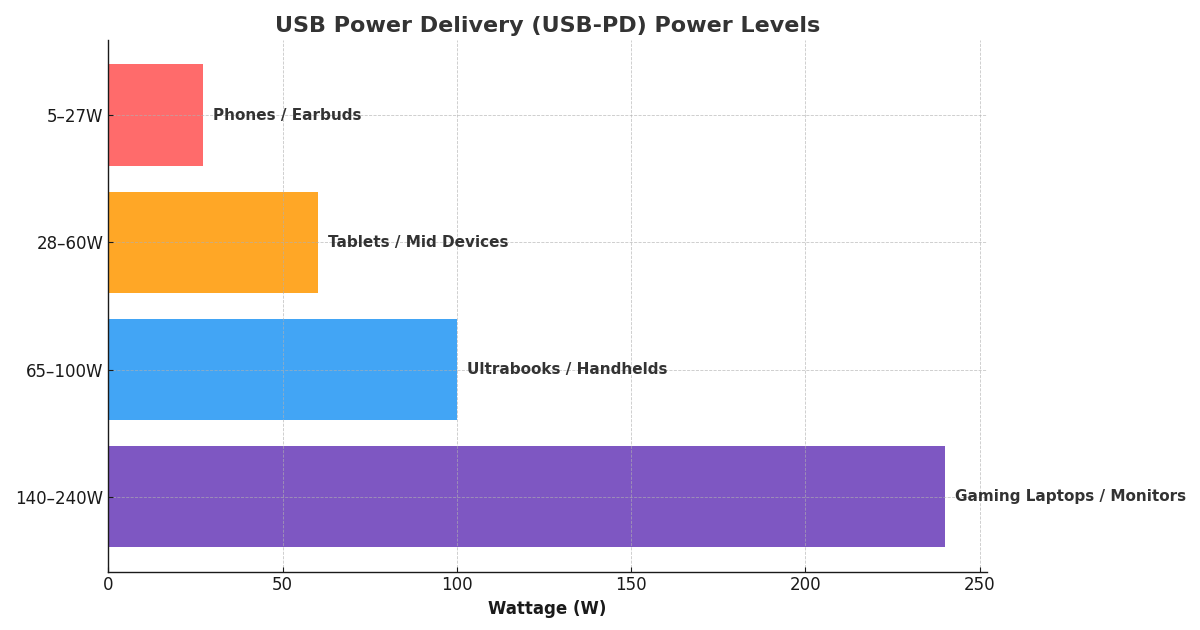
Chromebooks vary in power needs. Basic models like the Lenovo Duet work fine with 30 to 45 watts. Mid-range and performance models like the Asus Flip CX5 need 45 to 65 watts. Using a 45-watt or higher USB-PD adapter ensures reliable charging.
Many smartphone fast chargers work perfectly. The Samsung 45W charger and Google Pixel 65W charger are good examples. Higher-wattage chargers like 65W or 100W are completely safe. Your Chromebook only draws the power it needs.
Setup Steps
First, plug a USB-C wall adapter (45W or higher) into an outlet. Next, connect a USB-C to USB-C cable rated for PD. Then plug into your Chromebook’s USB-C port. Wait for the battery icon or LED to indicate charging. Some school-managed Chromebooks may block non-OEM chargers, so try waking the device if charging doesn’t start.
Avoid Low-Quality Chargers
Cheap or uncertified adapters pose real risks. They can overheat, deliver unstable voltage, or damage your battery and port. Stick to certified brands like Anker, UGREEN, Belkin, or Samsung. The extra cost is worth the safety.
Use a Portable Power Bank

A high-capacity power bank lets you charge anywhere, making it ideal for travel or emergencies. You need the right specs for it to work.
Required Specifications
Your power bank must have USB-C PD output of at least 30 watts (45W is better). Capacity should be at least 20,000mAh, which equals roughly 72Wh. Use a USB-C to USB-C cable rated for PD.
For air travel, power banks over 100Wh (about 27,000mAh) may require airline approval. Always carry power banks in your carry-on luggage.
Expected Performance
A 10,000mAh power bank delivers roughly 20 to 30% charge. A 20,000mAh unit provides 50 to 60%. A 27,000mAh bank reaches 70 to 80%. Expect 60 to 85% efficiency due to power conversion and cable loss.
Top recommended models include the Anker PowerCore+ 26800 PD (60W output), INIU 25000mAh 65W Power Bank, and Baseus 65W 20000mAh Power Bank. These can fully charge most Chromebooks once, even while in use.
Try a Portable Power Station
For off-grid scenarios or extended power outages, a portable power station offers the most versatile solution. These units combine high capacity with multiple output options.
Why Choose a Power Station
Portable power stations typically range from 288Wh to 1800Wh capacity. They offer USB-C PD output up to 100W or more, traditional AC outlets, and solar recharge capability. This versatility makes them ideal for camping, remote work, or emergency backup.
Recommended Models
The Jackery Explorer 300 Plus provides 60W USB-C output for about 5.5 hours of runtime. The BLUETTI AC180 delivers 100W USB-C and can charge a Chromebook up to 17 times. The EcoFlow DELTA 3 Plus offers 1800W AC plus USB-C PD and recharges fully in 56 minutes.
Charging Methods
Use direct USB-C PD for the fastest method. Simply plug your USB-C cable into the station. For Chromebooks with barrel plugs, use the station’s AC outlet with your original charger. Pair with foldable solar panels for off-grid recharging.
Charge Via Another Laptop or PC
In a pinch, another computer with USB-C PD can charge your Chromebook, though slowly.
What You Need
You need a USB-C to USB-C cable rated for PD. The host device must support USB-C power output and should be plugged into power. MacBooks, Dell XPS units, and Microsoft Surface devices commonly support this.
Limitations to Expect
Output typically ranges from 5 to 15 watts. This is enough to maintain battery or charge when idle, but not for heavy use. Not all computers support power delivery via USB-C. Charging may stop if the host enters sleep mode.
Wake your Chromebook if charging doesn’t start. Some managed devices block charging while asleep.
Use a Car Charger
Road trips don’t have to mean dead Chromebooks. Your car can provide power with the right equipment.
USB-C Car Charger Method
Use a car charger supporting USB-C PD with 45W to 65W output. Plug it into the 12V socket (cigarette lighter). Use a USB-C to USB-C cable. Your car must be running or in accessory mode.
Recommended brands include Anker, Aukey, and Belkin. Avoid cheap no-name car chargers that often lack true PD support.
Inverter Method
For Chromebooks with barrel plugs, use a pure-sine wave inverter rated at 150W or higher. Plug your original charger into the inverter, then connect to the car’s 12V socket. Avoid modified-sine wave inverters as they can damage electronics.
Use Smartphone Reverse Charging
Some smartphones can power your Chromebook in an emergency, though this method has significant limits.
Compatible Phones
Samsung Galaxy S21, S22, and S23 series work. Google Pixel 3 and newer models support this feature. Some Huawei and OnePlus devices also work.
How to Enable It
Connect your phone and Chromebook with a USB-C to USB-C cable. On your phone, go to Settings, then Battery, then enable Power Sharing. Wait for the Chromebook to begin charging.
Realistic Expectations
Output reaches only 5 to 10 watts. You’ll gain 10 to 20% charge in 30 minutes. Your phone battery drains rapidly and may overheat. This should be a last-resort option only.
Try a Universal Laptop Charger
Multi-tip universal chargers can work if you match the specs exactly, though risks exist.
Requirements
Your universal charger needs adjustable voltage matching your original (12V, 15V, 19V, or 20V). Output must be at least 45W. You need the correct tip size and polarity.
Wrong voltage permanently damages your Chromebook. Cheap models deliver unstable power and may not support USB-PD. Only use this as a temporary fix when no other option exists.
Use Solar Charging for Remote Power

Solar charging works for off-grid scenarios but requires specific equipment.
What You Need
You need solar panels like the Jackery SolarSaga or BLUETTI PV350. Connect these to a portable power station with MPPT solar controller. Use the station’s USB-C or AC output to charge your Chromebook.
How It Works
Set up solar panels in direct sunlight. Connect to the power station to charge its internal battery. Use the station to charge your Chromebook via USB-C or AC. Charging stops at night or in cloudy conditions unless the station is pre-charged.
Revive a Completely Dead Chromebook
If your Chromebook won’t turn on, it may need time to accumulate enough charge to boot.
What Works
Use a 45W or higher USB-C power bank. A portable power station with USB-C or AC output also works. A 65W or higher wall adapter can help.
Steps to Take
Connect your power source. Wait 10 to 15 minutes, as some models need time to build initial charge. Watch for an LED indicator, screen flicker, or fan noise. If there’s no response, try a higher-wattage source.
Some school-managed Chromebooks block booting from non-OEM chargers.
Methods That Don’t Work
Save yourself time and frustration by avoiding these ineffective approaches.
Standard USB-A to USB-C cables deliver only 5 to 12 watts and may not charge under load. USB-A ports on PCs, TVs, and hubs aren’t designed for high-power delivery. Non-PD USB-C chargers won’t negotiate proper voltage. Damaged or frayed cables cause intermittent charging and risk short circuits.
If you see “Unstable power source” or “Not charging,” your charger can’t keep up with power draw.
Charging Time Estimates
| Method | Output | Full Charge Time | Notes |
|---|---|---|---|
| Original Charger | 45W | 2.4 to 3 hours | Fastest option |
| 30W USB-C Adapter | 30W | 4 to 5 hours | Slower under use |
| 18W Phone Charger | 18W | 6+ hours | May not charge while in use |
| Power Bank (20,000mAh) | 30W | 4 to 5 hours | Half to full charge |
| Smartphone Reverse | 10W | 8+ hours | Partial charge only |
Some models like the HP Chromebook 11 reach 80% in just one hour with 45W or higher PD.
Safety and Battery Care
Protect your device and extend battery life with these practices.
Use only certified chargers and cables (look for UL, CE, or USB-IF marks). Avoid charging in extreme heat like direct sunlight or hot cars. Keep vents clear during fast charging. Replace frayed or damaged cables immediately. Clean USB-C ports with compressed air or a soft brush.
Chromebooks stop charging at 100%, but leaving the battery at full charge in heat degrades it faster. Enable Battery Saver Mode to limit charge to 80% in hot environments. Damage from non-OEM chargers may void your warranty.
Frequently Asked Questions About Charging a Chromebook Without a Charger
Can I use a phone charger on a Chromebook?
Yes, if it supports USB-C PD and delivers at least 30W. Lower-wattage chargers like 18W units will charge very slowly or only when the Chromebook is idle.
Is a 65W or 100W charger safe for my Chromebook?
Absolutely. USB-PD technology ensures your Chromebook only draws the power it needs. Higher-wattage chargers won’t damage your device.
Can I charge my Chromebook wirelessly?
Rarely. Only a few models like the Asus Chromebit 5 and HP x2 support NFC wireless charging. Standard Qi wireless charging isn’t available on Chromebooks.
Why won’t my Chromebook charge with my phone charger?
The most likely causes are insufficient wattage or lack of USB-PD support. Check that your phone charger outputs at least 30W and supports Power Delivery.
How can I check if my Chromebook supports USB-C charging?
Look for a USB-C port with a power symbol. Check whether your original charger was USB-C. Try charging with a known PD charger. Visit your manufacturer’s website for specifications.
Can I use my Chromebook charger to charge my phone?
Yes. USB-PD chargers safely negotiate power with phones. A 45W Chromebook charger can fast-charge most smartphones without issues.
Best Solutions for Charging Without Your Original Charger
For long-term reliability, invest in a 65W GaN USB-C charger from trusted brands like Anker or UGREEN. These are compact, fast, and work with multiple devices. A high-capacity power bank (20,000mAh+ with 45W PD) handles travel and emergencies. A portable power station from Jackery or BLUETTI covers off-grid scenarios, camping, or extended outages.
For emergency-only situations, use smartphone reverse charging, a low-wattage phone charger overnight, or USB-A to USB-C (very slow). Always avoid non-PD chargers, uncertified cables, extreme heat charging, and damaged equipment.
Keep a spare 45W+ USB-C charger and cable in your bag. It could save your next workday when your original charger goes missing. With the right tools and knowledge, charging your Chromebook without its original charger is entirely practical.





