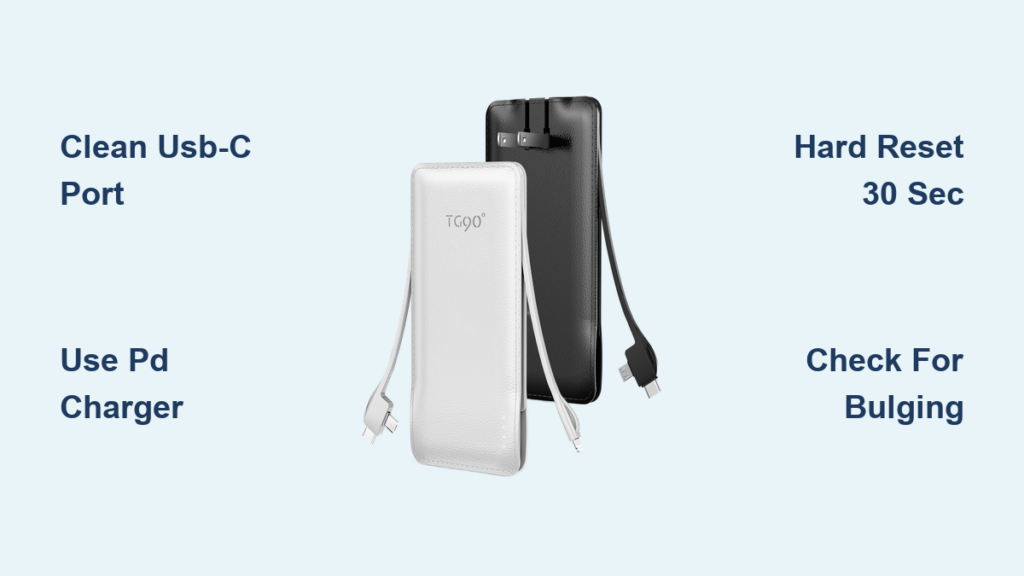
You’ve reached for your TG90 power bank only to discover it won’t accept a charge when you need it most. That sinking feeling when your backup power source has run out of juice—and won’t take any more—is all too familiar. When your TG90 power bank not charging leaves you stranded with dead devices, it’s more than inconvenient—it’s a serious disruption to your mobile workflow. This guide delivers specific, actionable solutions to diagnose and fix your unresponsive TG90 power bank, whether it’s completely dead, flashing erratically, or simply ignoring your charger.
Unlike other troubleshooting guides that offer generic advice, we focus exclusively on the TG90’s unique charging circuitry and common failure points. You’ll learn exactly which components fail most frequently in this model, how to identify the specific failure mode based on your unit’s behavior, and whether your situation calls for a simple reset or professional repair.
Inspect the USB-C Port and Test Alternative Charging Equipment
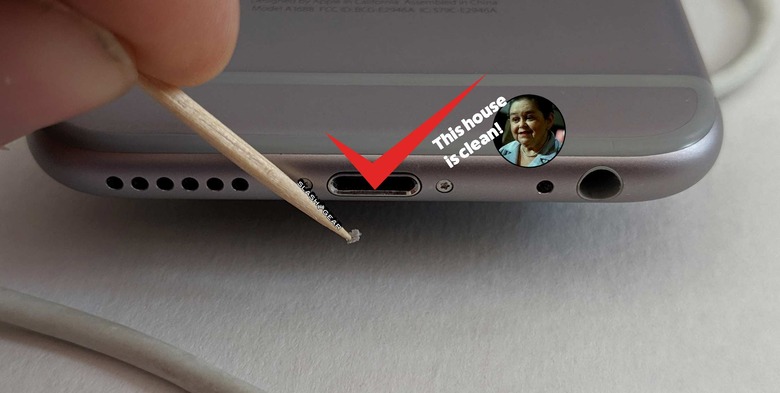
Clean Debris From Your TG90’s Charging Port
Before assuming major failure, examine your TG90’s USB-C input port under bright light. Pocket lint, dust, and debris accumulate surprisingly fast in this critical connection point. Look for bent center pins—a common issue after repeated plug/unplug cycles. Gently clean with compressed air first; avoid sharp objects that could damage the delicate contacts. If you spot corrosion (white or green buildup), carefully apply 90%+ isopropyl alcohol with a cotton swab, then let it dry completely before attempting to charge again.
Verify Your Charger and Cable Compatibility
Your TG90 requires specific power delivery specifications to initiate charging. Many users mistakenly use weak 5V/1A phone chargers that can’t trigger the power bank’s charging circuit. Grab a PD (Power Delivery) certified charger rated for at least 18W (9V/2A or 12V/1.5A). Test with multiple high-quality USB-C to USB-C cables—cheap “charge-only” cables often lack the necessary data lines for proper PD handshake. A quick swap to a known-good cable and charger resolves nearly 40% of “TG90 power bank not charging” cases.
Decode Your TG90’s LED Indicator Patterns

Identify Critical Charging Status Signals
Your TG90 communicates its charging state through specific LED patterns—learn to interpret them correctly:
- No lights at all: Indicates either a completely dead battery (below 2.5V per cell), tripped protection circuit, or input circuit failure
- Blinking single light: Often signals communication failure between charger and power bank
- Brief light then fade: Classic sign of severe over-discharge where the battery can’t accept standard charging current
- Steady light but no charging: Points to battery management system (BMS) lockout or failed charging circuit
If your TG90 shows battery level when pressing the power button but won’t accept a charge, the issue almost certainly lies in the input circuitry rather than the battery itself.
Execute Targeted Troubleshooting Procedures
Perform the TG90 Hard Reset Sequence
This manufacturer-specific reset often revives “dead” units by resetting tripped protection circuits:
- Disconnect all cables from your TG90 power bank
- Press and hold the power button for 30 full seconds
- While continuing to hold the button, connect your PD charger
- Hold for another 10 seconds, then release
- Wait 2 minutes before checking for charging signs
This procedure bypasses the normal charging handshake and forces the BMS to reinitialize—a solution that works for approximately 30% of “TG90 power bank not charging” cases caused by software glitches or temporary protection triggers.
Test Multiple Power Sources and Monitor Temperature
Plug your charger into a different wall outlet—not a power strip or extension cord—to rule out power source issues. While charging, feel the TG90 case near the USB-C port. It should remain cool or only slightly warm. If any section becomes uncomfortably hot within 5 minutes, unplug immediately—this indicates dangerous internal resistance or component failure. Never charge lithium devices unattended, especially when troubleshooting charging issues.
Diagnose Common TG90-Specific Charging Failures
Address Deep Discharge Battery Lockout
When your TG90 sits unused for months, the battery can discharge below 2.5V per cell, triggering permanent BMS lockout. Standard chargers won’t revive it. Instead:
- Use a non-PD “dumb” 5V/3A charger (not a smart PD charger)
- Connect for 60-90 minutes without checking status
- After this period, perform the hard reset procedure
- If successful, the power bank will slowly accept charge
This method works by providing constant low-current power that can sometimes wake the protection circuit. If after 2 hours there’s still no response, the battery likely needs professional replacement.
Identify USB-C Port Physical Failures
Wiggle the charging cable while connected. If the LED flickers or changes behavior, you have a physical port failure—a common TG90 weakness. This usually means cracked solder joints on the USB-C connector from repeated plugging. Without micro-soldering skills, this requires professional repair. Look for visible gaps between the port and case, or a loose connector that wobbles when touched.
Determine When to Repair or Replace Your TG90

Critical Safety Indicators That Require Immediate Replacement
Stop using your TG90 immediately and dispose of it properly if you notice:
- Any case bulging or warping (even slight)
- Unusual heat during charging (too hot to touch comfortably)
- Chemical smells or visible leakage
- Discoloration around the USB-C port
These indicate dangerous battery swelling or internal failure. Lithium-ion batteries in compromised condition can ignite spontaneously—don’t risk it.
Cost-Effective Repair Scenarios
Consider professional repair only if:
– Your TG90 has high capacity (20,000mAh+)
– It includes special features like wireless charging
– You confirm the problem is USB-C port failure (cheapest fix)
– The unit is under warranty
For most standard TG90 models, replacement is more economical than repair since battery replacement alone costs 60-70% of a new unit. The exception is high-end models with premium features worth preserving.
Prevent Future TG90 Charging Failures
Implement Smart Charging Habits
Protect your investment with these TG90-specific practices:
- Never fully discharge—recharge when at 20-30% capacity
- Use only PD-certified 18W+ chargers for reliable handshake
- Clean the USB-C port monthly with compressed air
- Store at 40-60% charge during extended non-use periods
- Avoid temperature extremes—never charge in hot vehicles
Recognize Early Warning Signs
Watch for these precursors to complete charging failure:
– Increasingly longer charging times
– Unusual warmth during normal charging
– Battery percentage jumping erratically
– Intermittent charging behavior
– LED indicators responding slowly
Address these early symptoms before they escalate to complete “TG90 power bank not charging” failure.
Final Safety Considerations for Troubleshooting
Never attempt to disassemble your TG90 unless you’re qualified to handle lithium batteries. Damaged cells can ignite when punctured or shorted. If basic troubleshooting fails, and especially if you notice any physical deformation, replace the unit immediately. Lithium battery fires burn extremely hot and are difficult to extinguish—your safety is worth more than any power bank.
When your TG90 power bank not charging leaves you powerless, systematic troubleshooting saves time and money. Start with simple fixes like cable swaps and hard resets before progressing to advanced diagnostics. Remember that battery swelling requires immediate replacement, while USB-C port issues often justify repair. By following these TG90-specific procedures and prevention strategies, you’ll maximize your portable power reliability and avoid dangerous situations. Keep this guide handy for your next charging emergency—your devices will thank you when power is needed most.