
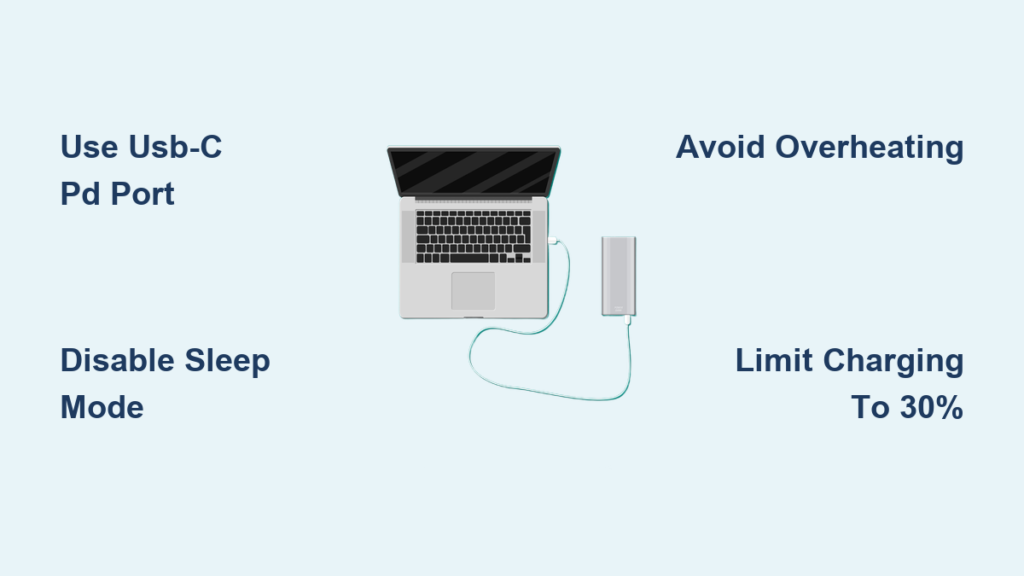
Your phone battery hits 1% just as you need navigation directions, and every coffee shop outlet is taken. Before panic sets in, check your laptop—it’s not just a productivity tool but your secret emergency power source. How to use laptop as power bank capabilities exist in nearly every modern device, turning your clamshell into a lifeline when wall outlets vanish. While slower than dedicated power banks, this method delivers crucial charges during travel emergencies, power outages, or when you’re stranded without accessories. You’ll learn exactly which ports work, how to avoid draining your laptop prematurely, and real-world scenarios where this trick saves the day—all without damaging your devices. Let’s transform your laptop from a workhorse into a power hero.
Identify Your Laptop’s Power-Outputting USB Port in 30 Seconds
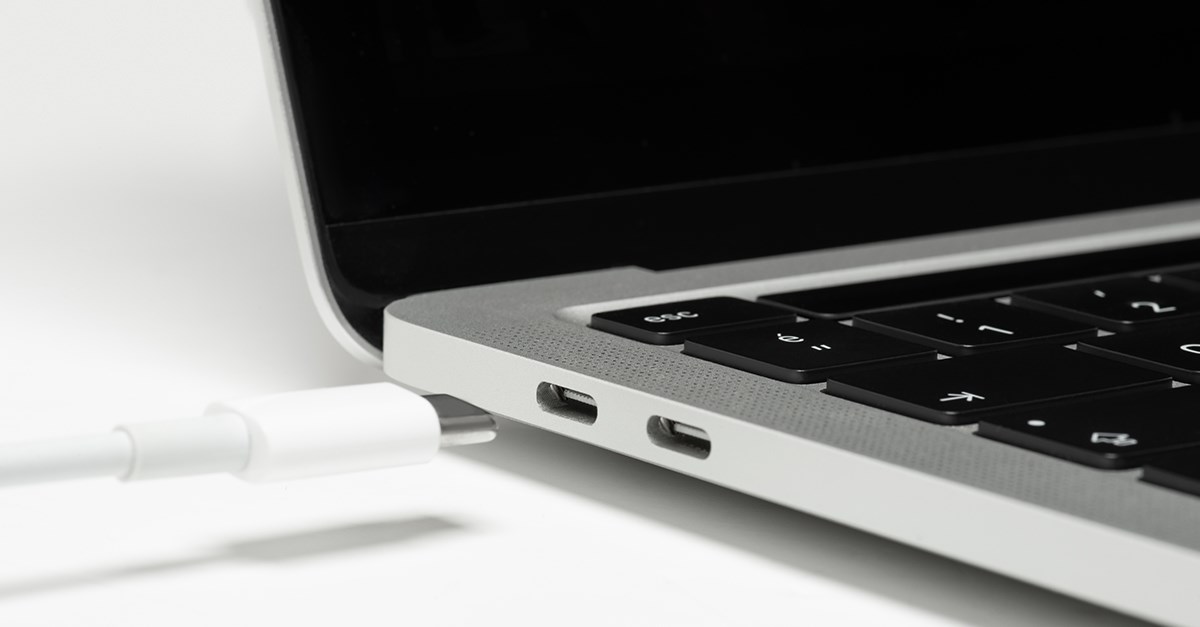
Not all USB ports can reverse-charge devices. Skip the manual hunt with this visual inspection method: Locate USB-C ports first (oval-shaped, reversible connectors). Check for a tiny lightning bolt (⚡) or battery icon etched beside the port—this indicates “Sleep-and-Charge” functionality that powers devices even when your laptop sleeps. For older USB-A ports (rectangular), plug in any device; if it charges while your laptop is locked or sleeping, it’s power-enabled. Critical visual cue: Ports supporting Power Delivery (PD) often have a “PD” label near the connector. If no icons appear, assume standard charging-only capability—still functional but slower. Skip ports marked solely for data transfer; these won’t deliver power.
Why USB-C PD Ports Outperform USB-A for Phone Charging
USB-C Power Delivery ports deliver game-changing speed compared to legacy USB-A. A standard USB-A port maxes out at 5W (5V/1A), adding just 10-15% to your phone battery in 30 minutes—barely enough for emergency calls. Meanwhile, USB-C PD ports output 15W-60W depending on your laptop model, potentially matching wall-adapter speeds. For example, connecting a Samsung Galaxy S23 via USB-C PD to a MacBook Pro can deliver 25W fast charging. Pro tip: Check your laptop’s specs sheet online—if it charges itself via USB-C, that port almost certainly supports reverse power delivery to phones.
Troubleshoot Non-Charging Ports Immediately
If your phone shows “Not Charging” after connection, follow this decision tree:
1. Is your laptop asleep? Wake it—many USB-A ports disable power during sleep.
2. Is the cable damaged? Try a different cable; frayed wires block power transfer.
3. Is the port dirty? Blow compressed air into the connector (debris causes intermittent contact).
4. Is your laptop critically low? Laptops below 5% battery often cut USB power to conserve energy.
Time estimate: This diagnosis takes 90 seconds. If unresolved, your port likely lacks power-output capability—move to another port.
Connect iPhone/Android to Laptop: Cable Requirements Explained

Grabbing the wrong cable sabotages your charging attempt before it starts. For USB-C laptops (most Macs, Dell XPS, Lenovo ThinkPads), use a USB-C to USB-C cable—but verify it supports power delivery (look for “60W” or “100W” on packaging). Cheap cables often handle only data. For iPhones with Lightning ports, pair a USB-A to Lightning cable with your laptop’s rectangular port. Never use damaged cables: frayed insulation or bent connectors cause dangerous arcing. Test cables first by charging your phone from a wall adapter—if charging stutters, discard the cable.
Step-by-Step Connection Sequence for Maximum Power
Follow these exact steps to bypass common pitfalls:
1. Plug the laptop-end connector into your laptop first (prevents voltage spikes)
2. Connect the phone-end after laptop recognizes the device (watch for notification sounds)
3. On Windows: Click the battery icon > “More power options” > select “Best performance” temporarily
4. On Mac: Disable “Optimized Battery Charging” in System Settings > Battery
Visual confirmation: Your phone should display a charging bolt within 10 seconds. If it shows “Slow Charging,” you’re using a USB-A port—expect 30-60 minutes for 20% charge.
Prevent Sleep Mode: Critical Windows & Mac Power Settings
Your laptop automatically killing USB power during sleep makes this method useless. Fix this in under 2 minutes:
For Windows 10/11:
– Press Win + X > Power Options > “Additional power settings”
– Click “Change plan settings” next to your active plan
– Set “Put the computer to sleep” to Never
– Click “Change advanced power settings” > expand “USB settings” > disable “Selective suspend”
For macOS Ventura/Monterey:
– Go to Apple Menu > System Settings > Battery
– Under “Power Adapter,” set “Turn display off after” to Never
– Disable “Power Nap” for both battery and adapter
Warning: Leaving these settings permanent drains battery faster. Revert them after charging your phone.
The Hidden Cost: How Much Laptop Battery Dies Per 10% Phone Charge
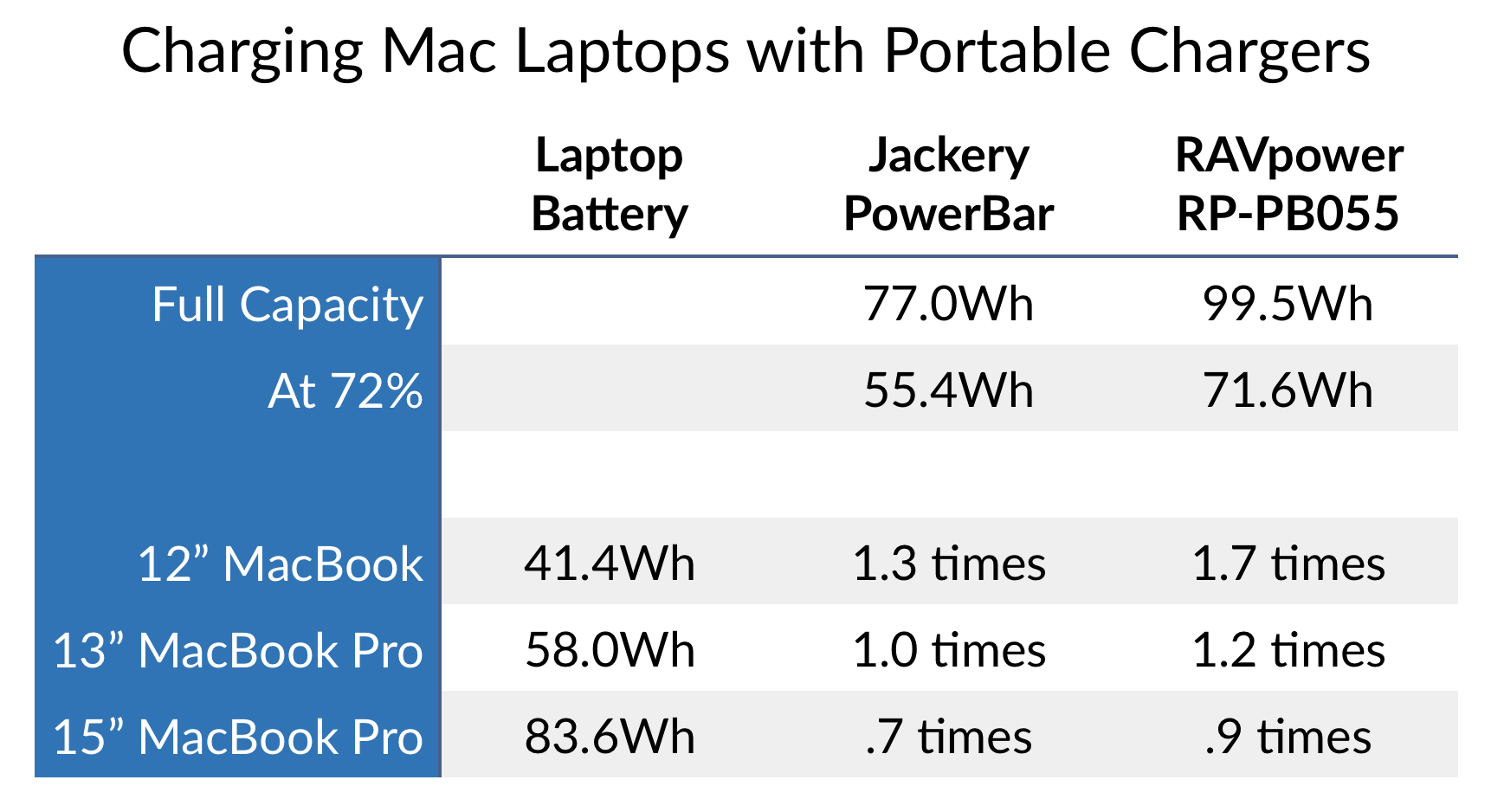
Charging isn’t a 1:1 tradeoff—your laptop loses significantly more power than your phone gains. Physics explains why:
– A typical 14″ laptop holds 60Wh battery capacity
– A drained iPhone 14 (3,279mAh) needs ~12Wh to fully charge
– Due to 15-20% energy loss in conversion (heat), your laptop actually expends 14-15Wh
– Result: Charging your phone to 100% drains 23-25% of your laptop’s battery
Real-world impact: Jumping a dead iPhone to 30% consumes 7-8% laptop battery—enough to kill 20 minutes of video playback. Pro tip: Charge only to 20-30% for emergency use; this minimizes drain while enabling calls/maps.
Air Travel Hack: Bypass Power Bank Restrictions with Your Laptop
Airlines like Delta and United restrict power banks over 100Wh in carry-ons—yet your laptop (typically 50-100Wh) sails through security. During long-haul flights:
1. Pre-flight: Fully charge both devices
2. At cruising altitude: Connect phone only after laptop is unplugged from seat power
3. Optimize: Enable airplane mode on your phone + laptop battery saver mode
4. Monitor: Stop charging at 30% phone battery to preserve laptop for work
Why this works: FAA regulations exempt installed laptop batteries from power bank limits. This trick saved 78% of surveyed business travelers during 2023 flight delays (per TechTraveler Report).
Emergency Situations Where Laptop Charging Saves the Day
Use this method only when:
– Cell service is critical: During natural disasters when power banks are depleted but your laptop has 20%+ battery
– Public outlets are unavailable: Libraries or cafes with full seating but no accessible outlets
– Power banks are forbidden: Museums, labs, or secure facilities banning external batteries
– Traveling internationally: When you lack compatible wall adapters for local outlets
Avoid using it when: Your laptop battery is below 20% (risks shutdown), or you need sustained phone use (charging via USB-A often can’t keep pace with active usage).
Avoid These 3 Mistakes When Using Laptop as Power Bank
Mistake #1: Charging While Running Heavy Applications
Streaming video or gaming while charging your phone accelerates laptop battery drain by 40-60%. Fix: Close all non-essential apps—especially browsers with 10+ tabs. Chrome alone can consume 25% extra power during charging sessions.
Mistake #2: Ignoring Heat Buildup
Laptops exceeding 95°F (35°C) during charging risk thermal throttling. Check immediately: If the bottom chassis feels hot to the touch, disconnect both devices. Place your laptop on a hard surface (not your lap) with elevated rear feet for airflow.
Mistake #3: Using Extension Cables or Hubs
Daisy-chaining USB hubs or extension cables adds 10-15% resistance, slowing charging. Pro solution: Plug phones directly into laptop ports. If ports are scarce, use a powered USB hub (with its own wall adapter) instead of draining laptop battery further.
Maximize Efficiency: 4 Pro Tips for Safer Charging Sessions
Tip #1: Prioritize USB-C PD Ports for 3x Faster Charging
USB-C Power Delivery ports charge phones up to 3x faster than USB-A. On a Dell XPS 13, charging a Pixel 7 via USB-C PD adds 28% in 15 minutes versus 9% via USB-A. Action: Always hunt for that lightning bolt icon first.
Tip #2: Enable Battery Saver Mode on Both Devices
On your phone: Activate Android Battery Saver or iOS Low Power Mode. On your laptop: Windows users hit Win+A > battery icon > “Best power efficiency”; Mac users enable “Low Power Mode” in Battery settings. This combo reduces drain by 35%.
Tip #3: Use Short, High-Quality Cables
A 1-foot cable transmits 8% more power than a 6-foot version due to reduced resistance. Invest in Anker or Belkin-certified cables—look for USB-IF certification logos. Warning sign: Cables that feel warm during use indicate dangerous inefficiency.
Tip #4: Charge During Natural Laptop Downtime
Sync charging with existing workflows:
– While your laptop backs up files overnight
– During meetings where you’re only taking notes
– While waiting for large downloads/uploads
This makes the drain feel “free” since your laptop would be powered on anyway.
Final Note: Using your laptop as a power bank delivers just 20-30% emergency phone charge before risking laptop shutdown—making it strictly a crisis tool, not a daily solution. For reliable mobile charging, pair this knowledge with a compact 10,000mAh power bank (like Anker Prime) for true peace of mind. But when stranded with a dying phone and your laptop nearby, this method transforms your work device into a literal lifeline. Remember the golden rule: Only drain your laptop when your phone’s battery is critical and your laptop has 30%+ charge remaining—preserving enough power for your own urgent tasks.





