
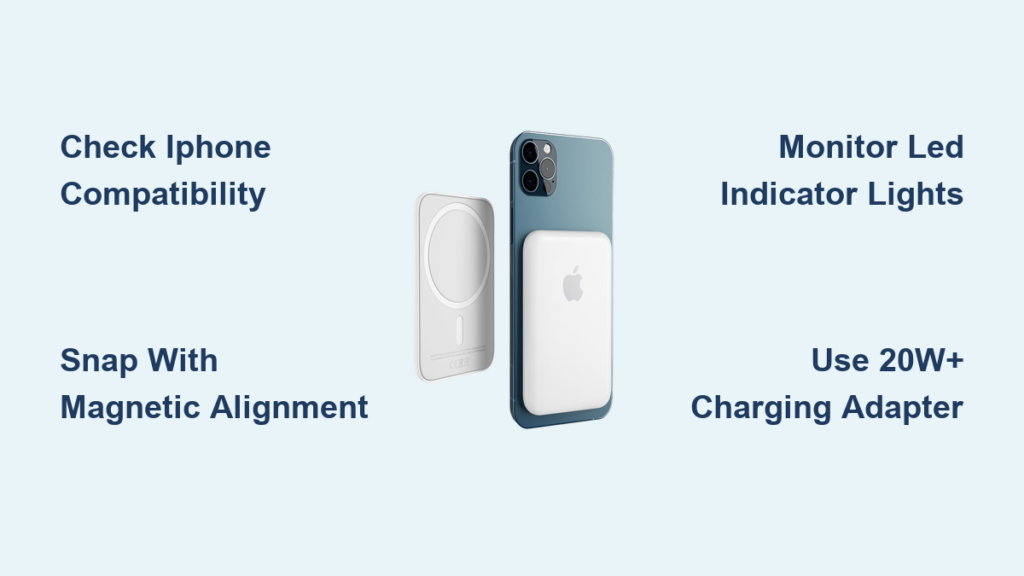
Your iPhone battery dipping below 20% while you’re out running errands triggers instant panic. That sinking feeling vanishes when you own Apple’s MagSafe Battery Pack – the sleek magnetic power solution designed exclusively for iPhone 12 and newer models. Learning how to use MagSafe Battery Pack transforms your charging anxiety into confidence, giving you hours of extra juice without cables or bulky adapters. Unlike traditional power banks, this intelligent accessory snaps onto your iPhone’s back with perfect alignment, starts charging instantly, and integrates seamlessly with your device’s battery system. By the end of this guide, you’ll know exactly how to attach it, monitor power levels, maximize charging efficiency, and extend its lifespan – no technical expertise required.
Confirm Your iPhone Compatibility Before Attaching MagSafe Battery Pack
Apple designed the MagSafe Battery Pack to work only with specific iPhone models, so verifying compatibility prevents wasted time and potential damage. Your device must be iPhone 12, 13, 14, or 15 series – older models like iPhone 11 or SE lack the required magnetic ring and charging circuitry. Check your iPhone’s back glass: if you see a circular MagSafe logo etched near the camera bump, your phone supports the battery pack. For certainty, navigate to Settings > General > About and look for “MagSafe” under “Model Name.” Never force attachment on incompatible devices, as the magnets won’t align properly and could scratch your phone.
What Happens If You Try MagSafe Battery Pack on Older iPhones
Attempting to use the MagSafe Battery Pack on iPhone 11 or earlier models creates three immediate issues. First, the magnets won’t engage correctly, causing the pack to slide off constantly. Second, charging won’t initiate even if it stays attached because the phone lacks the necessary charging protocol. Third, repeated misalignment attempts risk scratching your phone’s finish from metal-on-glass contact. If you own an older iPhone, consider Apple’s official leather wallet with MagSafe (which works for charging but provides no extra power) or a standard Qi wireless charger instead.
Snap MagSafe Battery Pack Onto iPhone with Perfect Magnetic Alignment
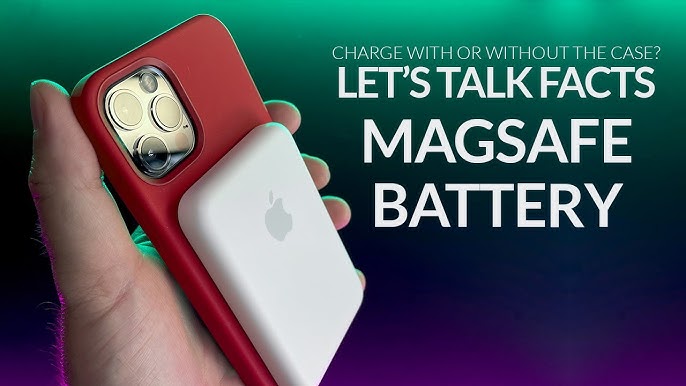
The magnetic attachment is the MagSafe Battery Pack’s genius feature, but proper alignment ensures optimal charging and prevents damage. Hold your iPhone upright in one hand, then bring the battery pack close to the back center – the magnets will pull it into position within 1-2 inches. Listen for the distinct click indicating secure connection, which occurs when the pack’s internal ring aligns with your iPhone’s MagSafe array. The battery pack should sit flush against the phone with no gaps or tilting. If it wobbles or attaches off-center, detach and retry; forcing a misaligned connection strains the magnets over time.
Troubleshooting Weak or Failed Magnetic Attachment
Weak magnetic connection usually stems from three common issues you can fix immediately. Foreign objects like phone cases thicker than 3mm or metal plates block magnetic alignment – remove bulky cases or credit card holders. Surface debris such as dust or lint in the MagSafe ring disrupts connection; wipe both surfaces with a microfiber cloth. Temperature extremes below 32°F (0°C) or above 113°F (45°C) temporarily weaken magnets; warm the pack in your hands if cold. If magnets still won’t engage after checking these, contact Apple Support as the internal ring may be damaged.
Decode MagSafe Battery Pack’s LED Charging Indicator Lights
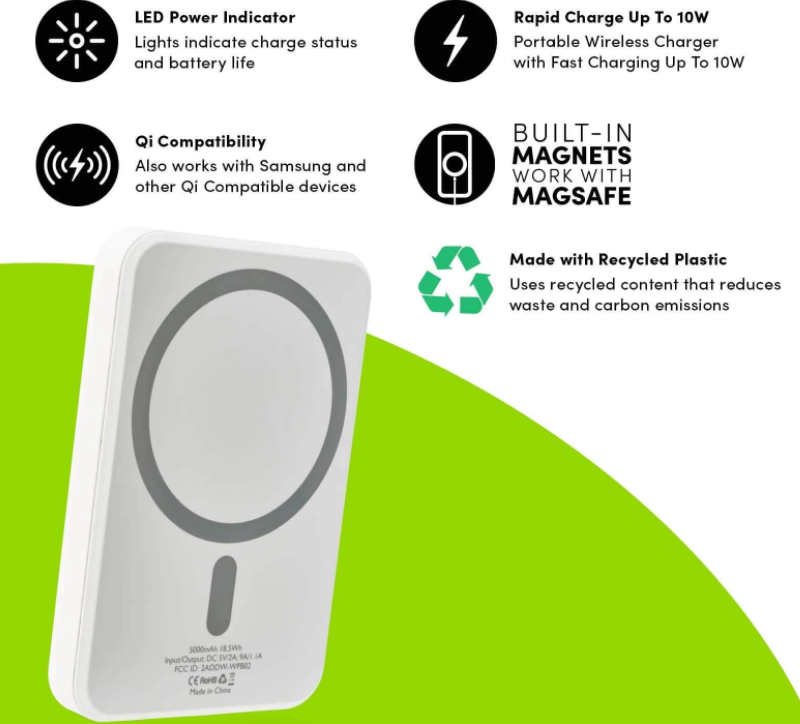
The single LED on the pack’s right edge provides instant charging status without unlocking your phone – a critical feature when you’re on the move. Solid white light means the pack has sufficient power and is actively charging your iPhone. Pulsing white light indicates the pack itself is recharging while attached to a power source. No light signals a depleted pack needing recharge, while amber light warns of overheating (immediately detach and let both devices cool). Never ignore an amber light – continued use risks permanent battery damage. For precise power levels, rely on your iPhone’s battery widget instead of LED guesses.
Why MagSafe Battery Pack LED Stays Amber During Charging
An amber LED during charging typically means the pack or iPhone exceeds safe operating temperatures (above 113°F/45°C). This occurs when charging in direct sunlight, inside a hot car, or while running processor-intensive apps like navigation. Immediately detach the pack and place both devices in a cool, shaded area for 15 minutes. Never use fans or AC to rapidly cool them – thermal shock damages lithium-ion batteries. Resume charging only when the LED turns white. Repeated overheating events permanently reduce the pack’s capacity, so avoid charging during gaming or video recording sessions.
Check MagSafe Battery Pack Power Level via iPhone Battery Widget
Monitoring remaining pack power prevents unexpected shutdowns during critical moments. Add the battery widget by long-pressing your iPhone home screen, tapping the “+” icon, selecting “Batteries,” and choosing either 4×2 or 4×4 size. Place this widget where you’ll see it daily – like your first home screen page. To activate the reading, simply attach the MagSafe Battery Pack to your iPhone’s back; the widget instantly displays both your phone’s and pack’s percentage levels. Without the pack attached, the widget shows only your iPhone’s battery. This method beats guessing based on LED colors for accurate power management.
Why MagSafe Battery Pack Shows 0% in Widget Until Attached
The battery widget requires physical MagSafe connection to detect pack power because it draws minimal power through the magnetic interface. When detached, the pack enters ultra-low-power mode to preserve charge, making its battery level invisible to your iPhone. This design prevents unnecessary battery drain during storage. Never attempt to check power levels by placing the pack near but not attached to your iPhone – the weak signal gives inaccurate readings. For reliable monitoring, always attach the pack fully before checking the widget.
Pair MagSafe Battery Pack with iPhone for Smart Charging Optimization
Pairing unlocks the pack’s intelligent charging features that extend overall battery health. When you first attach the pack, a prompt appears on your iPhone asking “Connect to MagSafe Battery Pack?” Tap Connect to enable optimized charging algorithms. This pairing allows your iPhone to: Regulate power flow to prevent overcharging cycles, Learn your usage patterns to top up only when needed, and Display precise pack capacity in the battery widget. Unpaired packs default to standard charging mode, which can accelerate battery wear over time. Re-pairing takes seconds if you reset your iPhone or enable battery health management.
Fix “MagSafe Battery Pack Not Connecting” Error Messages
If pairing fails, three fixes resolve 95% of connection issues. Restart Bluetooth by swiping down Control Center, holding the top-left corner, and toggling Bluetooth off/on. Reset network settings via Settings > General > Transfer or Reset iPhone > Reset Network Settings (this won’t delete personal data). Update iOS to the latest version – outdated software often causes pairing bugs. If problems persist after these steps, place both devices within 6 inches without physical attachment for 30 seconds to re-establish the Bluetooth handshake before retrying pairing.
Charge iPhone and MagSafe Battery Pack Simultaneously with 20W+ Adapter
The pack’s dual charging capability lets you power both devices at once during downtime. Use Apple’s 20W USB-C power adapter (or any USB-C PD charger rated 20W+) with the included USB-C to MagSafe cable. Plug the cable into the pack’s port while it’s attached to your iPhone – you’ll see both devices charging simultaneously on the battery widget. This method fully recharges a depleted pack in 2.5 hours while topping up your iPhone. Avoid lower-wattage adapters (like 5W iPhone chargers), as they provide insufficient power for dual charging and trigger slow-charge warnings.
Why Simultaneous Charging Fails with Underpowered Adapters
Using adapters below 20W creates a power deficit where the pack draws more energy than the adapter supplies. Your iPhone may show “Charging Slowly” or “Accessory Unsupported” alerts, while the pack’s LED pulses amber instead of white. This strains both batteries and generates excess heat. Test your adapter: if the pack feels warm during simultaneous charging, immediately switch to a 20W+ model. Third-party adapters must be MFi-certified; non-certified units often deliver unstable power that damages the pack’s circuitry.
Preserve MagSafe Battery Pack Longevity by Avoiding Full Charge Cycles
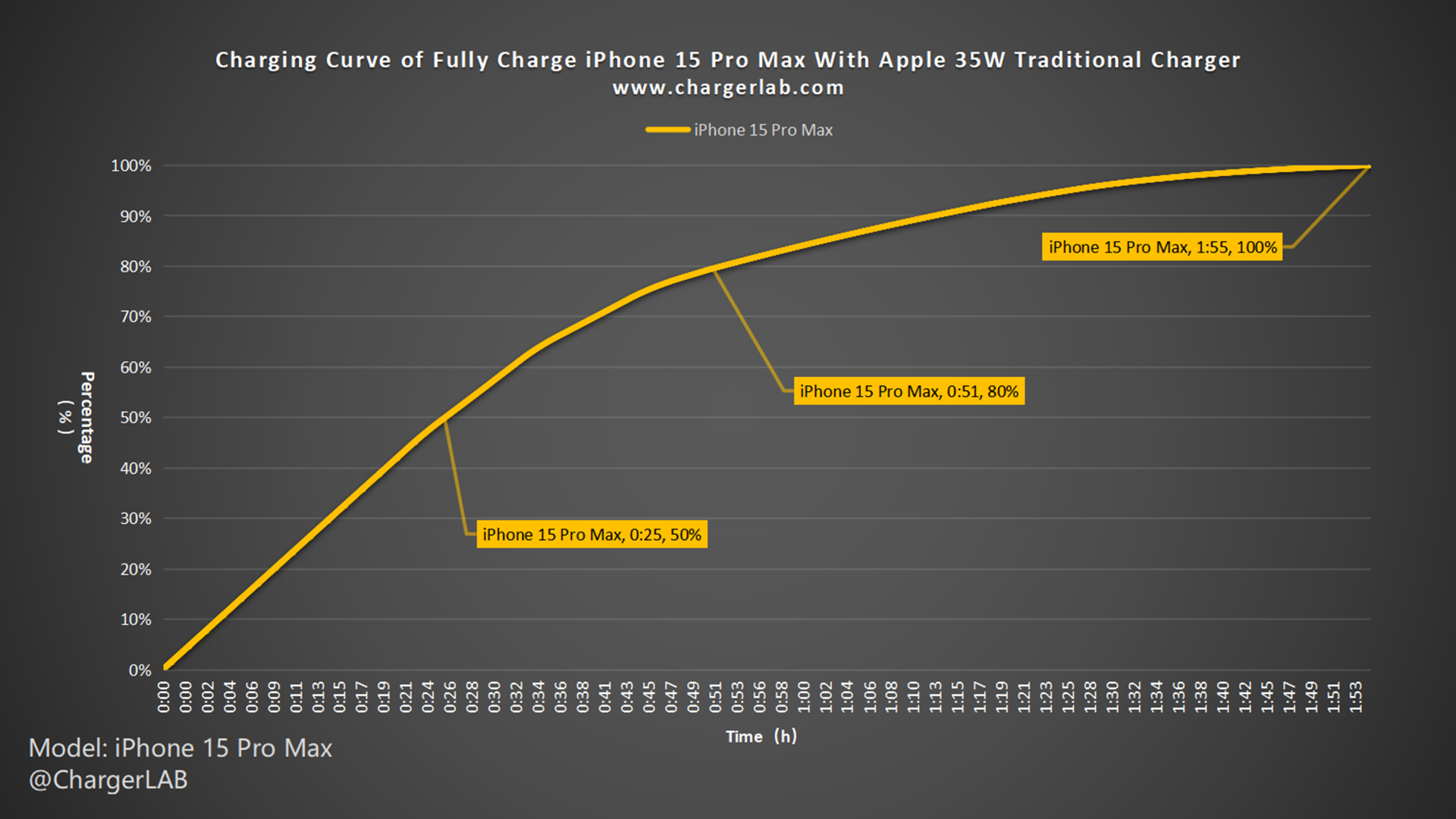
Maximizing your pack’s 500+ full charge cycles requires strategic detachment habits. Never leave it attached overnight or during extended desk work once both devices reach 80-90% charge. Lithium-ion batteries degrade fastest when held at 100% capacity for hours – a common mistake that can reduce pack capacity by 20% within 6 months. Instead, detach the pack when your iPhone hits 85%, then recharge the pack separately to 80% for storage. This “partial cycle” approach maintains 80%+ capacity for 2+ years. Set iPhone battery notifications at 85% as a detachment reminder.
Correct Storage Protocol for Idle MagSafe Battery Packs
Storing a fully charged pack accelerates chemical aging, while deep discharge damages cells. For short-term storage (under 3 months), recharge to 50% before disconnecting. For long-term storage, maintain 40-60% charge and store in a cool, dry place away from direct sunlight – never in cars or near radiators. Check stored packs every 3 months; if below 20%, recharge to 50% immediately. Never store packs in metal containers where accidental short-circuiting could occur. Proper storage prevents the “dead battery” scenario where packs won’t recharge after months of neglect.
Clean MagSafe Battery Pack Safely with Dry Microfiber Cloth Only
Dirt and grime on charging surfaces cause connection failures and overheating. Power off your iPhone and detach the pack before cleaning. Gently wipe the pack’s magnetic surface and iPhone’s back with a soft, dry microfiber cloth – the same type used for eyeglasses. Never use liquids, sprays, compressed air, or abrasive materials, as moisture seeps into ports and abrasives scratch the oleophobic coating. For stubborn residue, lightly dampen one corner of the cloth with distilled water, then immediately dry with a second dry section. Clean both surfaces monthly to maintain optimal magnetic strength and charging efficiency.
Final Note: Mastering how to use MagSafe Battery Pack transforms it from a simple accessory into your most reliable power companion. By attaching it with perfect magnetic alignment, monitoring power through the battery widget, and detaching before full charges, you’ll extend its lifespan while keeping your iPhone powered through daily adventures. Remember to always use a 20W+ adapter for simultaneous charging and store the pack at 50% capacity in cool conditions. For continued reliability, clean both surfaces monthly and avoid extreme temperatures during use. Your MagSafe Battery Pack isn’t just a charger – it’s a smart power extension designed to work seamlessly with your iPhone’s ecosystem when used correctly.





