
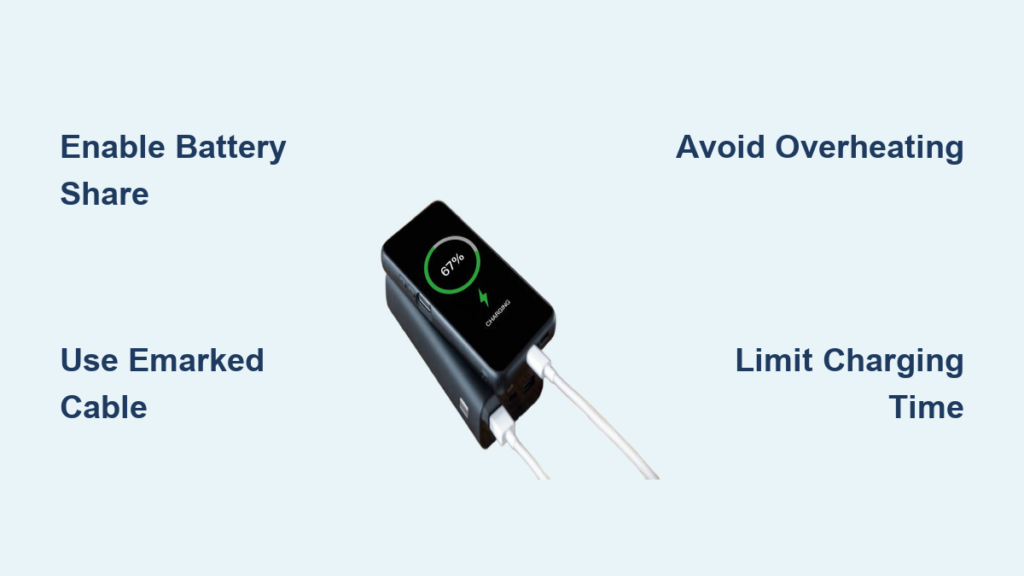
Your phone’s battery hits 15% just as your friend’s device dies during a critical Uber ride. Or your wireless earbuds conk out halfway through a flight with no outlets in sight. Before you panic, check your own device: modern smartphones can act as a phone power bank through reverse charging—a built-in lifeline that transfers your battery to other gadgets. This isn’t magic; it’s tech you already own. With the right setup, your phone can rescue dying earbuds, smartwatches, or even another phone in emergencies. Skip the panic and wasted money on cheap power banks. This guide reveals exactly how to activate reverse charging on your device, avoid common pitfalls, and extend your phone’s battery life while using this feature. You’ll learn brand-specific steps, cable requirements, and why your phone won’t charge another device to 100% (managing expectations saves frustration).
Why Your Phone Can’t Fully Charge Another Phone (Critical Reality Check)

Reverse charging isn’t a full power bank replacement—it’s an emergency triage tool. Understanding its limits prevents wasted effort and battery drain. When your phone shares power, only 60-70% of its battery transfers to the target device. The rest converts to heat due to inefficient DC-to-5V conversion. For example: giving 20% to a friend’s phone actually drains 30% from yours. Output power caps at 2.5W-10W—barely enough for slow top-ups. Wireless reverse charging (placing devices back-to-back) is even less efficient than cable connections, losing more energy as heat. Crucially, your phone cannot charge while reverse charging. It solely drains its own battery. Heat buildup triggers automatic shutdowns if temperatures exceed safe levels, common during summer or in direct sunlight. Reserve this for emergencies: jump-starting a dead smartwatch, adding 15 minutes to earbuds, or preventing a friend’s phone from dying during an urgent call. Never rely on it for full phone recharges—it degrades your battery faster than normal use.
How Much Battery Drain Should You Expect?
- Wireless earbuds case (AirPods/ Galaxy Buds): 5-10% phone battery for a 30-50% case boost
- Smartwatch (Apple Watch/ Galaxy Watch): 15-25% phone battery for a 20-40% watch charge
- Another smartphone: 40-60% phone battery for a 15-25% boost (not full recharge!)
- Tablets/laptops: Not possible—output wattage is too low
When to Avoid Reverse Charging Altogether
- Your phone’s battery is below 50% (risk of both devices dying)
- Ambient temperature exceeds 86°F (30°C)—heat accelerates battery damage
- You need sustained power (e.g., long flights)—use a dedicated power bank instead
- Your phone feels warm during normal use—adding reverse charging risks thermal shutdown
Activate Reverse Charging: Brand-Specific Walkthroughs
Finding the power share toggle varies wildly by manufacturer. Generic settings menus hide this feature, causing unnecessary frustration. Follow these exact paths for your brand—no more guessing.
Samsung Galaxy (S10 and Newer, Note Series, Fold Models)
- Swipe down twice for Quick Settings > Tap the Battery Share icon (if visible)
- If missing: Go to Settings > Battery and Device Care > Battery > More Battery Settings
- Toggle ON Wireless PowerShare
- Critical step: Confirm the pop-up warning “Charging other devices will drain your battery faster” by tapping OK
- For cable charging: Use a USB-C to USB-C cable connected to the target device. No toggle needed—the charge starts automatically.
Pro Tip: Place wireless earbuds cases dead center on the phone’s back. Samsung models show an alignment guide on-screen when PowerShare activates. Misalignment causes 50% slower charging.
Google Pixel (Pixel 4a and Newer)
- Open Settings > Battery
- Tap “Battery Share” (listed below battery percentage)
- Toggle ON and confirm “Share your battery with other devices”
- Place device on back for wireless charging OR connect via USB-C cable
- Watch for the blue pulse animation on your screen—this confirms active charging.
Warning: Pixel’s feature disables below 30% battery. If the toggle greys out, your battery is too low. Never force it—this strains aging batteries.
iPhone (Limited to MagSafe Accessories Only)
Forget universal reverse charging—Apple restricts this heavily:
– MagSafe Battery Pack: Attach magnetically. iPhone automatically shares power with the pack, which then charges other devices.
– Wireless earbuds/smartwatches: Only works with MagSafe Charger (2020+ models). Place iPhone on the charger, then put AirPods case on iPhone’s back.
– No cable reverse charging: iPhones lack USB-C reverse power delivery. You cannot connect another phone via cable.
Critical Reality: iPhone reverse charging is 5W max—slower than Android. It takes 30+ minutes to add 15% to AirPods. Don’t expect phone-to-phone rescue.
The Right Cable That Actually Works (Stop Wasting Time)
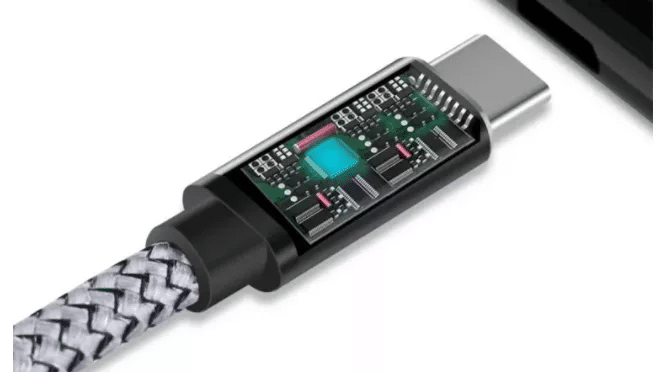
70% of “reverse charging failures” stem from bad cables. Your old frayed USB-C cable likely won’t work—not due to damage, but missing data pins required for the power handshake. Here’s what to use:
| Cable Type | Works for Reverse Charging? | Why? | Recommendation |
|---|---|---|---|
| USB-C to USB-C (eMarked) | ✅ Yes | Supports 3A+ data/power handshake | Anker PowerLine III (60W+) |
| USB-C to USB-C (Cheap) | ❌ No | Missing eMarker chip; max 1.5A | Avoid dollar-store cables |
| USB-C to Lightning | ❌ No | Apple blocks reverse power flow | Won’t work even with adapters |
| Wireless (Qi) | ✅ Yes (if supported) | No cable needed; coil alignment critical | Use phone’s back center |
Cable Troubleshooting Checklist
- Test with a wall charger first: If the cable charges your phone slowly, it’s inadequate for reverse charging.
- Check for “eMarked” labeling: Essential for 3A+ power delivery.
- Try connecting devices before enabling Power Share: Some Samsung models require physical connection first.
- Flip the cable: USB-C orientation matters—try both directions.
Prevent Battery Damage: 4 Non-Negotiable Rules

Using your phone as a power bank will shorten its battery lifespan if done incorrectly. Lithium-ion batteries hate heat and deep discharges. Follow these rules to avoid permanent damage:
- Never drop below 20%: Stop sharing power when your battery hits 30%. Draining below 20% causes cumulative capacity loss.
- Remove phone cases during use: Cases trap heat. A bare phone runs 10-15°F cooler, preventing thermal throttling.
- Limit sessions to 15 minutes: Set a timer. Longer sessions exponentially increase heat and battery stress.
- Never use while gaming/video streaming: Background processes + reverse charging = dangerous overheating. Put your phone in Airplane Mode.
Expert Note: If your phone feels warm to the touch (not hot), stop immediately. Heat above 104°F (40°C) degrades battery chemistry 2x faster. Cool it down in shade for 10 minutes before resuming.
Fix These 3 Common Failures in 60 Seconds
When reverse charging fails, skip random Googling—apply these targeted fixes:
“My Phone Won’t Share Power at All”
- Immediate fix: Disable Battery Saver Mode. It blocks reverse charging on Samsung/Pixel.
- Nuclear option: Dial
*#*#4636#*#*> Phone Information > Scroll to Battery Share > Toggle OFF/ON. Resets the feature. - Last resort: Boot into Safe Mode (hold power button > long-press “Power off” > “Safe Mode”). Third-party apps often block the feature.
“Charging Stops After 2 Minutes”
- Wireless? Recenter the device. Even 0.5-inch misalignment breaks the connection.
- Cable? Unplug both ends, wait 10 seconds, then reconnect while Power Share is active.
- Heat alert? Place phones on a marble countertop—it dissipates heat 3x faster than wood/plastic.
“It’s Charging, But Painfully Slow”
- Check target device: If it shows “Charging Paused,” its battery is too cold (<32°F/0°C) or too full (>80%).
- Force fast charging: On Samsung, enable Adaptive Fast Charging in Settings > Battery before sharing.
- Kill background apps: Use Settings > Apps > Running Services to close memory hogs like Facebook or Spotify.
Final Power Bank Protocol: When to Use vs. When to Walk Away
Reverse charging shines only in narrow scenarios. Use it when:
– A friend’s phone dies at 1% during an emergency call (give 10% for call access)
– Wireless earbuds die mid-flight with no outlets (15 minutes = 30% boost)
– Your smartwatch battery hits critical level during a hike (20% phone battery = usable watch)
Never use it when:
– You’re below 50% battery (you’ll strand yourself)
– Ambient temperature is above 86°F (30°C)
– Charging another phone beyond a 20% boost
– Your phone is already warm from navigation/gaming
Preserve your phone’s battery health: After reverse charging, let your device cool to room temperature before recharging. Never plug it in while hot—this causes irreversible capacity loss. For regular off-grid power needs, invest in a $20 Anker power bank (holds 3x your phone’s capacity with 90%+ efficiency). But keep reverse charging in your mental toolkit—it’s saved countless travelers when nothing else was available. That dead phone in your friend’s hand? Your pocket just became the hero. Now you know exactly how to activate it without frying your battery.





