
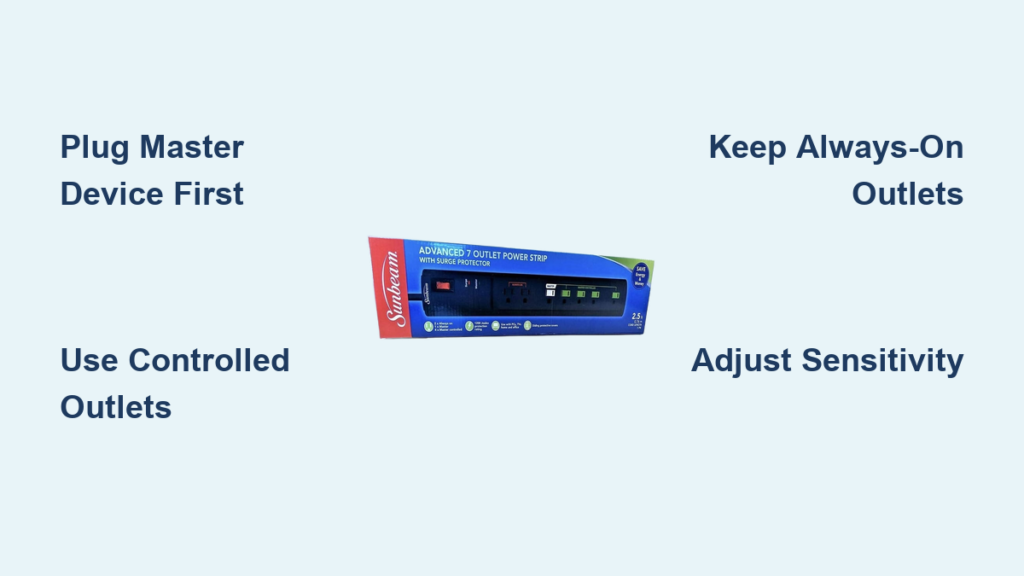
If your entertainment center stays powered all night, draining electricity even when you’re not using it, the Sunbeam power strip can help. This smart surge protector automatically cuts power to connected devices when your main device turns off, eliminating phantom energy waste. Designed with seven outlets, including four controlled, one master, and two always-on, it synchronizes your electronics for maximum convenience and efficiency. In this guide, you will learn exactly how to set up, configure, and troubleshoot your Sunbeam power strip for optimal performance.
Plug in the Master Device First
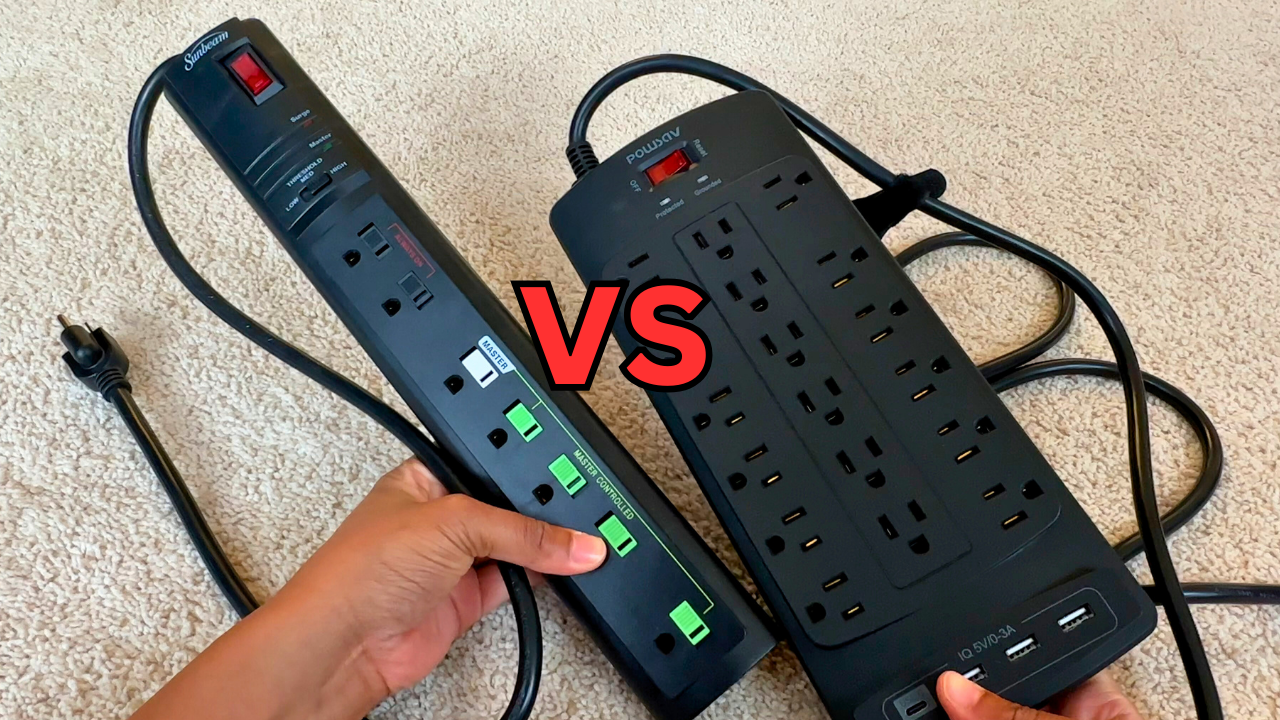
The Sunbeam power strip relies on a primary device to trigger power to the rest of the system. This device must be plugged into the master outlet to activate the smart function.
Choose the Right Master Device
Best choices for your master device include:
• Television (especially 32 inches or larger)
• Desktop computer
• Stereo receiver
• Gaming console
Avoid using:
• Low-power devices like streaming sticks without external power
• Devices that enter standby instead of fully powering down
A TV is ideal because it powers on and off completely and draws enough current to reliably activate the system.
Insert into the Correct Outlet
Only the first outlet in the top row acts as the master. Plugging your trigger device into any other outlet disables the smart function entirely. Look for the label “Master Control #1” to ensure correct placement.
Connect Secondary Devices to Controlled Outlets
Once the master device is plugged in, connect secondary electronics to the four controlled outlets. These will turn on and off automatically based on the master device status.
Assign Devices to the Four Green Outlets
Suitable devices for controlled outlets include:
• Soundbar or AV receiver
• Streaming boxes like Apple TV, Roku, or Fire Stick
• Game consoles
• DVD or Blu-ray players
• Powered speakers or subwoofers
When you turn off the TV, all accessories lose power within 60 seconds, eliminating vampire energy drain.
Watch for the Green Indicator Light
A green LED lights up when the controlled outlets are active. When the master device turns off, the light stays on for up to 60 seconds before shutting off. This delay prevents accidental power cuts during brief pauses like input switching.
Reserve Always-On Outlets for Critical Devices
The two outlets in the lower section provide continuous power, unaffected by the master system.
Use Lower Outlets for 24/7 Devices
Use always-on outlets for devices that must stay powered:
• Wi-Fi router
• Cable modem
• Smart home hub like Google Nest or Amazon Echo
• Security camera DVR
• VoIP phone
Your internet stays live while your entertainment system powers down completely.
Avoid Overloading the Strip
Total load must not exceed 15 amps or roughly 1800 watts at 120V. Distribute high-draw devices carefully and never daisy-chain power strips or plug in space heaters.
Adjust Sensitivity for Reliable Activation
The Sunbeam strip includes an adjustable sensitivity dial with three settings: Low, Medium, and High. This controls how much power the master device must draw to activate the controlled outlets.
Set the Threshold Switch Correctly
Recommended settings by device type:
• Small TV under 32 inches or low-power audio: Low
• Mid-size TV 32 to 65 inches: Medium
• Large TV over 65 inches or high-draw system: High
Start on Low to avoid false triggers, then increase only if needed.
Fix Activation Failures
If the green light does not turn on, try these fixes:
• Confirm the master device is in the correct outlet
• Increase the sensitivity setting
• Ensure the device fully powers on and not just standby
• Test with a different master device if necessary
A small monitor may not draw enough power on High sensitivity. Switch to Low for better response.
Mount and Organize for Clean Setup
The strip has pre-drilled holes for flush wall mounting, ideal for behind TVs, desks, or cabinets.
Wall-Mount for Hidden Installation
Steps for mounting:
1. Position the strip near a power outlet and vertical surface
2. Use screws (not included) to secure through mounting holes
3. Route cords neatly using the built-in strain relief
This reduces clutter and protects from accidental unplugs.
Prevent Outlet Blocking
The master outlet is extra-wide, designed to fit bulky power adapters without blocking neighboring sockets. You can plug in a large AC brick and still use adjacent outlets.
Use Manual Controls When Needed
A side-mounted switch turns the entire strip on or off. A red LED indicates when the unit is receiving power.
Toggle Power with the Master Switch
Use the manual switch to:
• Manually cut all power during vacations
• Reset the system after outages
• Troubleshoot unresponsive outlets
Flip the switch off and on to reset the smart system if controlled outlets fail to activate.
Optimize for Energy Savings
Many devices consume 5 to 30 watts in standby. A soundbar may draw 15W when idle, while a game console on standby uses 10 to 20W.
Eliminate Phantom Loads Automatically
By placing these on controlled outlets, power is cut completely when the master device shuts off. One user cut 30W of idle load, saving roughly 22 kWh per month.
Sync Your Entire Entertainment System
Ideal home theater setup includes the TV as master, soundbar and streaming devices on controlled outlets, and router on always-on outlets. One remote turns everything on and off with no extra steps.
Troubleshoot Common Issues
Controlled Outlets Will Not Turn On
Cause: Master device draws too little power. Fix by increasing sensitivity, ensuring the device fully powers on, or trying a different master device.
Green Light Stays On Too Long
This is normal behavior. The 60-second delay prevents short interruptions from cutting power. Wait for full shutdown.
Strip Does Not Power On at All
Fix by flipping the master switch off and on, testing the wall outlet with another device, and checking the circuit breaker. If the red light does not come on, the unit may be damaged.
Apply Pro Tips for Best Results
Always Start with Low Sensitivity
Even with large TVs, begin on Low. Increase only if the green light fails to activate. This prevents false triggering from minor power surges.
Use for Office Workstations
Configure for productivity by using the desktop computer as master, with monitor, printer, speakers, and external drive on controlled outlets. Always-on outlets handle router and phone charger.
Buy During Utility Promotions
Sunbeam strips often sell at steep discounts through utility programs. Some customers have found them for under $2 during promotions.
Reset After Power Outages
After a blackout, turn off all connected devices, flip the master switch off and on, then reboot the master device. This ensures the smart system re-engages properly.
Understand Technical Specifications
The Sunbeam power strip features seven grounded, surge-protected outlets. Two are always-on in the lower section. The upper section contains one master outlet and four controlled outlets. It has a 15-amp rating, adjustable sensitivity settings, and up to 60-second delay after the master turns off. Indicator lights show red for power and green for controlled outlets active. The unit includes sliding outlet covers, overload protection, and wall-mounting capability.
Frequently Asked Questions About Sunbeam Power Strip
How do I set up the Sunbeam power strip for the first time?
Plug your primary device like a TV into the first outlet labeled “Master Control #1.” Then connect secondary devices to the four controlled outlets. Adjust the sensitivity dial based on your master device size.
What happens if I plug the master device into the wrong outlet?
Only the first upper outlet activates the smart control system. Plugging into any other outlet disables the automatic on and off functionality.
Can I use the Sunbeam power strip for my computer setup?
Yes. Use the desktop computer as the master, connect monitor and peripherals to controlled outlets, and keep the router on always-on outlets.
How do I know if the controlled outlets are active?
Look for the green LED indicator light. It illuminates when controlled outlets are powered and turns off up to 60 seconds after the master device shuts down.
What devices should go on always-on outlets?
Use always-on outlets for devices that must stay powered continuously, such as Wi-Fi routers, modems, smart home hubs, and security camera systems.
Why do the controlled outlets stay on after I turn off my TV?
The 60-second delay is intentional. It prevents power cuts during brief interruptions like changing inputs or temporary blackouts. This is normal behavior, not a malfunction.
Key Takeaways for Using Your Sunbeam Power Strip
The Sunbeam power strip delivers automatic energy savings, cleaner control, and safer operation when set up correctly. By syncing your devices to a single master like your TV, you eliminate wasted phantom power, reduce clutter, and simplify your daily routine. Remember to always plug the master device into the first upper outlet, start with Low sensitivity, and reserve always-on outlets for devices that need continuous power. Whether in a home theater, office, or audio setup, this smart strip is a cost-effective upgrade for any multi-device environment.





