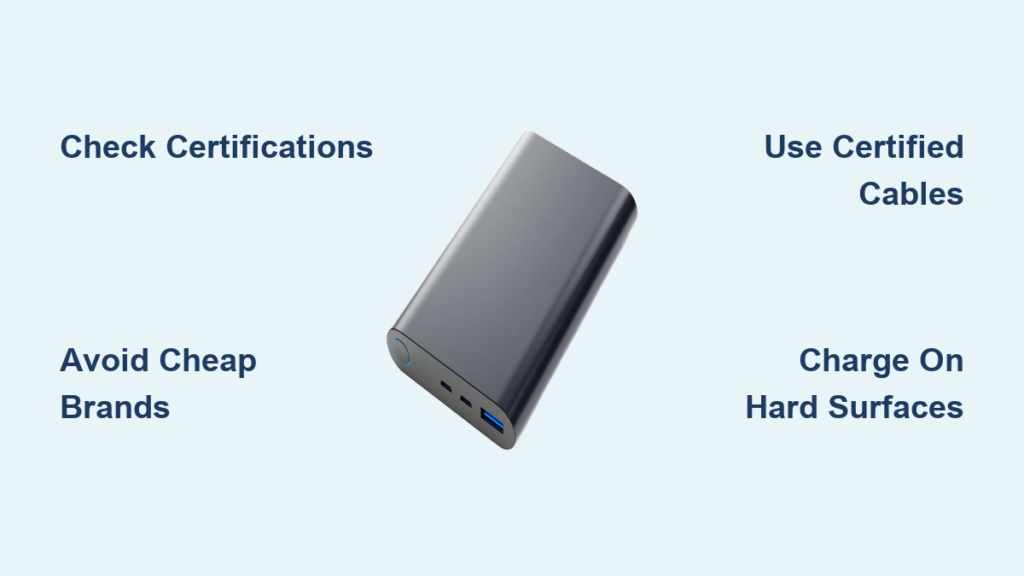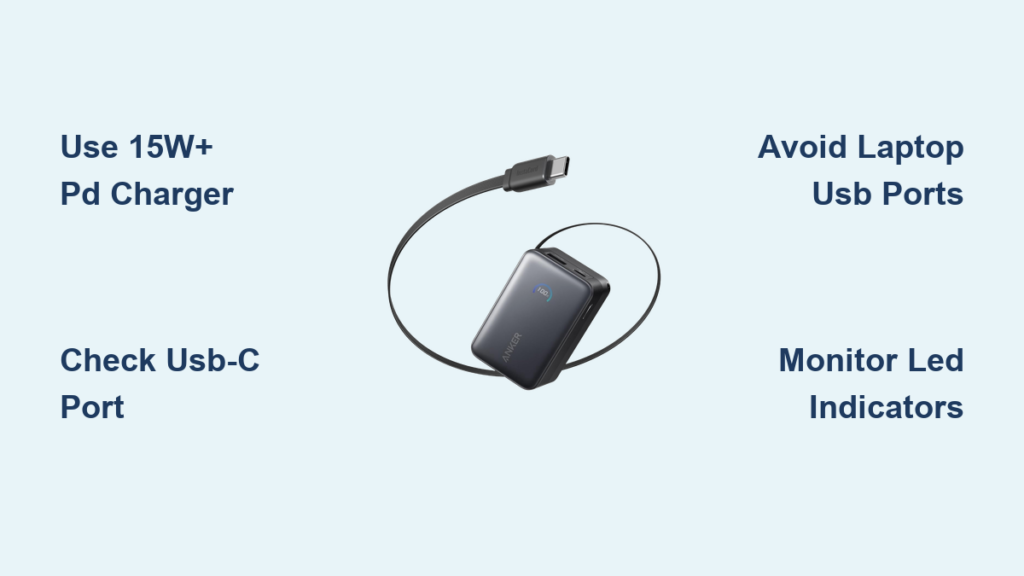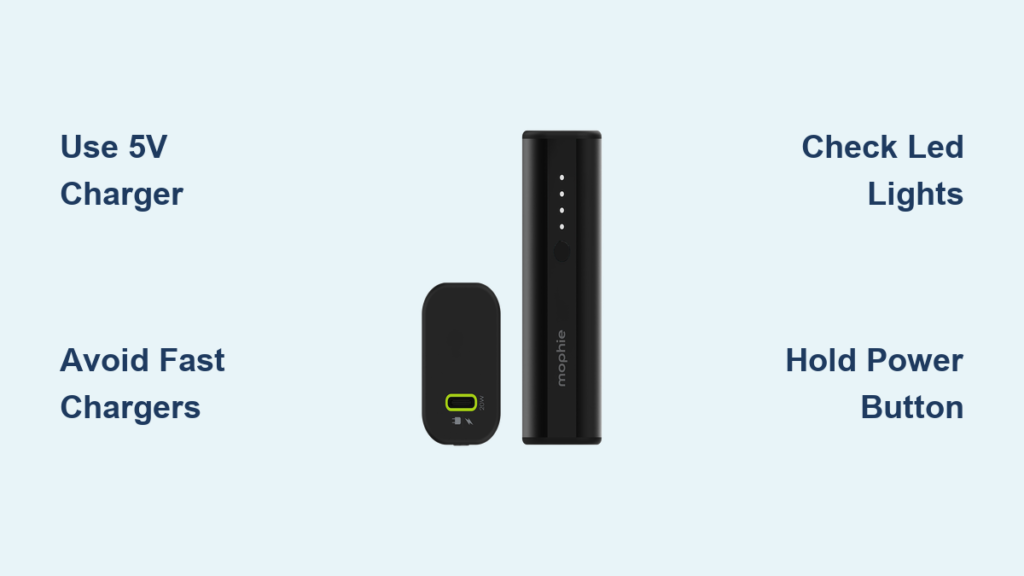
You’ve just finished a long day of travel, only to realize your phone is about to die and so is your Mophie portable charger. You plug it in, but nothing happens. No lights. No response. Panic sets in. You’re not alone. Many Mophie users face this exact issue: their portable charger won’t power on or charge, especially after being completely drained. This is the exact scenario this guide addresses, teaching you how to charge a mophie portable charger correctly.
The good news is you can almost always fix it, even if your Mophie appears completely dead. The key is understanding proper charging methods, which models have known issues, and what to do when standard fast chargers fail. This guide walks you through the correct charging procedure, troubleshooting steps for dead units, and best practices to keep your Mophie running reliably for years.
Locate Your Charging Port
Your first step is identifying the correct input port on your Mophie portable charger. Using the wrong cable is a common reason for failed charging, and this simple mistake happens more often than you might think.
Identify Input Type by Model
Mophie portable chargers use one of two input ports: Micro-USB or USB-C. Check your specific model to confirm which one you have. Older Powerstation models typically feature a Micro-USB port, while newer options like the Powerstation Pro, Pro XL, and Wireless Stand use USB-C. The Powerstation XL is an exception despite its high capacity, as it uses Micro-USB.
Use the Right Cable
Most Mophie units come with a charging cable in the box. Older models include a Micro-USB to USB-A cable, while newer models ship with a USB-C to USB-A cable. The wall adapter is not included, so you must provide your own power source. Even if your Mophie has a USB-C port, do not assume it supports fast charging out of the box, especially when the battery is fully drained.
Connect to a Power Source
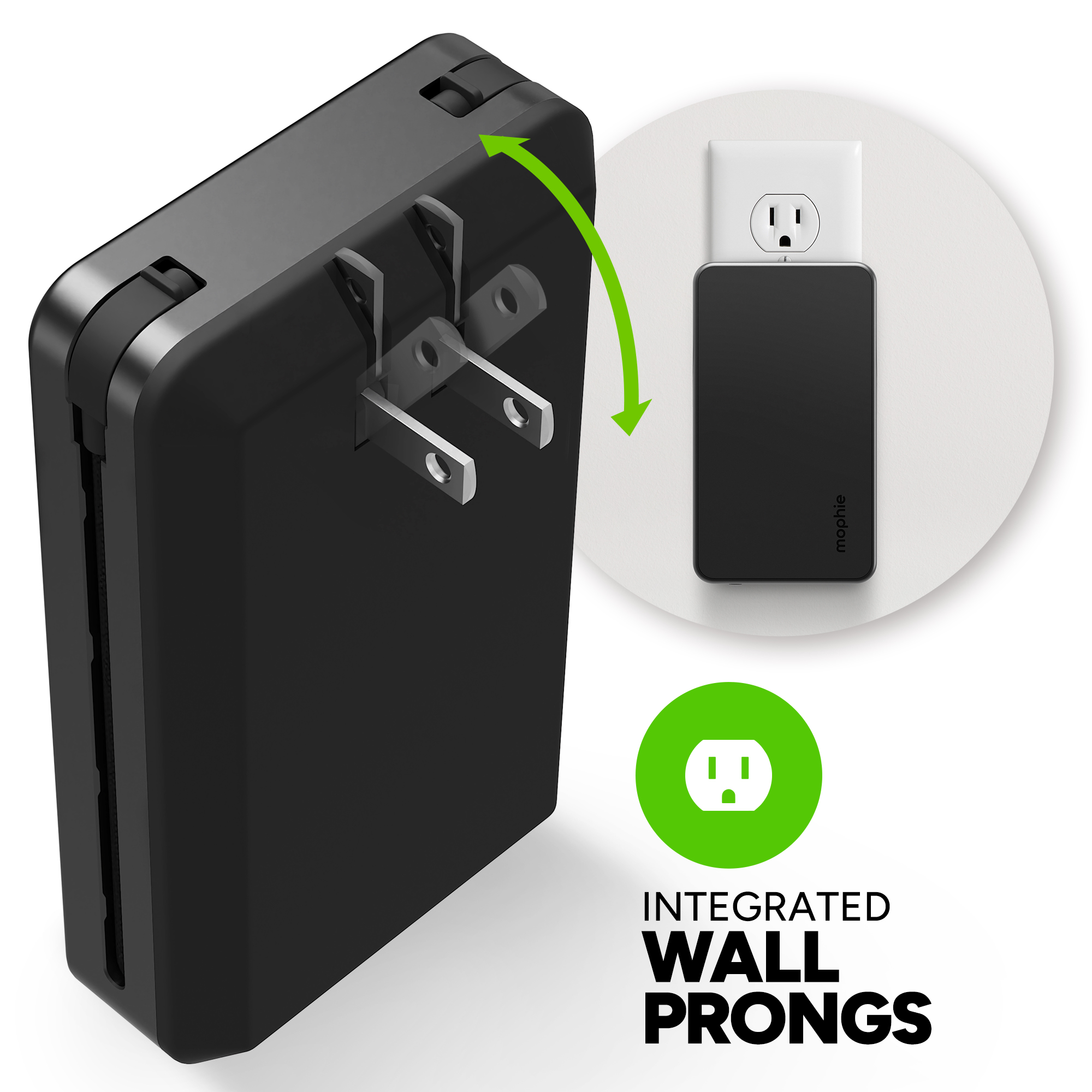
Now that you have identified the correct port and cable, it’s time to connect your Mophie to a power source. The type of charger you use matters significantly, particularly for dead batteries.
Choose the Correct Charger
Not all USB chargers work the same way, and using the wrong one can prevent your Mophie from charging entirely.
Recommended chargers for dead or low batteries include:
- Apple 5W USB-A charger (iPhone 5W adapter)
- Apple 12W iPad charger
- Laptop USB-A port
- USB-A to USB-C cable with 5V/1A charger
Avoid using these chargers on completely dead units:
- USB-C Power Delivery (PD) fast chargers such as 20W, 30W, or 45W
- GaN chargers unless paired with 5V mode
- Multi-port fast chargers that can trigger handshake failure
Fast chargers can actually prevent your Mophie from charging if the battery is completely dead. This is a critical point to remember when learning how to charge a mophie portable charger that has been fully depleted.
Plug In Correctly
Follow these steps to connect your Mophie properly. First, insert the correct end of the cable into the Mophie’s charging port. Second, connect the other end to a USB-A wall adapter, with 5V/1A recommended for dead units. Third, plug the adapter into a wall outlet. No button press is required since Mophie chargers begin charging automatically when connected to a power source.
Check LED Indicators
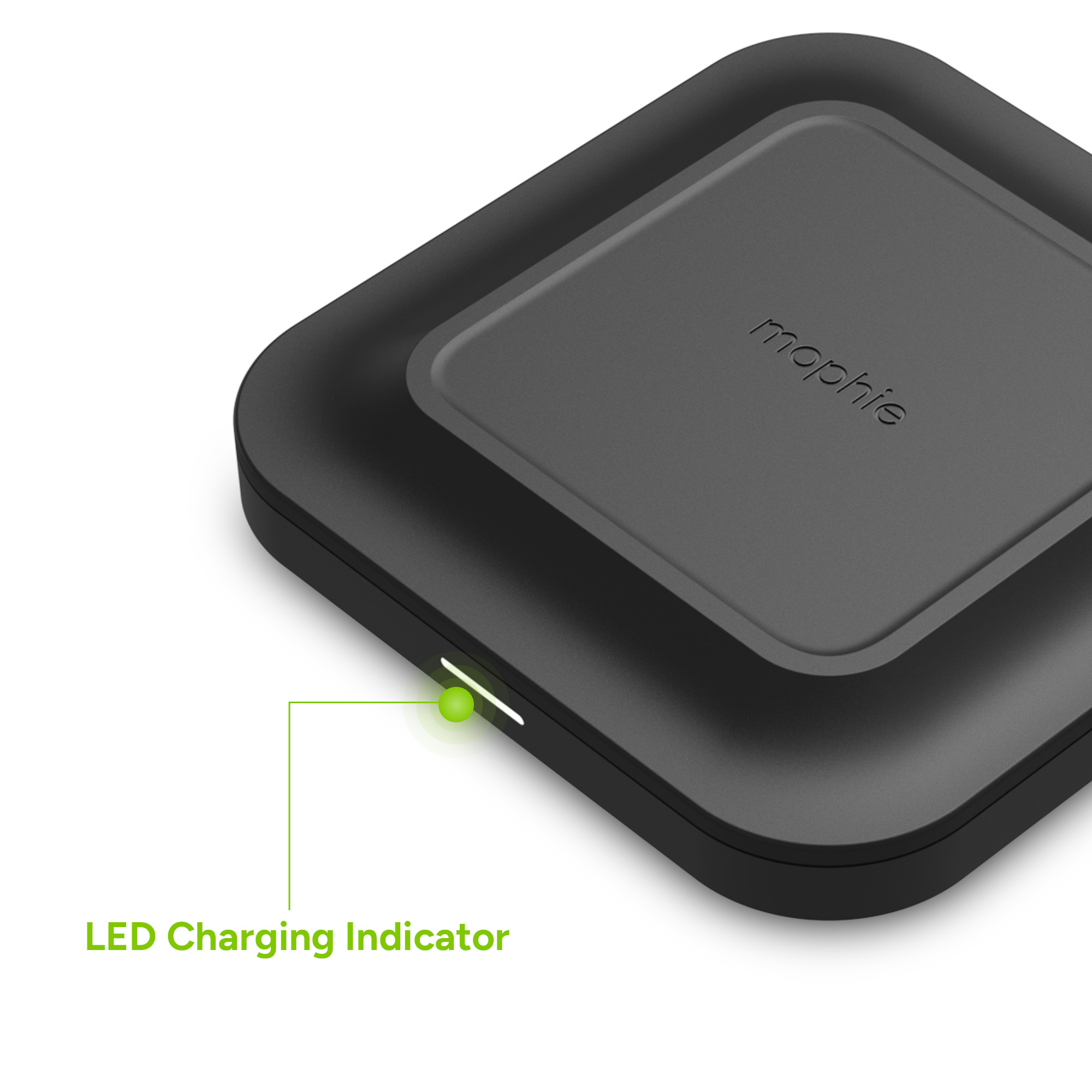
Mophie uses four LED lights to communicate battery level and charging status. Understanding what these lights mean helps you diagnose charging issues quickly.
Understand Light Patterns
Watch for these signals when charging your Mophie portable charger.
LED Display Meaning:
- All four LEDs lit solid: Fully charged (100%)
- Three LEDs lit: Approximately 75% battery
- Two LEDs lit: Approximately 50% battery
- One LED lit: Approximately 25% or less
- All LEDs blinking rapidly: Charging issue, likely due to low battery plus fast charger mismatch
- Single LED flashes then turns off: Battery too low to initiate charge handshake
Blinking Lights? Here is Why
If all four LEDs flash rapidly when plugged in, your Mophie is likely too drained to communicate with a fast charger. This is not a hardware failure but rather a known firmware limitation. The Mophie attempts to negotiate a high-voltage PD fast charge such as 9V or 20V, but with zero battery, it cannot sustain the handshake. It resets repeatedly, causing the blink loop. This issue affects Powerstation Pro, Pro XL, and other USB-C PD models most frequently.
Revive a Dead Mophie Charger
If your Mophie appears completely dead, you can still revive it. The solution involves bypassing fast charging entirely using a basic charger.
Use a 5V Dumb Charger
To bring a completely dead Mophie back to life, use a basic 5V/1A (5W) USB-A wall charger such as an old iPhone charger. Use a USB-A to USB-C cable even if your Mophie has a USB-C port. Plug in the Mophie and wait 10 to 60 seconds. Watch for LEDs to blink steadily, which means charging has started. After one to two minutes, unplug and switch to a faster charger if desired.
Why This Works
Standard 5V chargers do not require a complex handshake protocol. They deliver basic power immediately, allowing the Mophie’s circuitry to boot up and accept charge even from a zero state. Once the battery has even a small charge (1-5%), fast chargers will work normally. This method has been verified by multiple users who successfully revived dead Mophie units.
Reset the Internal Circuit
If your Mophie still does not respond after trying the 5V charger method, performing a manual reset may clear any stuck firmware state.
Force a Hard Reset
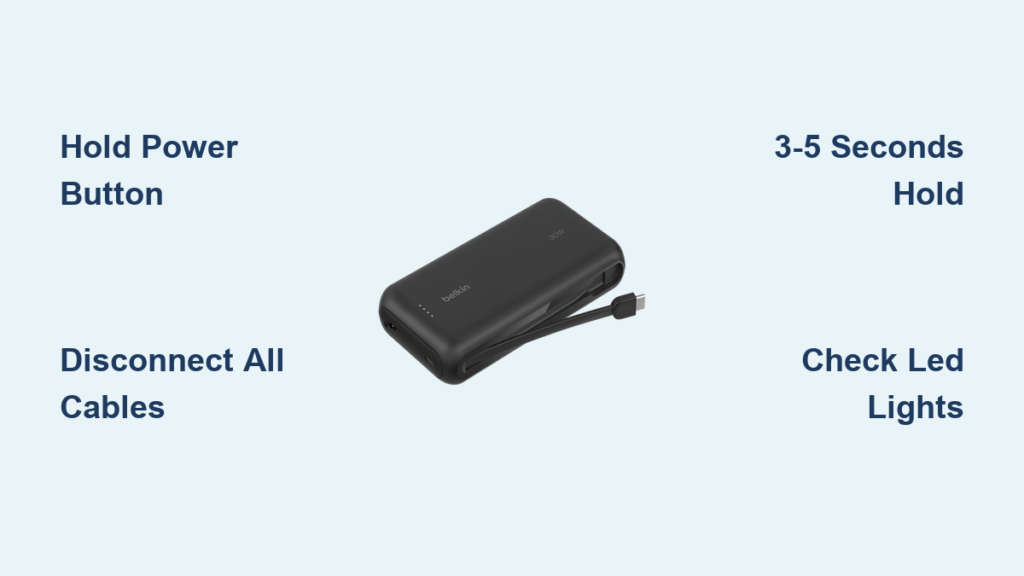
Disconnect all cables from your Mophie. Press and hold the power button for 15 to 30 seconds. Reconnect to a 5V charger. Watch for LED response. Some users report this fixes units that stop charging mid-cycle or fail to wake up from a deep discharge state.
Switch to Fast Charging Safely
Once your Mophie shows at least one solid LED, it is safe to use faster charging methods. This is an important step in understanding how to charge a mophie portable charger efficiently.
Use PD Chargers Only After Partial Charge
Fast charging options include Apple 20W USB-C charger, Anker Nano 30W GaN charger, or Samsung 25W USB-C adapter. These can reduce full recharge time from 9 hours to 4 to 5 hours depending on model. Never plug a fully drained Mophie directly into a fast charger. Always use the 5V method first to revive a dead battery before switching to PD charging.
Model-Specific Charging Tips

Different Mophie models have unique charging requirements and known issues. Understanding these differences helps you charge your specific model correctly.
Powerstation XL
The Powerstation XL uses a Micro-USB charging port and includes a Micro-USB to USB-A cable in the box. The wall adapter is not included. The best charger for this model is the Apple 12W iPad adapter. Charge time can take up to 9 hours. Despite its large capacity, this model charges slowly, so using a 12W adapter and charging overnight is recommended.
Powerstation Pro / Pro XL
These models feature a USB-C port and support USB-C PD input. They are prone to handshake failure when the battery is completely dead. The solution is always to revive with a 5V charger first before attempting fast charging. Frequent full discharges may lead to long-term charging instability with these models.
Powerstation Wireless Stand
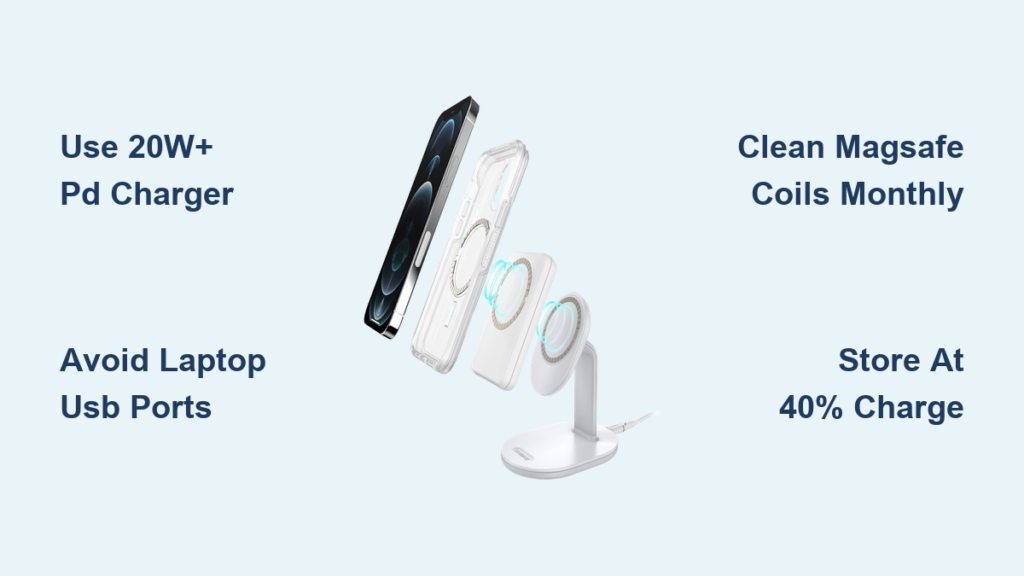
This model includes a USB-C port for wired charging and features a Qi-compatible wireless charging pad for phones. Common issues include slow phone charging, overheating, and blinking lights during use. To fix wireless charging issues, ensure your phone is centered on the pad. Remove thick cases that may interfere with charging. Avoid charging in hot environments. Restart the stand by holding the power button for 15 seconds.
Prevent Charging Problems
Taking preventive measures extends the life of your Mophie and reduces charging issues. These best practices are essential for anyone learning how to charge a mophie portable charger properly.
Avoid Full Discharge
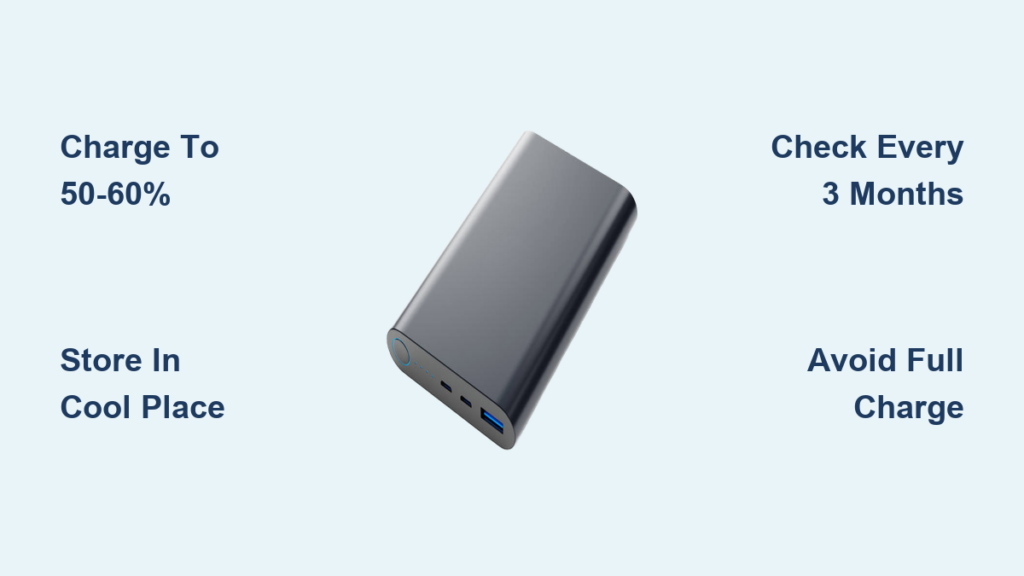
Lithium-ion batteries degrade faster when drained to 0%. To extend lifespan, recharge when only 1-2 LEDs remain. Never leave the Mophie at 0% for days. Store with approximately 50% charge if unused for weeks.
Use High-Quality Cables
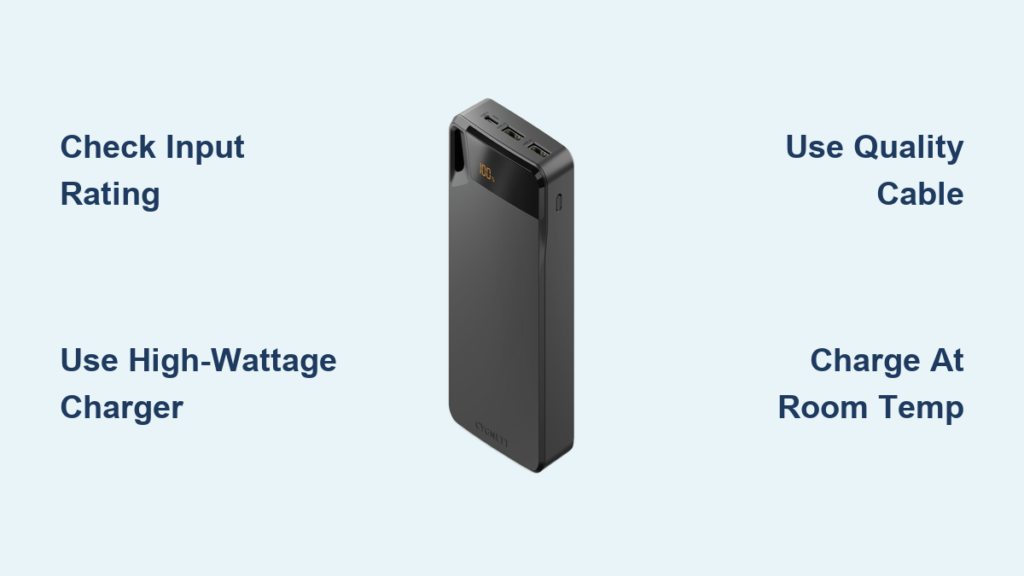
Stick to the original Mophie cable or use MFi-certified or USB-IF certified cables. Avoid frayed or bent cables, and choose reinforced connectors. Faulty cables cause intermittent charging and can damage the port.
Clean the Charging Port
Dust and lint can block the connection and prevent charging. Power off the device first. Use a dry toothbrush or compressed air to gently clean the port. Reconnect and test. Do not use liquids or metal objects as they can damage internal contacts.
Troubleshoot Persistent Issues
If your Mophie still refuses to charge after trying these methods, a systematic troubleshooting approach helps identify the problem.
Still Not Charging?
Try this checklist step by step. First, use a 5V/1A charger with a USB-A to USB-C cable. Second, hold the power button for 30 seconds. Third, try a different cable and outlet. Fourth, test with a laptop USB port. Fifth, contact the retailer for replacement if all else fails.
When to Replace Your Mophie
Seek a refund or replacement if the unit remains unresponsive after 5V revival attempts. Also replace if the battery swells or feels hot, which are signs of defect. If LEDs stay off even with multiple chargers or you see physical damage or corrosion, the unit likely needs replacing. Some users have obtained full refunds from Apple Store despite opening the product due to known charging defects.
Optimize Long-Term Performance
Proper charging habits and storage practices keep your Mophie working reliably for years. These tips help you get the most from your portable charger.
Charge Smart, Not Hard
For overnight charging, use a slow 5W charger. Keep your Mophie above 25% charge for daily reliability. Avoid charging in direct sunlight or hot cars. Do not rely on fast charging for daily top-ups. Avoid using the Mophie while it is charging, as this can slow input. Do not stack devices on wireless stands as this creates overheating risk.
Store Properly
If you will not use your Mophie for a month, charge it to approximately 50%. Power it off and store in a cool, dry place. This prevents deep discharge and battery stress that can permanently reduce capacity.
Frequently Asked Questions About Charging a Mophie Portable Charger
Why is my Mophie not charging when plugged in?
Your Mophie may not charge if the battery is completely drained and you are using a fast charger. The device cannot complete the charging handshake with a PD charger when at zero battery. Use a basic 5V/1A charger to revive it first.
Can I use a fast charger to charge my Mophie?
Yes, but only after your Mophie has gained some charge. Fast chargers work normally once the battery reaches at least 1-5% (one LED lit). Never connect a fully drained Mophie directly to a USB-C PD fast charger.
How long does it take to fully charge a Mophie portable charger?
Full charge times range from 4 to 9 hours depending on the model and charger used. The Powerstation XL can take up to 9 hours with a 12W adapter. Using a 20W fast charger reduces this to 4-5 hours for compatible models.
What do I do if all four LEDs are blinking?
Four rapidly blinking LEDs indicate your Mophie is too drained to communicate with the connected charger. This is a firmware issue, not hardware failure. Disconnect the fast charger and use a basic 5V/1A charger to revive the battery.
Why does my Mophie charge slowly on wireless stand?
Wireless charging is inherently slower than wired charging. Slow performance may be caused by misalignment on the pad, thick phone cases blocking Qi connection, or overheating. Ensure proper placement and remove thick cases.
How do I reset my Mophie portable charger?
Hold the power button for 15-30 seconds to force a hard reset. This clears stuck firmware and reinitializes the internal circuitry. After resetting, connect to a 5V charger to test if normal charging resumes.
Key Takeaways for Charging Your Mophie Portable Charger
Understanding how to charge a mophie portable charger properly prevents frustration and extends the device lifespan. The most important thing to remember is that completely dead Mophie units cannot charge via fast chargers due to a handshake failure. Always use a basic 5V/1A charger to revive a dead unit before switching to fast charging. Hold the power button for 15-30 seconds to reset frozen circuitry. Avoid complete discharge by recharging when 1-2 LEDs remain. Use original or certified cables for stable connections. If your Mophie remains unresponsive after trying these methods, contact the retailer for a replacement, as charging defects may qualify for returns. Treat your Mophie well by keeping it charged above 25% during storage, using quality cables, and avoiding aggressive fast charging on empty batteries.