
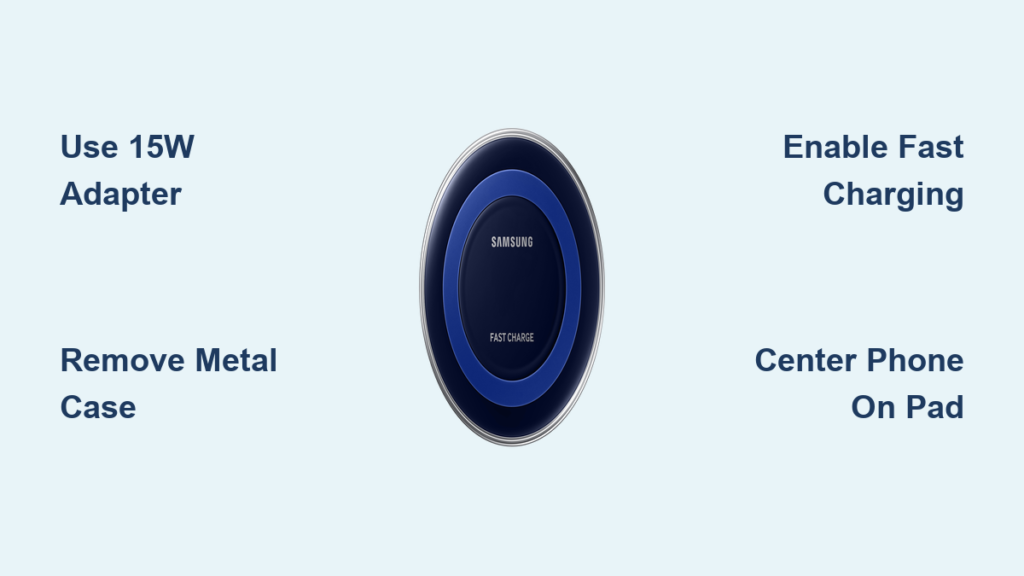
You’ve just set down your Galaxy phone, tired of fumbling with cables, and placed it on your new Samsung wireless charger, only to realize nothing’s happening. No charging icon, no sound, no sign of life. You’re not alone. Millions of users face confusion when setting up wireless charging for the first time. The good news is that Samsung wireless charging is simple once you know the right steps. This guide walks you through exactly how to use your Samsung wireless charger, avoid common mistakes, and get the fastest, safest charge possible.
Whether you own a Galaxy S23, Z Fold5, or A54, you’ll learn how to align your phone correctly, enable fast charging, troubleshoot issues, and extend the lifespan of your device and charger. Let’s get your phone charging wirelessly, right the first time.
Prepare Your Charging Setup
Before placing your phone on the pad, ensure your charging environment is ready. A poorly set-up station leads to failed or slow charging, even with genuine Samsung gear.
Plug in a Compatible Power Adapter
Use a Samsung 15W or higher USB-PD wall charger for best results. The wireless charger’s included USB-C to USB-A cable must connect to a wall outlet, not a laptop or low-power USB hub. Most Samsung fast wireless charging only activates with a 9V/1.67A (15W) power source. Using a 5W phone charger will limit you to slow 5W wireless charging, if it works at all.
Pro Tip: Look for chargers labeled “Adaptive Fast Charging” or “USB Power Delivery (PD).” These trigger Fast Wireless Charging 2.0 on supported models.
Position the Charger on a Hard Surface
Place your wireless charging pad on a stable, flat, non-soft surface like a desk, nightstand, or kitchen counter. Avoid beds, couches, or thick rugs. Soft materials can block ventilation, cause misalignment, or trigger overheating protection.
Keep the charger away from:
– Direct sunlight
– Heaters or vents
– Water or humid areas like bathrooms
This helps prevent thermal throttling, which slows or stops charging.
Remove Phone Obstructions
Even the best Samsung wireless charger cannot power through metal, thick cases, or foreign objects. Interference is one of the top reasons charging fails.
Take Off Metal or Magnetic Cases
Cases with metal plates, magnetic car mounts, or built-in wallets block the electromagnetic field. Remove these entirely. If you rely on a magnetic mount, switch to a thin, non-metallic case and use an air vent or dashboard mount that does not attach to the phone.
Never charge with credit cards, keys, or coins stuck to the back of your phone. These trigger Foreign Object Detection (FOD), and charging will stop automatically.
Avoid Thick Cases Over 3mm
Cases thicker than 3mm reduce charging efficiency or prevent it entirely. Use only cases labeled “wireless charging compatible.” If unsure, test charging with the case on and off. If it only works without the case, it is too thick or contains shielding material.
Align Phone for Charging
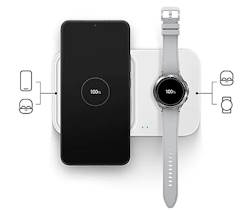
Proper alignment is critical. Samsung phones have a narrow charging zone, usually centered near the middle of the back panel.
Center the Phone on the Pad
Place your Galaxy phone screen-up, centered on the charging pad. The internal receiver coil must align with the transmitter coil in the charger. Most models emit a chime or show a charging animation when contact is made.
For flat pads: Center the phone directly over the logo or indicator light.
For stands: Slide the phone in until it clicks or sits flush at the correct angle.
If no sound or icon appears within 10 seconds, nudge the phone slightly, left, right, up, or down, to find the sweet spot.
Visual Cue: Look for a blue or white LED on the charger. A steady light means charging. A pulsing light may mean misalignment.
Enable Fast Wireless Charging
Want to charge faster? Standard wireless charging at 5W to 9W is slow, sometimes twice as long as wired. But if you have a supported model, you can double or triple your speed with Fast Wireless Charging.
Check If Your Phone Supports 15W Charging
Fast Wireless Charging 2.0 up to 15W is available on:
– Galaxy S10 and newer S series
– Note10 and newer Note models
– Galaxy Z Fold and Flip series
– Select Galaxy A and M series like A72 and M51
If your model supports it, follow these steps.
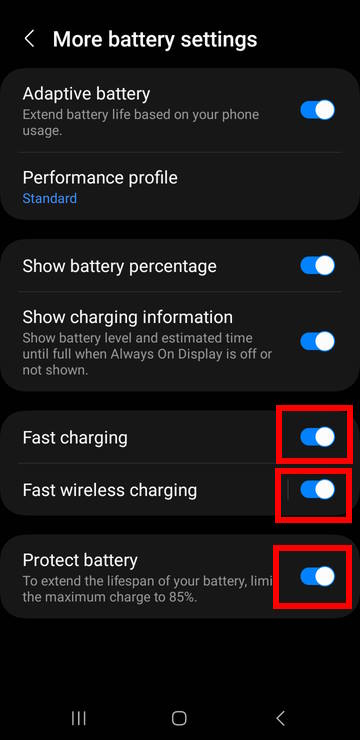
Turn On Fast Wireless Charging in Settings
- Go to Settings, then Battery and device care, then Battery
- Tap More battery settings
- Toggle on Fast wireless charging
Once enabled, your phone will draw up to 15W when using a Samsung Wireless Charging Pad or Stand, paired with a 15W+ wall adapter, and properly aligned and cool.
Time Savings: Fast wireless charging can charge a Galaxy S23 from 0% to 50% in about 60 minutes, compared to 90+ minutes with standard charging.
Monitor Charging Status
Do not assume it is working. Verify. Samsung phones provide multiple cues to confirm charging.
Look for On-Screen Indicators
When charging starts, you will typically see:
– A battery icon with a lightning bolt
– A “Wireless charging” pop-up briefly
– A chime or notification sound
If none appear, reposition the phone or restart the device.
Check Charger LED Behavior
- Solid blue or white light: Charging normally
- Pulsing light: Misalignment or foreign object detected
- No light: Power issue or faulty cable
If the light turns off after a few seconds, the phone may be fully charged or overheating.
Prevent Overheating Issues
Wireless charging generates more heat than wired due to energy loss in the air gap. Overheating slows charging or stops it entirely.
Avoid Using Phone While Charging
Gaming, video calls, or GPS navigation increase power draw and heat. This can trigger thermal throttling, where the phone reduces charging speed or pauses it.
Critical Tip: Never charge under a pillow or blanket. This traps heat and poses a fire risk.
Remove Case During Long Charges
If your phone gets warm, take off the case. This improves heat dissipation. For overnight charging, use a thin, breathable case or charge without one.
Keep the room temperature between 15°C and 30°C (59°F to 86°F) for optimal performance.
Use Reverse Wireless Charging (PowerShare)
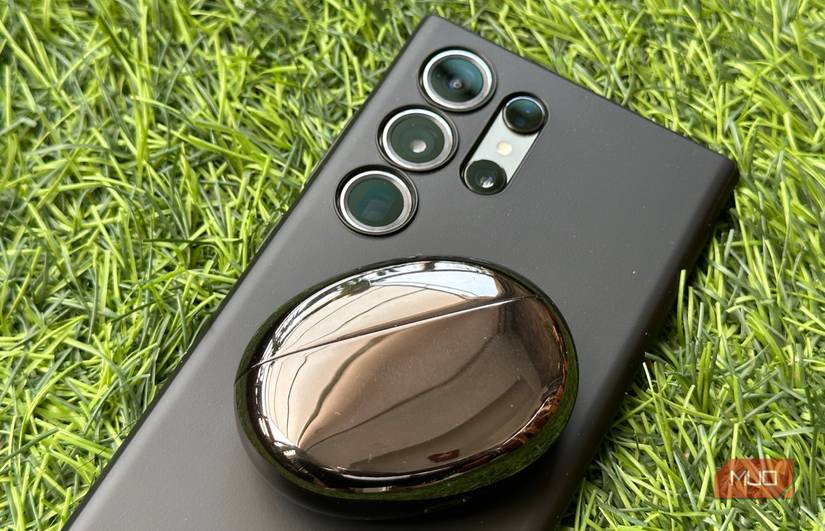
Did you know your Galaxy phone can charge other devices wirelessly? This feature, called PowerShare, works on Galaxy S10+ and newer flagships, Note10+ and later, and Z Fold and Z Flip series.
Share Power with Accessories
To charge Galaxy Buds, a smartwatch, or another phone:
- Open Settings, then Battery and device care, then Battery
- Tap Wireless power sharing and toggle it on
- Place the device centered on the back of your phone
Charging starts automatically at 4.5W to 5W. A notification will confirm connection.
Warning: PowerShare drains your battery quickly. Use it only when needed and keep your phone charged above 30%.
Troubleshoot Common Problems
Even with perfect setup, issues can arise. Here is how to fix them fast.
Phone Will Not Charge Wirelessly
Possible causes include misalignment, metal case or object, faulty cable or adapter, and software glitch.
Fix by doing the following:
1. Reposition the phone
2. Remove case and check for metal
3. Test with a different cable and wall charger
4. Restart the phone
Diagnostic Tip: Try charging a different Qi-compatible phone on your pad. If it works, the issue is with your device.
Charging Stops After a Few Minutes
This is usually due to overheating.
Solutions include:
– Remove the case
– Turn off intensive apps
– Charge in a cooler room
– Disable fast wireless charging temporarily
Slow Charging Speed
You are not getting 15W? Check these items:
– Is Fast wireless charging enabled in settings?
– Are you using a 15W+ PD charger?
– Is the cable undamaged?
Replace low-quality cables with Samsung-original or MFi-certified ones.
Maintain Charger Longevity
A little care goes a long way in extending your wireless charger life.
Clean the Pad Weekly
Wipe the charging surface with a dry microfiber cloth. For stubborn grime, lightly dampen the cloth. Never spray liquid directly. Dust and oils reduce coil efficiency over time.
Protect the Cable
Avoid sharp bends or heavy objects on the cable. Consider a braided replacement cable for durability. Unplug gently. Do not yank.
Store Properly
Keep the charger in a cool, dry place. Avoid dropping it. Internal coil damage is not repairable.
Know Compatible Samsung Devices
Not all Samsung phones support wireless charging. Here is a quick reference.
Supported Series
- S Series: S10 and newer
- Note Series: Note9 and newer
- Z Series: All Fold and Flip models
- A Series: A72, A52, A32 (select models)
- M Series: M51, M31
- XCover Series: XCover Pro and newer
Verify first: Check your model specs on Samsung.com if unsure. Older A or M series may lack support.
Optimize for Daily Use
Make wireless charging part of your routine with these habits.
Use a Charging Stand at Night
Place a vertical charging stand by your bed. It keeps your phone visible for alarms and charges faster due to better airflow.
Pair with Galaxy Ecosystem
Use a dual charging pad to power your phone and Galaxy Buds or Watch simultaneously. Ideal for morning routines.
Update Software Regularly
Go to Settings, then Software update monthly. Updates often improve charging efficiency, thermal management, and foreign object detection.
Frequently Asked Questions About Samsung Wireless Chargers
Does the Samsung wireless charger work with any phone?
Samsung wireless chargers use the Qi standard, so they work with any Qi-compatible device. However, fast charging speeds up to 15W require Samsung flagships like the Galaxy S10 and newer, plus a compatible charger and adapter.
Why is my Samsung phone not charging on the wireless charger?
Common reasons include misalignment, thick or metal cases, foreign objects like coins or cards, faulty cables or adapters, and software glitches. Try repositioning the phone, removing the case, and checking connections.
Can I use my phone while it is charging wirelessly?
You can, but it generates heat and slows charging. Gaming, video calls, or GPS navigation increase power draw and may trigger thermal throttling, which reduces or stops charging.
How do I enable fast wireless charging on my Samsung phone?
Go to Settings, then Battery and device care, then Battery, then More battery settings, and toggle on Fast wireless charging. Your phone must support Fast Wireless Charging 2.0, and you need a 15W+ charger and adapter.
Is wireless charging bad for my Samsung battery?
Wireless charging does not inherently damage batteries more than wired charging. However, frequent overheating from poor ventilation or thick cases can shorten battery lifespan over time. Keep your phone cool and use proper accessories.
Can I charge my Galaxy Buds on a Samsung wireless charger?
Yes, if your charger is a flat pad or your phone supports PowerShare. Place the buds case centered on the pad or on the back of your phone to initiate charging at 4.5W to 5W.
Key Takeaways for Using Your Samsung Wireless Charger
To wrap up, here are the top five must-do actions for flawless Samsung wireless charging:
- Use a 15W+ wall adapter, not a USB port
- Remove metal cases and cards before charging
- Enable Fast wireless charging in settings if supported
- Center the phone on the pad every time
- Keep the phone cool by avoiding use during charging
Avoid third-party chargers unless they are Qi-certified and rated for 15W fast charging. Even then, genuine Samsung accessories deliver the most reliable performance.
Final Note: With proper setup and care, your Samsung wireless charger offers a seamless, cable-free experience. By aligning correctly, using the right power source, and preventing overheating, you will enjoy fast, safe, and consistent charging every day. Keep this guide handy for quick reference and never struggle with wireless charging again.





