Your phone won’t charge. The screen stays dark, the battery icon doesn’t appear, or it flickers on and off. You’ve tried plugging it in multiple times with the same frustrating result. Before you panic or rush to buy a new charger, know this: most charging issues aren’t caused by the charger at all. In fact, over 70% of problems stem from debris in the charging port or a frayed cable.
This guide walks you through a proven, step-by-step method to pinpoint and resolve the real cause. From testing outlets and swapping cables to cleaning ports and checking battery health, we’ll cover every possible culprit. You’ll learn when to restart your phone, how to use simple tools like a dental floss pick, and when it’s time to call a professional.
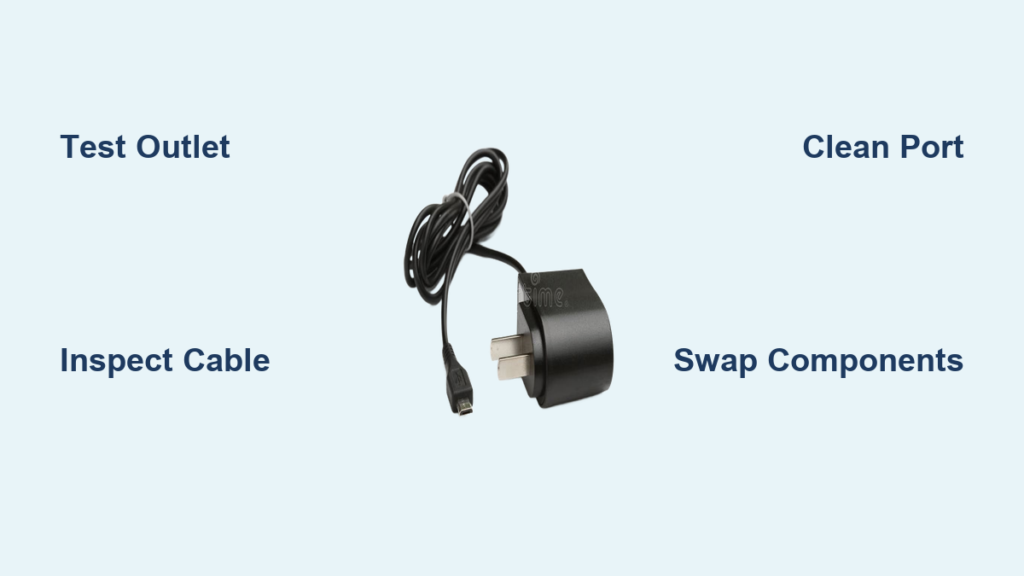
Test the Power Outlet First
Before blaming your charger, confirm the outlet works. A dead outlet mimics a broken charger and wastes time on unnecessary repairs.
Plug in Another Device
Grab a lamp, fan, or another phone and plug it into the same outlet. If it doesn’t power on, the issue is the power source, not your charger. This simple test takes seconds and eliminates an entire category of potential problems.
Check for Switched Outlets
Some wall outlets are controlled by a light switch. Flip nearby switches to ensure the outlet is powered before proceeding with other diagnostics.
Reset GFCI Outlets
In bathrooms, kitchens, or garages, outlets have a Test and Reset button. If tripped, press Reset to restore power. These outlets trip easily and often cause charging failures that seem mysterious.
Use a Multimeter for Advanced Testing
Set your multimeter to AC voltage. Insert probes into the hot and neutral slots. A reading of 120V in the US or 230V in the EU means the outlet works. No reading indicates a problem at the breaker panel.
Inspect the Charging Cable for Damage
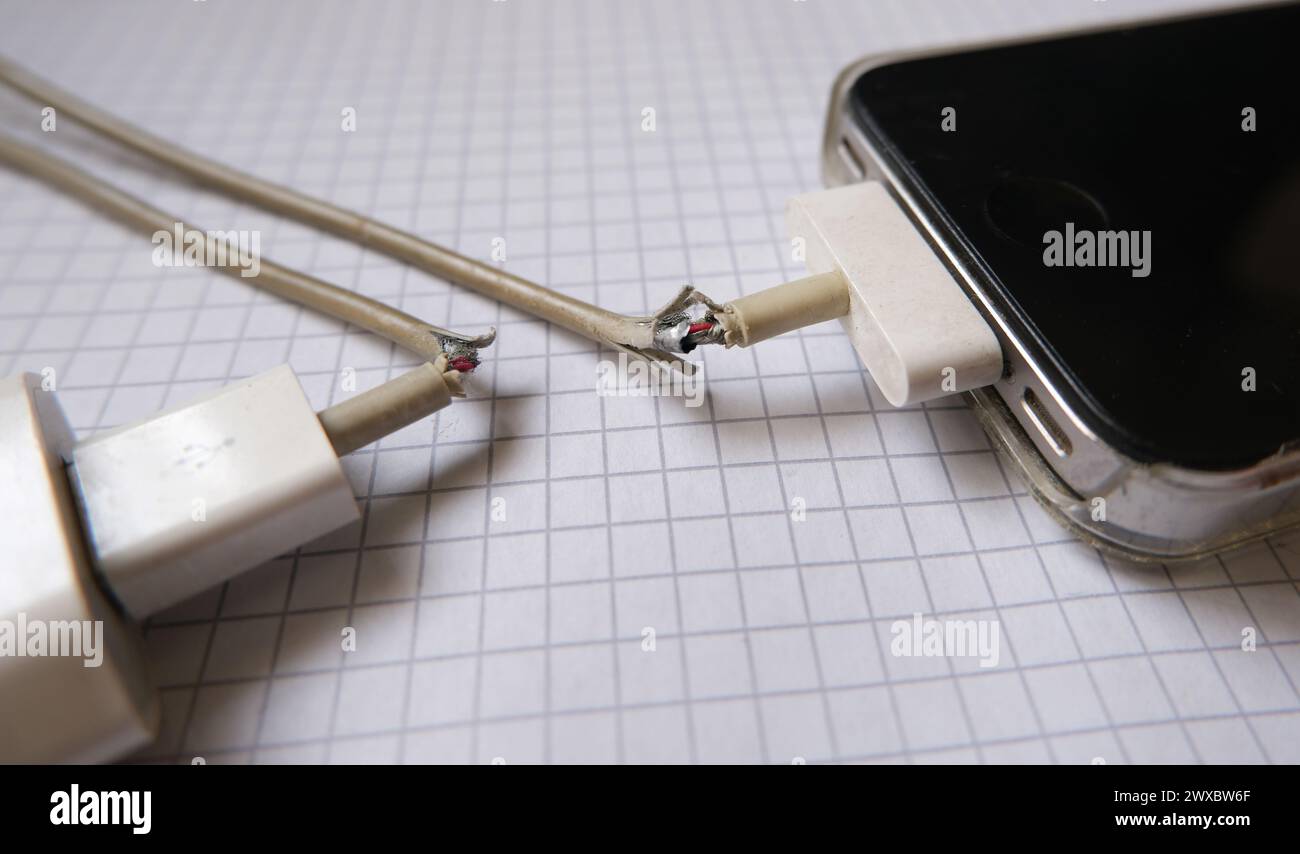
Cables fail more often than any other charging component. Constant bending, pulling, and twisting wear out internal wires over time.
Look for These Warning Signs
Frayed insulation near the ends
Exposed copper wires visible through the coating
Loose connector that wobbles or spins
Stiffness or kinks within three inches of the plug
Perform the Wiggle Test
Plug the cable into your phone. Gently bend the cable near both ends. If charging starts and stops when moved, the cable is damaged internally even if it looks fine on the outside.
Try a Different Device
Connect the cable to another phone or tablet. If it fails there too, the cable is definitely the problem and needs replacement.
Check the Power Adapter
Adapters last longer than cables but can fail silently due to power surges, overheating, or component aging.
Signs of Adapter Failure
No LED light when plugged in
Overheating during normal use
Burning smell or visible discoloration
No charging across multiple devices
Test with a Different Cable
Use your adapter with a known-working cable and phone. No charge indicates the adapter is likely dead and needs replacing.
Alternative Test Using a Computer
Connect your phone to a USB port on a laptop or PC. If it charges, the wall adapter is faulty. If it doesn’t charge, the problem is the cable or your phone.
Clean the Phone’s Charging Port
Debris like lint, dust, and pocket fluff blocks the connection between the cable and your phone’s internal contacts.
Symptoms of a Dirty Port
Phone charges intermittently
Cable doesn’t seat fully into the port
Shows accessory not supported message
Charging stops after a few seconds
Use Safe Cleaning Tools
Plastic dental floss picks work best
Wooden toothpicks are safe alternatives
Compressed air in short bursts
Soft brush like a clean toothbrush
Step-by-Step Cleaning Process
Power off the phone for safety. Tilt the phone downward so debris falls out. Gently scrape the port edges with a floss pick to loosen particles. Brush lightly to dislodge stubborn debris. Blow out the loosened particles with compressed air. Repeat until the port looks clean.
Verify Charger Compatibility
Not all chargers work with all phones, even if the cable fits the port physically.
Check Power Output Requirements
Modern phones need at least 5V/2A for standard charging. Fast charging requires 9V/2A or higher. Using a weak charger may result in no charging when the screen is on or the phone discharging while plugged in.
Understand Power Negotiation
Devices and chargers communicate via standards like USB Power Delivery, Qualcomm Quick Charge, or Apple Fast Charging. If the charger doesn’t support the required protocol, the phone won’t charge even when the cable fits.
Avoid Cheap Uncertified Chargers
Low-quality chargers may deliver unstable voltage, overheat, or damage your battery over time. Always use certified accessories from reputable brands.
Swap Components to Isolate the Problem
Use the replace-one-at-a-time method to identify exactly what’s failing.
Diagnostic Sequence
Try a new cable with your current adapter and phone. Try your current cable with a different adapter. Test your charger on another phone. Test a different charger on your phone.
What Each Result Means
If the charger works on another device, your phone’s port or battery is the issue. If the charger fails on all devices, the fault is in the cable or adapter. If your phone charges via computer USB but not wall outlet, the wall adapter is bad.
Restart the Phone
Sometimes the phone software glitches and shows charging that isn’t actually happening.
Force Restart Methods
For iPhone, press Volume Up, then Volume Down, then hold the Side button until the Apple logo appears. For Android, hold Power and Volume Down for 10 to 15 seconds.
Expected Results
A forced restart often fixes charging icons that display but don’t increase the battery percentage. This is one of the simplest fixes but gets overlooked frequently.
Check Battery Health

A degraded battery may not accept charge properly, making it seem like the charger is broken.
For iPhone Users
Go to Settings, then Battery, then Battery Health and Charging. If Maximum Capacity is below 80%, the battery needs replacement.
For Android Users
Samsung users can check via the Samsung Members app. Other Android users can try AccuBattery to track wear and charging cycles.
Identify Internal Hardware Issues
If all external parts test good, the problem lies inside your phone.
Signs of Internal Failure
Charging port feels loose or wobbly
Bent or broken pins visible inside the port
Wireless charging works but wired charging doesn’t
Phone only charges at a specific angle
Key Insight
If wireless charging works but wired charging fails, the battery is fine. The issue is specifically with the charging port or cable connection.
Rule Out Battery Failure
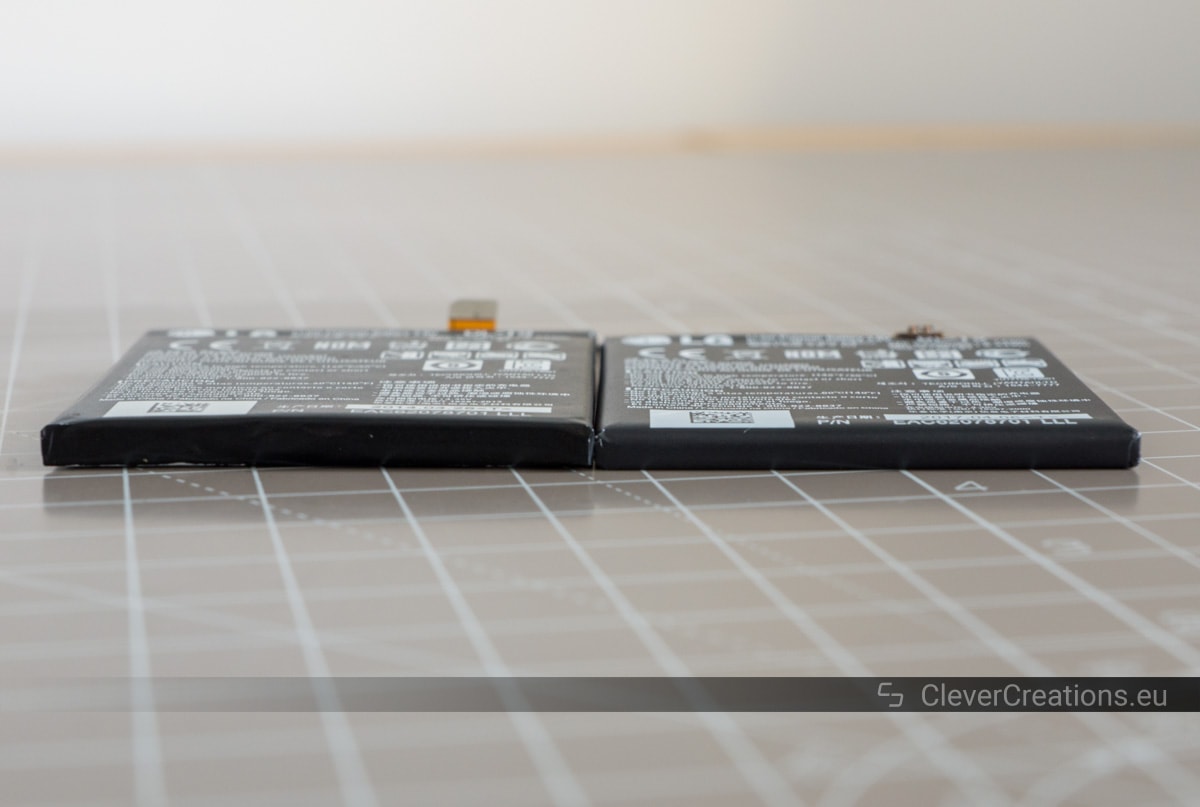
Not all charging problems originate from the charger.
Battery vs Charger Symptoms
A charger issue shows a charging icon but the device won’t turn on. A battery issue means the device is dead even with a good charger. Charger issues cause heat only during fast charging. Battery issues cause heat during normal use. A swollen battery causes physical deformation of the device.
Critical Warning
A bulging battery is dangerous. Stop using the phone immediately. Do not charge it. Seek professional repair right away.
Know When to Replace the Charger
Some damage cannot be fixed and requires replacement.
Replace If
Frayed wires or exposed copper are visible
Charging works only at certain angles
The charger overheats or smells burned
Multimeter confirms no voltage output
Safety Note
Never attempt to repair a damaged charger yourself. It creates fire and shock hazards. Always replace damaged equipment.
Choose the Right Replacement
Not all chargers are equal, and cheap options can cause more problems.
Buy Certified Accessories
Look for MFi certification for Apple products. USB-IF certification is essential for USB-C. UL, CE, or FCC marks indicate safety testing.
Recommended Upgrades
Braided cables last longer than standard cables. GaN chargers run cooler and charge faster. Multi-port adapters handle multiple devices efficiently.
When to See a Professional
DIY fixes won’t work if the hardware is physically damaged inside your phone.
Seek Repair If
The port is physically loose or damaged
Bent pins or blackened contacts are visible inside
The phone was dropped or exposed to water
Cleaning and component swaps didn’t help
Cost Consideration
If repair costs more than 50-70% of your phone’s current value, consider upgrading to a new device instead.
Prevent Future Charging Issues
A little care goes a long way toward avoiding charging problems.
Best Practices
Always unplug by the plug, not the cable. Avoid sharp bends near connectors. Store cables loosely coiled, not tightly twisted. Clean ports every one to three months. Use cable protectors at stress points. Rotate between multiple chargers to reduce wear.
Recommended Tools
Keep dental floss picks handy for quick port cleaning. A wall outlet tester verifies power before troubleshooting. A multimeter helps tech-savvy users diagnose electrical issues. A power bank provides backup charging during emergencies.
Final Step-by-Step Fixing Protocol
Follow this sequence for the most efficient diagnosis.
Test the outlet with another device. Inspect the cable for visible damage. Check the adapter for heat or smell. Clean the charging port with a floss pick. Reseat all connections fully. Swap components one at a time. Verify compatibility and power output. Test with a multimeter if available. Restart the phone to clear glitches. Check battery health in settings. Seek professional help if unresolved.
Frequently Asked Questions About Phone Charging Issues
Why does my charger work on one device but not another?
This happens due to compatibility and power requirements. Older chargers may not support newer fast-charging standards. The power negotiation handshake fails if the charger can’t provide what the device needs.
My phone shows it’s charging, but the battery percentage doesn’t increase. What’s wrong?
The charger provides just enough power for the charging icon but not enough to actually charge the battery. This happens with weak adapters, frayed cables, or when using the phone heavily while charging. Switch to a higher-wattage certified charger and avoid using the phone while charging.
Can a cheap cable damage my phone?
Yes. Low-quality cables lack proper shielding, deliver unstable voltage, and can damage the charging port or degrade battery health over time. Always use certified cables from reputable brands like Anker, Belkin, or Samsung.
My phone only charges when I wiggle the cable. What does this mean?
This indicates either internal wire breakage in the cable or a loose, damaged charging port. Test with a new cable first. If the problem persists, your phone’s port likely needs professional repair.
Can I charge my phone if the charging port is wet?
No. Moisture causes short circuits. Modern phones display a liquid detected message and disable charging. Do not use heat or cotton swabs. Let the phone air dry in a warm, dry place for several hours before attempting to charge.
Does fast charging damage my battery?
Fast charging generates more heat, which accelerates battery wear over time. It’s not significantly damaging for occasional use, but prefer slower charging overnight when possible to extend battery lifespan.
Key Takeaways for Fixing a Phone Charger
Most charging issues aren’t actually charger failures. The majority of problems stem from debris blocking the charging port or cable damage that’s invisible from the outside. A simple dental floss pick and a few minutes of cleaning resolve more charging problems than any other single fix.
Always test components systematically by swapping them one at a time. This isolates the exact faulty part without wasting money on unnecessary replacements. Use certified accessories from reputable brands to ensure safety and compatibility.
When DIY fixes don’t work, professional repair is the answer, especially for internal hardware issues or water damage. Consider the cost of repair against your phone’s value before proceeding. With proper care and the right tools, you can keep your phone charging reliably for years.