
You plug in a universal laptop charger, snap on a different tip, and suddenly it powers your Dell, Lenovo, or HP. No need for multiple bricks. But how does it know what voltage to deliver? The truth is simpler than you think: a universal charger works by using interchangeable tips with built-in identification components, like resistors, that signal the correct voltage to the power supply.
These chargers do not guess or ramp up voltage blindly. They rely on standardized, low-tech feedback systems embedded in the connector tips. When you attach a tip designed for a specific laptop brand or model, it tells the charger brick exactly what output voltage to provide. In this guide, you will learn exactly how universal chargers identify device requirements, the role of resistor-based voltage selection, and how to avoid damaging your laptop.
How Universal Chargers Select the Right Voltage

Universal laptop chargers do not sense laptop needs through smart communication like USB-C Power Delivery. Instead, they use passive identification, a simple but effective method involving physical components inside the DC plug tips.
Resistor-Based ID System Explained
Inside each connector tip is a small resistor connected between the ground and a third pin. This resistor forms a voltage divider that the charger reads to determine the correct output voltage.
For example:
– A 3.3kΩ resistor might signal 19V output
– A 4.7kΩ resistor could mean 20V
– A 1.8kΩ resistor may trigger 12V
The charger contains a microcontroller or analog circuit that measures this resistance and switches the output accordingly. This is not random. It is a deliberate design that mimics the original equipment manufacturer specifications.
Pro Tip: If you open a universal charger tip and find a tiny resistor inside, that is the ID component. It is not decorative. It is functional.
The Three-Pin Configuration
Many universal chargers use a three-pin configuration:
– Positive pin (+)
– Ground pin (-)
– ID pin (for resistor feedback)
When the tip is inserted, the third pin completes the circuit with the internal resistor. This allows the charger to read the required voltage before delivering power. This prevents incorrect voltages from reaching your laptop.
Warning: Using a damaged or counterfeit tip without the proper resistor can cause the charger to default to an unsafe voltage, potentially damaging your device.
Manual Voltage Switching in Older Models

Not all universal chargers are smart. Some older or budget models skip the resistor-ID system entirely. Instead, they rely on manual voltage selection.
How Slide and Dial Switches Work
These chargers feature a physical switch on the main brick. You must manually set the voltage based on your laptop requirements, usually printed on the device bottom or near the charging port.
For example:
– Set to 15V for older Toshiba or Fujitsu laptops
– Set to 20V for newer Dell or Microsoft Surface devices
Time-Saving Hack: Always check your laptop label first. Never guess the voltage. A mismatch can fry internal circuitry.
The Risk of Human Error
With manual switching, the risk of user error increases significantly. Accidentally setting 20V on a 12V laptop can destroy the motherboard. That is why modern universal chargers increasingly use auto-sensing tips instead of manual switches.
Best Practice: If your charger has a switch, double-check it every time you change devices, even if you think you remember the setting.
Why Voltage Compatibility Matters
Laptops are sensitive to input voltage, but not always as fragile as people assume. Understanding tolerance ranges helps explain why some universal chargers seem to work across multiple brands.
Most Laptops Accept Small Voltage Differences
Modern laptops typically regulate incoming power using internal DC-DC converters. As a result, they can often tolerate slight voltage differences.
Example:
– A laptop rated for 19V may safely operate between 18V and 20.5V
– A 20V system might accept 19V to 21V
This flexibility allows universal chargers to serve multiple devices, even without perfect voltage matching.
Rule of Thumb: Never exceed ±1.5V unless the manufacturer specifies otherwise.
Understanding Amps and Watts
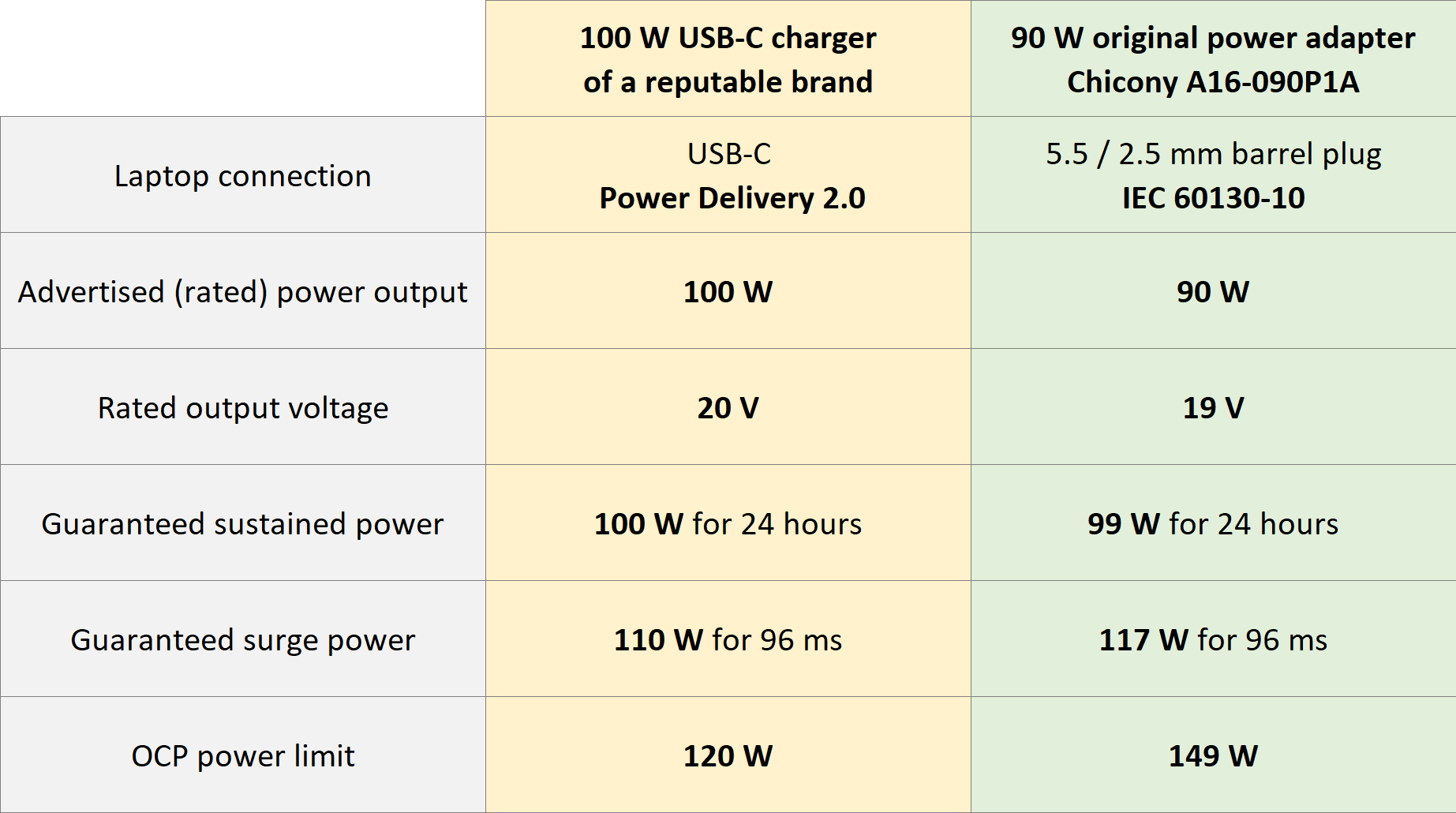
Voltage is not the only factor. You must also consider amperage and wattage.
- Amps: The charger rated amperage should be equal to or greater than the laptop requirement. More amps are safe. Fewer are not.
- Watts: Calculate using Volts × Amps = Watts. A 65W laptop needs at least 65W input.
Example:
| Charger Output | Laptop Requirement | Safe? | Reason |
|---|---|---|---|
| 19V, 3.42A (65W) | 19V, 3.42A (65W) | Yes | Exact match |
| 20V, 3.25A (65W) | 19V, 3.42A (65W) | Yes | Slight over-voltage, same wattage |
| 19V, 3.0A (57W) | 19V, 3.42A (65W) | No | Insufficient wattage |
Critical Insight: Even if voltage matches, low wattage can cause shutdowns, slow charging, or overheating.
Common Misconceptions About Universal Chargers
Universal chargers get a bad rap, often because users misunderstand how they work. Let us clear up the myths.
Myth: It Automatically Detects My Laptop
This is false. Unlike USB-C PD or MagSafe, most universal chargers do not communicate digitally with the laptop. They rely on pre-programmed resistor values in the tips. There is no handshake protocol. No data exchange. Just a resistor telling the charger to output a specific voltage.
Reality: The intelligence is in the tip, not in communication with the laptop.
Myth: All Tips Are Interchangeable
This is false. Not all universal tips are created equal. Some third-party sets use incorrect resistor values or poor wiring.
For example:
– A tip labeled for Dell might have a 3.3kΩ resistor instead of the correct 4.7kΩ
– This causes the charger to output 19V instead of 20V, potentially leading to instability
Solution: Buy branded or well-reviewed tip kits. Test output voltage with a multimeter before connecting to your laptop.
Myth: Universal Chargers Are Scams
This is mostly false. While cheap knockoffs exist, well-designed universal chargers are legitimate and safe, as long as you use the right tip and meet power specs. They have been used in repair shops and IT departments for years.
Pro Note: Many IT professionals carry universal chargers for troubleshooting because they do work reliably when used properly.
How to Use a Universal Charger Safely
Using a universal charger does not have to be risky. Follow these steps to protect your laptop.
Step 1: Check Laptop Power Requirements
Before plugging in, locate the power specs on your laptop. Look under the battery, check the label on the bottom, or find the original charger output rating.
Write down:
– Voltage (e.g., 19V)
– Amperage (e.g., 3.42A)
– Polarity symbol (center positive or negative)
Example: Output: 19V ⎓ 3.42A means 19 volts, center positive, 3.42 amps.
Step 2: Match the Tip and Voltage
Choose a tip designed for your laptop brand:
– Dell: Usually 20V
– Lenovo: Often 20V or 19V
– HP: Varies (18.5V, 19.5V, 12.5V)
Then confirm the tip has the correct resistor. Use a multimeter to test output voltage if unsure.
Quick Test: Set your multimeter to DC voltage, plug in the charger without the laptop, and touch probes to the tip center and outer contacts.
Step 3: Verify Wattage Compatibility
Ensure the charger meets or exceeds your laptop wattage needs.
Formula: Volts × Amps = Watts
Example:
– Laptop needs: 19V × 3.42A = 65W
– Charger provides: 19V × 3.5A = 66.5W
This is safe.
Never use a 45W charger on a 65W laptop for extended periods. It may overheat or fail to charge under load.
What to Look for When Buying a Universal Charger
Not all universal chargers are equal. Choose wisely to avoid damage and frustration.
Key Features to Prioritize
| Feature | Why It Matters |
|---|---|
| Auto-sensing tips with resistors | Eliminates manual switching errors |
| Wide voltage range (12-24V) | Supports more laptop types |
| High max wattage (65W+) | Handles modern laptops |
| Reversible polarity options | Fits older or specialty models |
| Over-voltage and short-circuit protection | Prevents damage from faults |
Top Pick: Look for models like Targus, StarTech, or iOrange that include labeled, tested tips and safety certifications (UL, CE, FCC).
Red Flags to Avoid
- No resistor in tips, just wires
- No voltage labeling on tips
- No safety certifications
- Extremely low price (under $20 for full kit)
Warning: Cheap chargers may lack proper regulation, risking fire or device damage.
Real-World Limitations of Universal Chargers
Even the best universal charger has limits. Know when to stick with OEM equipment.
Not Suitable for High-Power Laptops
Gaming laptops and workstations often require 90W, 120W, or even 230W. Most universal chargers max out at 65W-100W.
Example:
– Alienware x17: Needs 240W. A universal charger will not suffice.
– MacBook Pro 16: Needs 140W. Only USB-C PD capable chargers work.
Alternative: Use a USB-C universal charger with Power Delivery for modern high-wattage needs.
Proprietary System Compatibility Issues
Some brands use custom communication protocols:
– Apple MagSafe (older models)
– Dell ExpressCharge
– Lenovo ThinkPad USB-C docking
Universal DC chargers cannot replicate these features. They only supply raw power.
Workaround: Use the original charger for full functionality. Use universal chargers only for emergency power.
Frequently Asked Questions About Universal Chargers
Does a universal charger work on any laptop?
A universal charger works on most laptops when you use the correct tip and meet the voltage and wattage requirements. Not all laptops are compatible, especially those requiring proprietary charging protocols or very high wattage.
How does the charger know which voltage to output?
The charger reads a resistor inside the connector tip. This resistor is connected to an ID pin that tells the charger what voltage to output. Different tips have different resistor values for different laptop brands.
Can I use a 20V charger on a 19V laptop?
Most modern laptops accept ±1V tolerance. A 20V charger on a 19V laptop typically works fine. However, always check your laptop specifications first. Exceeding the recommended voltage by more than 1.5V can cause damage.
What happens if I use the wrong voltage on my laptop?
Using too high voltage can damage the motherboard or power circuitry. Using too low voltage may cause the laptop to not charge or shut down unexpectedly. Always match the voltage as closely as possible.
Are universal chargers safe to use?
Yes, universal chargers are safe when used correctly. Use branded tips with proper resistors, verify voltage with a multimeter, and ensure wattage meets or exceeds your laptop requirements. Avoid cheap, uncertified models.
Can a universal charger damage my laptop?
Yes, damage can occur if you use the wrong voltage, insufficient wattage, or counterfeit tips without proper resistors. Following the safety steps outlined in this guide minimizes this risk significantly.
Key Takeaways for Using Universal Chargers
A universal charger works by using resistor-coded tips or manual switches to set the correct voltage. It is not magic, and it is not a scam. It is engineering that has been used in IT departments and repair shops for years.
The most important points to remember:
– The resistor in the tip tells the charger what voltage to output
– Always verify voltage, amperage, and wattage before use
– Test output with a multimeter if unsure
– Avoid ultra-cheap, uncertified models
– For high-wattage or USB-C laptops, consider advanced universal options
When chosen and used correctly, a universal charger is a reliable, cost-effective solution for powering multiple devices, traveling light, or supporting IT repairs. With this knowledge, you can confidently use a universal charger without frying your laptop or falling for myths.





